¶ Description
This allows users to analyze stock performance and detect when and how long inventory levels remained below a critical threshold for each agent or unit.
¶ Parameters tab
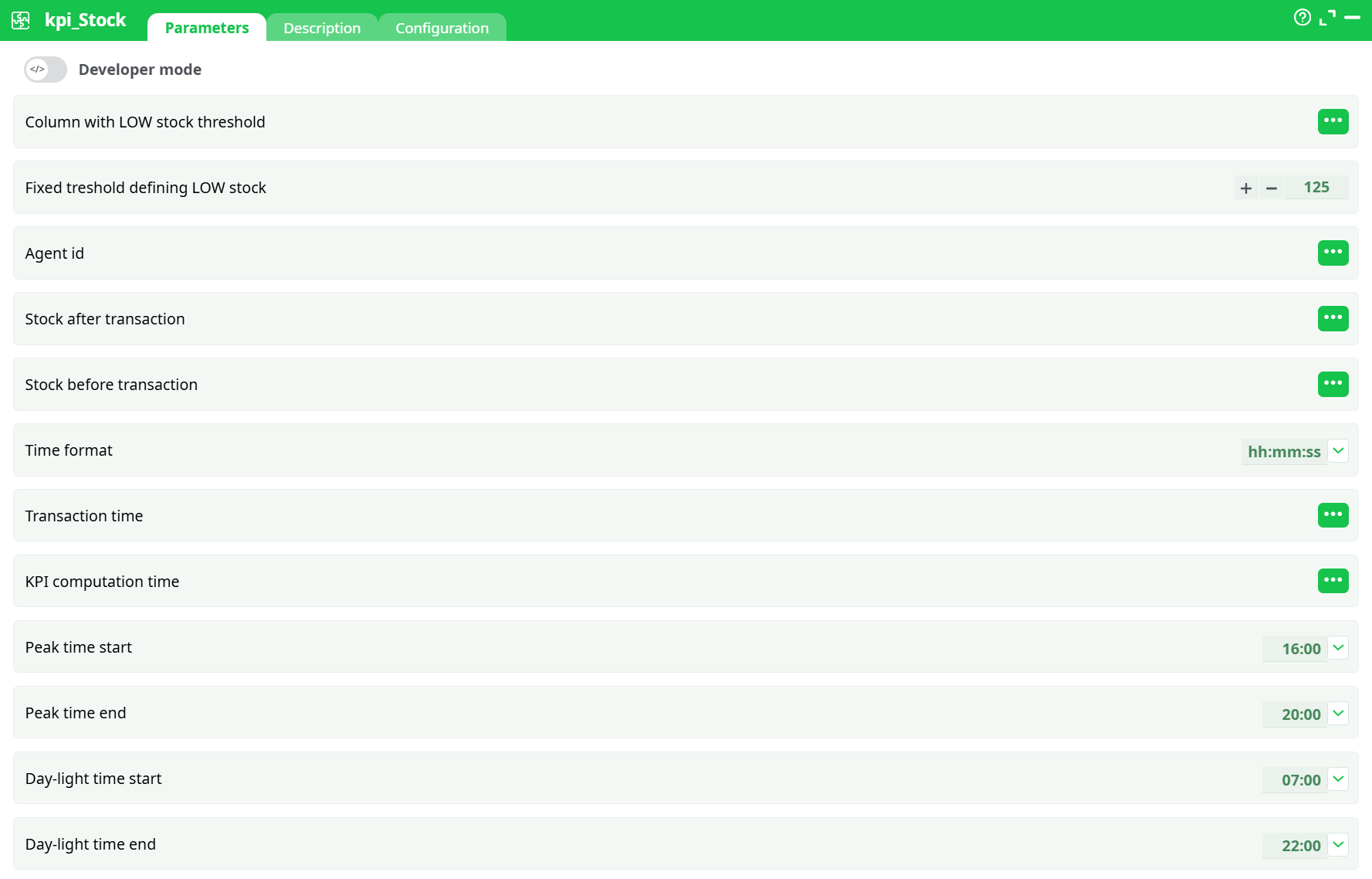
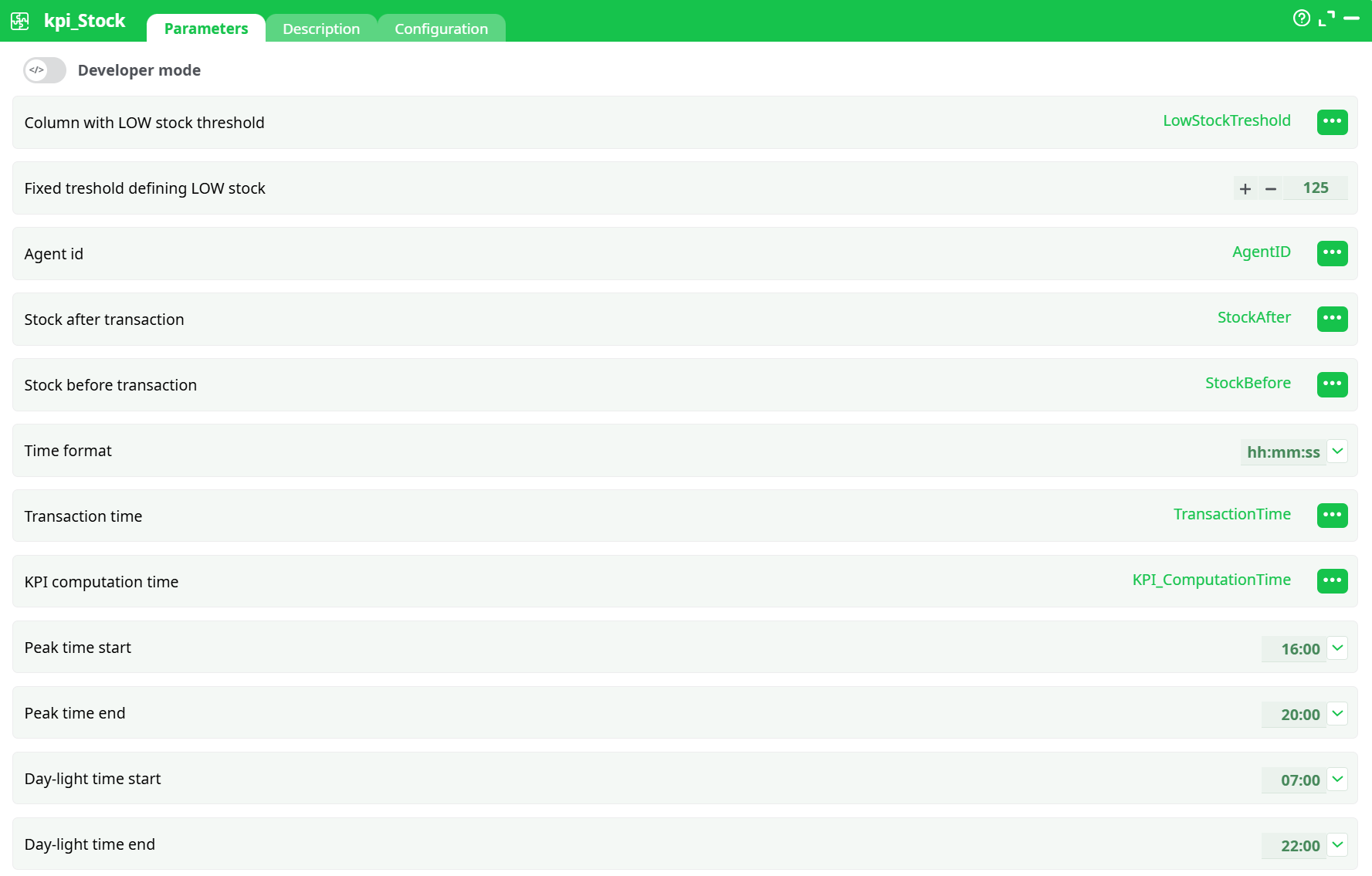
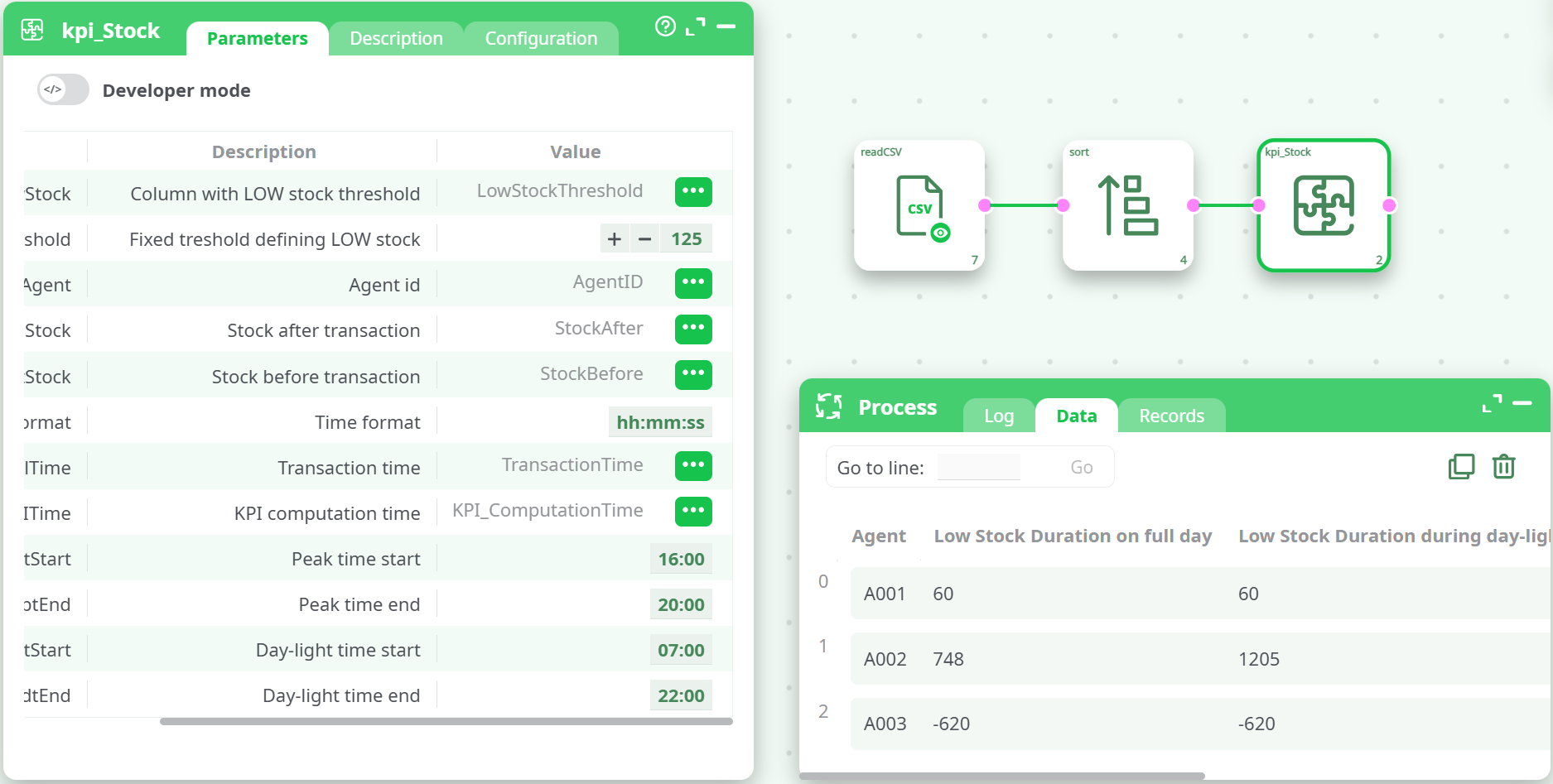
- Column with LOW stock threshold
- Fixed treshold defining LOW stock
- Agent id
- Stock after transaction
- Stock before transaction
- Time format
- Transaction time
- KPI computation time
- Peak time start
- Peak time end
- Day-light time start
- Day-light time end
¶ Description tab
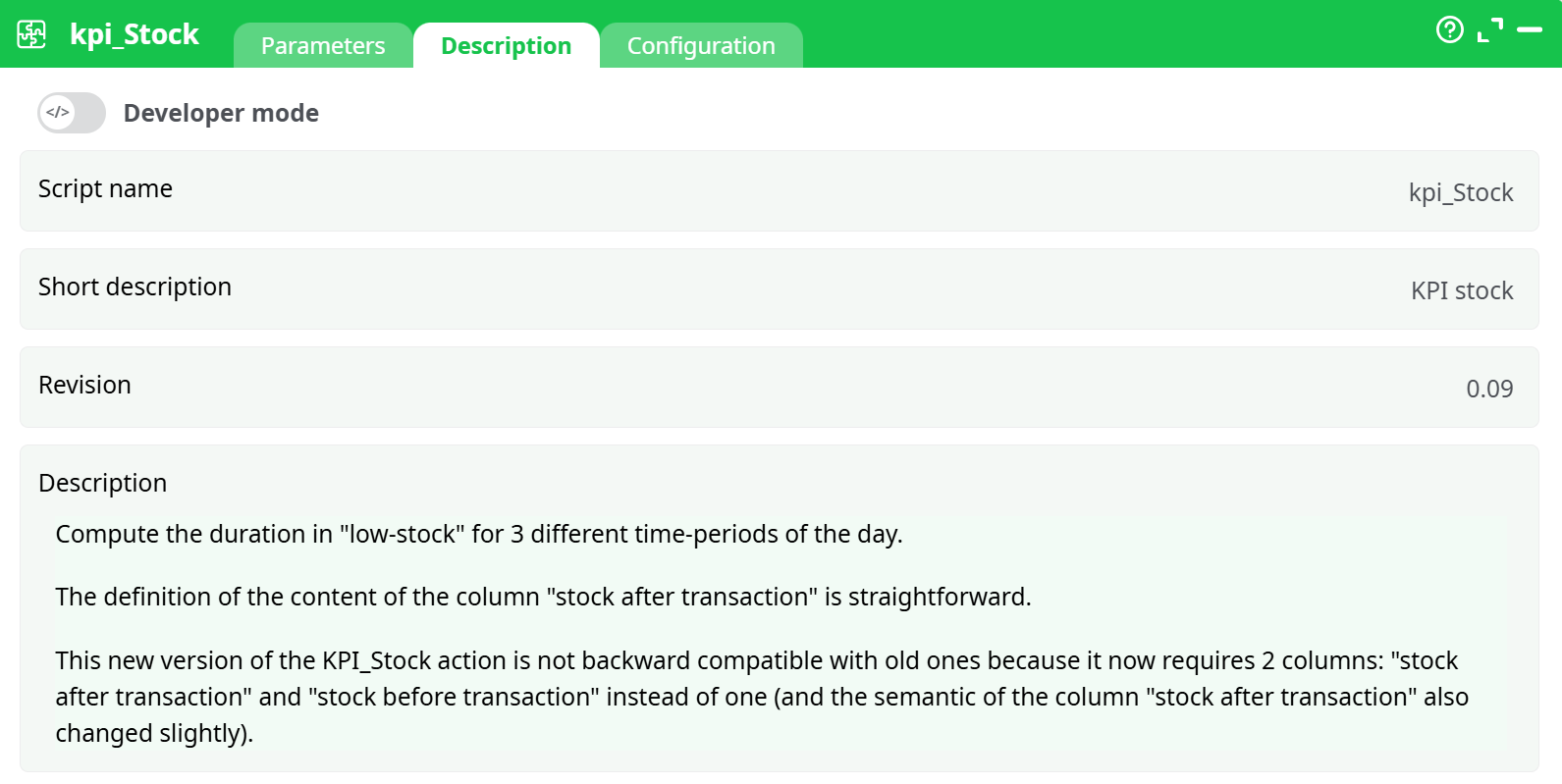
- Script name
- Short description
- Revision
- Description
¶ About
The kpi_Stock action calculates the duration of low-stock conditions across three different time periods of a day:
- Full day
- Daylight hours
- Peak hours
This allows users to analyze stock performance and detect when and how long inventory levels remained below a critical threshold for each agent or unit.
This version of the kpi_Stock action is not backward compatible with older versions. The main changes are:
- It now requires two separate columns:
StockBefore(stock before transaction)StockAfter(stock after transaction)
- The semantics of the
StockAftercolumn have been adjusted to more accurately reflect post-transaction levels.
The action calculates the low-stock duration in minutes based on a provided threshold, either fixed or per-record.
¶ Input Table Requirements
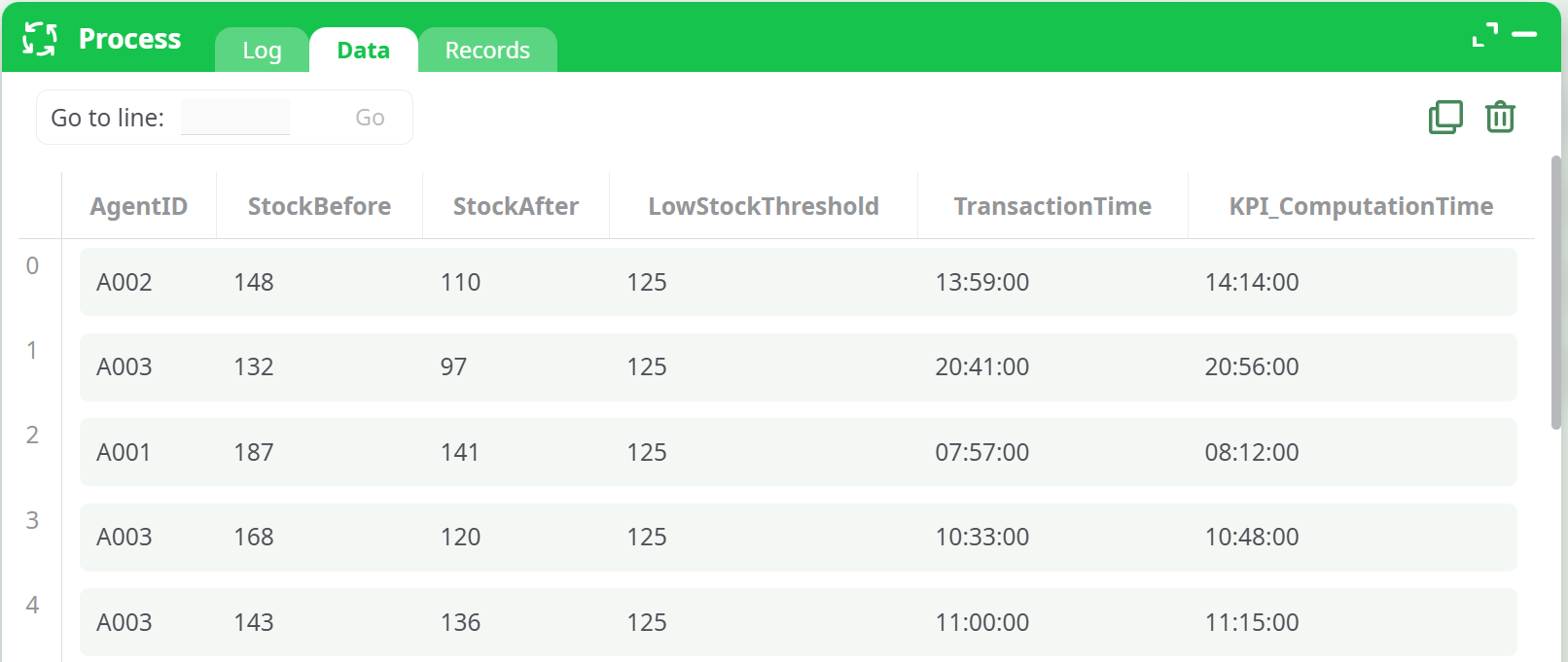
The input table must contain the following columns:
| Column Name | Description |
|---|---|
AgentID |
Unique identifier of the agent/unit |
StockBefore |
Stock level before the transaction |
StockAfter |
Stock level after the transaction |
LowStockThreshold |
Threshold value below which stock is considered low |
TransactionTime |
Time of transaction (format: hh:mm:ss) |
KPI_ComputationTime |
Time marking the end of the KPI evaluation window |
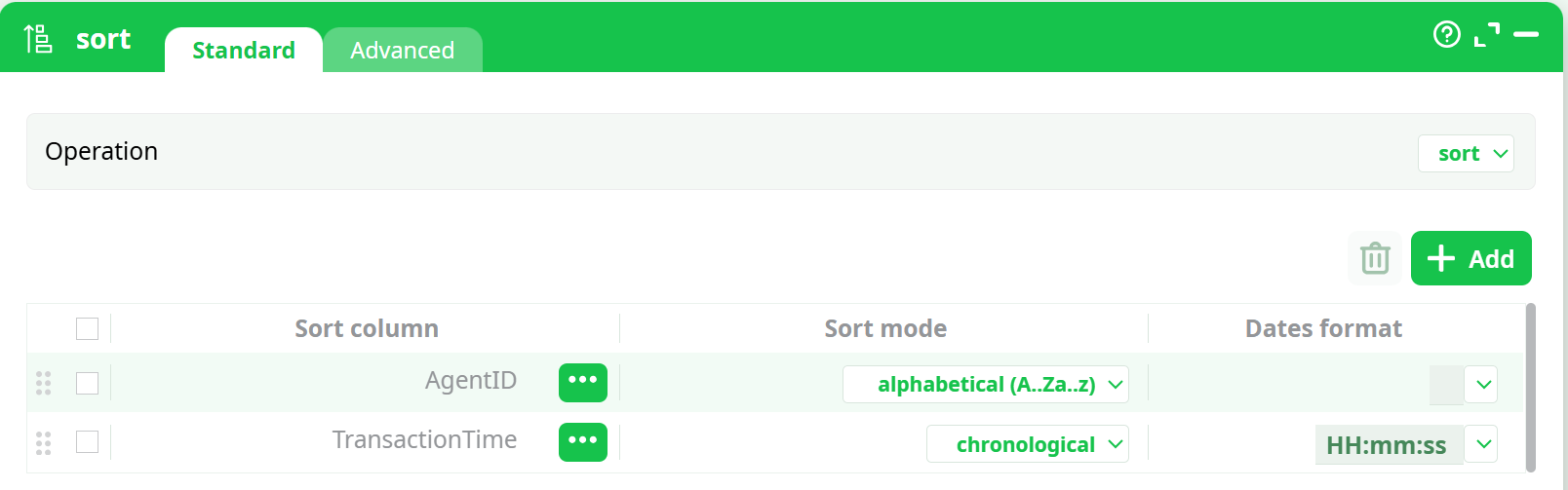
Before applying this action, the data must be sorted by
AgentID(alphabetical) andTransactionTime(chronologically).
¶ Input Preview
¶ Parameter Configuration Screenshot
¶ Required Sort Operation
To ensure proper KPI calculation, the input table must be sorted:
- First by
AgentID(alphabetical) - Then by
TransactionTime(chronological)
¶ Sort Configuration Screenshot
¶ Output Table
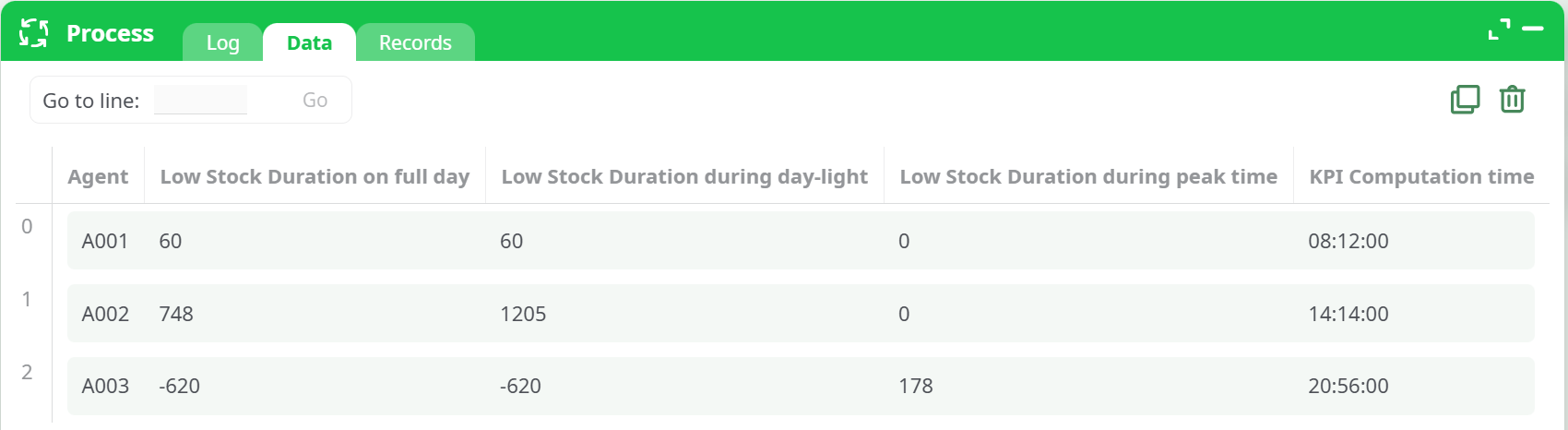
The resulting output table includes the following columns:
| Output Column | Description |
|---|---|
Agent |
Agent ID copied from input |
Low Stock Duration on full day |
Total minutes stock was below threshold during the full day |
Low Stock Duration during day-light |
Minutes of low stock during the daylight period (07:00 - 22:00) |
Low Stock Duration during peak time |
Minutes of low stock during peak hours (16:00 - 20:00) |
KPI Computation time |
Cutoff time used for calculation (from input column KPI_ComputationTime) |
¶ Output Preview Screenshot
¶ Example Use Case
Scenario:
You manage stock levels across retail agents and want to measure how often each one falls below a safety threshold. Using this action, you can:
- Determine which agents are underperforming
- Pinpoint what times of day stock shortages occur
- Take targeted actions to prevent loss due to out-of-stock
¶ Exemple of simple pipeline
- Notes:
- Negative durations may indicate incorrect sorting or overlapping timestamps — ensure your input is chronologically ordered.
- If both fixed and dynamic thresholds are provided, the dynamic column takes precedence.