¶ Description
Create a macro action from actions
¶ Parameters
¶ Description tab
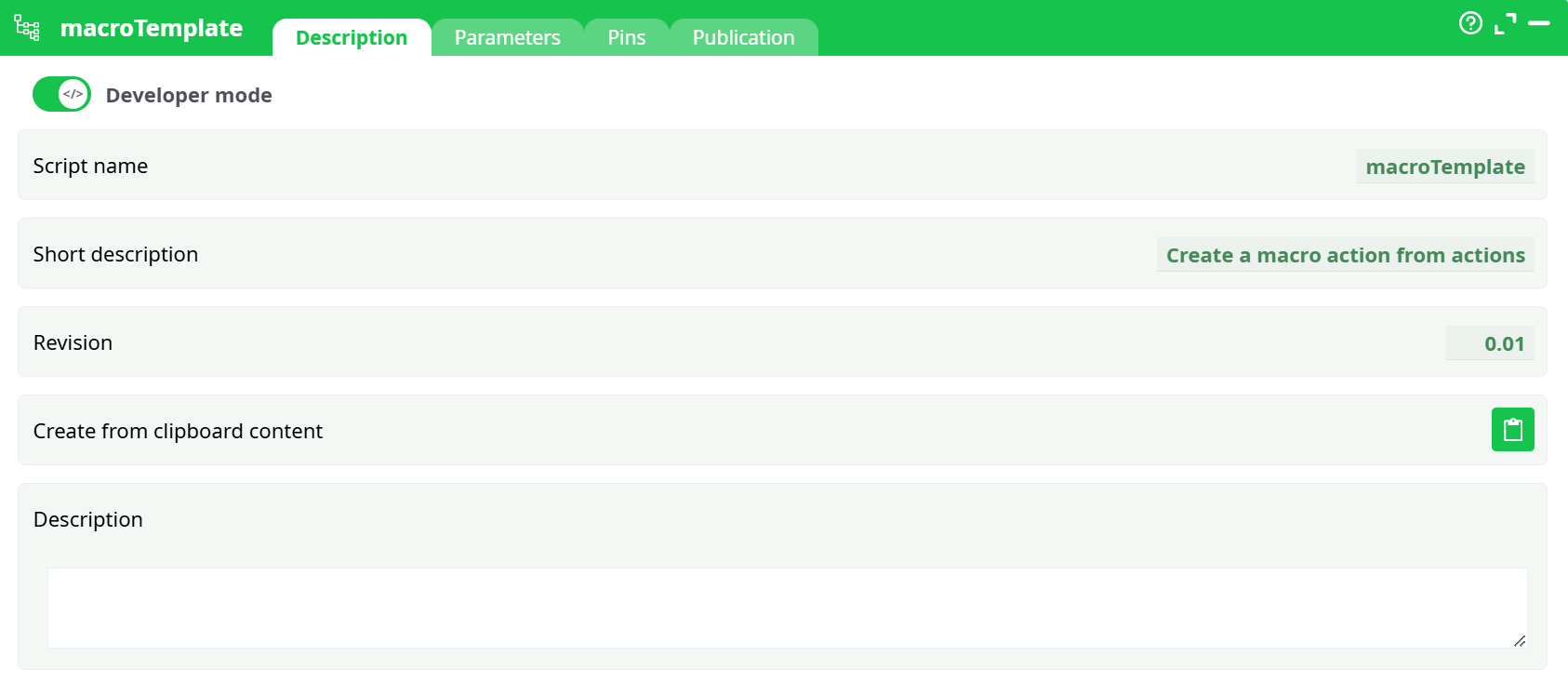
Parameters:
- Developer mode: activate/deactivate code tab.
- Script name
- Short description
- Revision
- Create from clipboard content
- Description
¶ Parameters tab
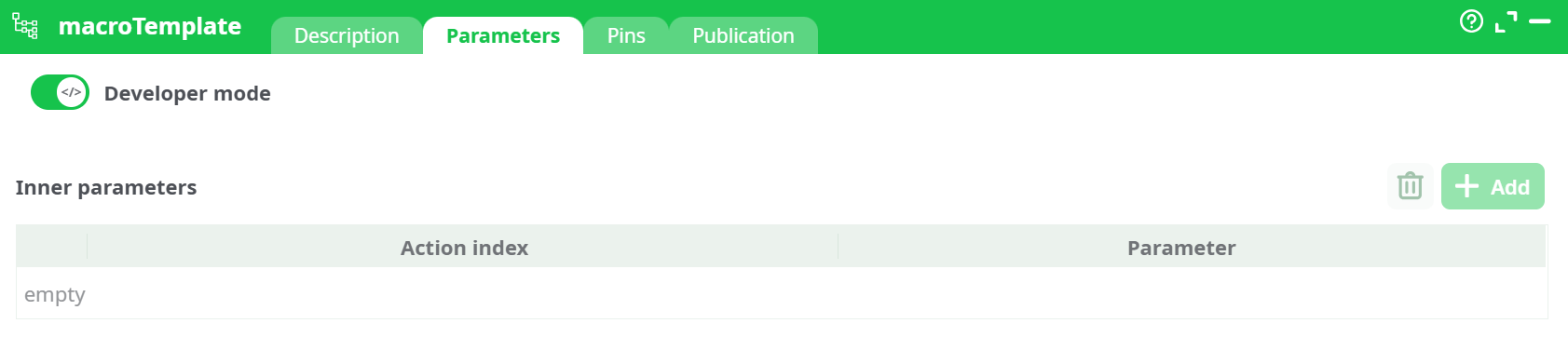
Parameters:
- Developer mode: activate/deactivate code tab.
- Inner parameters
¶ Pins
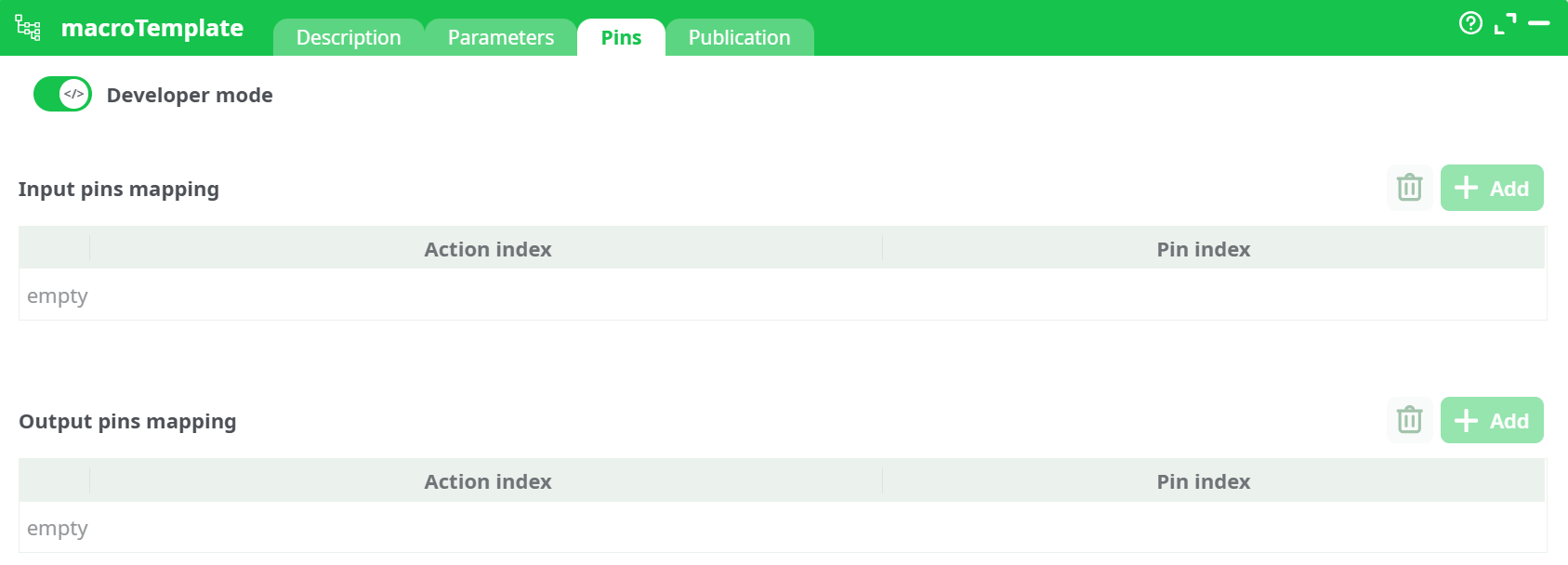
Parameters:
- Developer mode
- Input pins mapping
- Output pins mapping
¶ Publication tab
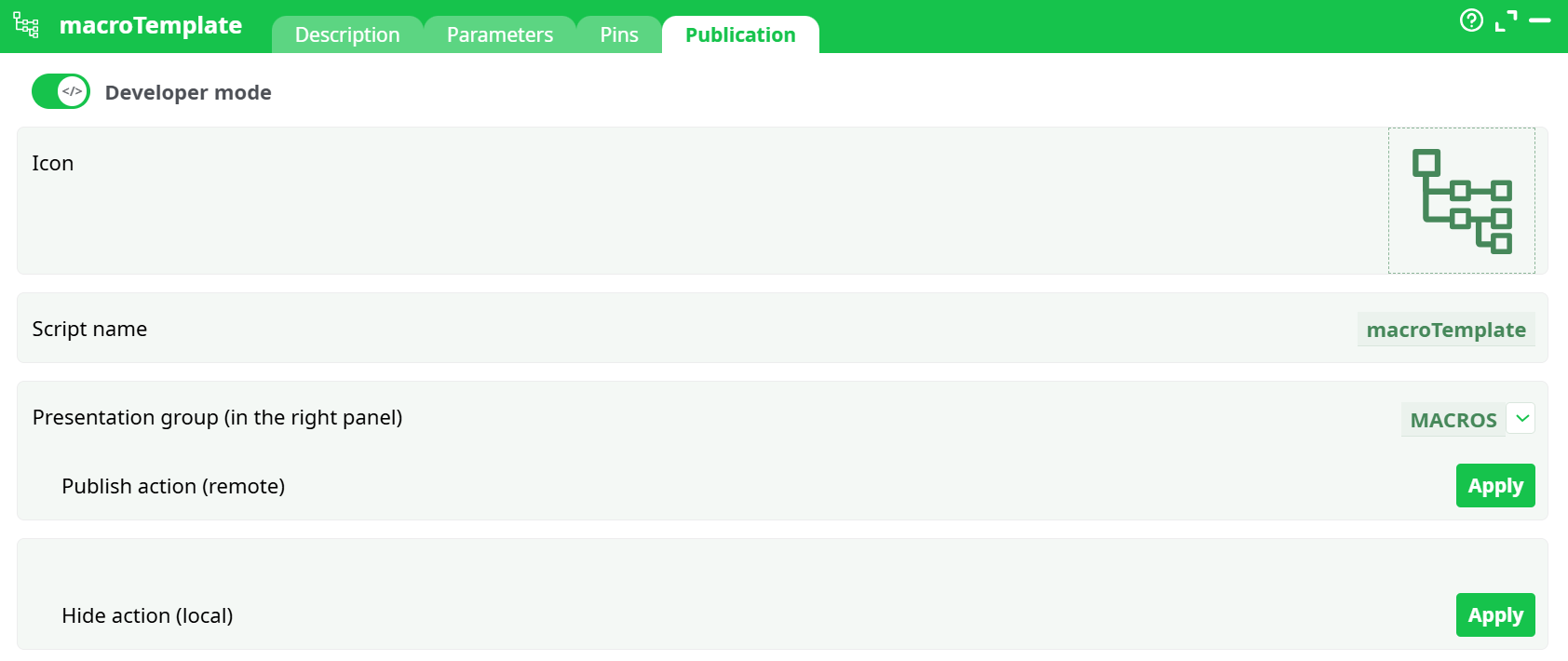
Parameters:
- Developer mode
- Icon
- Script name
- Presentation group (in the right panel)
- Publish action (remote)
- Hide action (local)
¶ About
A macro turns a stretch of existing actions into a single reusable action while preserving the streaming behavior of your pipeline. Unlike a sub-pipeline call that materializes the entire flow and emits a single summary row, a macro behaves exactly like the set of actions it encapsulates: rows enter, travel through each inner step in order, and exit without breaking the stream. This makes macros perfect for standardizing a frequently used pattern, decluttering a busy canvas, and sharing a proven sequence across projects. The macro inherits the configuration of the original actions at the moment of creation. In Developer mode you can expose which inner parameters remain editable for users, and you can define how external inputs and outputs map onto the inner steps through the Pins tab. When the macro is ready, publish it so it appears in the right panel and can be dragged into any pipeline. Updating the macro from its Publication tab refreshes the catalog entry in the right panel; existing macro nodes already placed in other pipelines remain unchanged, which preserves stability.
¶ Creating a macro
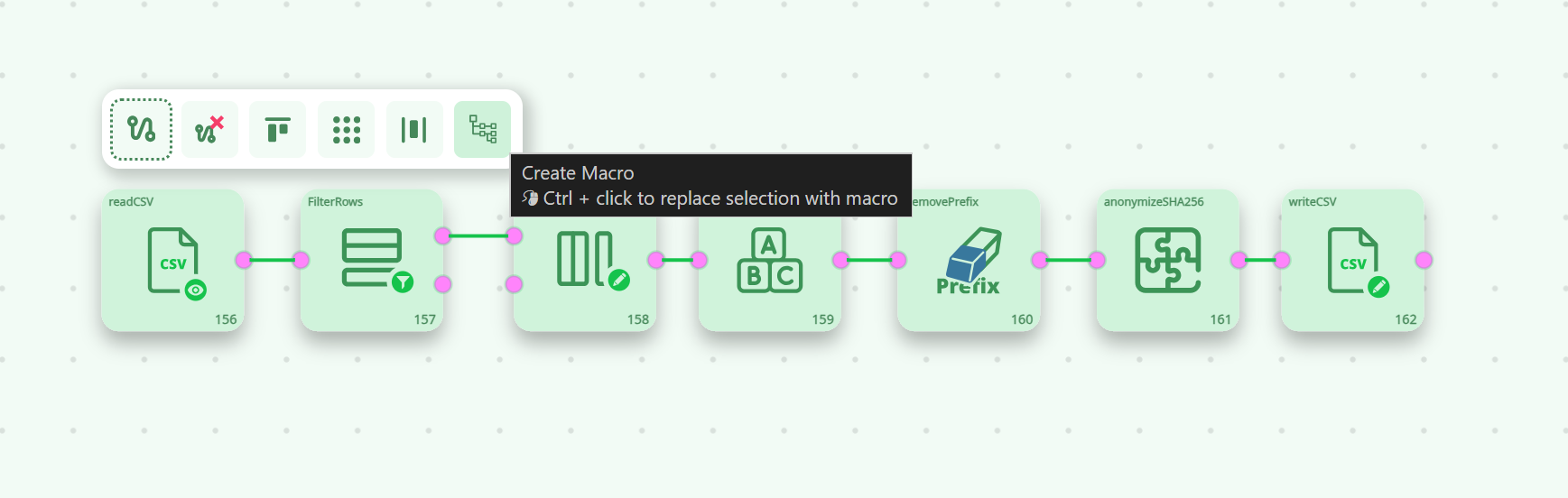
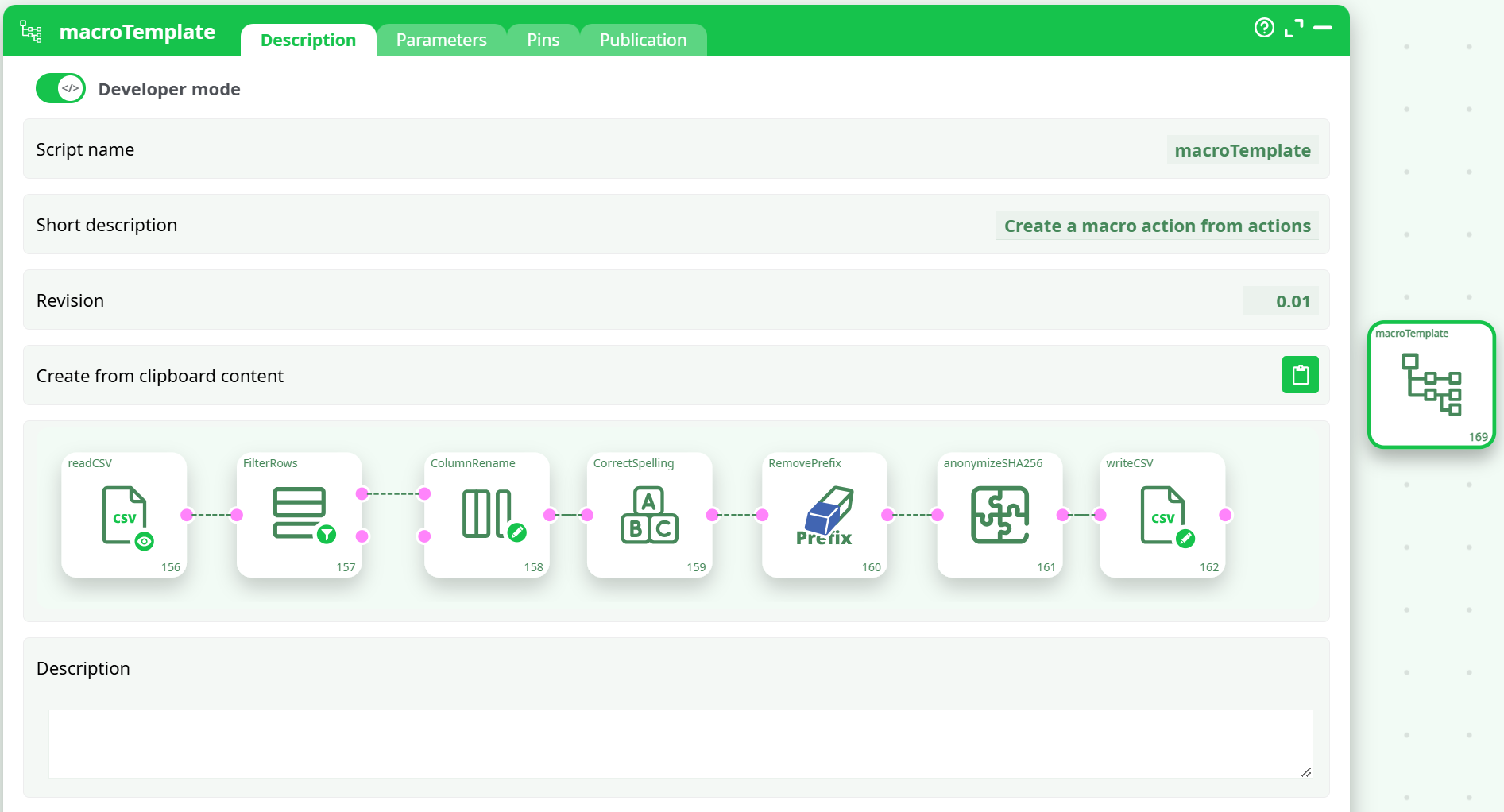
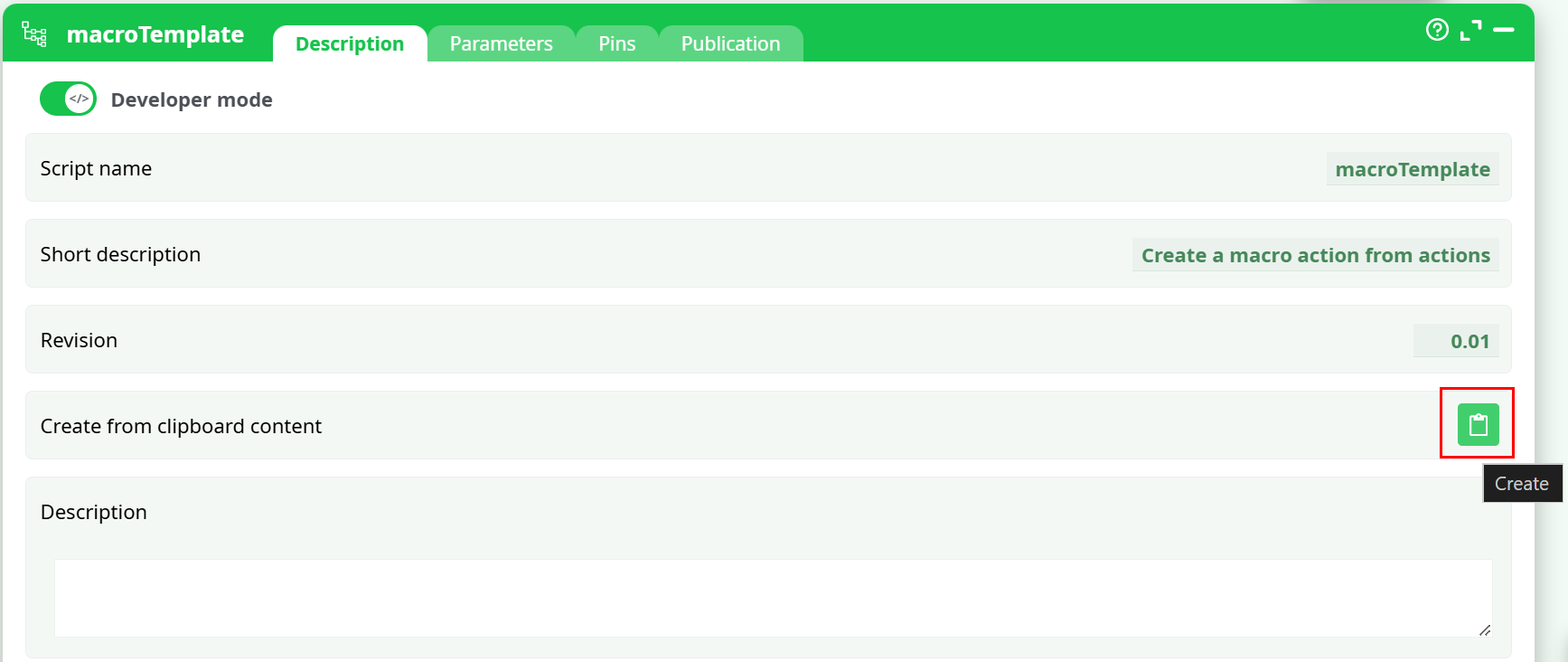
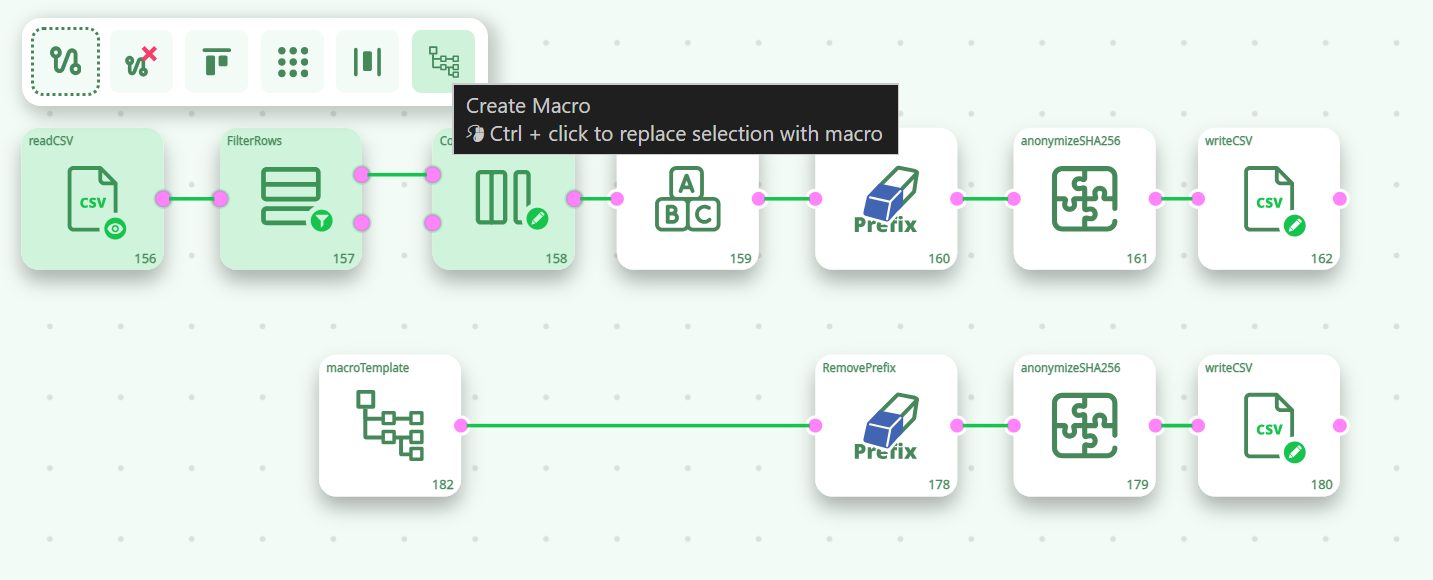
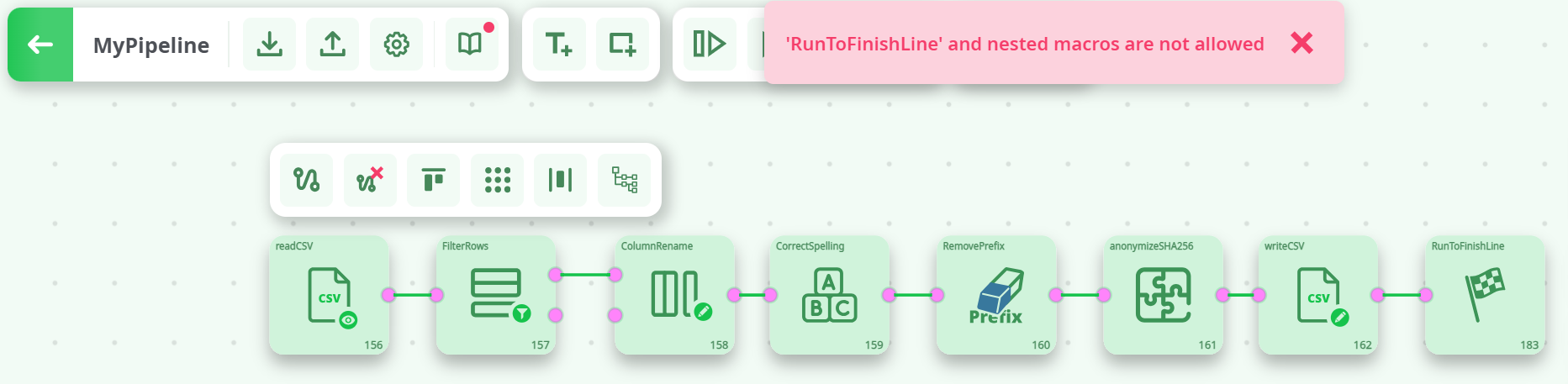
There are two equivalent ways to create a macro. The first is a paste-into-template approach: select the actions you want to package, copy them with Ctrl+C, drop a macroTemplate onto the canvas, open its Description tab, and click Create from clipboard content. The preview of inner actions appears immediately and the macro is born from that snapshot. The second is a direct conversion from the canvas: select the actions and click Create Macro on the floating toolbar. A normal click leaves your original sequence in place and adds a macro node nearby; using Ctrl+Click replaces the selection with a macro node in one move, which is convenient when you are cleaning up the layout. If the selection contains a RunToFinishLine or already includes a macro, creation is refused and a clear banner explains the reason; remove the offending step and try again. No special permission is required beyond the usual write pipeline ability.
Quick choices at a glance
-
Paste into template:
Ctrl+C→ addmacroTemplate→ Description → Create from clipboard content. -
Convert selection: select actions → Create Macro.
- Click = keep actions + add macro next to them.
- Ctrl+Click = replace the selection with a macro.
¶ Configuring parameters
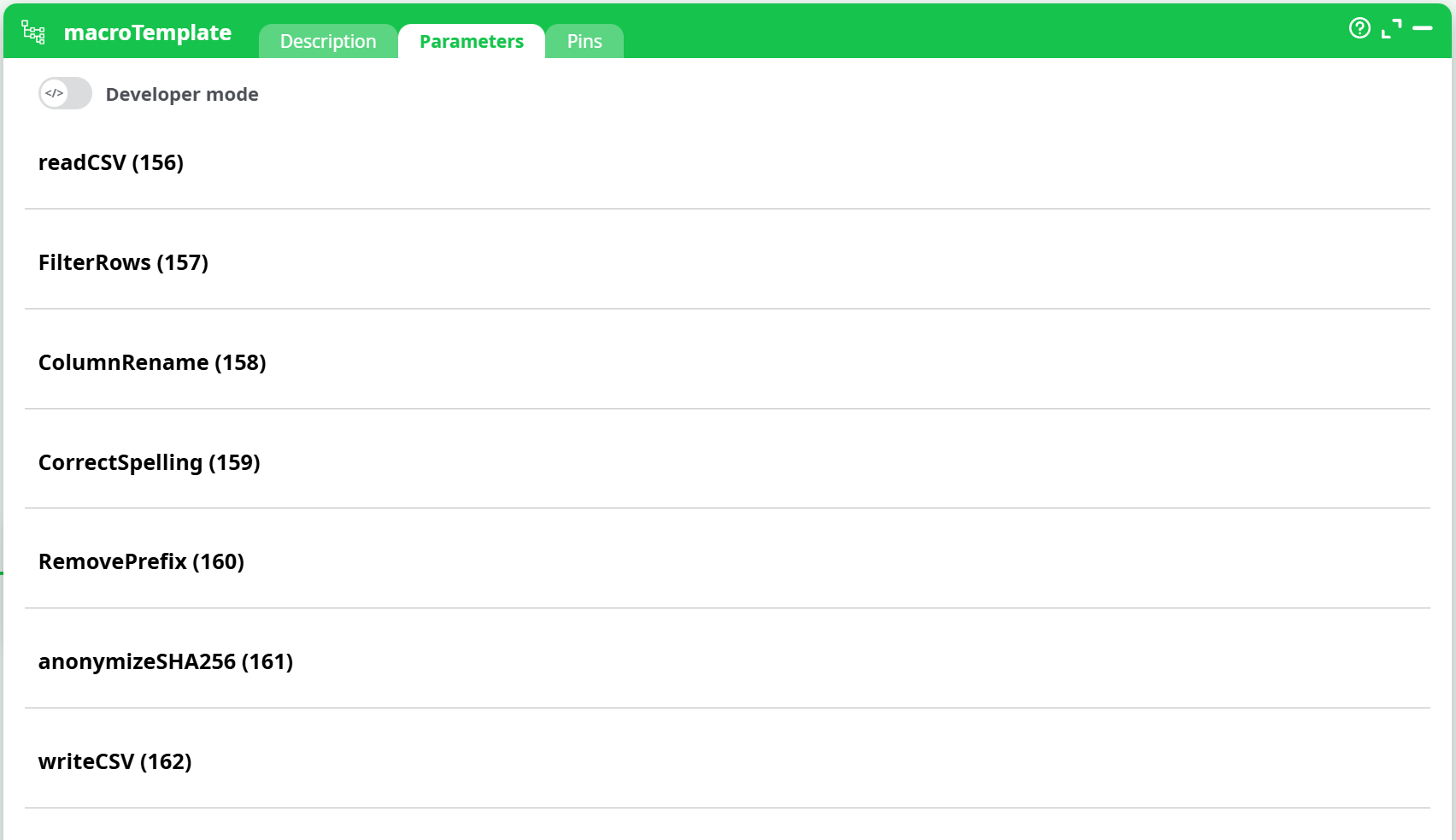
The Parameters tab shows the parameter groups of the inner actions exactly as they appear when editing those actions on the canvas. This one-to-one surface keeps macros predictable and requires no new concepts. In Developer mode you decide which values remain fixed and which should be adjustable in regular mode; exposed fields behave identically to their originals. If the sequence relies on pipeline Constants or Secrets, define them in Pipeline parameters → Definitions or provide them via Sources, then reference those names in the macro’s fields. At runtime the macro resolves those values transparently.
Tips for clean parameter design
- Expose only what downstream users truly need to tweak.
- Prefer referencing Constants/Secrets for anything shared across pipelines.
- Keep naming consistent so the meaning matches the original actions.
¶ Defining inputs and outputs (Pins)
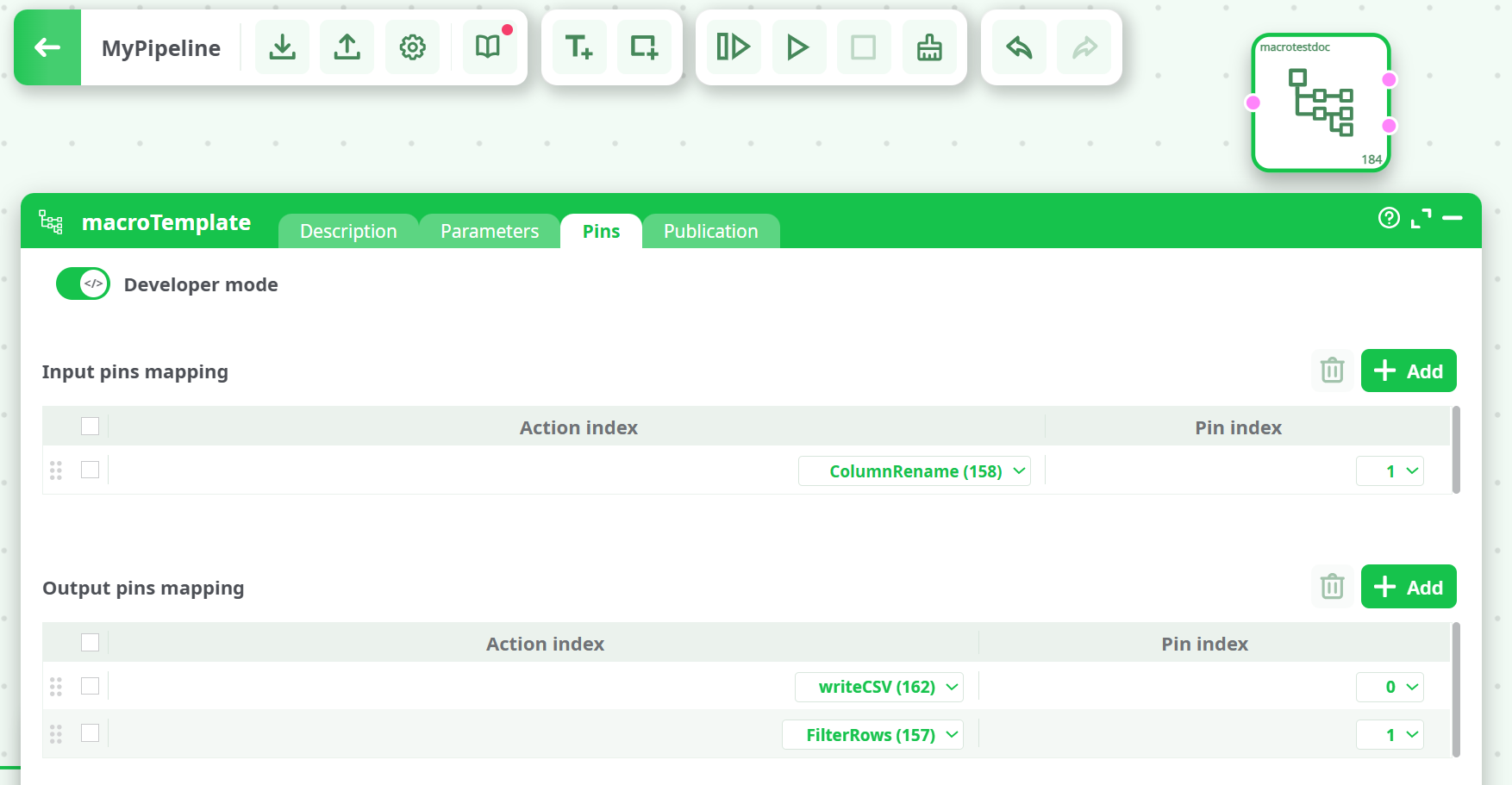
New macros start with no external pins so you can present the interface you need. Open the Pins tab with Developer mode enabled and add your mappings. For each macro input you select which inner action and which pin index will receive records. For each macro output you select which inner action and which pin index will emit records to the outside. Multiple outputs are supported and are useful for clean branching; each macro output can be aligned to the precise inner emission point that matches your logic. When Developer mode is turned off the pins are locked and only the previously exposed parameters remain editable, giving downstream users a safe, tidy surface.
Pin mapping essentials
- Inputs: add one or more mappings → choose Action index → choose Pin index.
- Outputs: add one or more mappings → choose Action index → choose Pin index.
- You can create multiple outputs and route each to different inner steps.
¶ Publishing and reuse
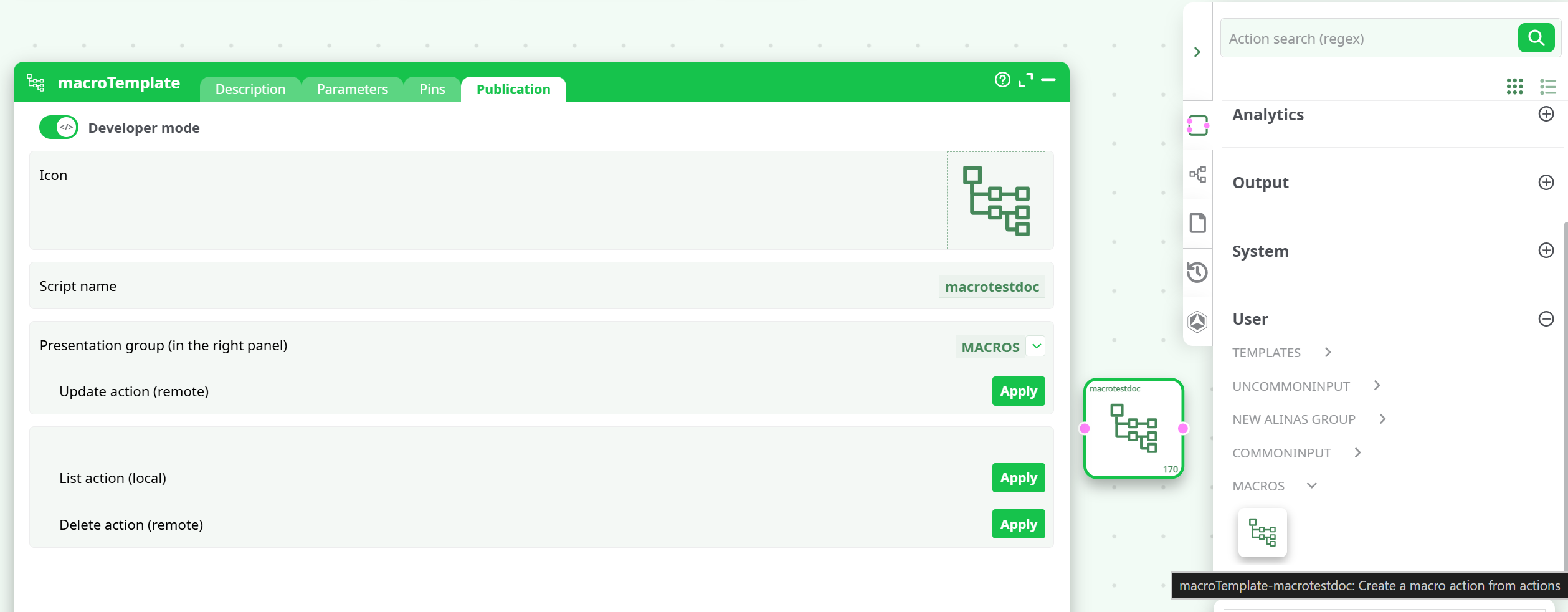
Publishing makes the macro discoverable and reusable. In the Publication tab you set an icon, a script name, and a Presentation group such as MACROS so it appears in the right panel. Clicking Update action (remote) pushes the macro into that catalog. From there it can be dragged into any pipeline or project, and only the parameters you chose to expose are editable in regular mode. If you later refine the macro, return to Publication and update it again so new instances use the latest definition, while existing nodes already placed in pipelines remain as they were.
What publishing does
- Adds/updates the macro entry in User → MACROS (right panel).
- Leaves existing placed nodes unchanged in other pipelines.
- Lets teammates reuse your macro with the safe, exposed surface.
¶ Runtime behavior
At run time the macro streams records through its inner actions in the same order and with the same behavior as the original segment on the canvas. Processing and errors are shown in the macro node’s Process / Log window. The log lets you follow each step of the inner sequence and diagnose issues without expanding the macro back onto the canvas.
¶ Rules and limitations
- You cannot create a macro from a selection that includes RunToFinishLine.
- You cannot create a macro from a selection that already contains a macro (no nesting).
- Pins and parameter exposure are editable only in Developer mode.
- Write pipeline permission is sufficient to use the feature.
- There is no functional cap on how many macros you can create.
¶ Troubleshooting
- Create Macro is blocked: your selection likely contains RunToFinishLine or a macro; remove it and retry.
- Pins look disabled: enable Developer mode on the macro to unlock mapping.
- Can’t tweak a value in regular mode: the field wasn’t exposed; switch to Developer mode and expose it.
- Teammates don’t see updates: open Publication and press Update action (remote) to refresh the right-panel entry.