¶ Description
Get emails from an IMAP or POP3 mail server.
¶ Parameters
¶ Standard tab
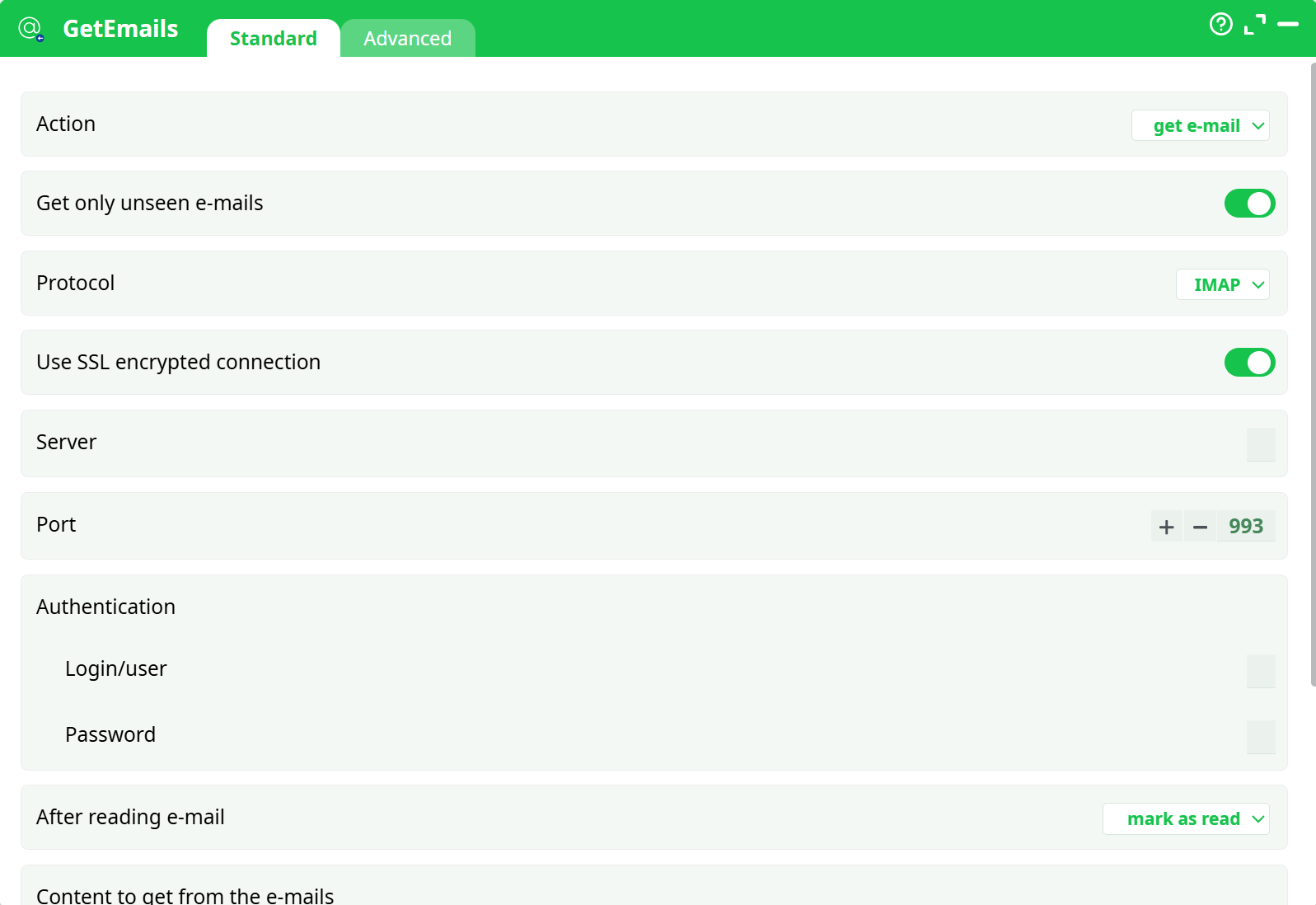
Parameters:
- Action Action type. Currently only
get e-mailis supported. - Get only unseen emails If enabled, fetches only unread messages.
- Protocol Protocol used for email retrieval. Currently supports
IMAP. - Use SSL encrypted connection Enables SSL encryption for secure communication with the mail server.
- Server Hostname or IP of the mail server (e.g.,
imap.gmail.com). - Port Port number for IMAP (default: 993).
- Authentication
- Login/user Email address or username used for login.
- Password Password or application-specific token for authentication.
- After reading mail Determines whether to mark email as read (
mark as read) or keep unread. - Content to get from the e-mails
- Get text Extracts plain text content from the emails.
- Get HTML Extracts HTML content from the emails.
- Save images If enabled, inline email images are saved.
- Save attachements If enabled, attachments are saved from emails
¶ Advanced tab
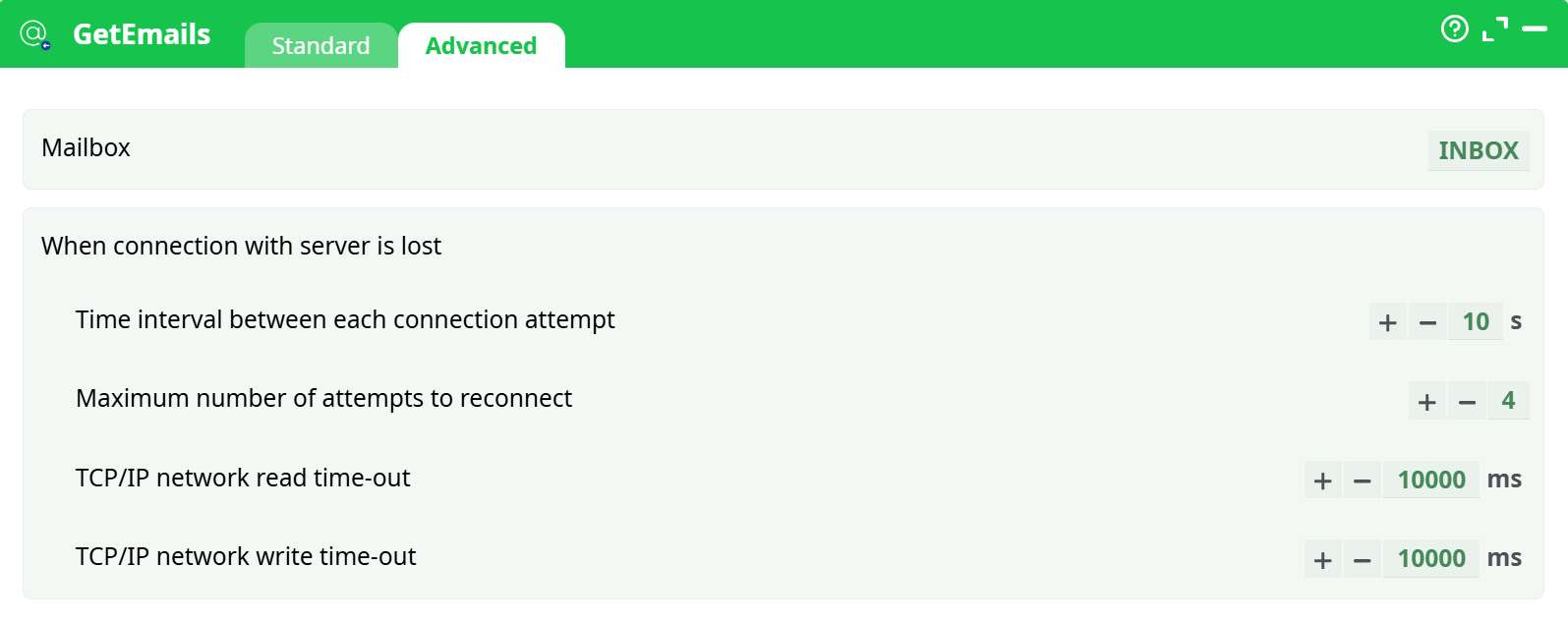
Parameters:
- Mailbox Email folder to check (e.g.,
INBOX,Spam). - When connection with server is lost
- Time interval between each connection attempt Interval between retry attempts if connection fails.
- Maximum number of attempts to reconnect Maximum number of reconnect retries.
- TCP/IP network read time-out Timeout for reading data from the server.
- TCP/IP network write time-out Timeout for writing data to the server.
¶ About
The GetEmails action button connects to a mail server using the IMAP protocol to retrieve email messages. It supports authentication, SSL encryption, and customizable options for fetching unseen emails, saving content (text, HTML, images, attachments), and handling read status after processing. It can be used in automation workflows that rely on data delivered via email.
¶ Input
This action does not require any file inputs but relies on email server credentials and configuration parameters:
- Email server (e.g.,
imap.gmail.com) - Port (default IMAP over SSL: 993)
- Login/user and password for authentication
- Mailbox name (default: INBOX)
¶ Output
- A generated table containing one row per email with the extracted metadata and requested content (e.g., subject, sender, text, HTML).
- Saved files (images, attachments) if the relevant options are enabled.
- Output files are accessible in the pipeline’s file storage after execution.
¶ How to Run
- Drag the
GetEmailsaction button into your pipeline. - Configure the following under Standard tab:
- Set protocol to
IMAP. - Enter server address and port (usually
imap.example.comand993). - Provide valid credentials (login and password).
- Enable SSL if required.
- Choose content to retrieve: text, HTML, images, attachments.
- Choose how to treat email after processing (e.g., mark as read).
- Set protocol to
- In the Advanced tab, configure:
- Mailbox (e.g.,
INBOX) - Retry and timeout settings for robust connection handling.
- Mailbox (e.g.,
- Run the pipeline to fetch and process email content.
- Results will appear in the output panel and storage.
¶ Use Cases
- Automated Invoicing: Extract invoices or purchase orders automatically from incoming emails.
- Customer Support: Integrate with support systems to pull customer queries from a monitored mailbox.
- Data Collection: Use for workflows where partners submit reports or files via email.