¶ Description
List objects from a Google Cloud Storage (GCS) bucket using OAuth2 (Client ID/Secret + Refresh Token).
¶ Parameters
¶ Parameters tab
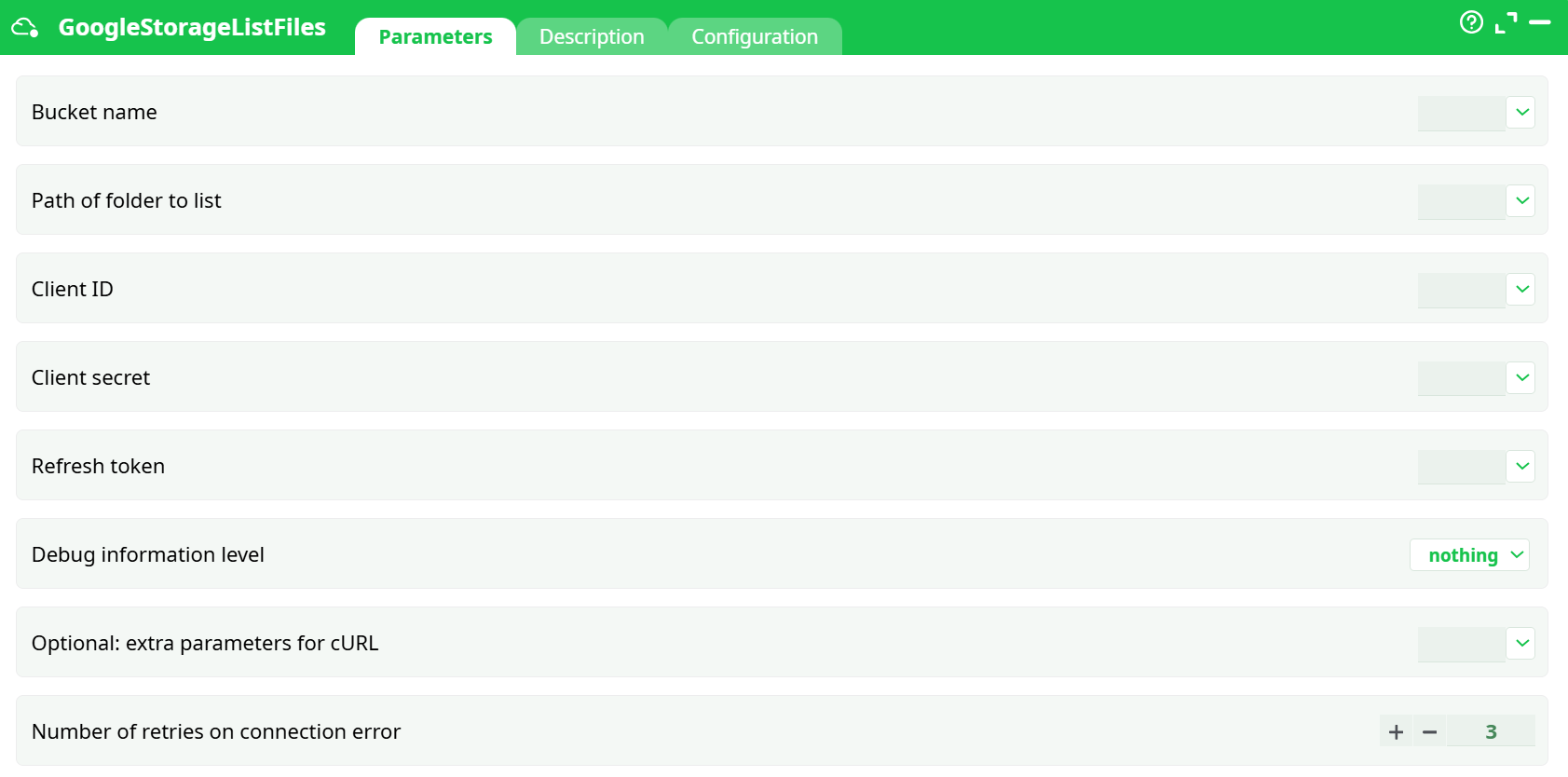
Parameters:
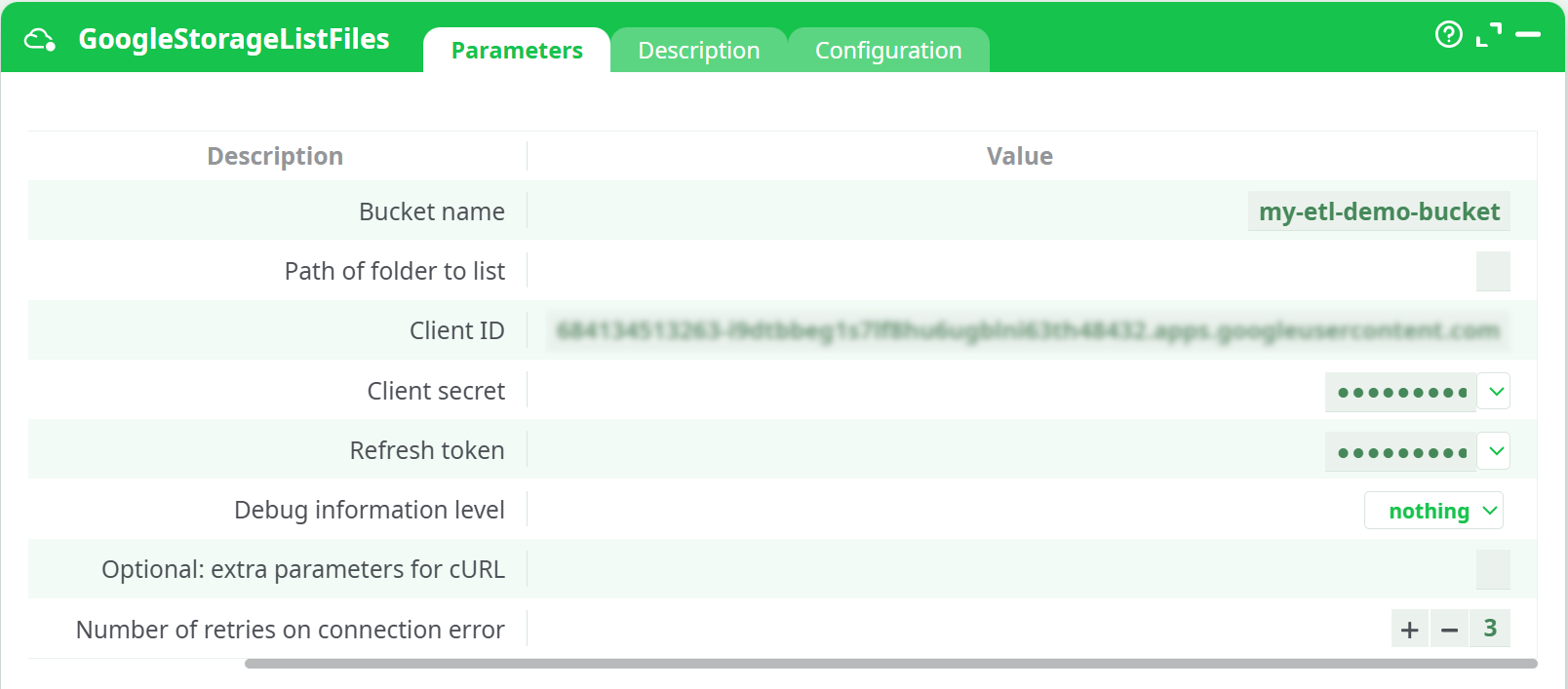
- Bucket name
- Path of folder to list
- Client ID
- Client secret
- Refresh token
- Debug information level
- Optional: extra parameters for cURL
- Number of retries on connection error
¶ Description tab
See dedicated page for more information.
¶ Configuration tab
See dedicated page for more information.
¶ About
Purpose: List objects from a Google Cloud Storage (GCS) bucket using OAuth2 (Client ID/Secret + Refresh Token).
¶ At-a-Glance
-
Input: No upstream table required (node calls GCS directly).
-
Output: A table where each row is a GCS object (name, size, content type, created/updated timestamps, etc.).
-
Auth: OAuth2 “installed app” credentials (Client ID, Client Secret) + a long-lived Refresh Token.
-
Scope: Least privilege for listing:
https://www.googleapis.com/auth/devstorage.read_only
¶ Quick Start
¶ 1) Prerequisites
- A Google Cloud project.
- Ability to create OAuth credentials and buckets (Project Owner or Editor).
- Optional: a test bucket with a few files (you can create it in step 4).
¶ 2) Enable the API
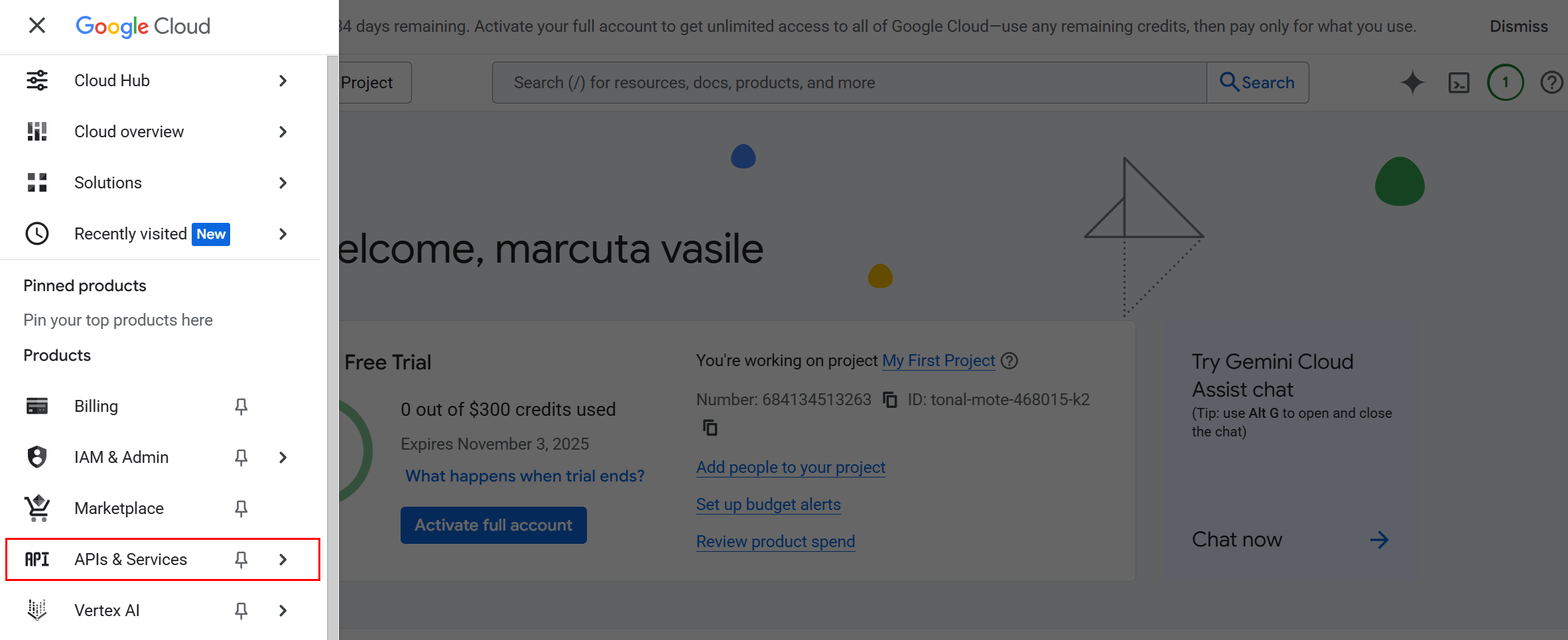
- Open Google Cloud Console and select your project.
- Go to APIs & Services → Library.
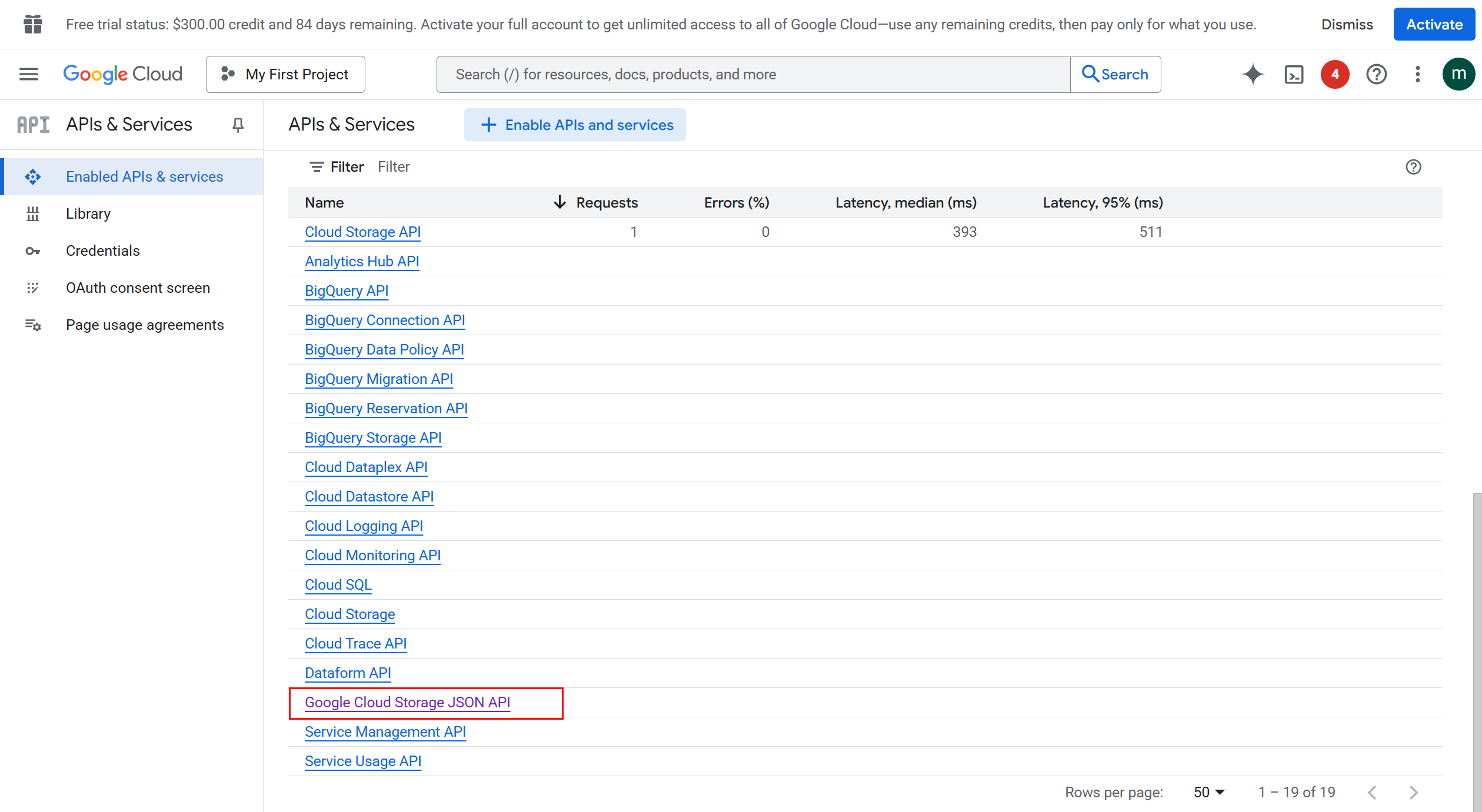
- Enable Cloud Storage JSON API.
¶ 3) Create OAuth credentials (Desktop app)
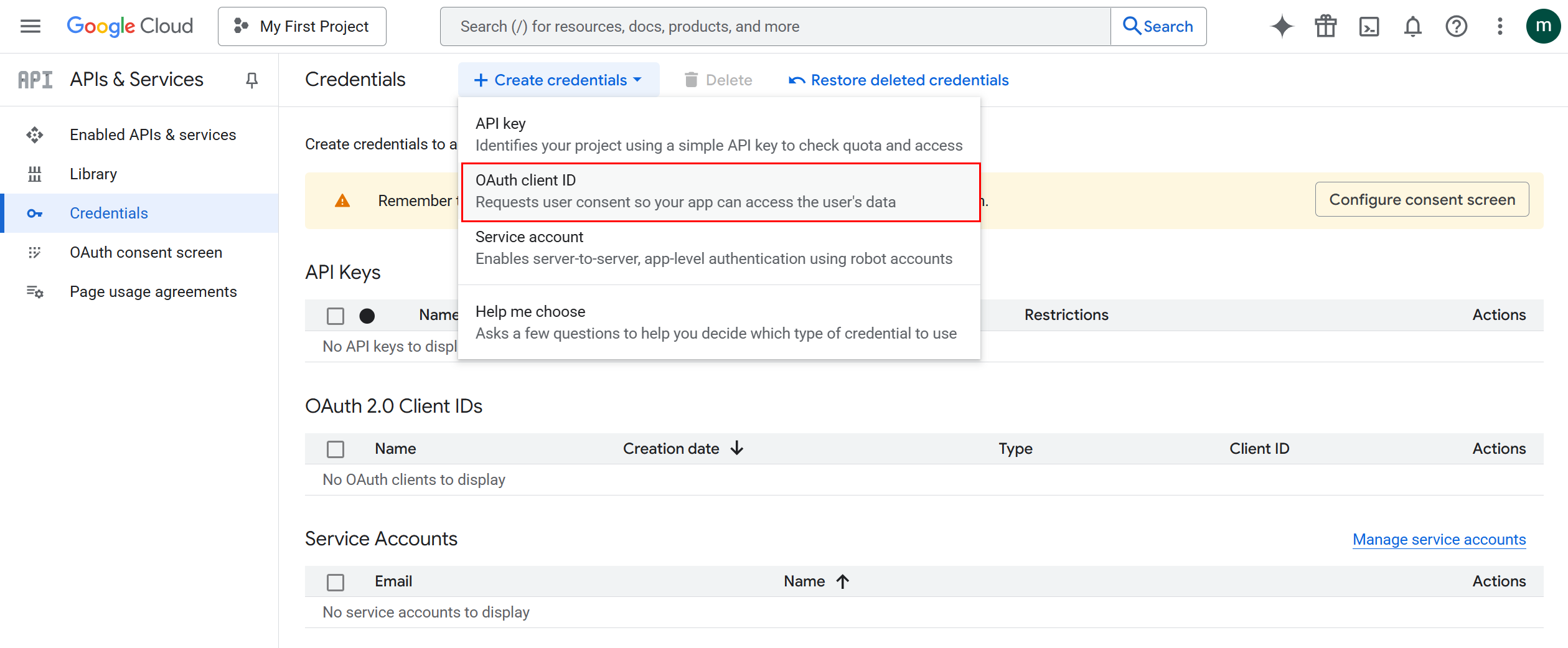
- Go to APIs & Services → Credentials.
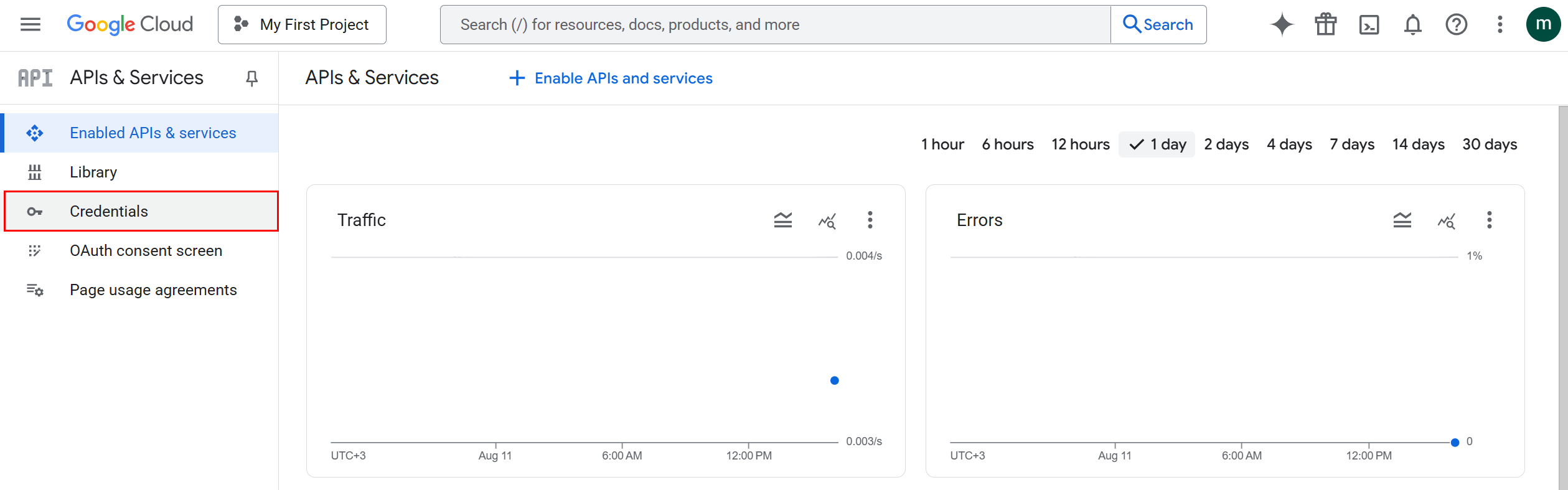
- Click Create credentials → OAuth client ID.
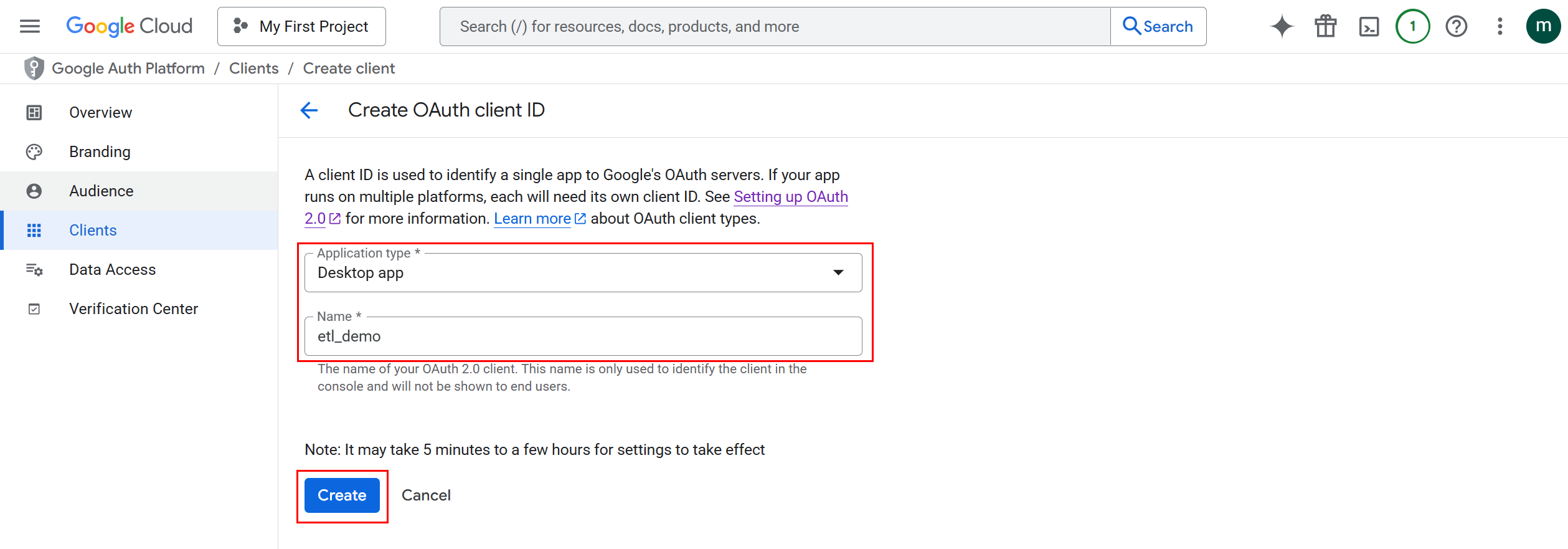
- Application type: select (Desktop app, web etc... )
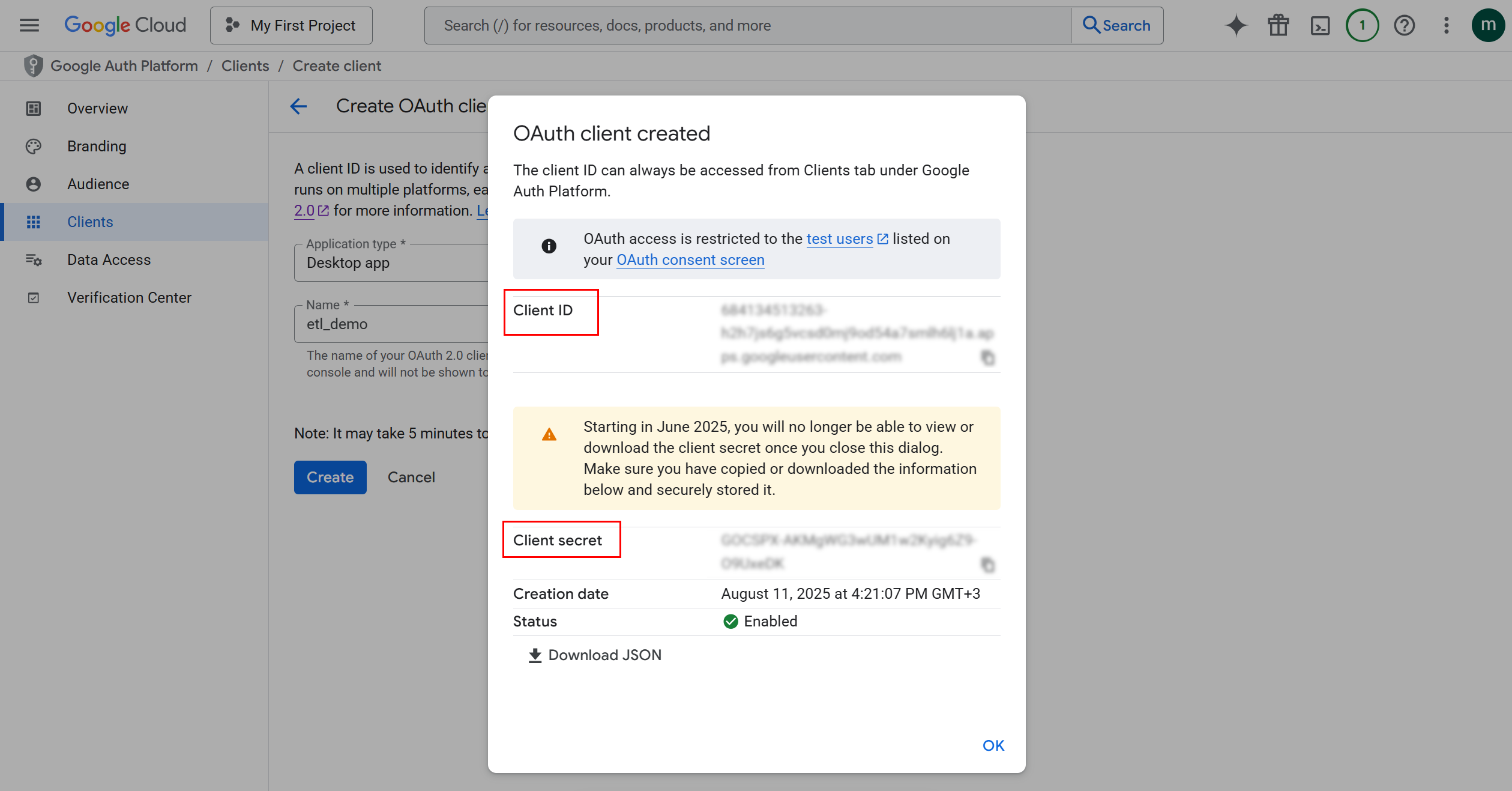
- Click Create and copy the Client ID and Client secret.
Keep the secret safe; you’ll paste both into the node.
¶ 4) (Optional) Create a test bucket & upload a file
- Go to Cloud Storage → Buckets → Create.
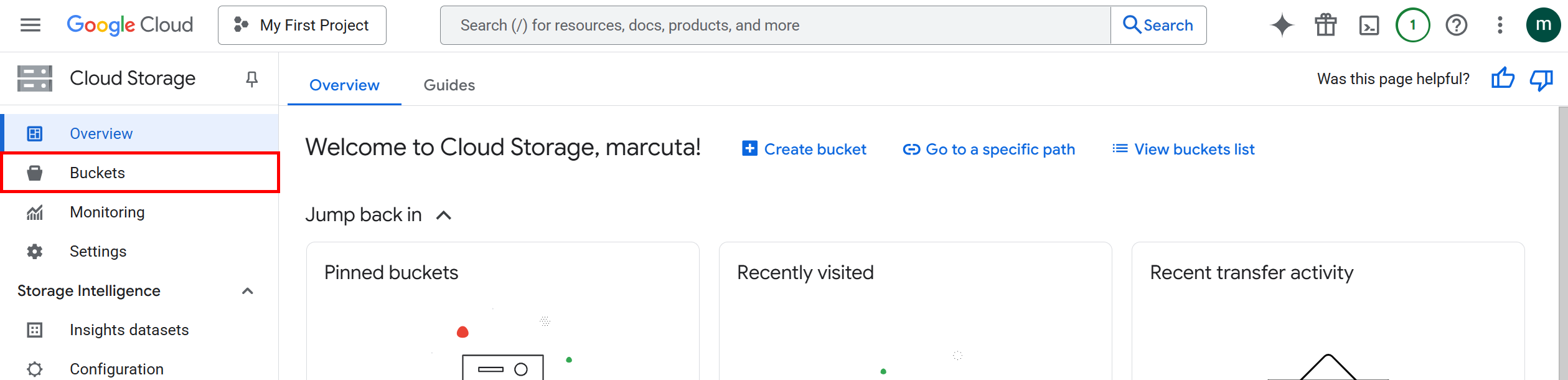
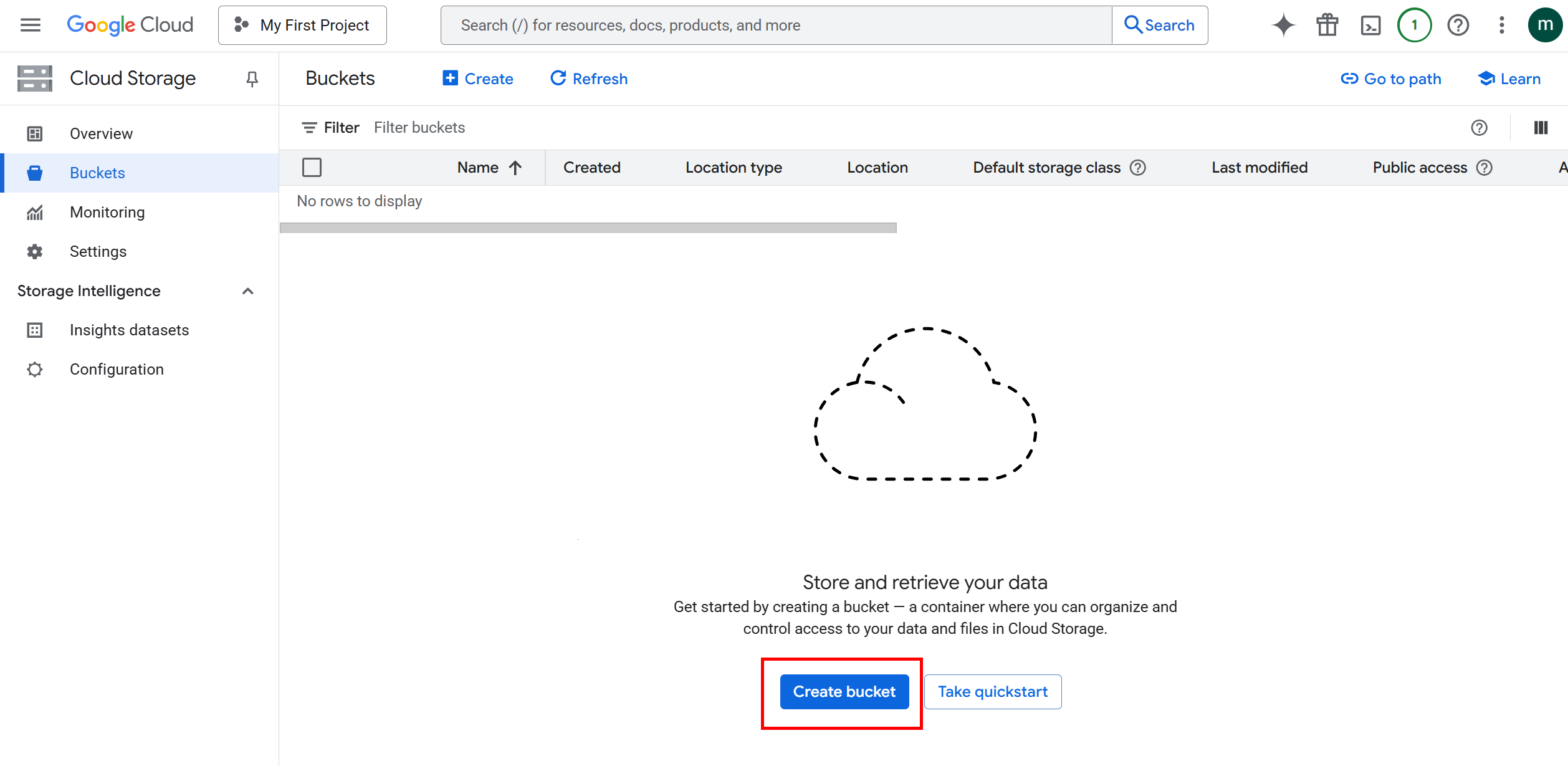
- Name:
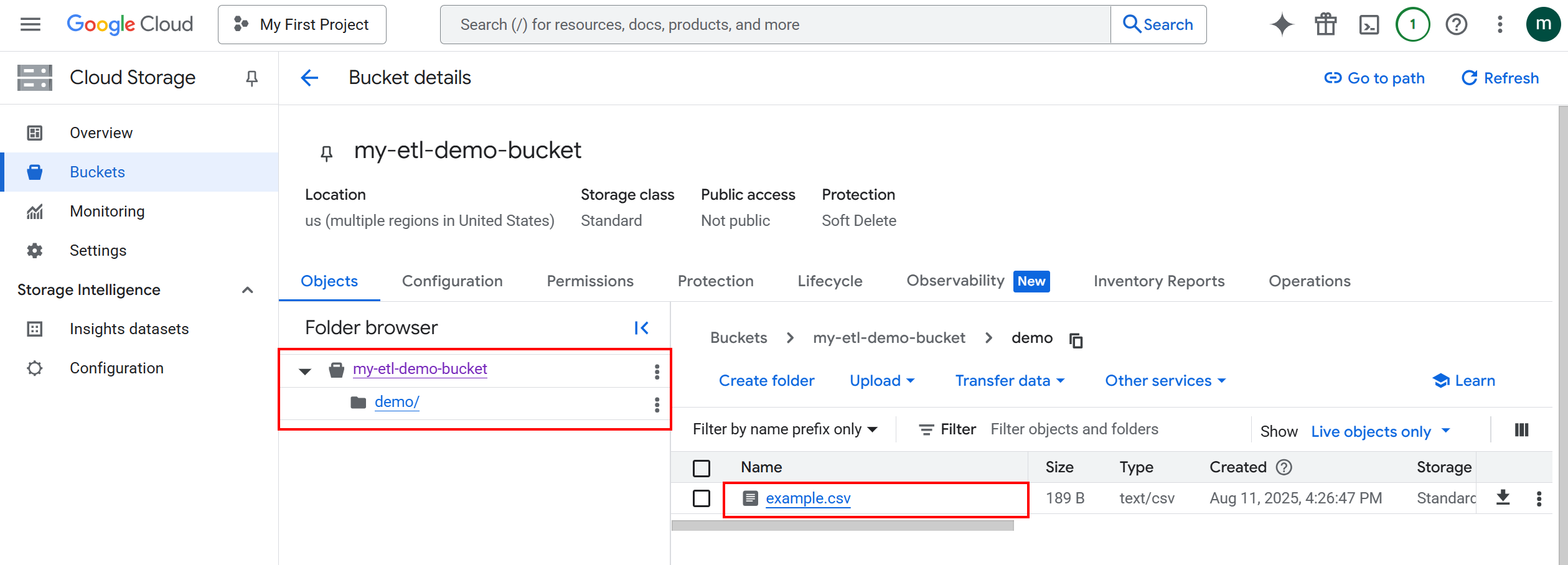
my-etl-demo-bucket(must be globally unique). - Keep defaults; click Create.
- Upload a few files; optionally put them under a prefix such as
demo/.
¶ 5) Get a Refresh Token (one-time)
Use OAuth 2.0 Playground (easiest) or any OAuth client:
-
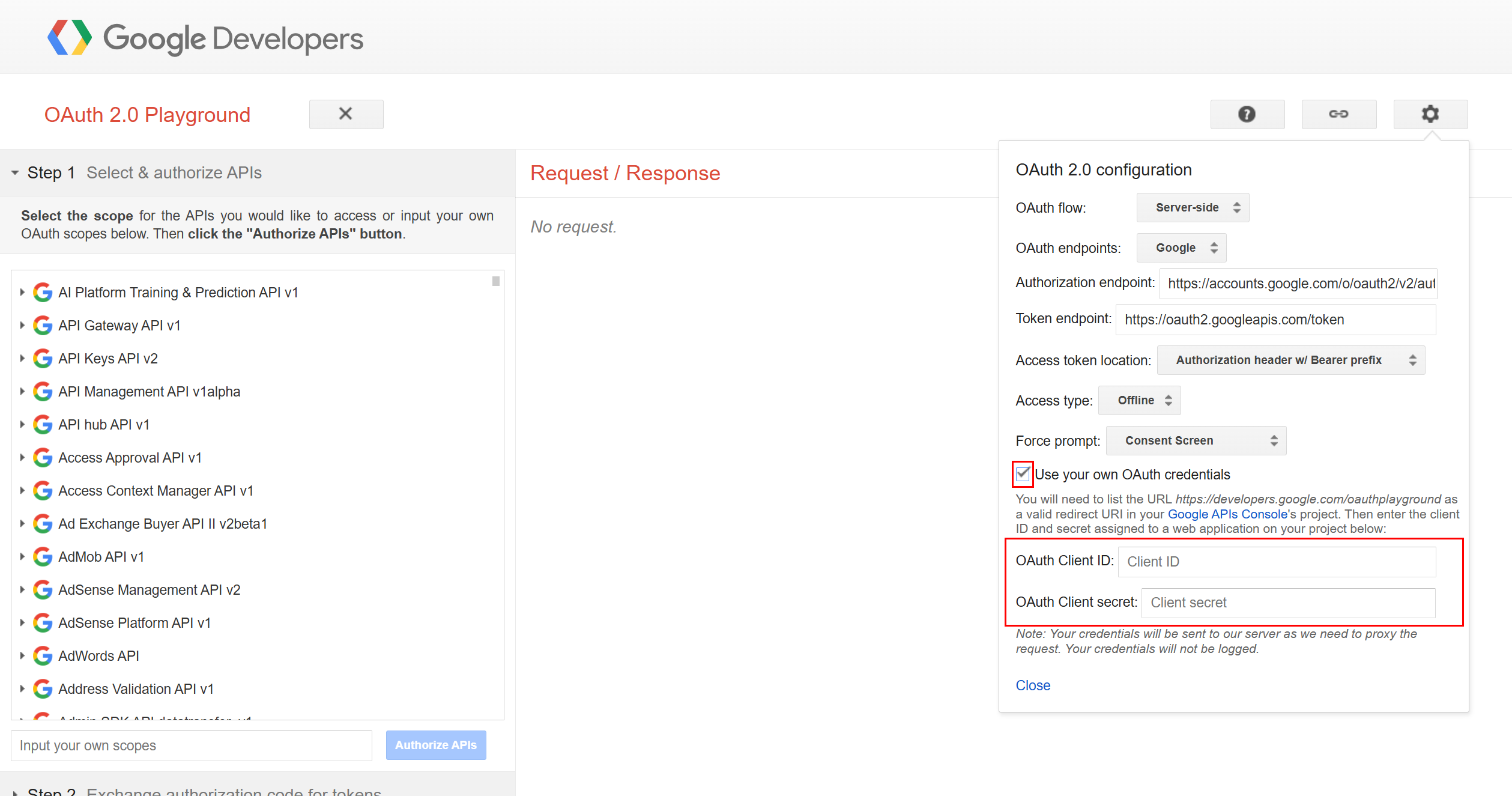
Open OAuth Playground.
-
Click the gear icon and enable Use your own OAuth credentials, then paste your Client ID and Client secret.
-
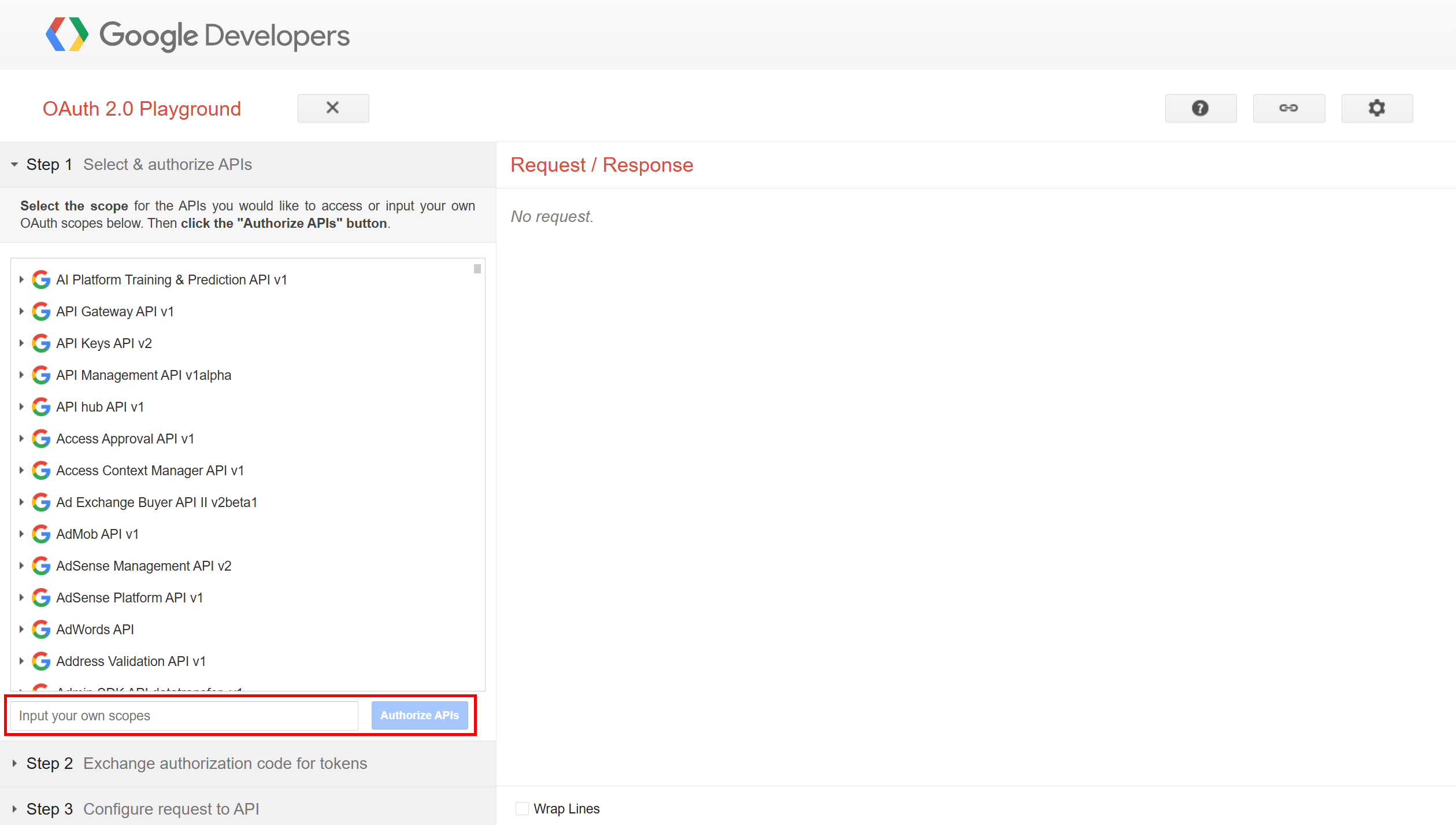
In Step 1, select scopes:
https://www.googleapis.com/auth/devstorage.read_only -
Click Authorize APIs → sign in → Allow.
-
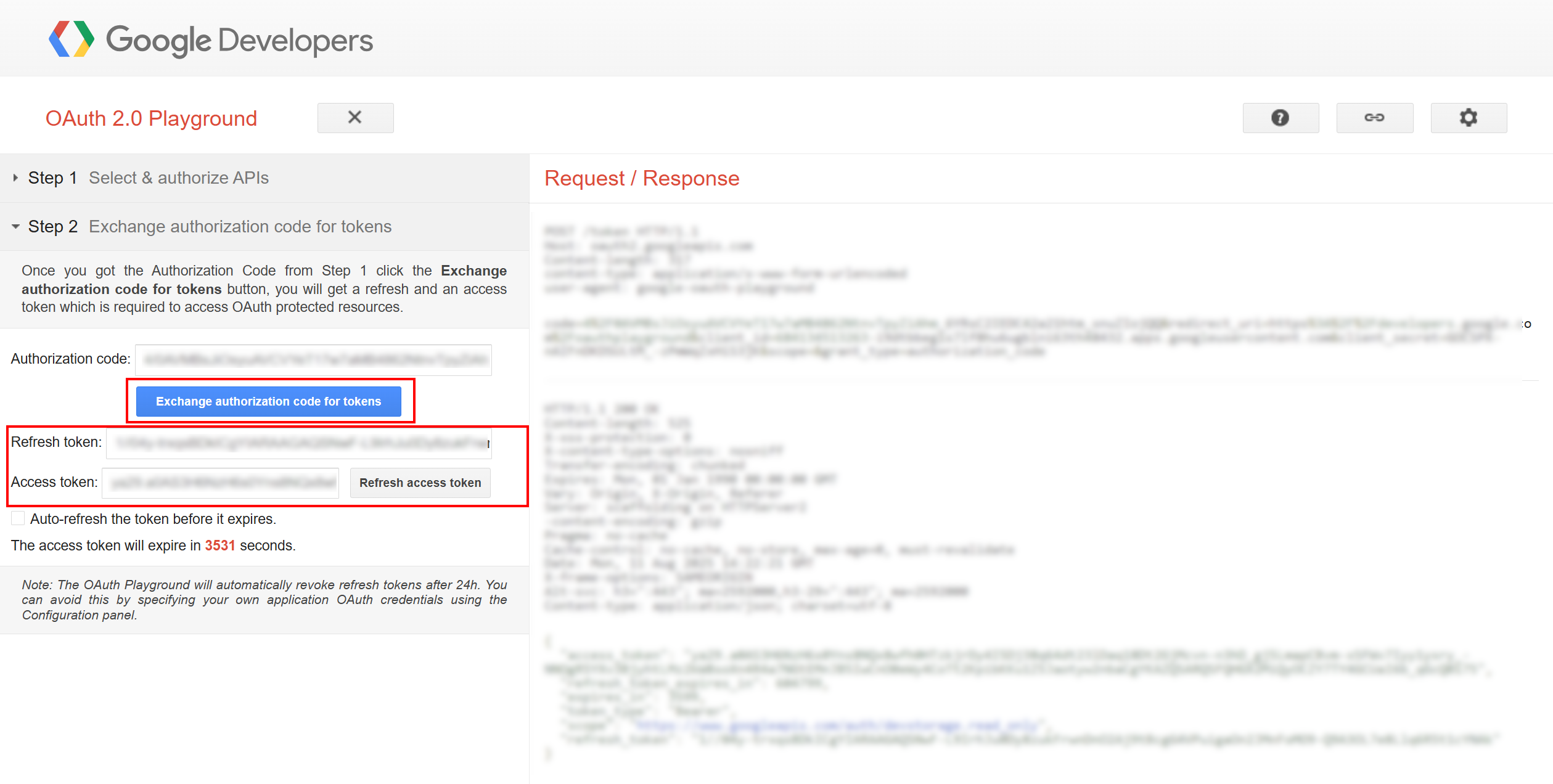
Click Exchange authorization code for tokens (Step 2).
-
Copy the Refresh token and store it securely.
¶ 6) Configure the node parameters
Open GoogleStorageListFiles → Parameters and fill:
¶ 7) Run & verify
- Run the pipeline.
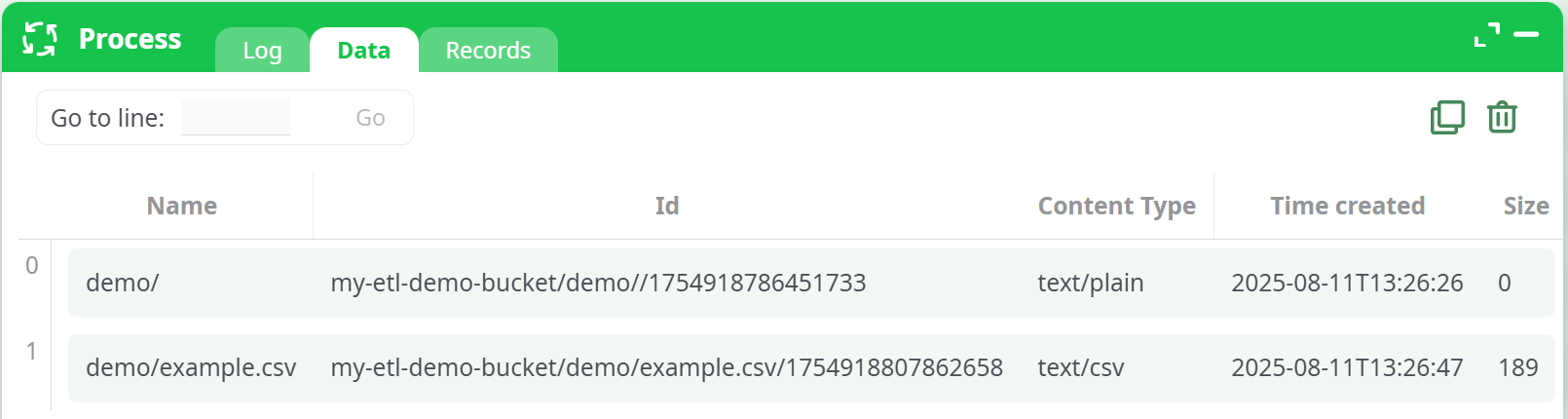
- Open the node’s Data tab—you should see one row per object found under the bucket/prefix.
Screenshot placeholder (expected result):
¶ Troubleshooting
¶ 400 / redirect_uri_mismatch
- When using OAuth Playground, don’t try to use your own app’s redirect URI unless you configured it exactly.
- Prefer the Playground’s default redirect URI and Use your own OAuth credentials (gear icon) with your Desktop app Client ID/Secret.
¶ 403 / access_denied (consent)
- If you see a message like “app not verified” or “access blocked,” confirm you’re using the OAuth Playground flow with your Desktop app credentials.
- Internal org policies can restrict OAuth—ask an admin if needed.
¶ 401 / invalid_grant
- The refresh token is invalid/expired; re-generate it in OAuth Playground.
- Ensure you actually used Use your own OAuth credentials (gear icon).
- Confirm the Cloud Storage JSON API is enabled for the project.
¶ 403 / insufficient permissions
- The Google account used during OAuth must have access to the bucket.
- Scope must include
devstorage.read_only(for listing).
¶ Empty result set
- Check
bucketspelling and confirm it contains objects. - If you set
Path of folder to list=demo/, ensure files are truly underdemo/.
¶ Security Tips
- Treat Client secret and Refresh token like passwords.
- Use least privilege scope (
devstorage.read_only) for listing. - For unattended runs, store secrets in your platform’s secrets manager.
- Rotate credentials periodically.
¶ Appendix: Field Reference (Output)
Typical columns returned (may vary with platform version):
- name – Object name (includes prefix, e.g.,
demo/example.csv) - id – GCS object ID (bucket/path/generation)
- contentType – MIME type
- timeCreated / updated – Creation/last modified timestamps
- size – Object size (bytes)
- storageClass, generation, md5Hash, crc32c – Storage metadata (when available)
Done! After these steps, the GoogleStorageListFiles node will reliably list your GCS objects.