¶ Description
Download reports from Oracle Fusion Cloud
¶ Parameters
¶ Standard tab
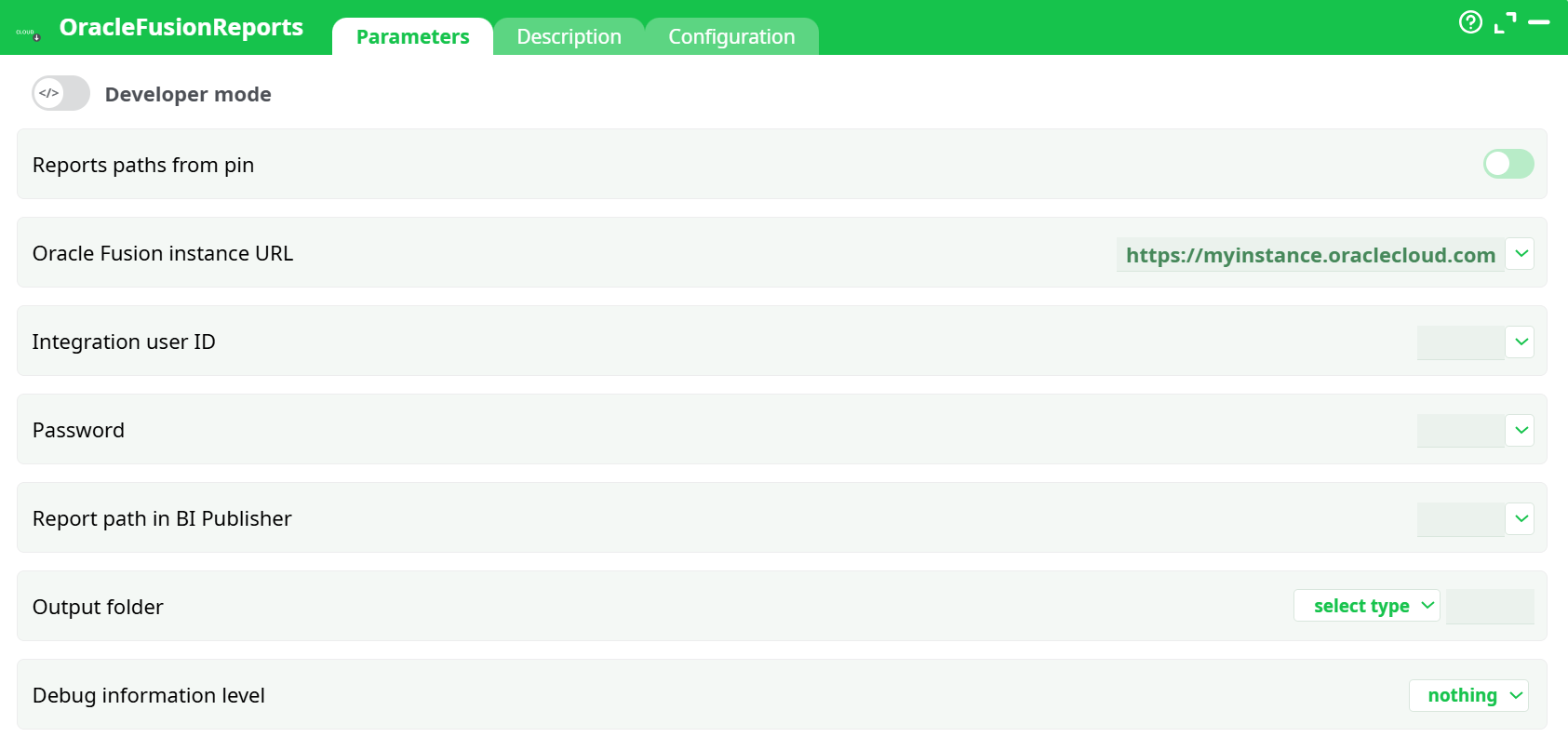
Parameters:
- Reports paths from pin
- Oracle Fusion instance URL
- Integration user ID
- Password
- Report path in BI Publisher
- Output folder
- Debug information level
¶ Description tab
See dedicated page for more information.
¶ Configuration tab
See dedicated page for more information.
¶ About
OracleFusionReports downloads reports from Oracle Fusion Cloud (BI Publisher) into your pipeline workspace. It supports two modes:
- Single report — run one BI Publisher report by path.
- Pin-driven — run multiple reports whose BI Publisher paths arrive from an upstream column.
Typical uses include exporting period journals, balances, or operational reports for further processing and archiving.
¶ Prerequisites
- Oracle Fusion URL to your tenant (e.g.,
https://myinstance.oraclecloud.com). - Integration user with BI Publisher access to the required report(s).
- BI Publisher report path(s) (e.g.,
/Custom/Financials/GeneralLedger/TrialBalance.xdo). - Output location in the pipeline filesystem (temporary/recorded) with write access.
Security: store credentials as Secrets; use least-privilege integration users.
¶ Input requirements (when using pin-driven mode)
- An upstream table with a column containing absolute BI Publisher report paths (one per row).
- The column name will be selected in “Column of reports paths in BI Publisher.”
¶ Parameters
¶ Connection
-
Oracle Fusion instance URL
Base URL for your Oracle Fusion tenant. -
Integration user ID
Username of the integration account. -
Password
Password for the integration account (use Secrets).
¶ Report selection
-
Reports paths from pin (toggle)
-
On: the block reads report paths from an upstream column.
- Column of reports paths in BI Publisher: choose the column that holds report paths.
-
Off: run a single report.
- Report path in BI Publisher: enter one absolute BI Publisher path.
-
¶ Output
-
Output folder
Where downloaded files are written. Choose one of:- temporary data – ephemeral workspace.
- recorded data – persistent workspace; specify/confirm a subfolder (e.g.,
records/). - JavaScript expression – evaluate to a folder path at runtime.
¶ Diagnostics
-
Debug information level
- nothing – minimal logs.
- basic – include request/response meta helpful for support.
¶ How it works (high level)
- Authenticates to Oracle Fusion with the integration user.
- Resolves the BI Publisher report(s) by absolute path.
- Exports each report to a file in the selected Output folder.
- Emits file metadata downstream (path, name, size) for chaining.
¶ Minimal setup to run (single report)
- Open OracleFusionReports.
- Set Oracle Fusion instance URL, Integration user ID, and Password.
- Turn Reports paths from pin Off.
- In Report path in BI Publisher, enter an absolute path (e.g.,
/Custom/Financials/GeneralLedger/TrialBalance.xdo). - Set Output folder to recorded data →
records/(or your preferred location). - Keep Debug information level at nothing (or basic during testing).
- Run the pipeline and verify the downloaded file(s) in the chosen folder.
¶ Minimal setup to run (pin-driven, multiple reports)
- Ensure an upstream step provides a column (e.g.,
report_path) with BI Publisher paths. - Turn Reports paths from pin On.
- Select the column in Column of reports paths in BI Publisher.
- Configure connection fields (URL, user, password).
- Choose Output folder (e.g., recorded data →
records/). - Run and review outputs per row.
¶ Output
- One file per requested report, written under the configured Output folder.
- Filenames mirror the BI Publisher export (naming may vary by report template).
- Downstream steps can pick up the generated paths for further processing.
¶ Troubleshooting
-
Authentication failures (401/403)
- Verify integration user and password; confirm BI Publisher permissions to the target report(s).
-
Report path not found
- Paths must be absolute and match the BI Publisher folder structure (e.g.,
/Shared Folders/...or/Custom/...).
- Paths must be absolute and match the BI Publisher folder structure (e.g.,
-
No files produced
- For pin mode, ensure the selected column contains valid paths and the toggle is On.
- Confirm the Output folder is writable and correctly selected.
-
Intermittent network errors
- Retry with Debug information level = basic to capture request identifiers; validate tenant URL and connectivity.
-
Folder/space constraints
- Switch to recorded data with an appropriate subfolder and enforce cleanup policies downstream.
¶ Good practices
- Maintain a dedicated /Custom folder in BI Publisher for integration reports and stable, parameterized templates.
- Keep a catalog (table or CSV) of official report paths to drive the pin-based mode at scale.
- Route outputs to a predictable recorded data subfolder (e.g.,
records/fusion_exports/YYMMDD/) for auditability.
¶ Example workflow
-
Extract monthly GL reports
- Build a list of BI Publisher paths for GL reports;
- Feed it into OracleFusionReports (pin mode);
- Append timestamps to filenames in a downstream rename step;
- Load to a DWH landing zone.