¶ Description
List all files inside a S3 bucket
¶ Parameters
¶ Parameters Tab
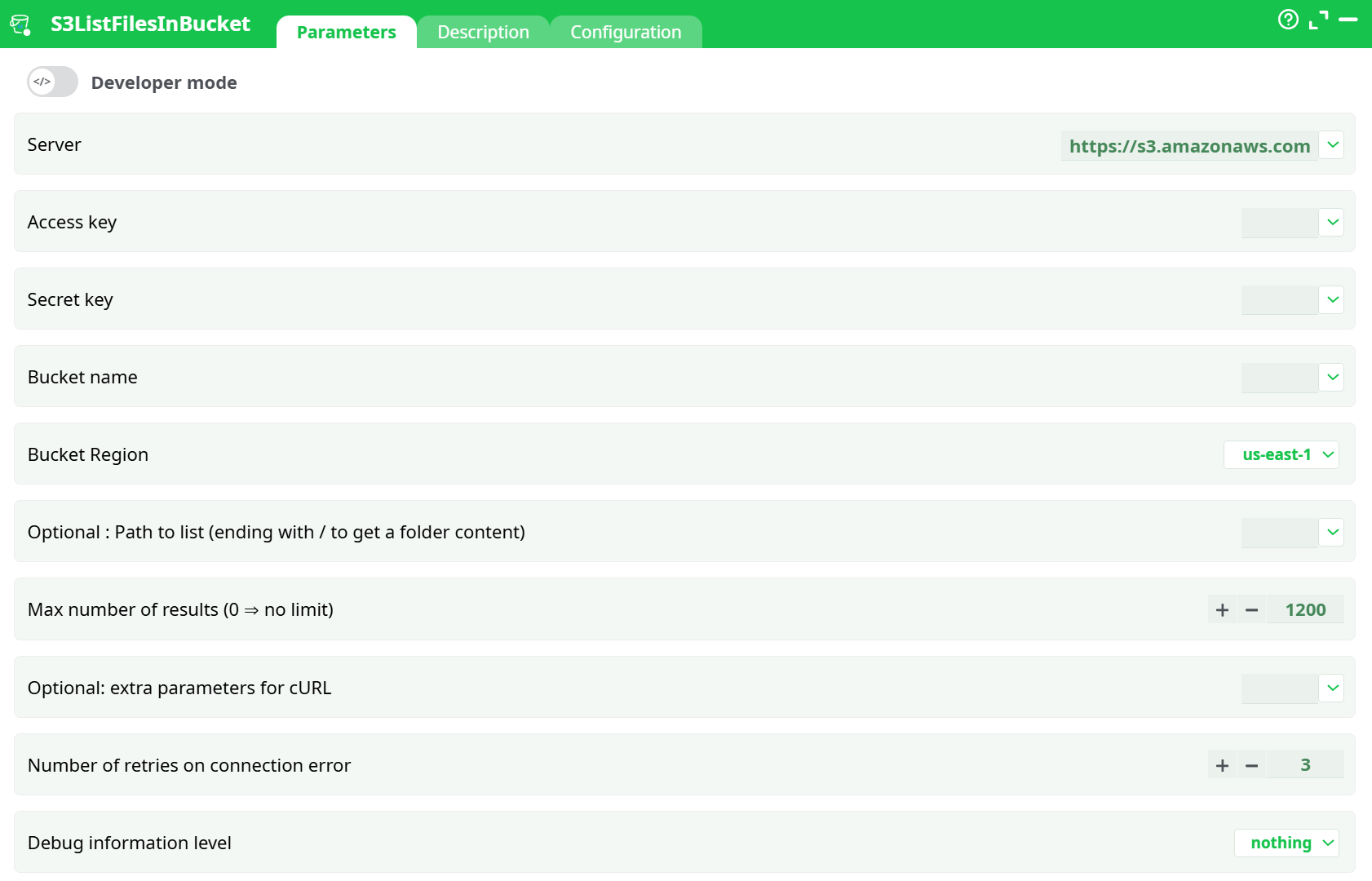
Parameters:
- Server
- Access key
- Secret key
- Bucket name
- Bucket Region
- Optional : Path to list (ending with / to get a folder content)
- Max number of results (0 ⇒ no limit)
- Optional: extra parameters for cURL
- Number of retries on connection error
- Debug information level
¶ Description Tab
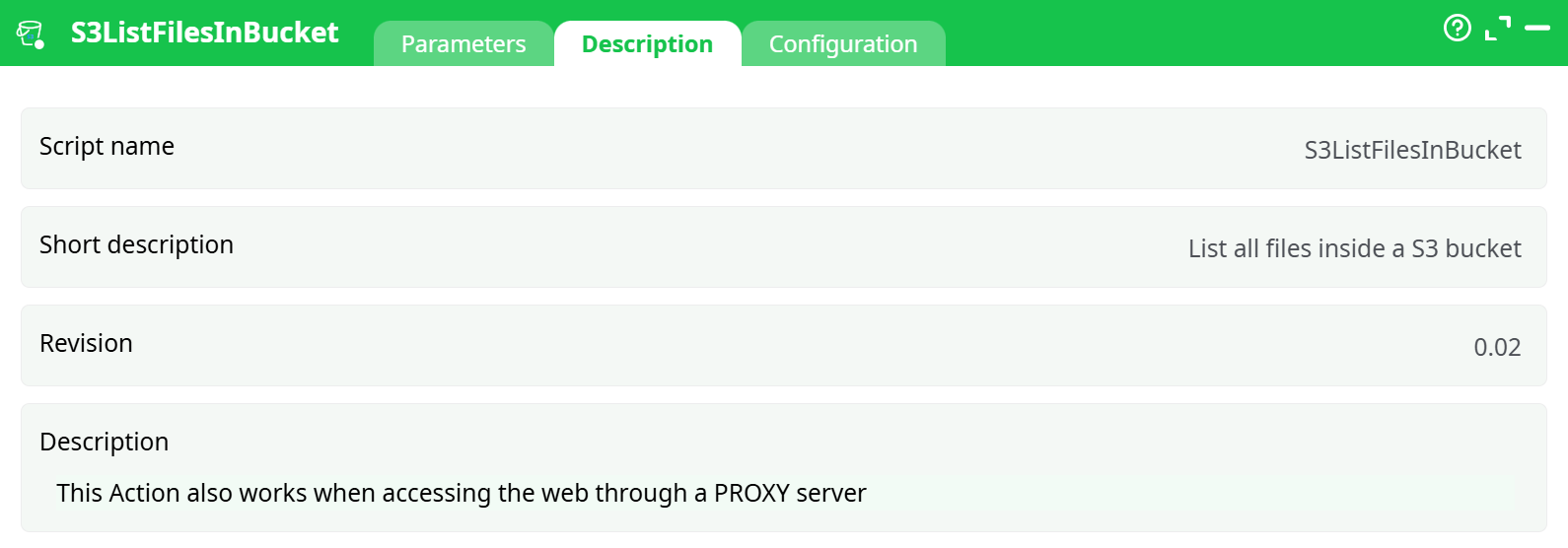
Parameters:
- Script name
- Short description
- Revision
- Decription
¶ Configuration Tab
See dedicated page for more information.
¶ About
This action also works when accessing the web through a PROXY server: Please consult the dedicated section for more details on this subject.
To be able to connect to your S3 bucket storage, you need to get from Amazon these 4 parameters:
- your “Bucket Name”
- your “Region”
- your “Access Key ID”
- your “Secret Access Key”
The procedure to get these 4 parameters is:
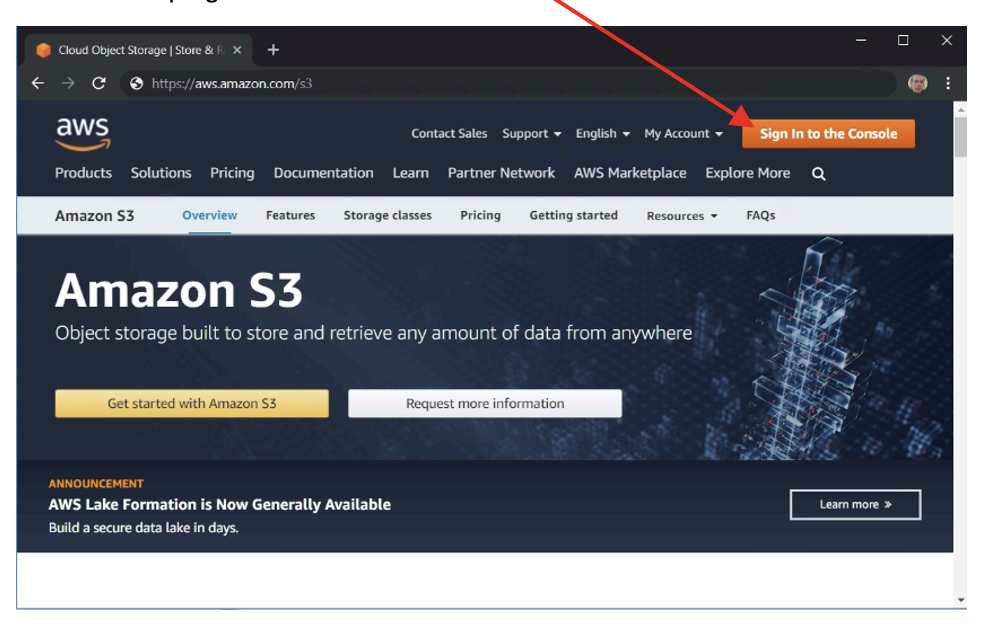
- Open the URL address http://aws.amazon.com/s3 in a browser and click on the “Sign In to the Console” button on the top-right corner of the window:
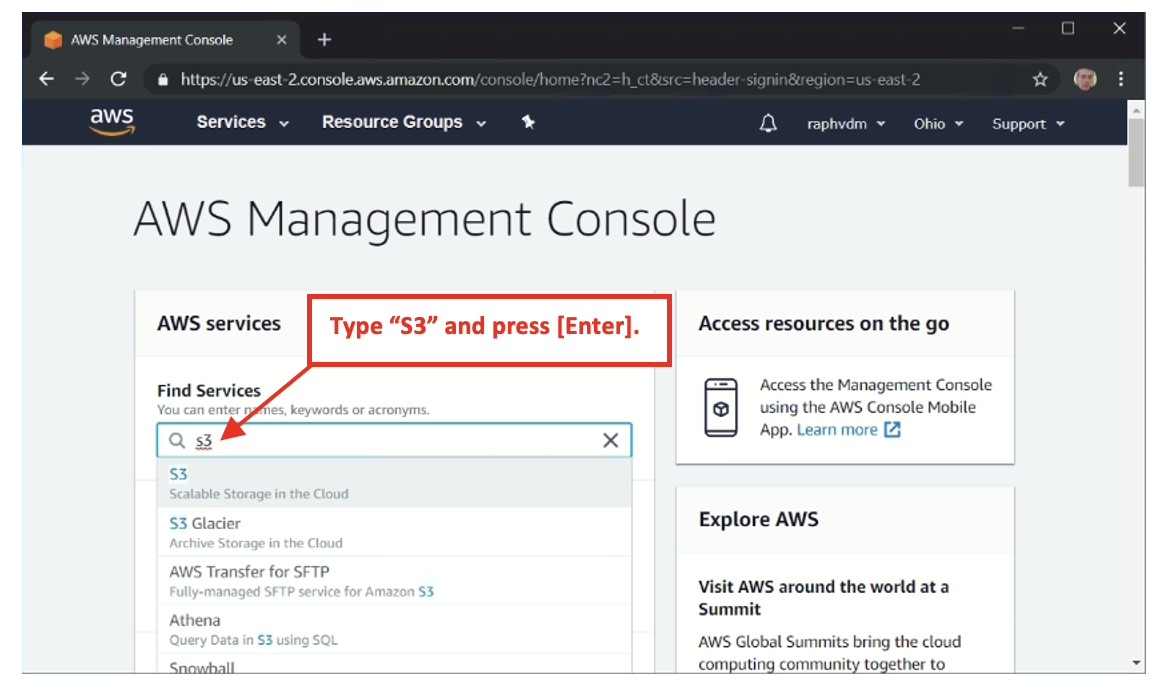
- Inside the search field, type “s3” to locate the “S3 service” and press Enter to access the “S3 management console”:
- Inside the “S3 management console”, you get the first 2 required parameters for ETL: the “Bucket Name” and the “Region”. In the screenshot below, there are two S3 buckets named “test-bucket-timi” and “test-bucket-timi2”:
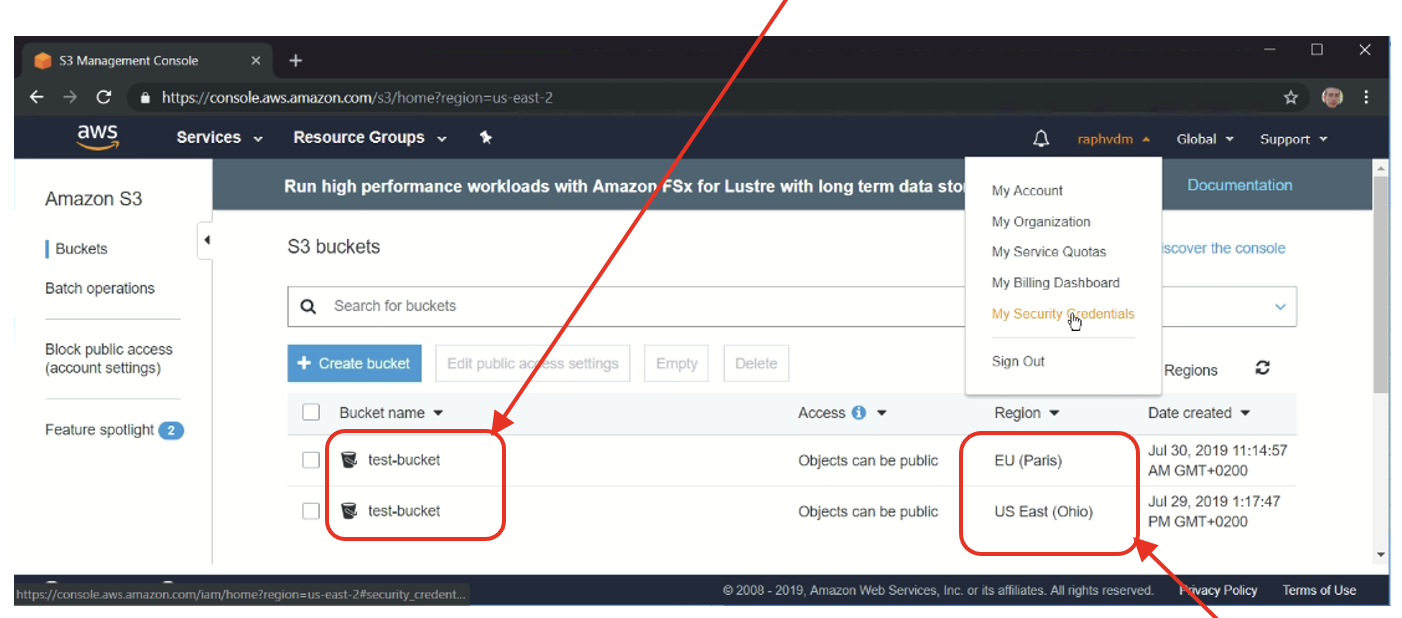
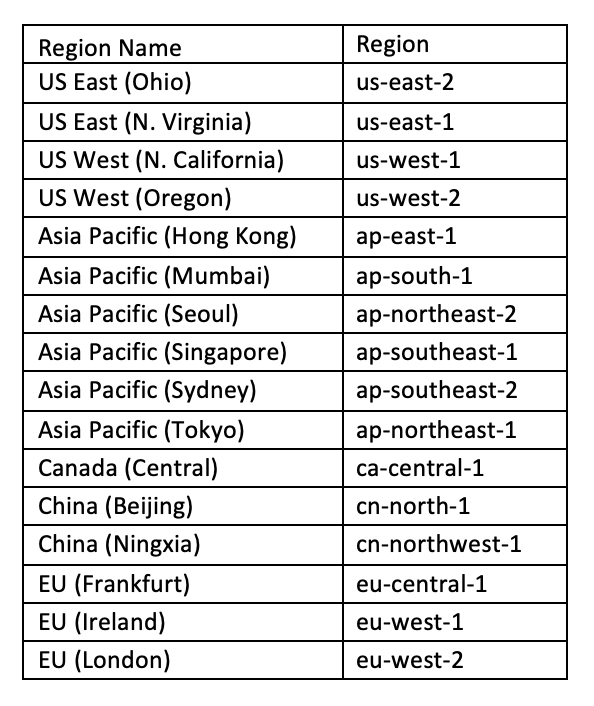
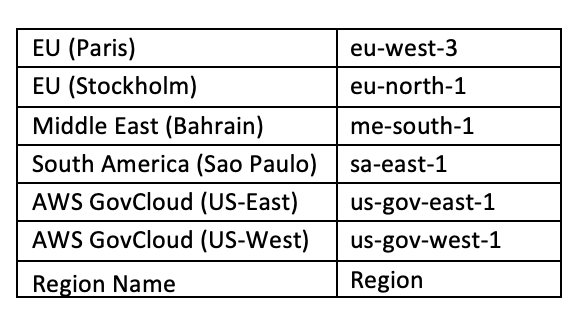
The “Region Name” of these two S3 buckets is, respectively, “EU (Paris)” and “US East (Ohio)”: Inside ETL, you don’t need the “Region Name”: i.e. you need to have the “Region” parameter. To get the “Region” parameter, from the “Region Name”, you can use the lookup table located at this URL:
https://docs.aws.amazon.com/general/latest/gr/rande.html
For your convenience, here is a local copy of this lookup table:
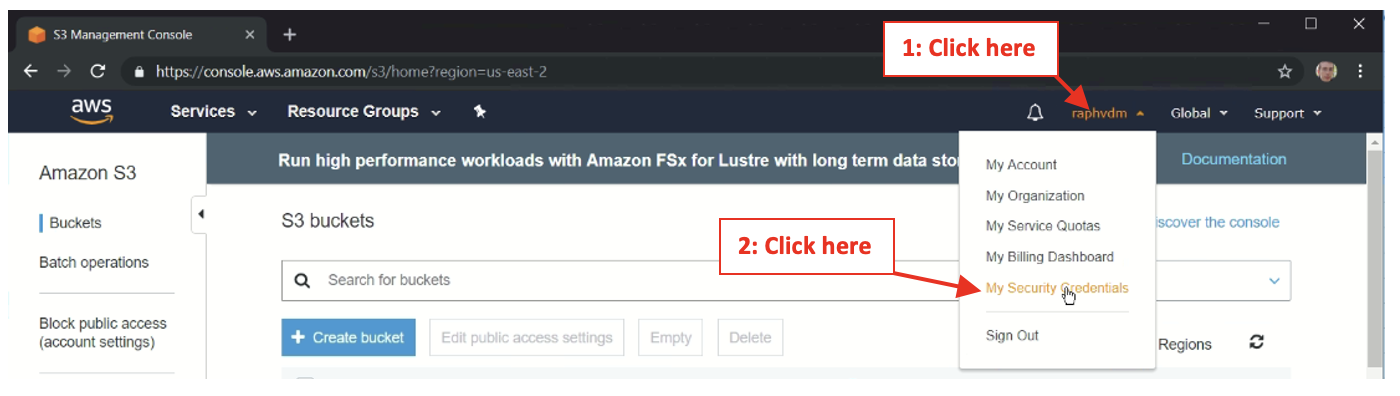
To get the last 2 parameters (i.e. your “Access Key ID” and your “Secret Access Key”), click on the drop-down menu in the top-right corner to see your account options ans select the “My Security Credentials” option:
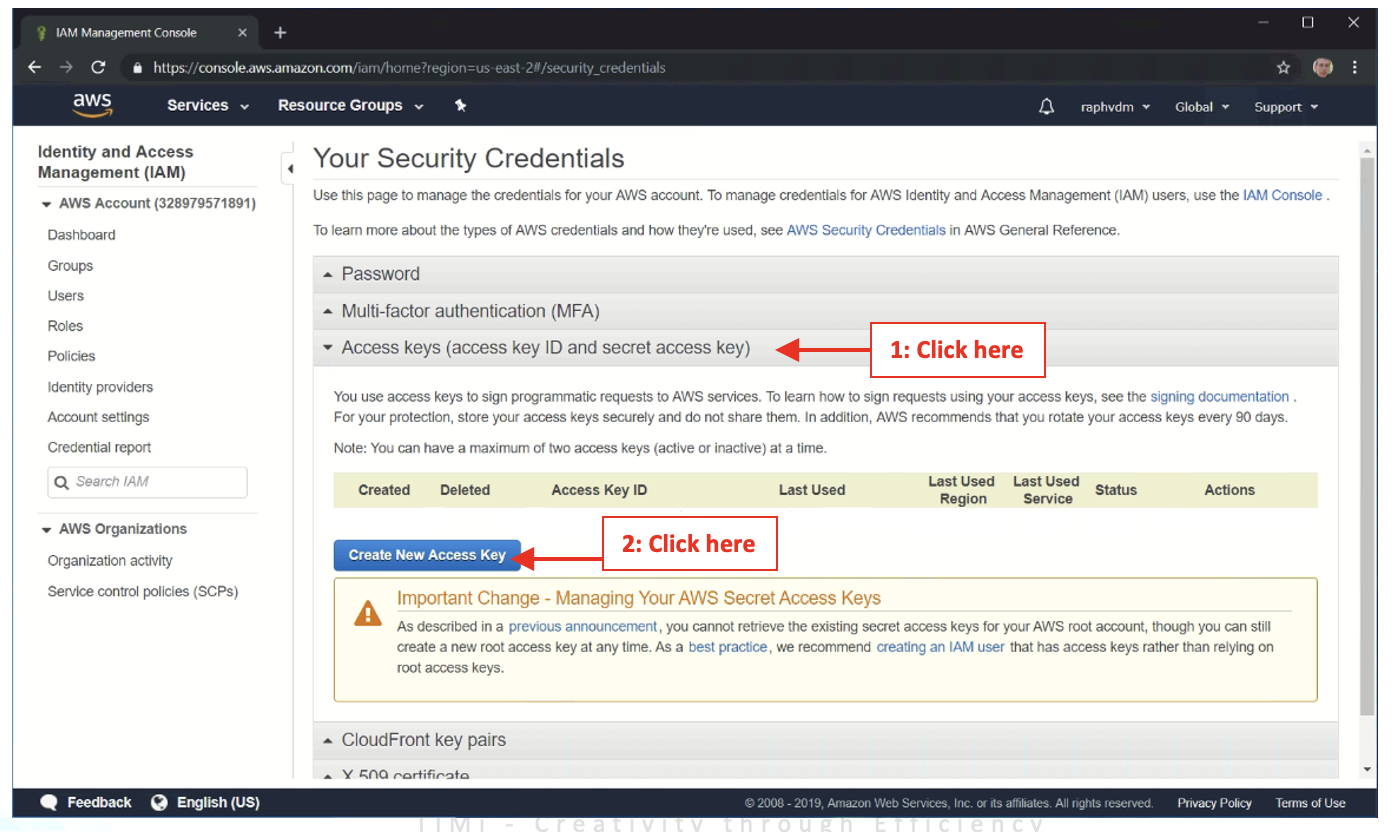
- Inside the “Identity and Access Management (IAM) console”, click on the button named “Access keys (access key ID and secret access key)” and then click on the blue button named “Create New access Key”:
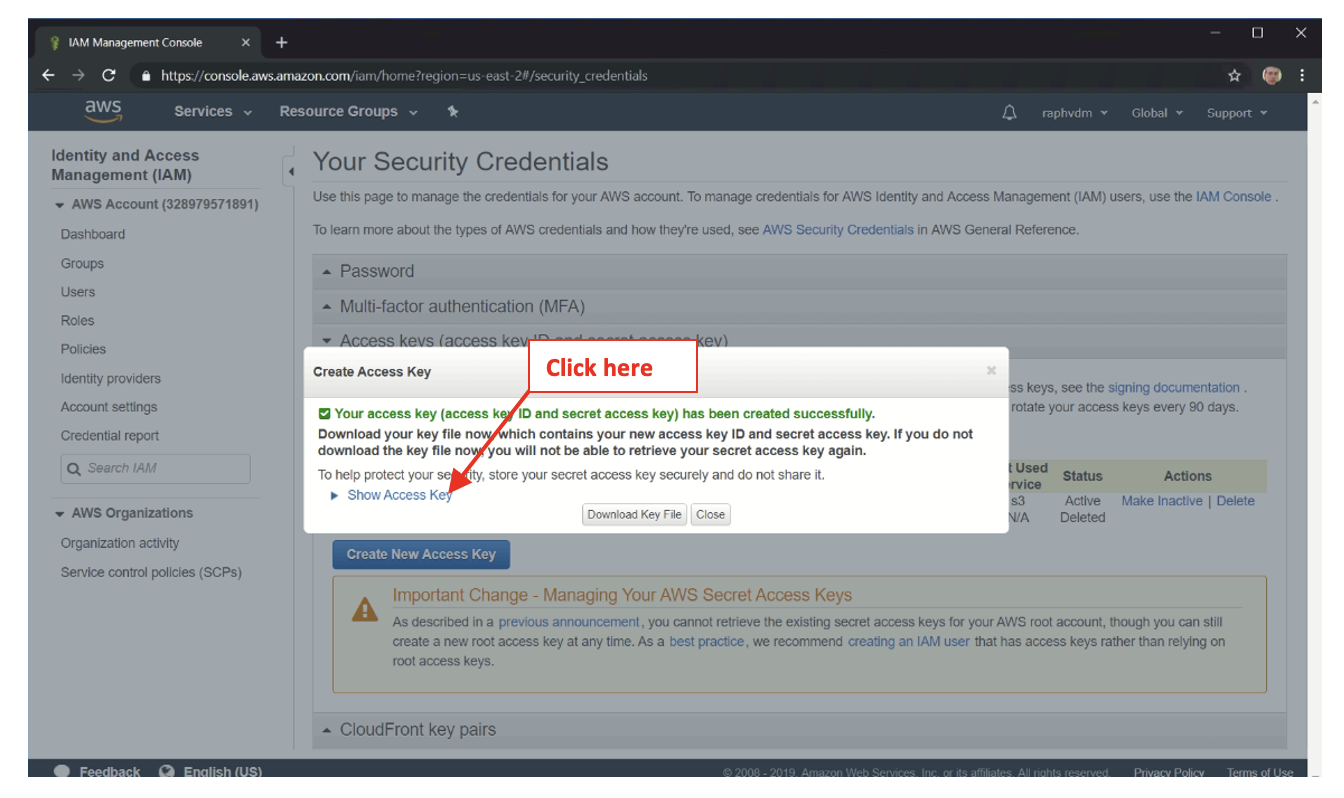
- Inside the new pop-up window that just opened in the browser, click on the “Show Access Key” link:
- Finally, your “Access Key ID” and your “Secret Access Key” are visible here:
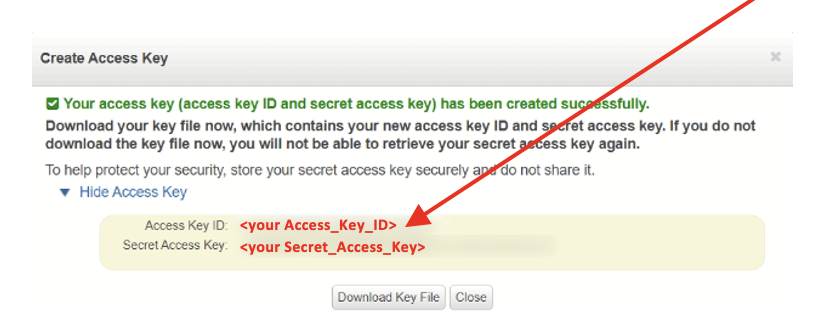
Just copy&paste your “Access Key ID” and your “Secret Access Key” inside the corresponding ETL parameters action, and you are good to go!