¶ Description
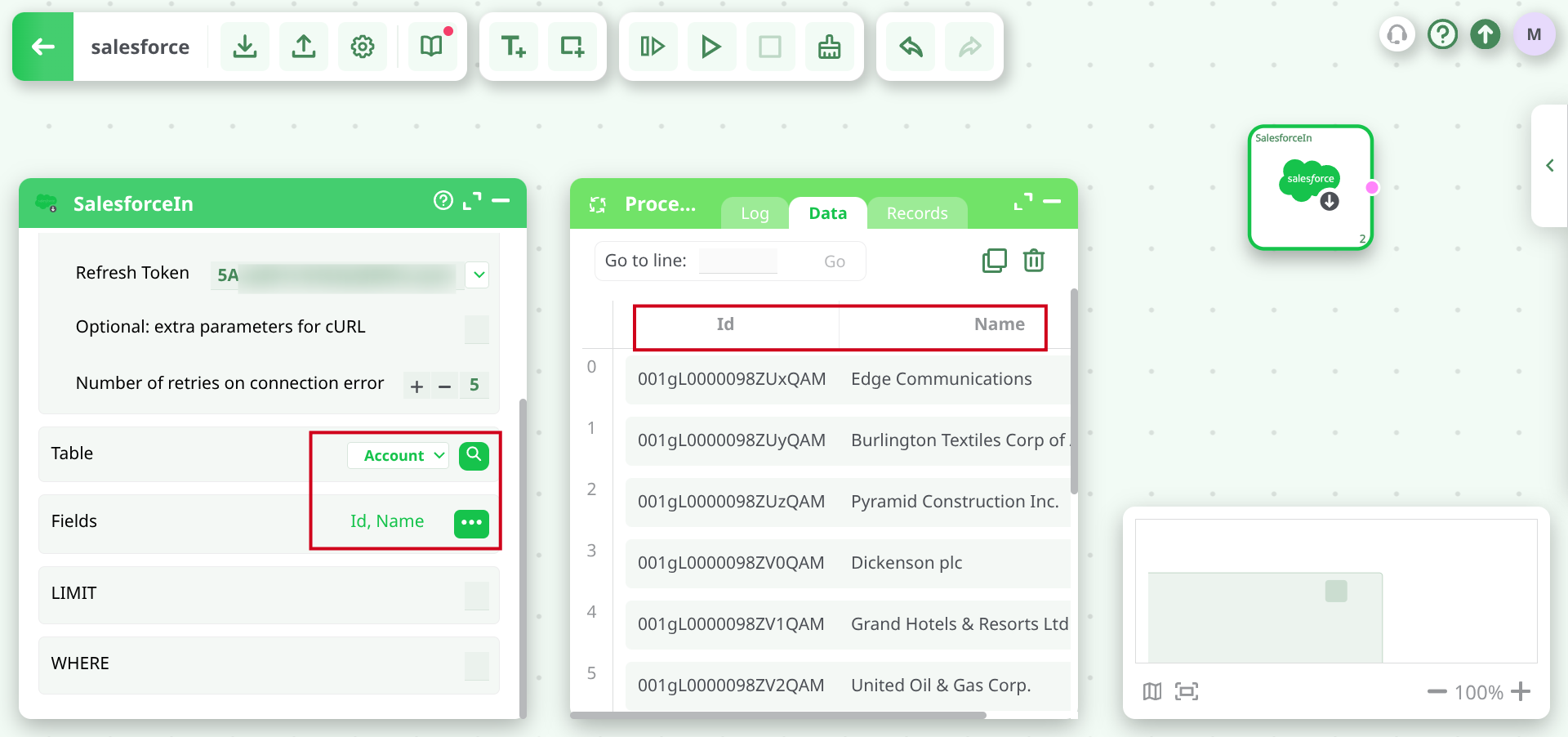
Download data from Salesforce
¶ Parameters
¶ Standard Tab
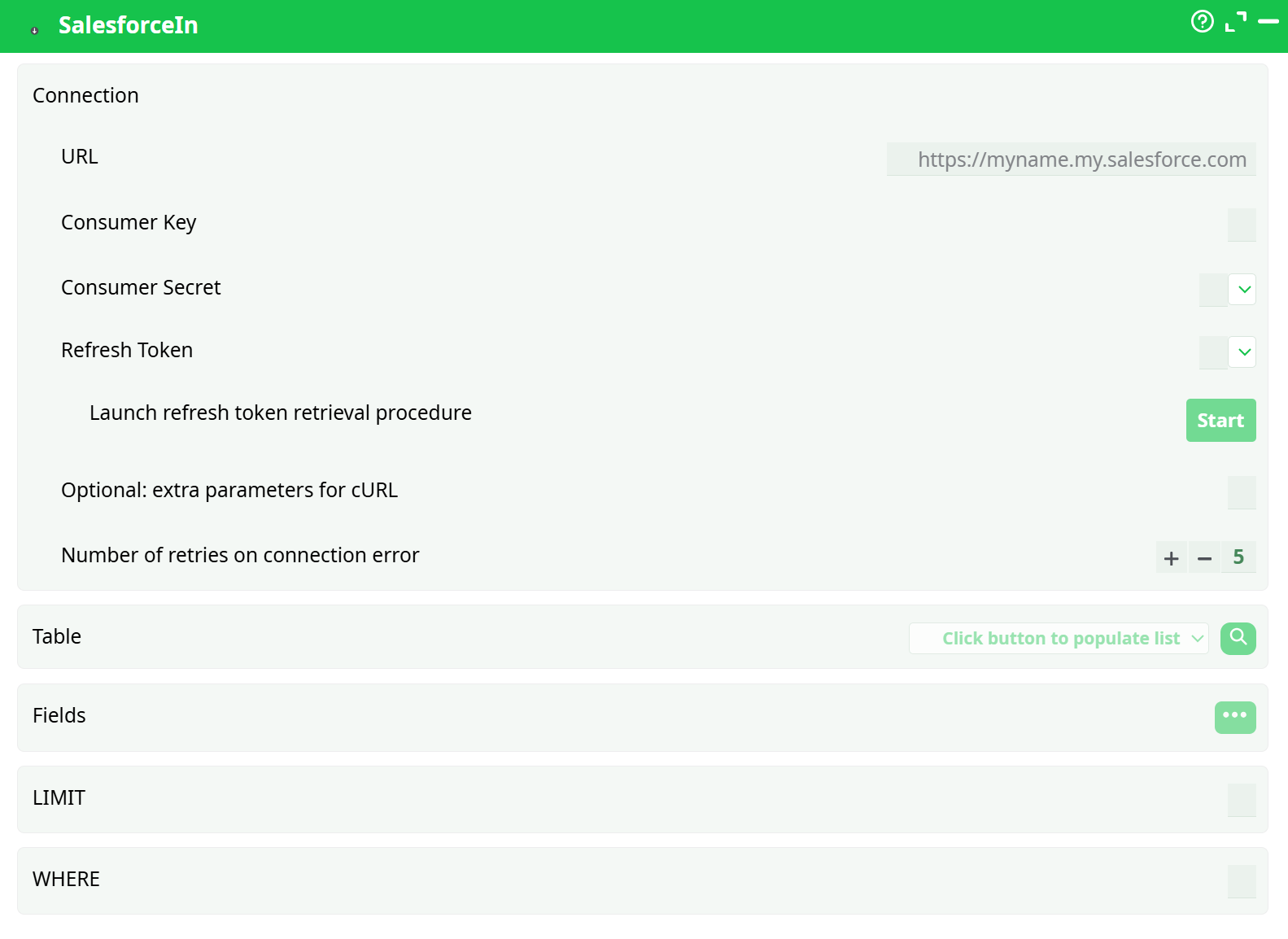
Parameters:
- Connection
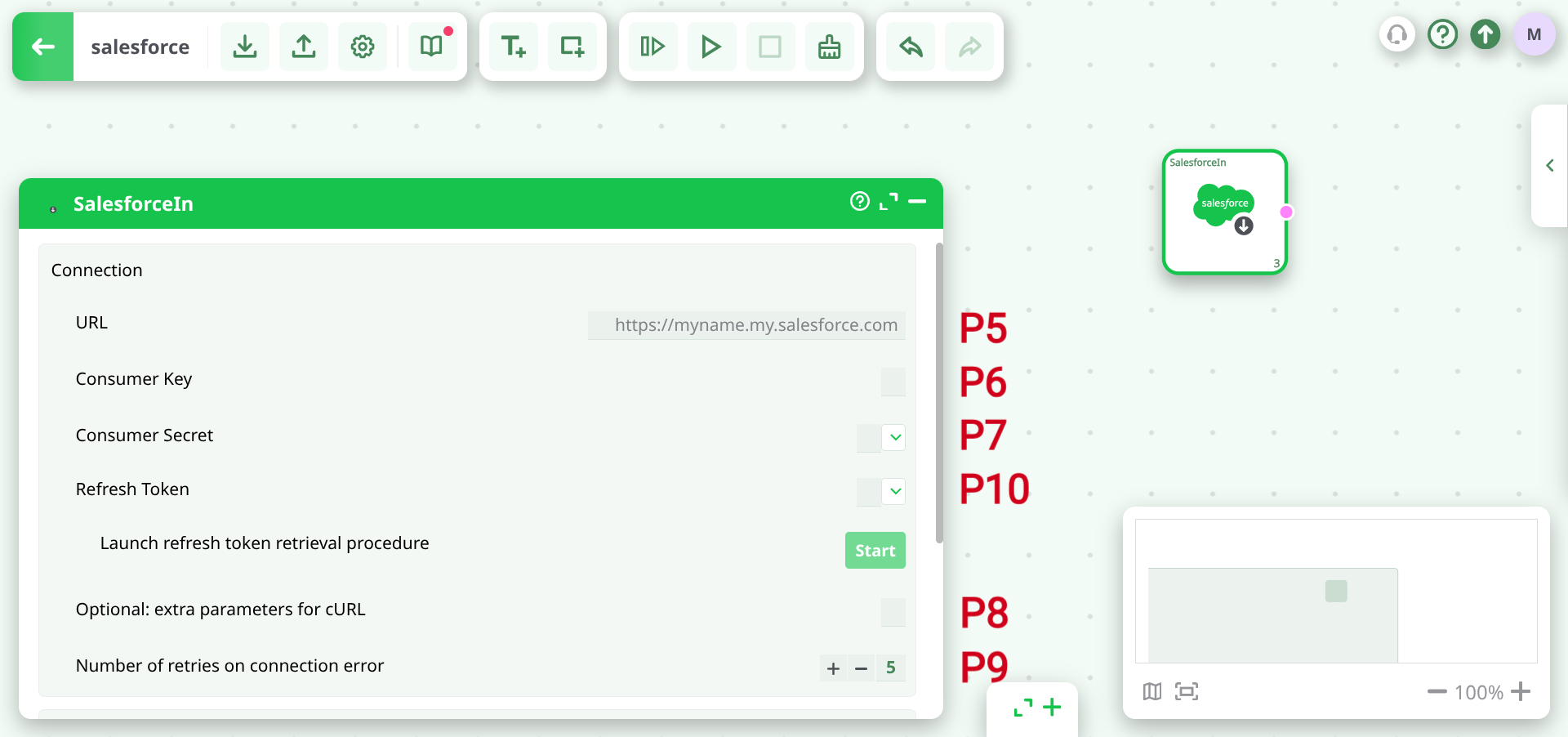
- URL
Consumer Key - Consumer Secret
- Refresh Token
- Launch refresh token retrieval procedure
- Optional: extra parameters for cURL
- Number of retries on connection error
- URL
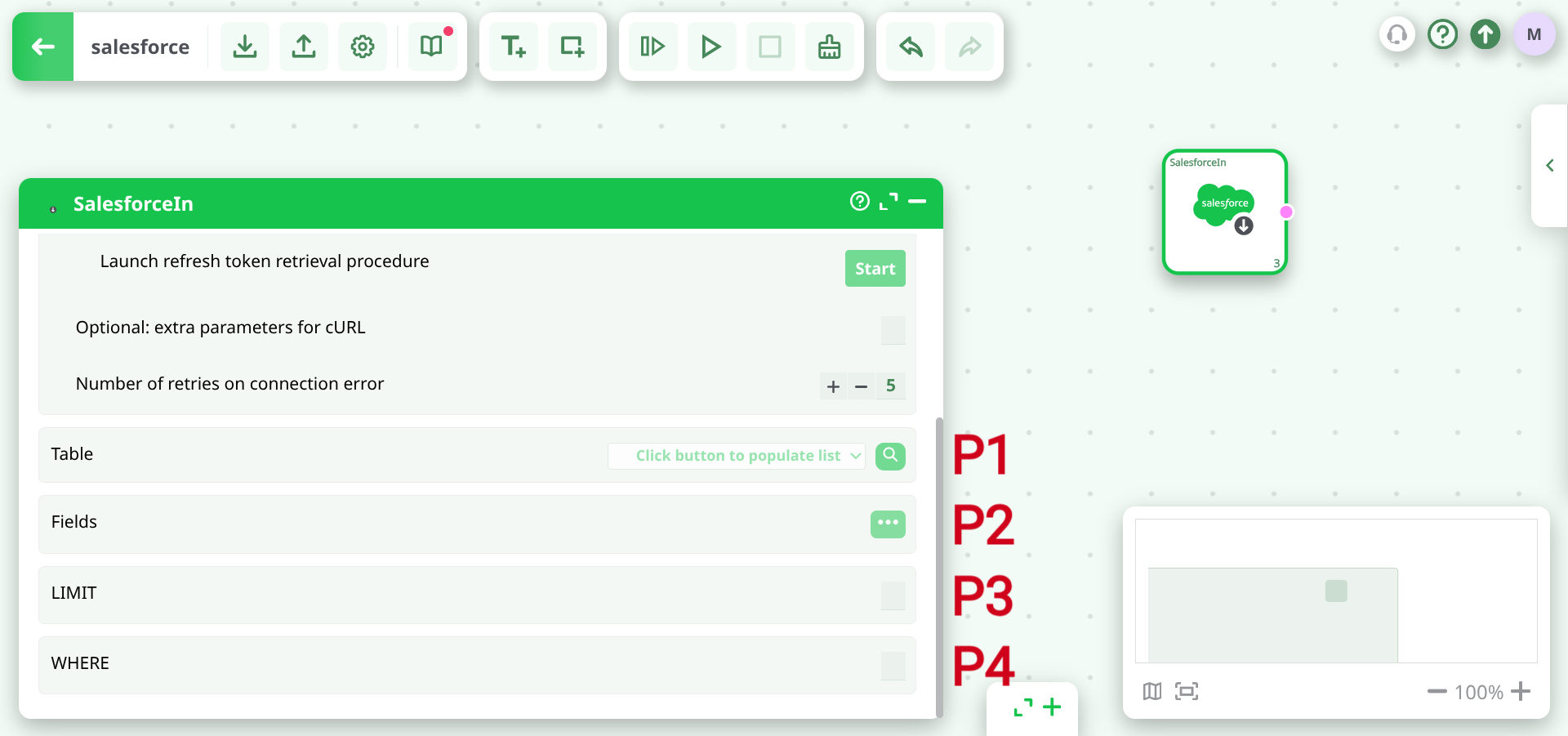
- Table
- Fields
- LIMIT
- WHERE
¶ About
To use this action, you’ll need to get several parameters from Salesforce:
- your “URL”
- your “Consumer Key”
- your “Consumer Secret”
Once you have completed the “setup process” , you can use the parameters to select the data to extract from your Salesforce system.
The parameter P3 is a number that defines how many rows of data will be downloaded from Salesforce (this is mostly useful only for testing, the first time that you connect to Salesforce).
The parameter P4 is the WHERE Clause of the SOQL statement. For more details about SOQL statements, see here:
If the parameter P4 is left empty, ETL downloads all the records (i.e. there is no filter).
¶ Salesforce Download/Upload: First time setup
Before downloading data from Salesforce or before uploading data to Salesforce, you need to create a new Salesforce application. Here are the steps:
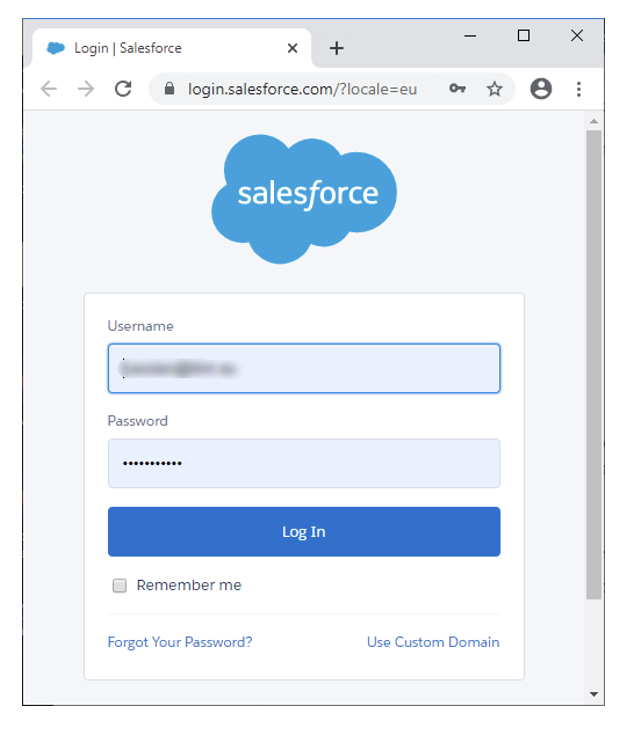
- Open the URL https://login.salesforce.com/?locale=eu and log-in into your Salesforce account:
-
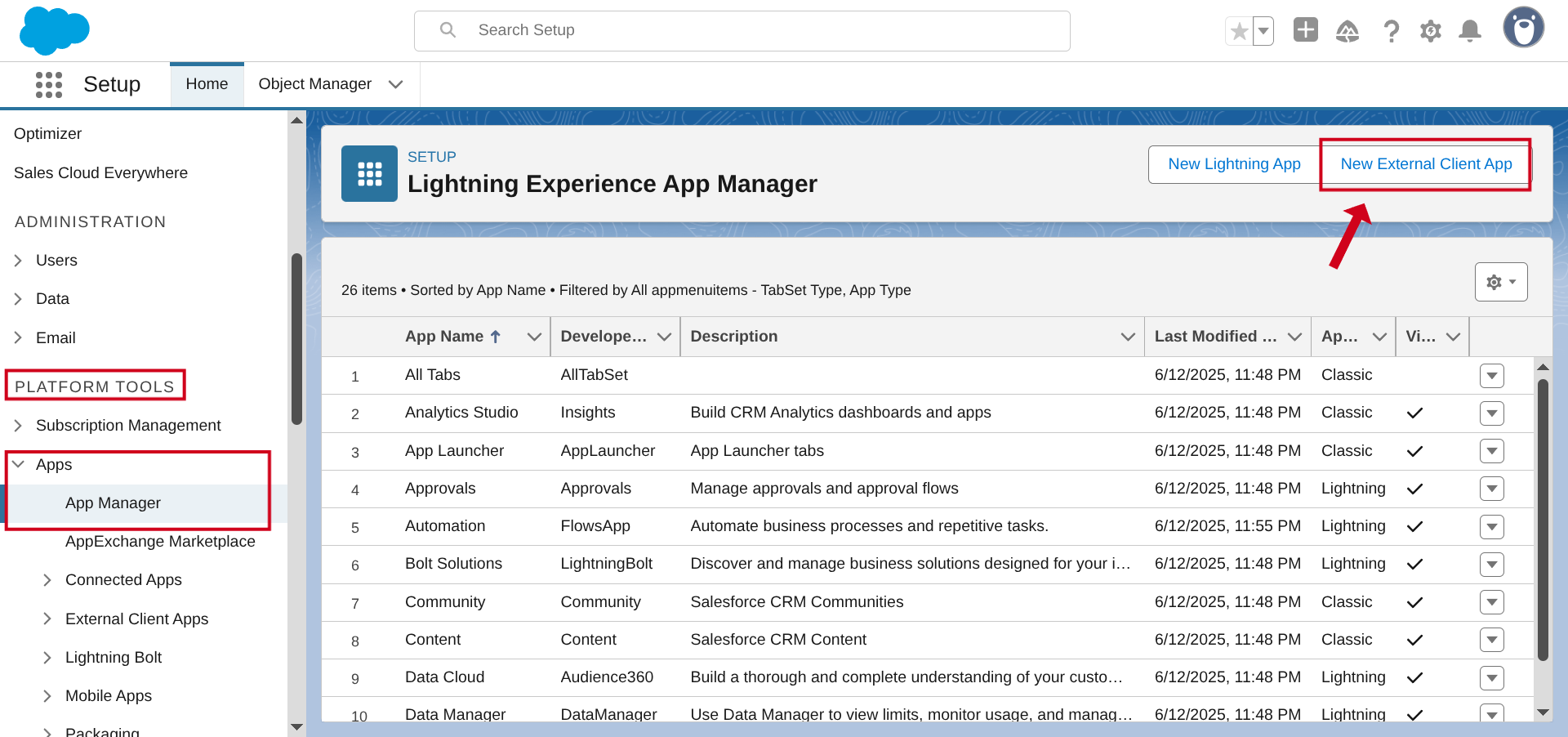
In the left column, in the "PLATFORM TOOLS" section, click "Apps" and then click "App Manager".
-
Click the "New External Client App"
-
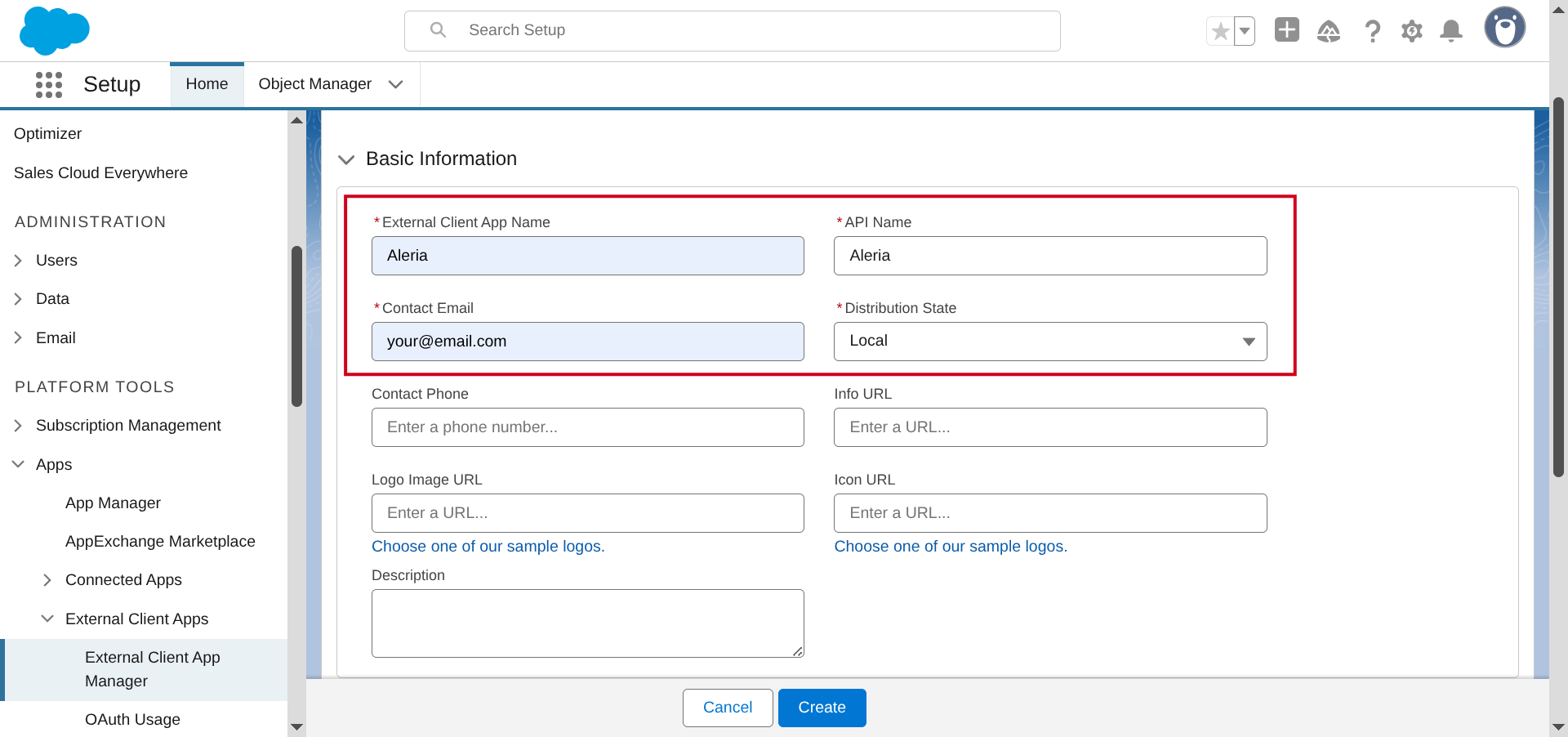
Fill-in the required fields inside the "New Connected App"
-
Continue to fill-in the required fields inside the “New Connected App” configuration page:
For the parameter “Selected OAuth Scopes”, you must select at least these 3 scopes:
o Access and Manage your data (api)
o Full access (full)
o Perform requests on your behalf at any time (refresh token, offline access)
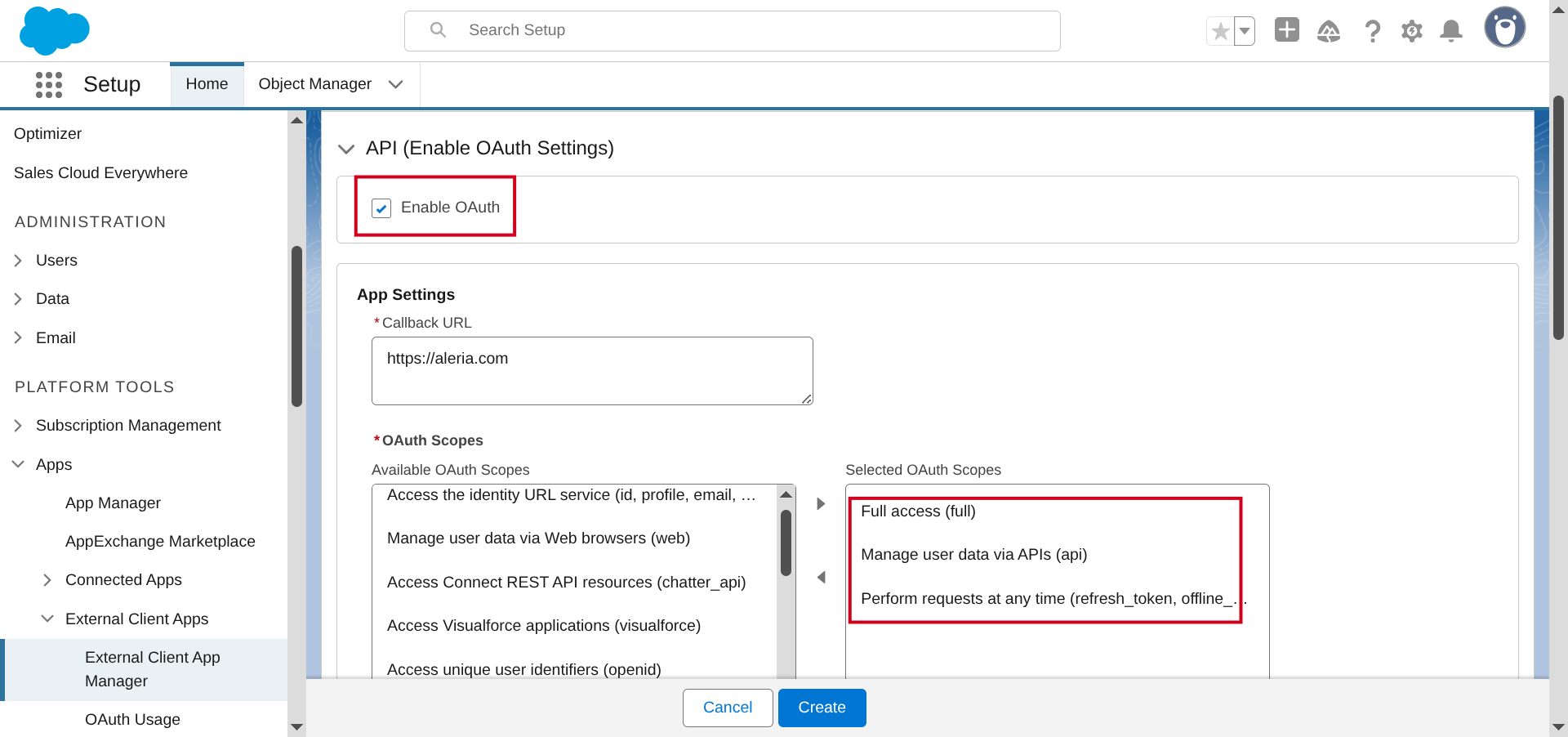
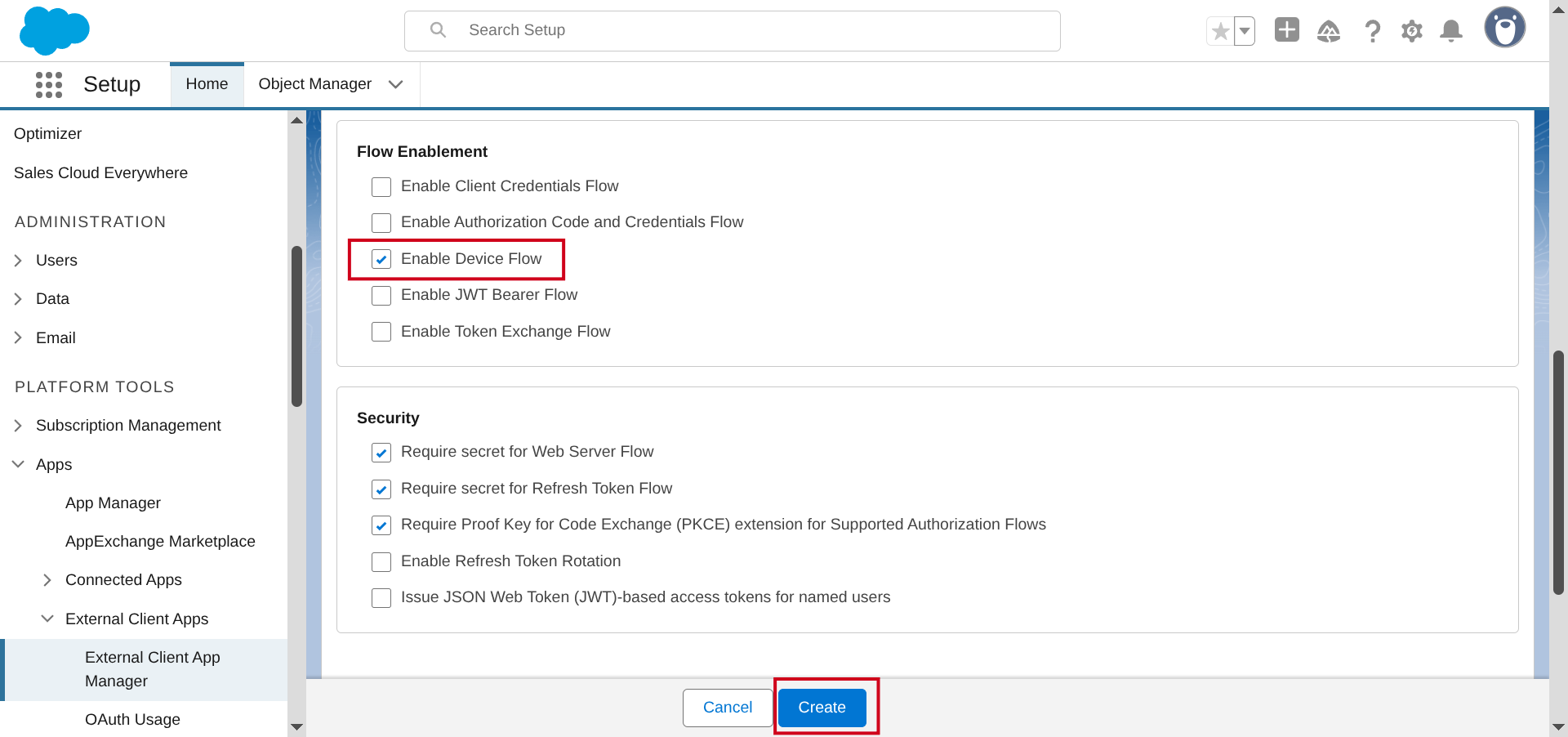
For the “Callback URL” parameter, you can put your company url.
- Click the “Save” button (at the bottom or at the top of the page):
- You should now see this summary screen:
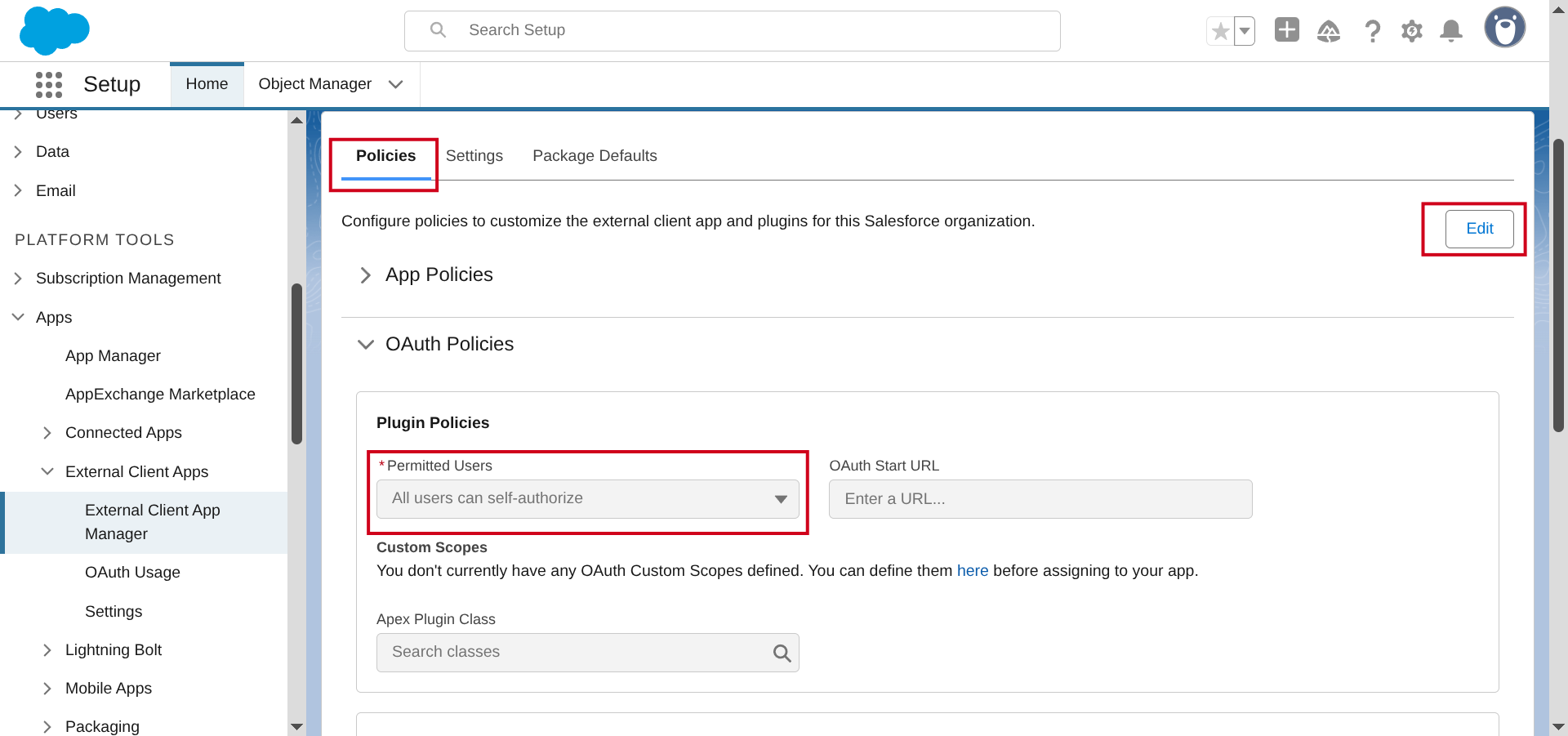
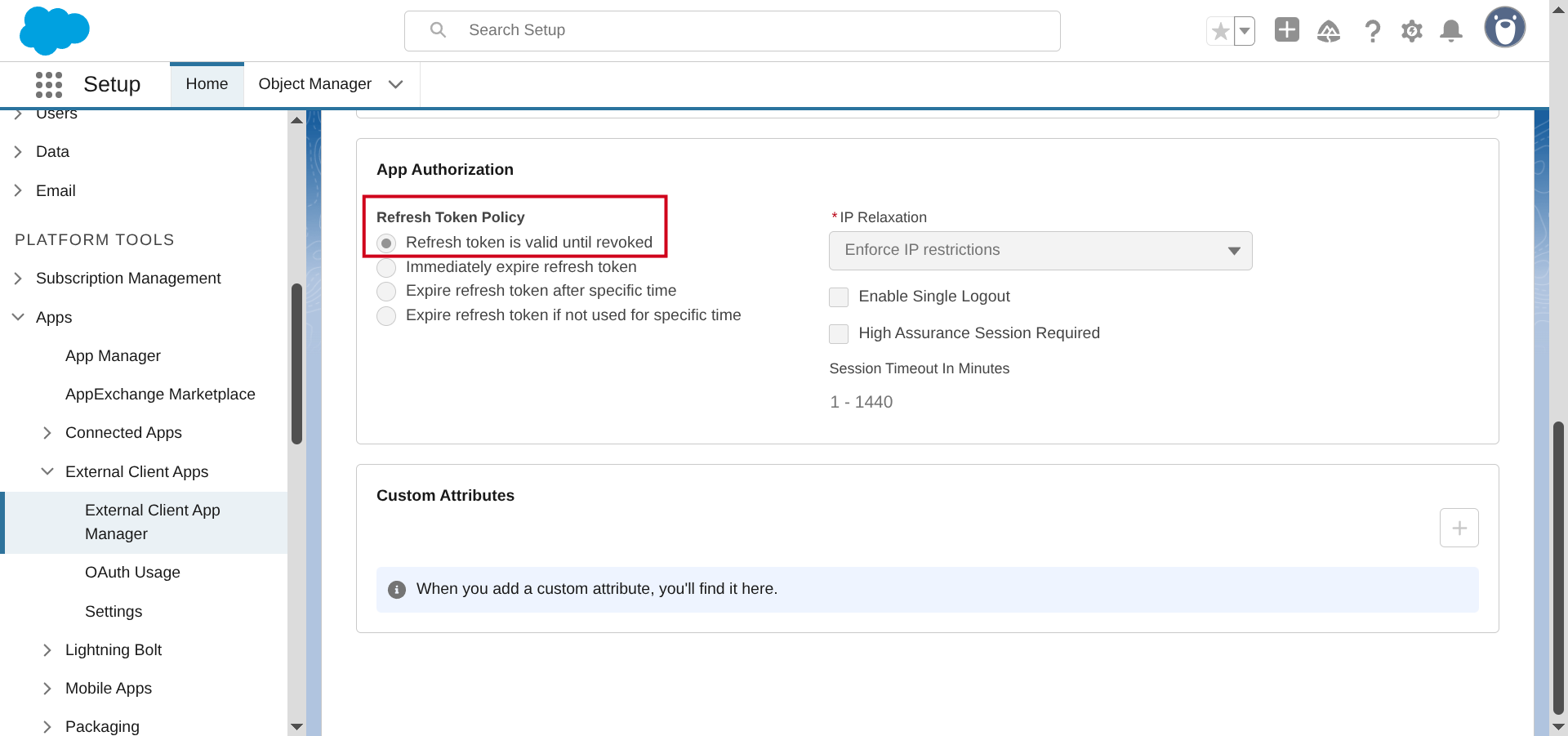
- Click the "Policies" section and make sure that:
- "Permitted Users" option is set to "All users may self-authorize"
- "Refresh Token Policy" option is set to "Refresh token is valid until revoked"
If that's not the case, click the "Edit" button:
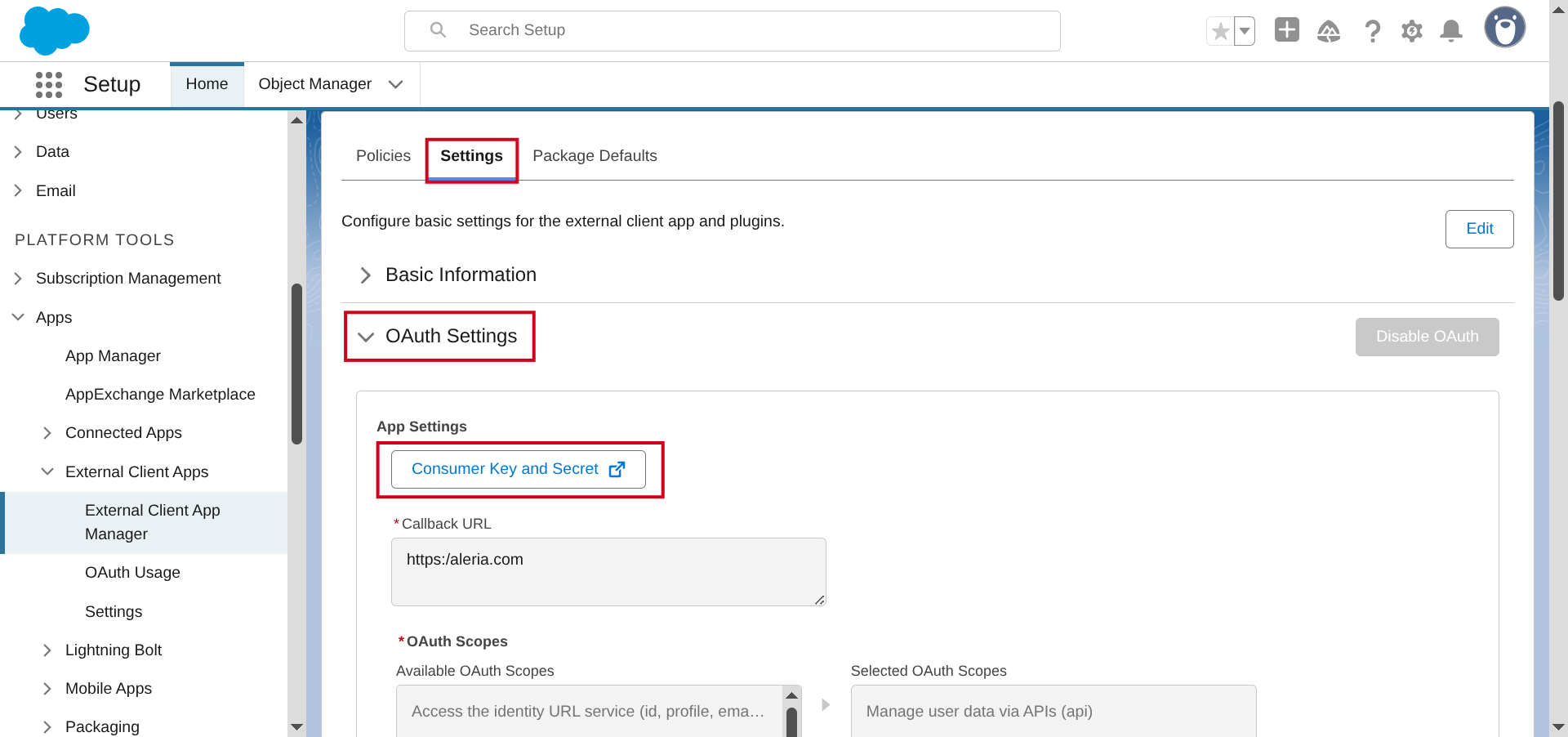
- Go back to "Settings" section and click the "Consumer Key and Secret" button and copy these 2 parameters:
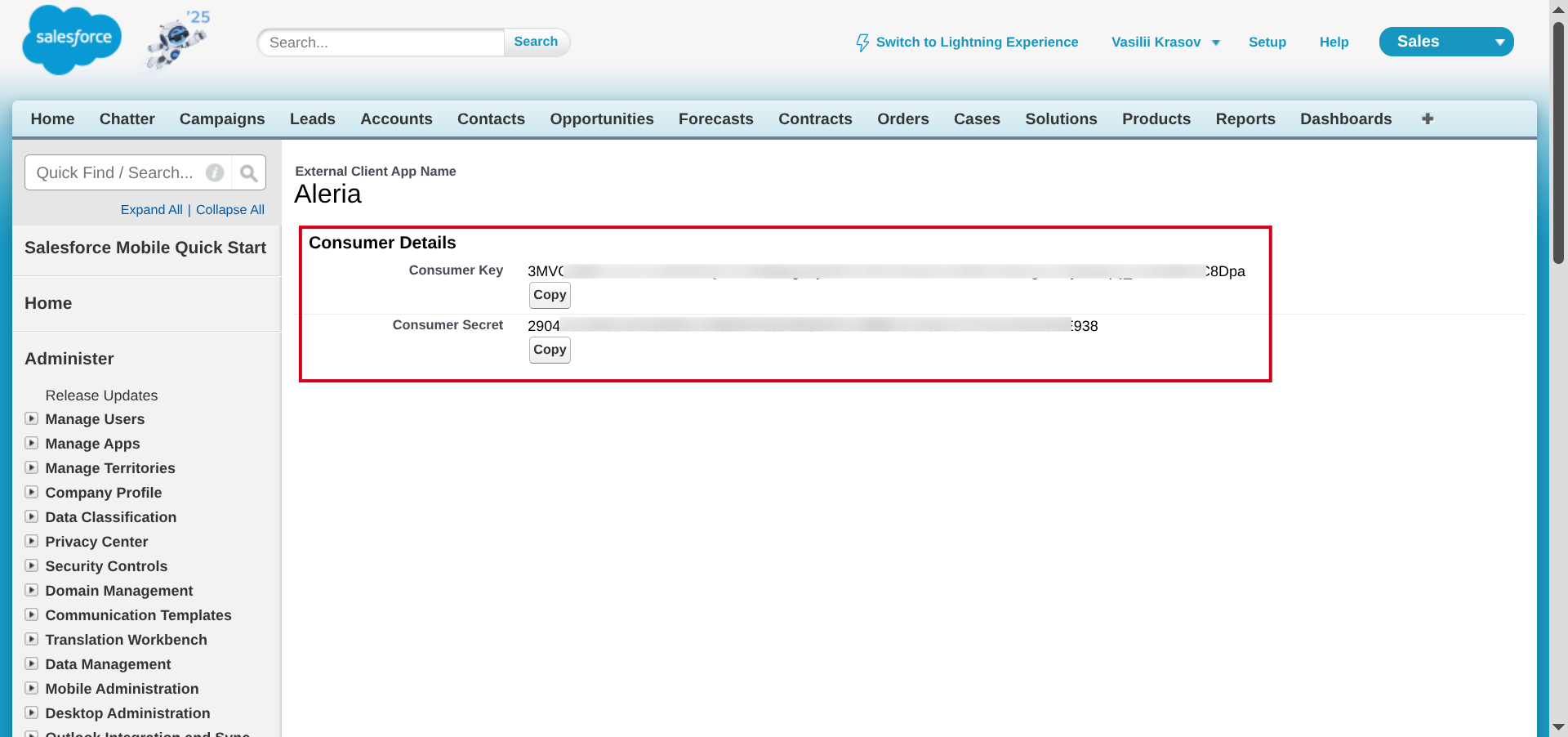
12. Open ETL, fill-in parameters P5, P6, P7, click "Start" button and follow instructions:
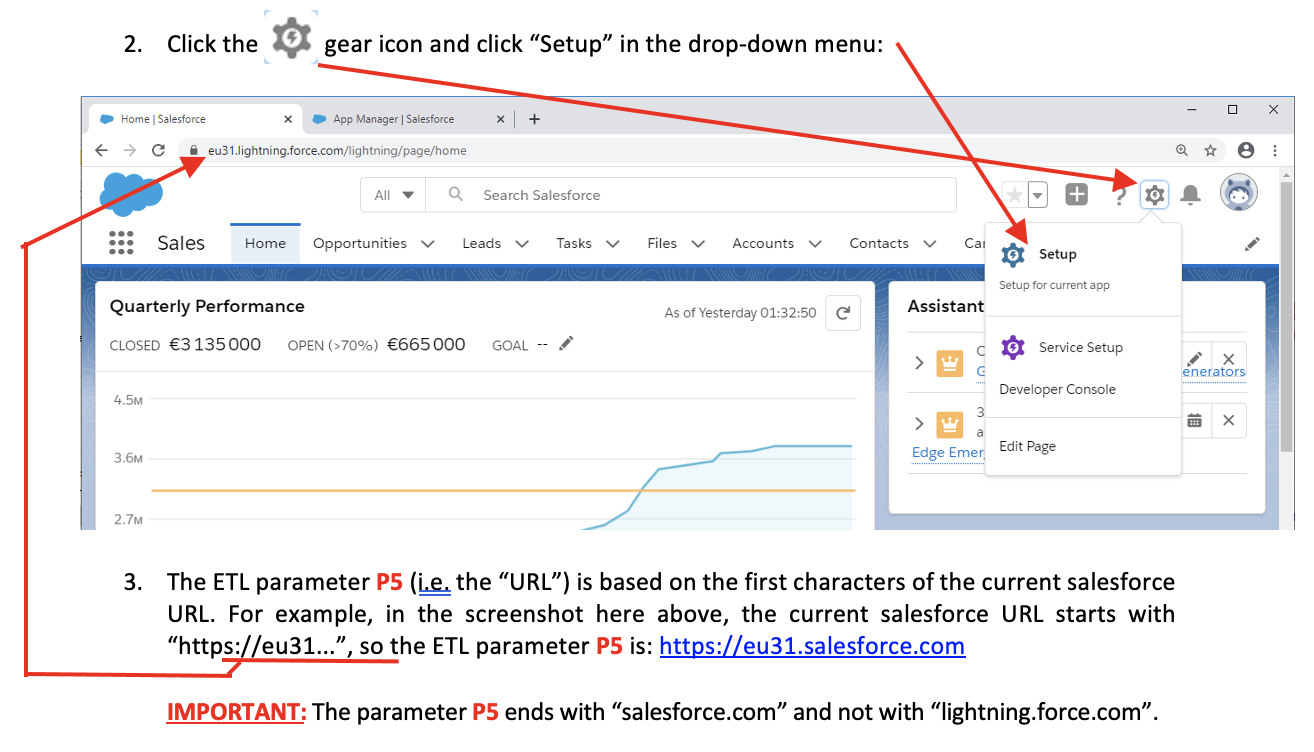
- Parameter P5 (i.e. the “URL”) is your Salesforce domain.
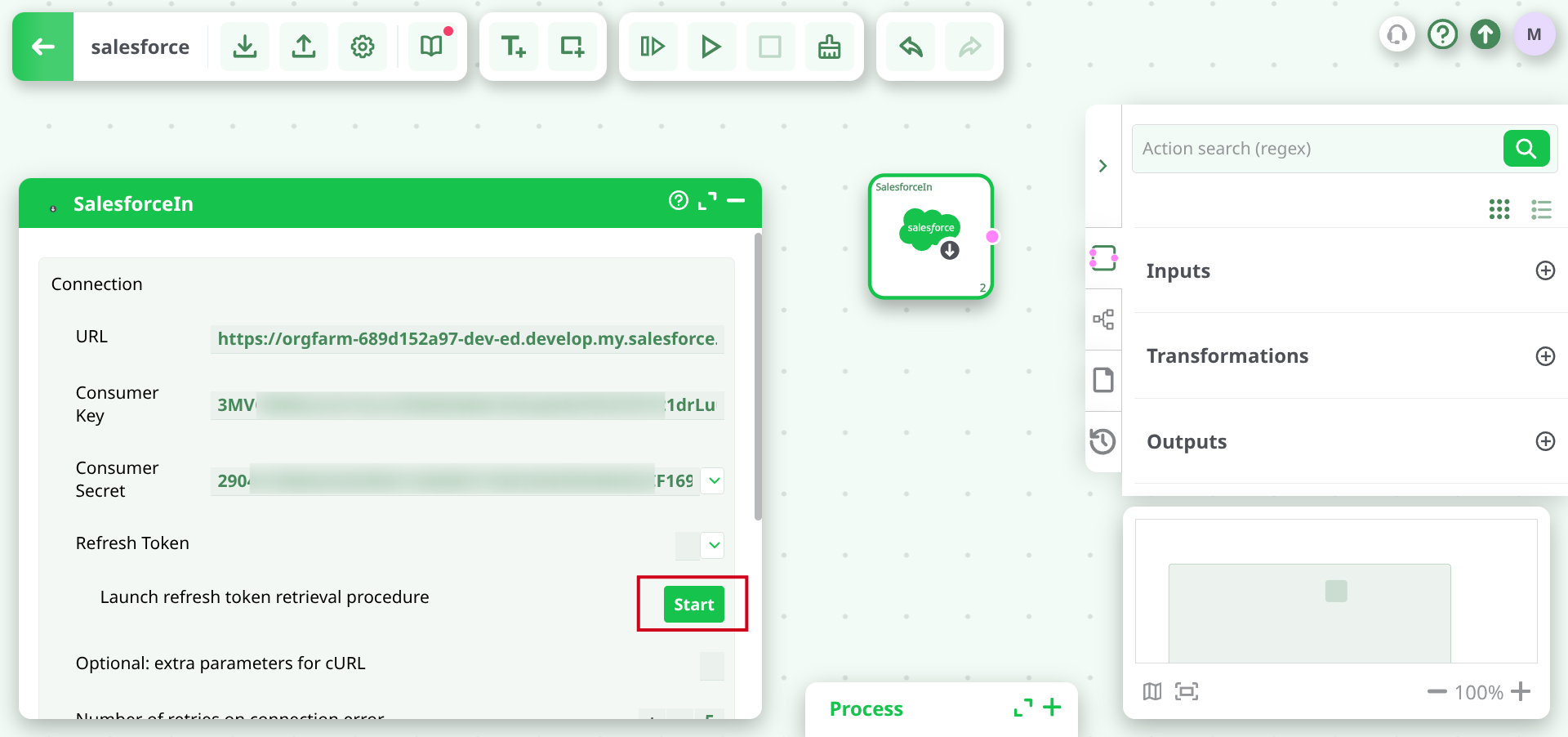
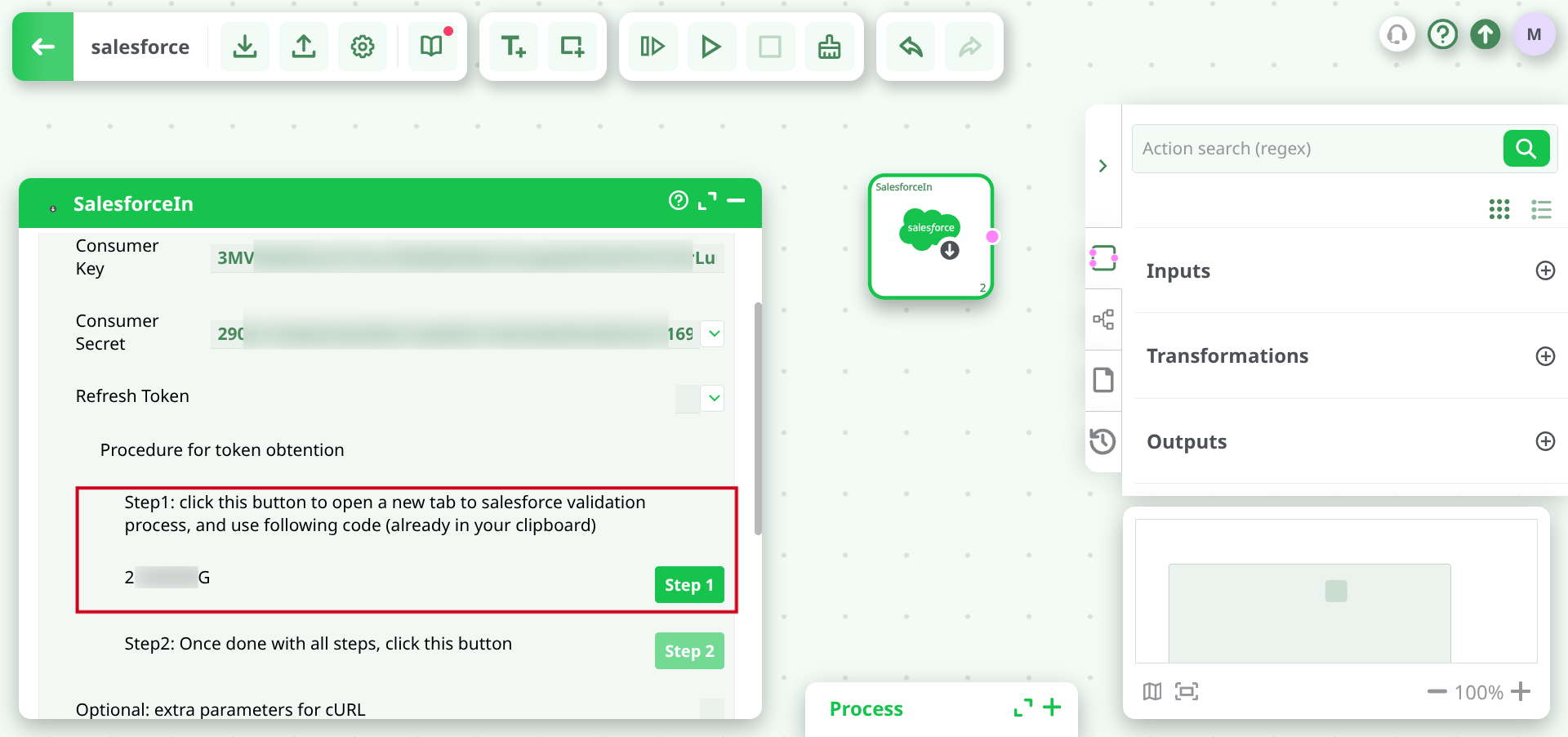
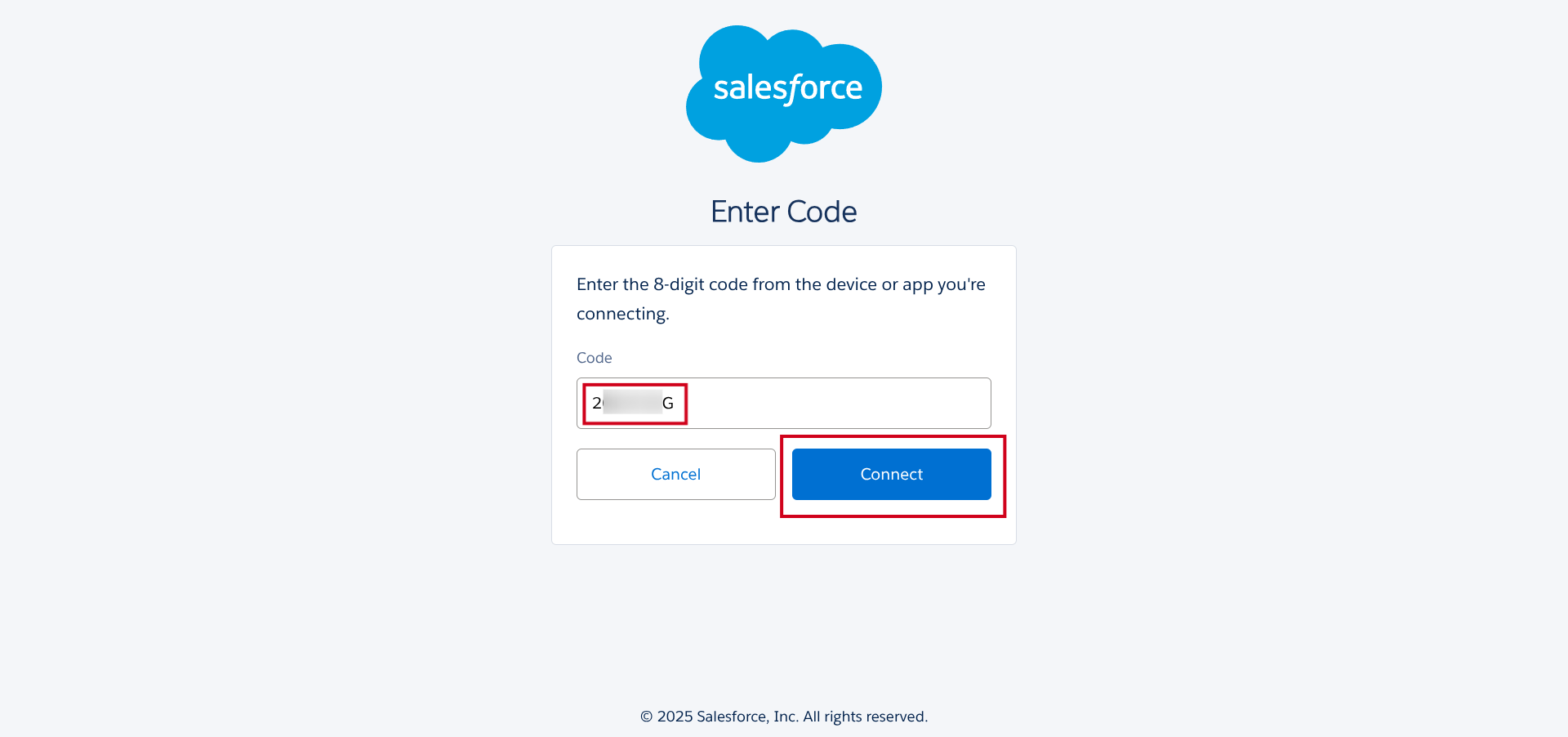
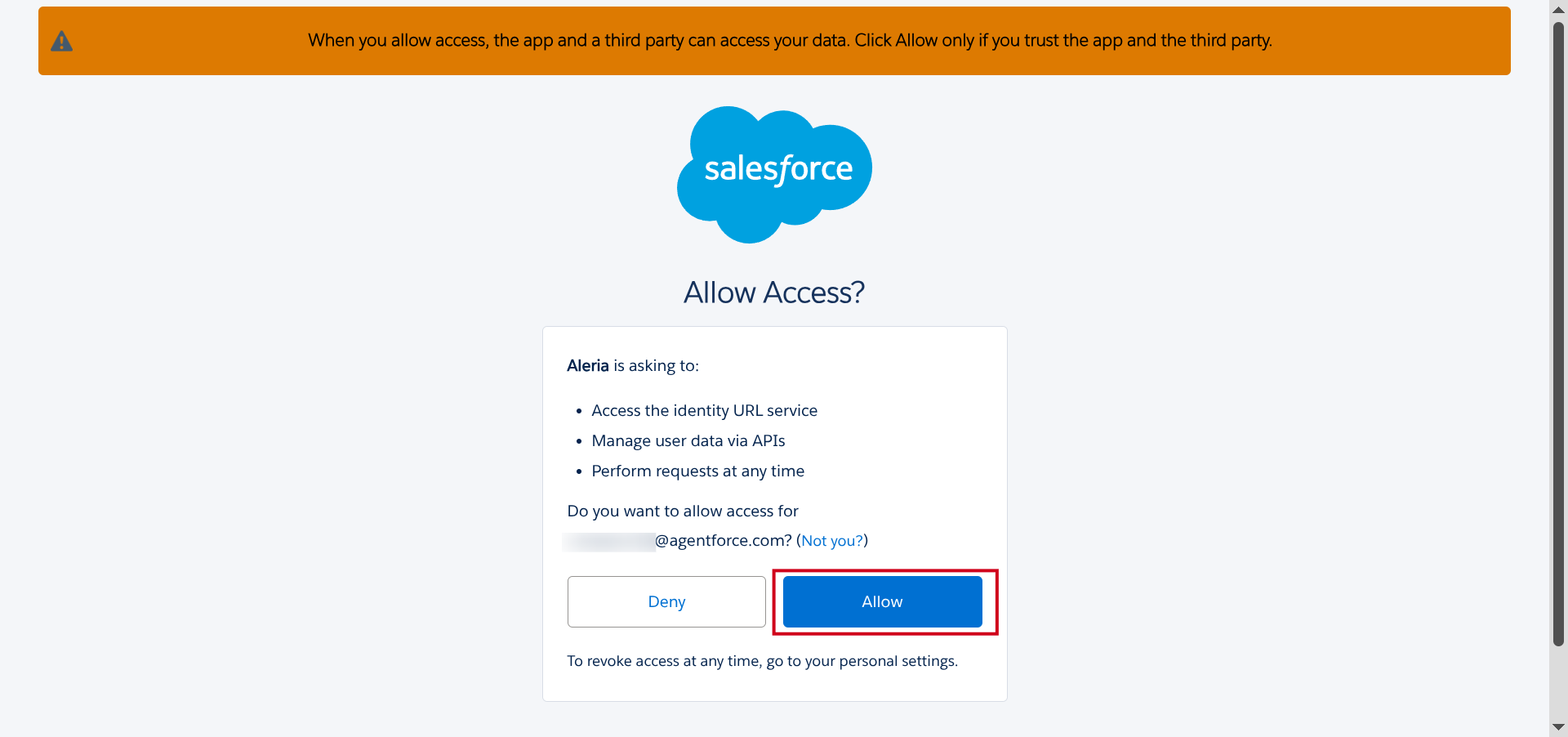
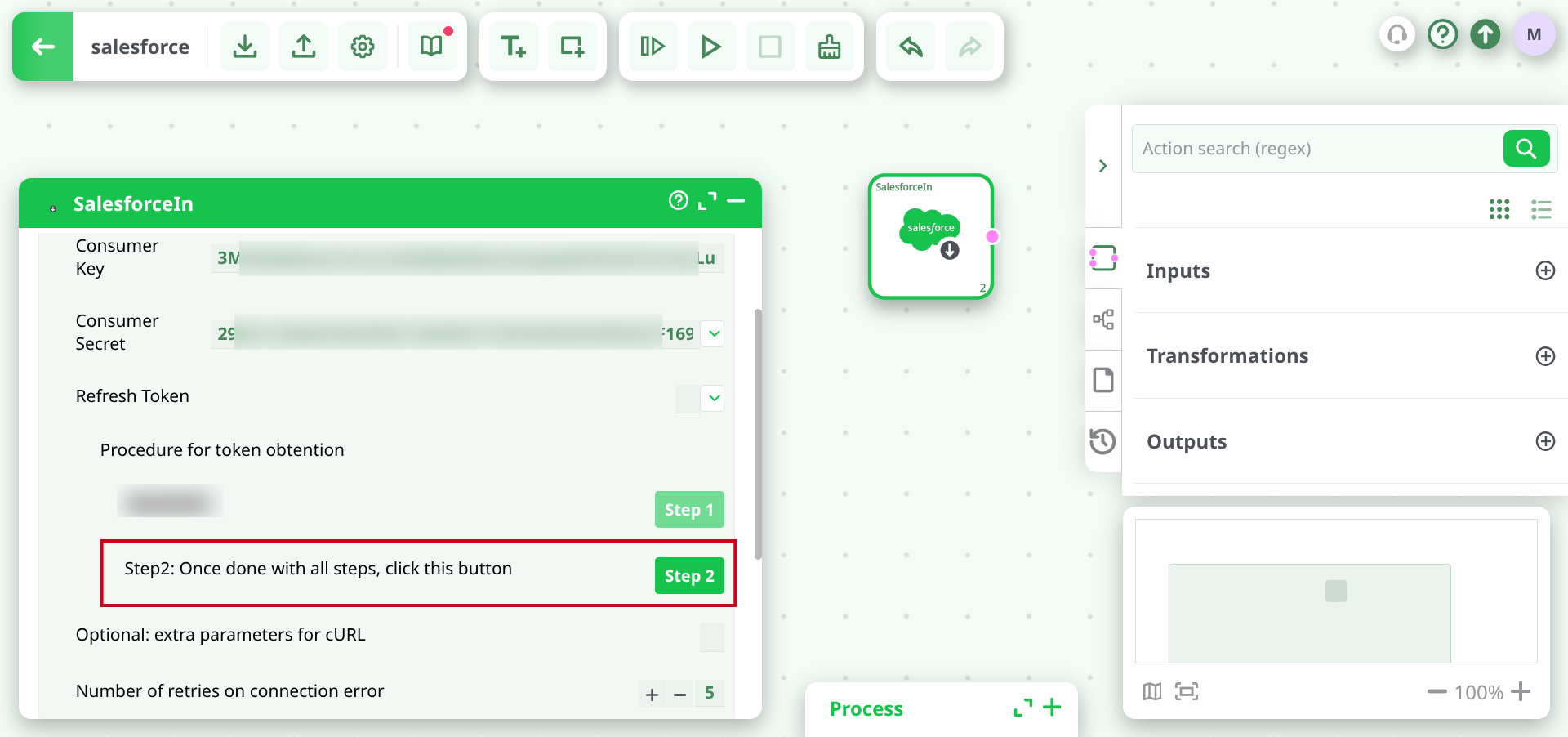
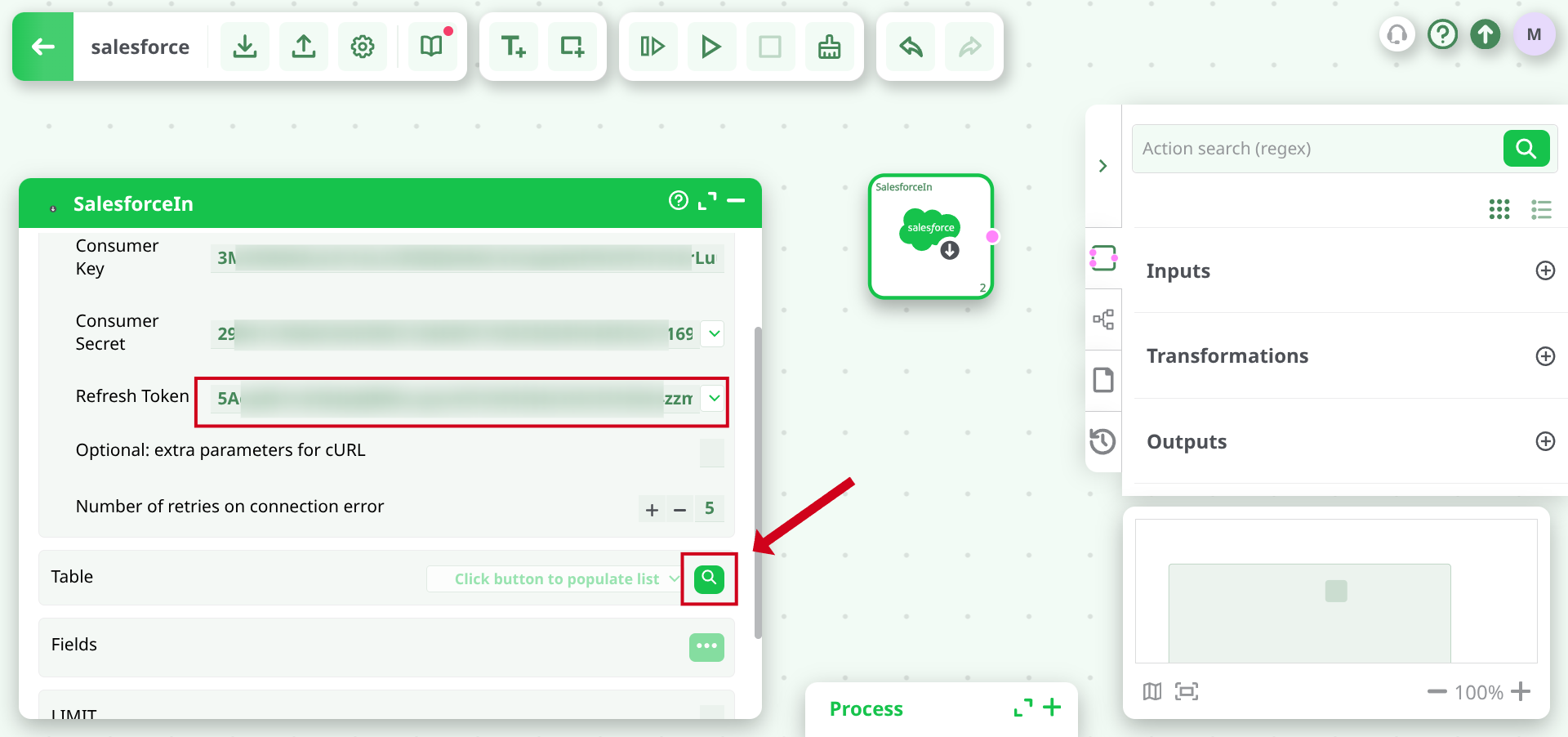
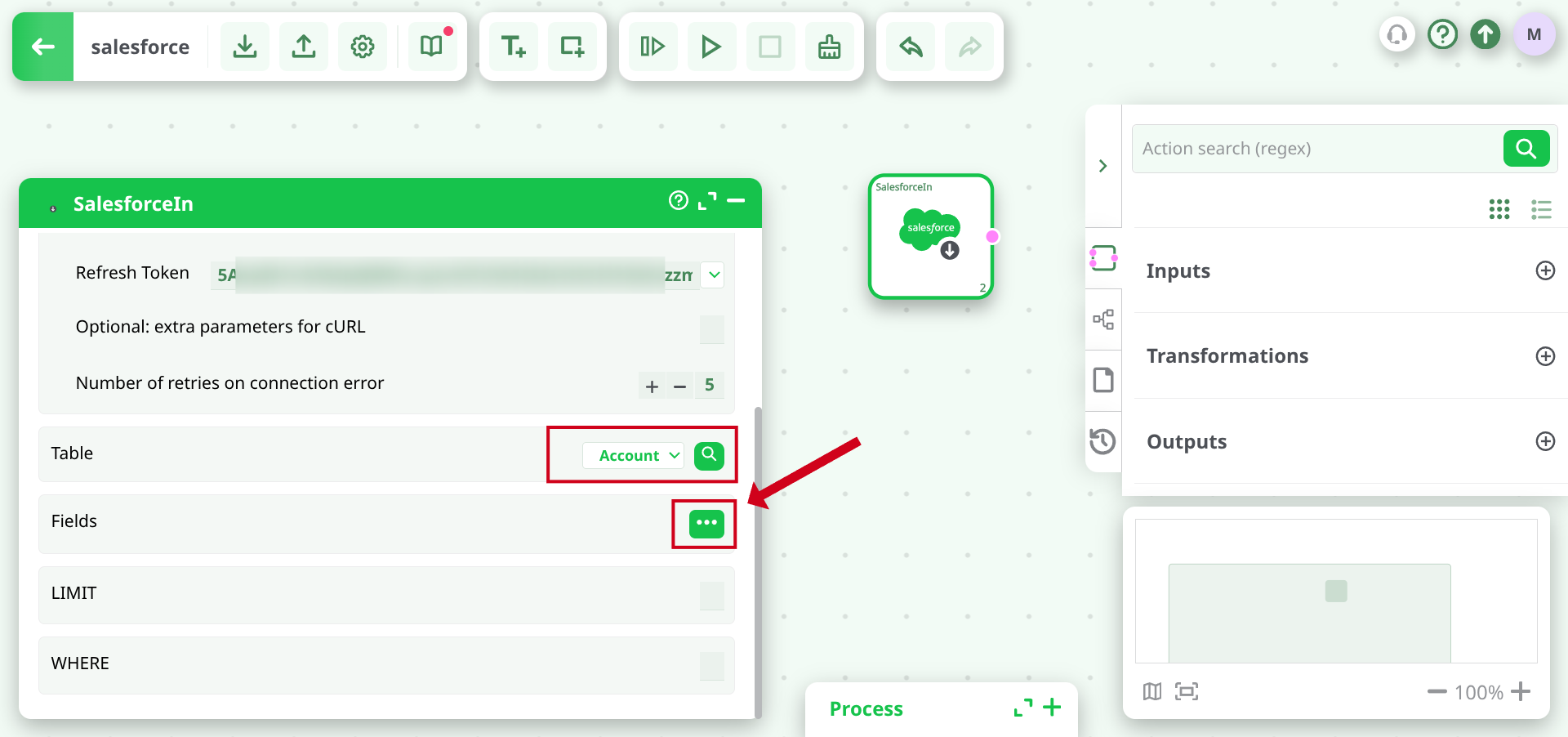
13. After that, the refresh token P10 should be populated, and you will be able to select a table P1, fields P2, and preview the data.
¶ Troubleshooting the Salesforce connection
If you cannot see the Salesforce login page at step 10 of the previous section, it usually means that you need to follow this procedure:
- Open the “External Client App Manager” page and click on your application.
- Click the "Policies" selection and make sure that:
- "Permitted Users" option is set to "All users may self-authorize"
- "Refresh Token Policy" option is set to "Refresh token is valid until revoked"
If that's not the case, click the "Edit" button:
- Click the “save” button at the end of the page.
If you see inside the ETL log window the following error message “The REST API is not enabled for this Organization. Code: API_DISABLED_FOR_ORG”, this usually means that you are still using the TRIAL version of Salesforce. You need the paid version of Salesforce to be able to use the Saleforces action inside ETL.
If you are using the paid version of Salesforce and you still get this error message, then you’ll need to enable the “REST API” for your organization: Here is the procedure:
- Open the page to edit the “System Administrator” profile:
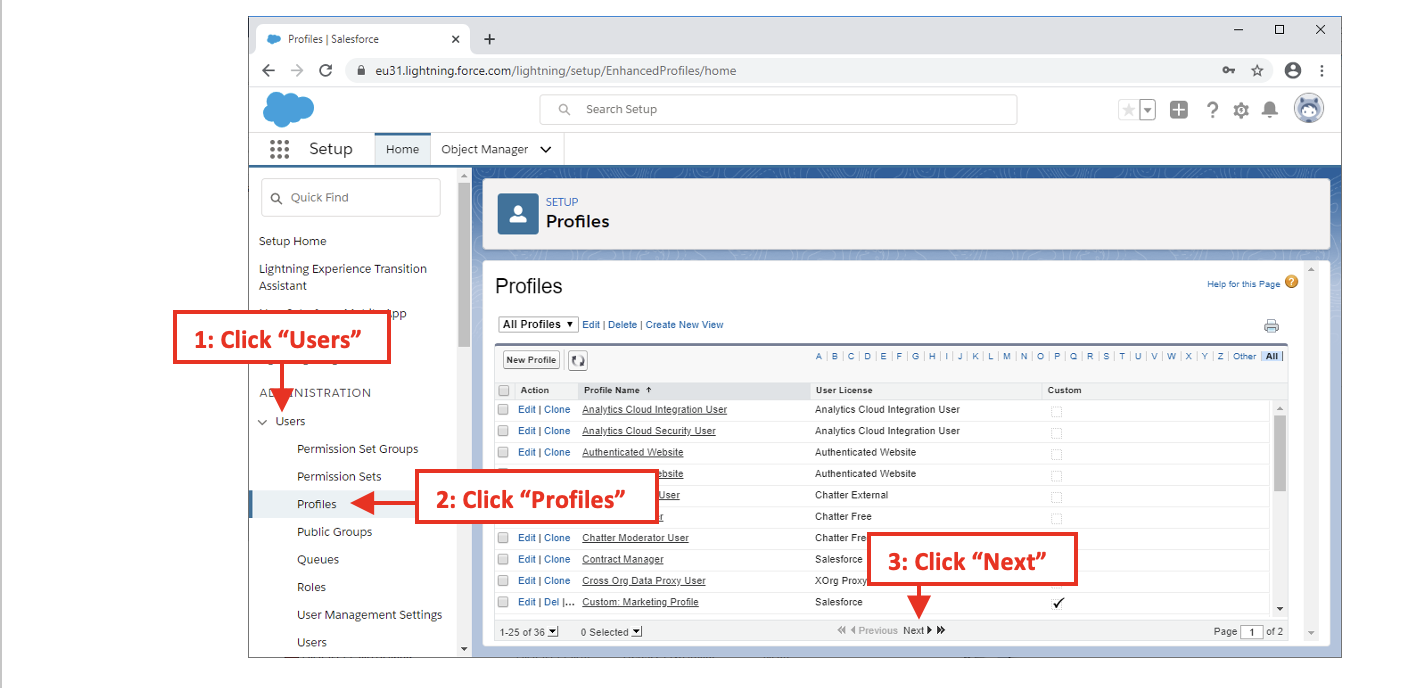
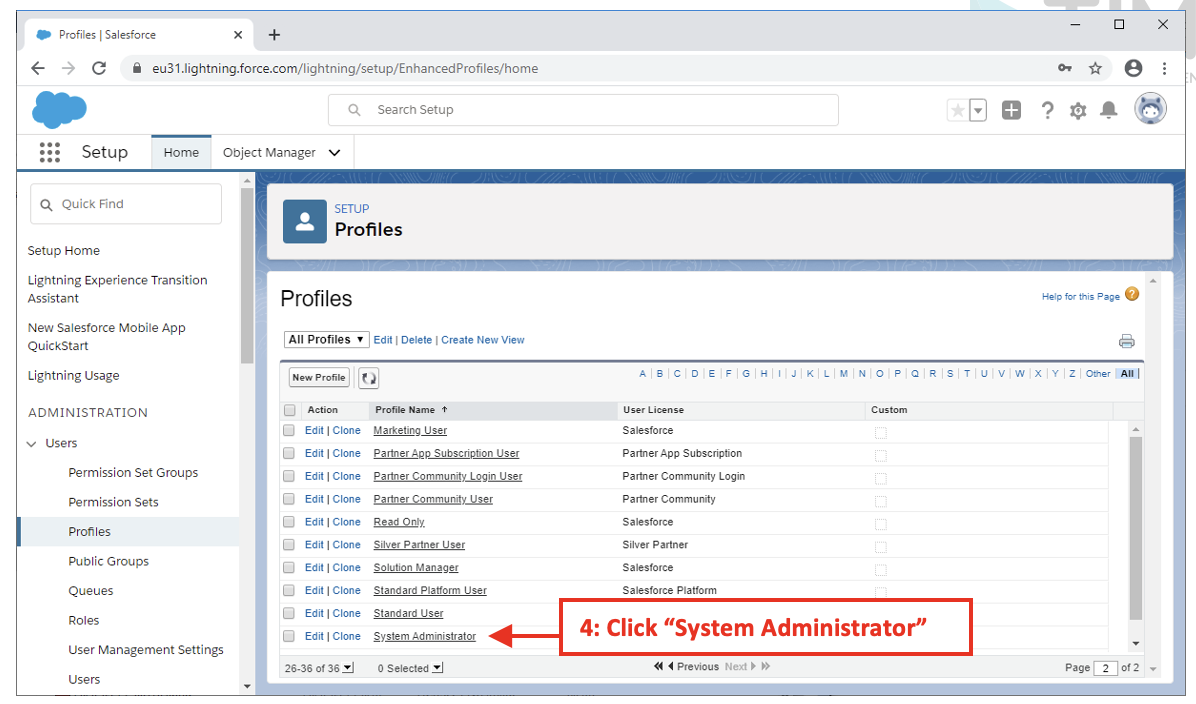
- The page to edit the “System Administrator” profile contains many sections:
- Profile Detail
- Console Settings
- Page Layouts
- Field-Level Security
- Custom App Settings
- Connected App Access
- Tab Settings
- Record Type Settings
- Administrative Permissions
- General User Permissions
- Standard Object Permissions
- Desktop Integration Clients
- Session Settings
- Password Policies
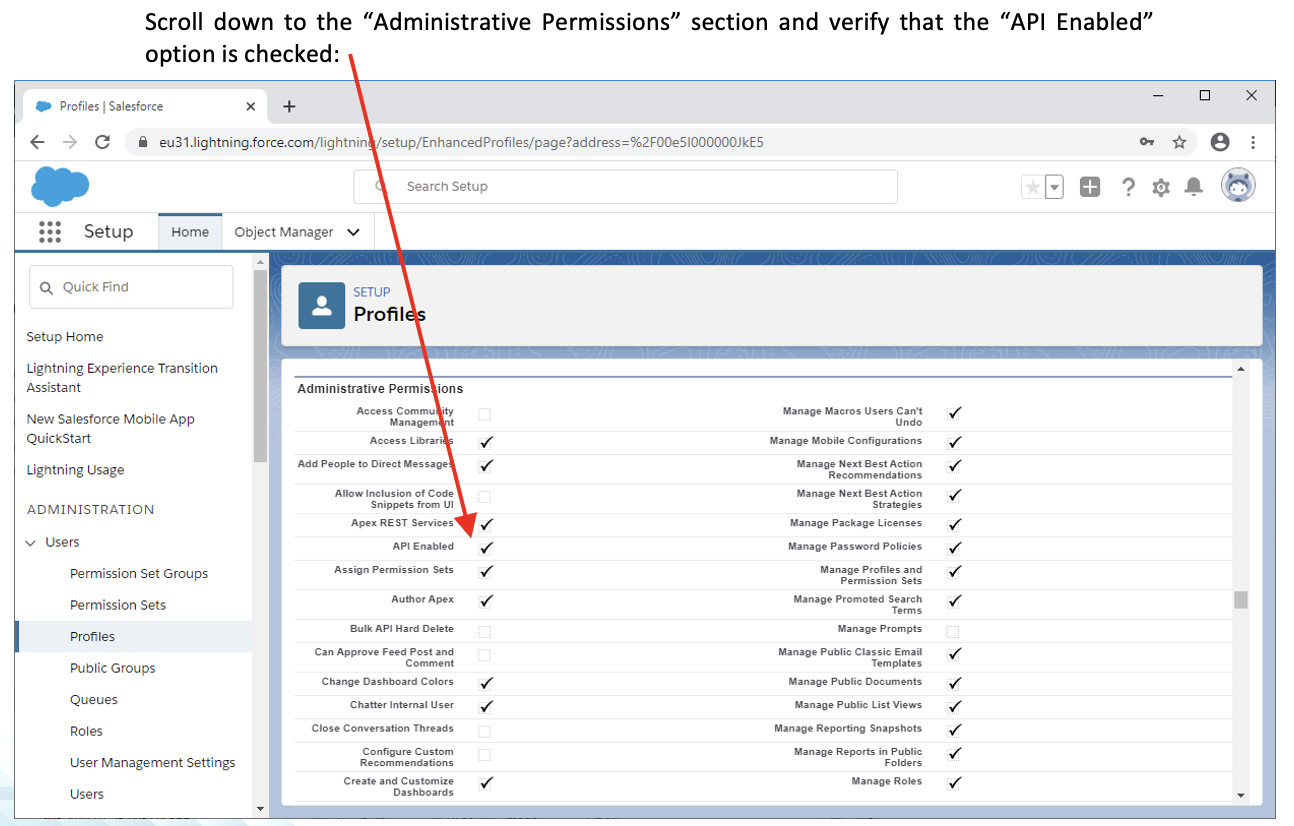
- If the “API Enabled” option is unchecked, click the “Edit” button at the top of the page, change “API Enabled” option (i.e. enable it) and click the “Save” button.