¶ Description
List files in a container in an Cloud Object Storage.
¶ Parameters
¶ Parameters tab
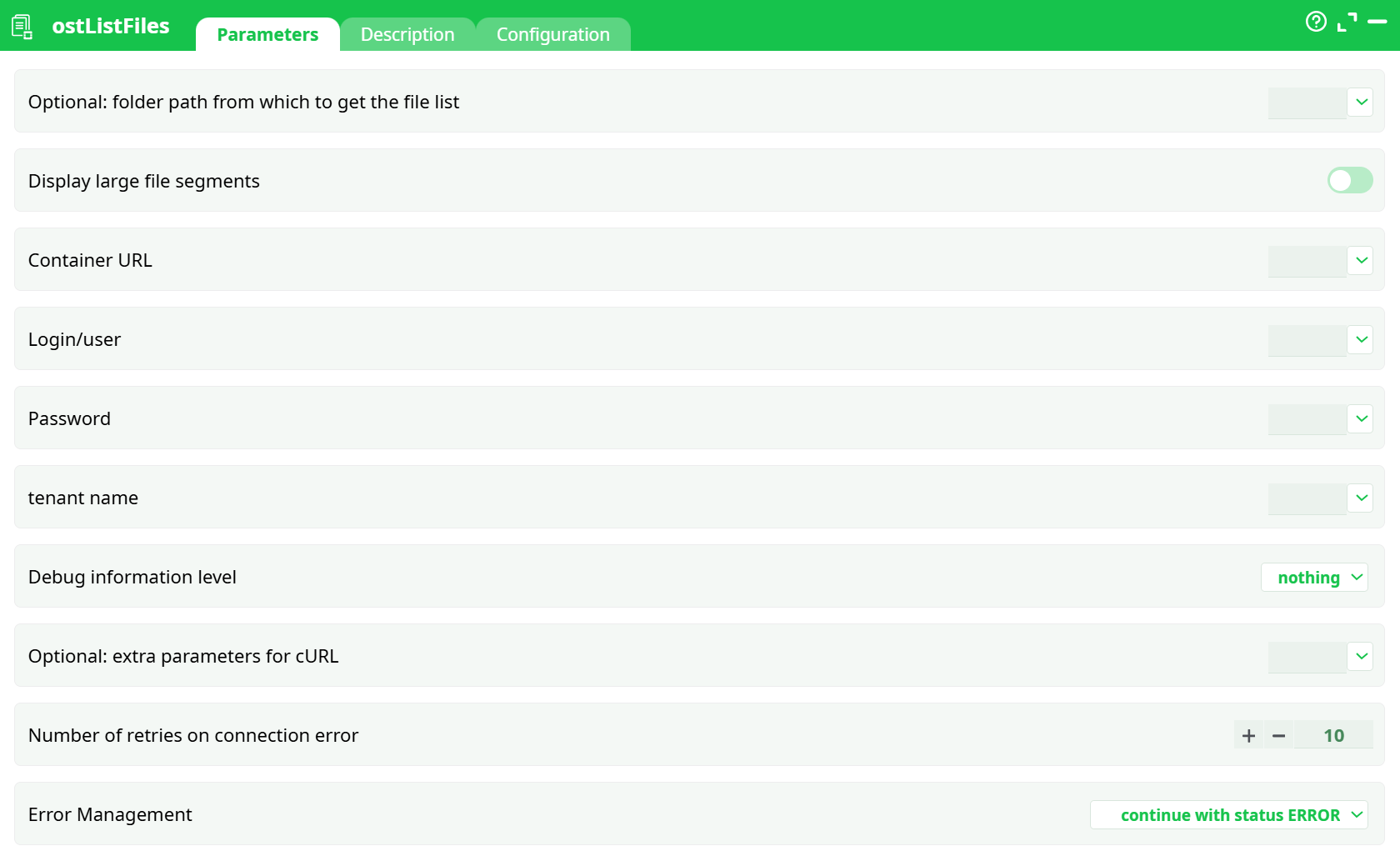
Parameters:
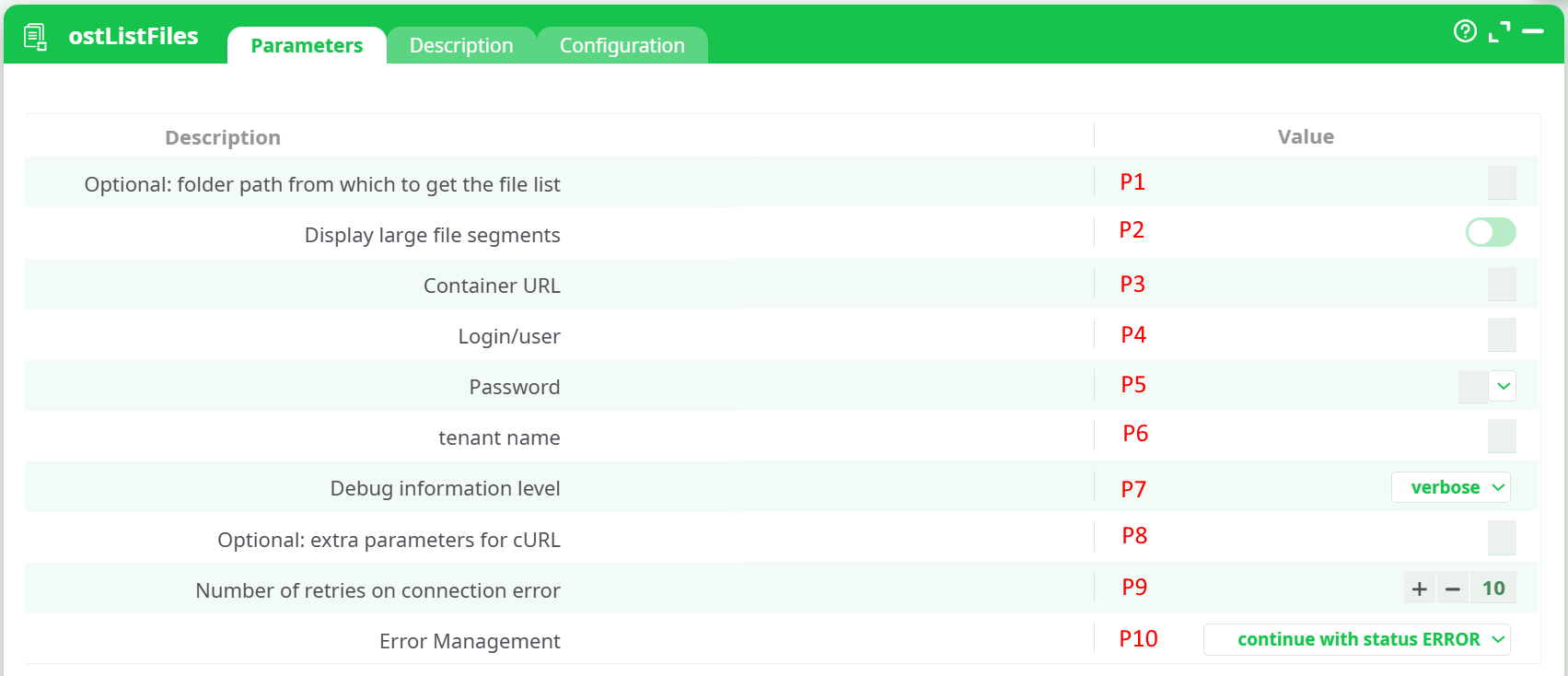
- Optional: folder path from which to get the file list
- Display large file segments
- Container URL
- Login/user
- Password
- tenant name
- Debug level information
- Optional: extra parameters for cURL
- Number of retries on connection error
- Error Management
¶ Description tab
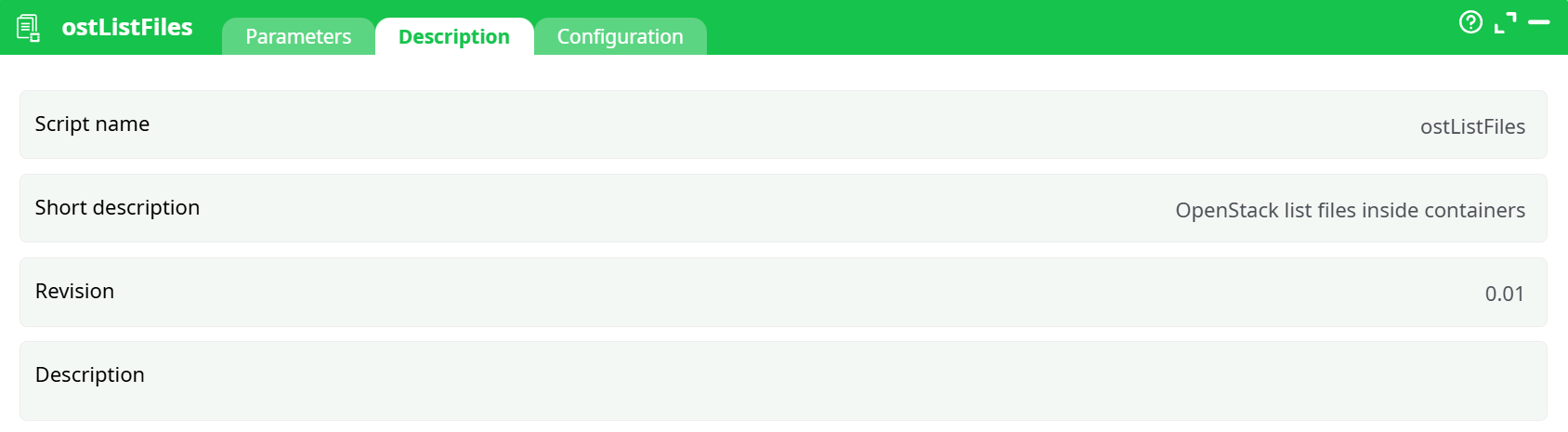
Parameters:
- Script name
- Short description
- Revision
- Decription
¶ Configuration tab
See dedicated page for more information.
¶ About
This action also works when accessing the web through a PROXY server
To use this action, you’ll need to get several parameters from the OVH Website (i.e. you need the parameters P3, P4, P5 and P6).
¶ OVH Cloud Storage particularities
The OVH Cloud object storage has some very special particularities when it comes to manipulating large files. What’s a “large” file? That’s a file that is larger than the parameter P3 (“Segment Size”) from the “ostUpload” action:
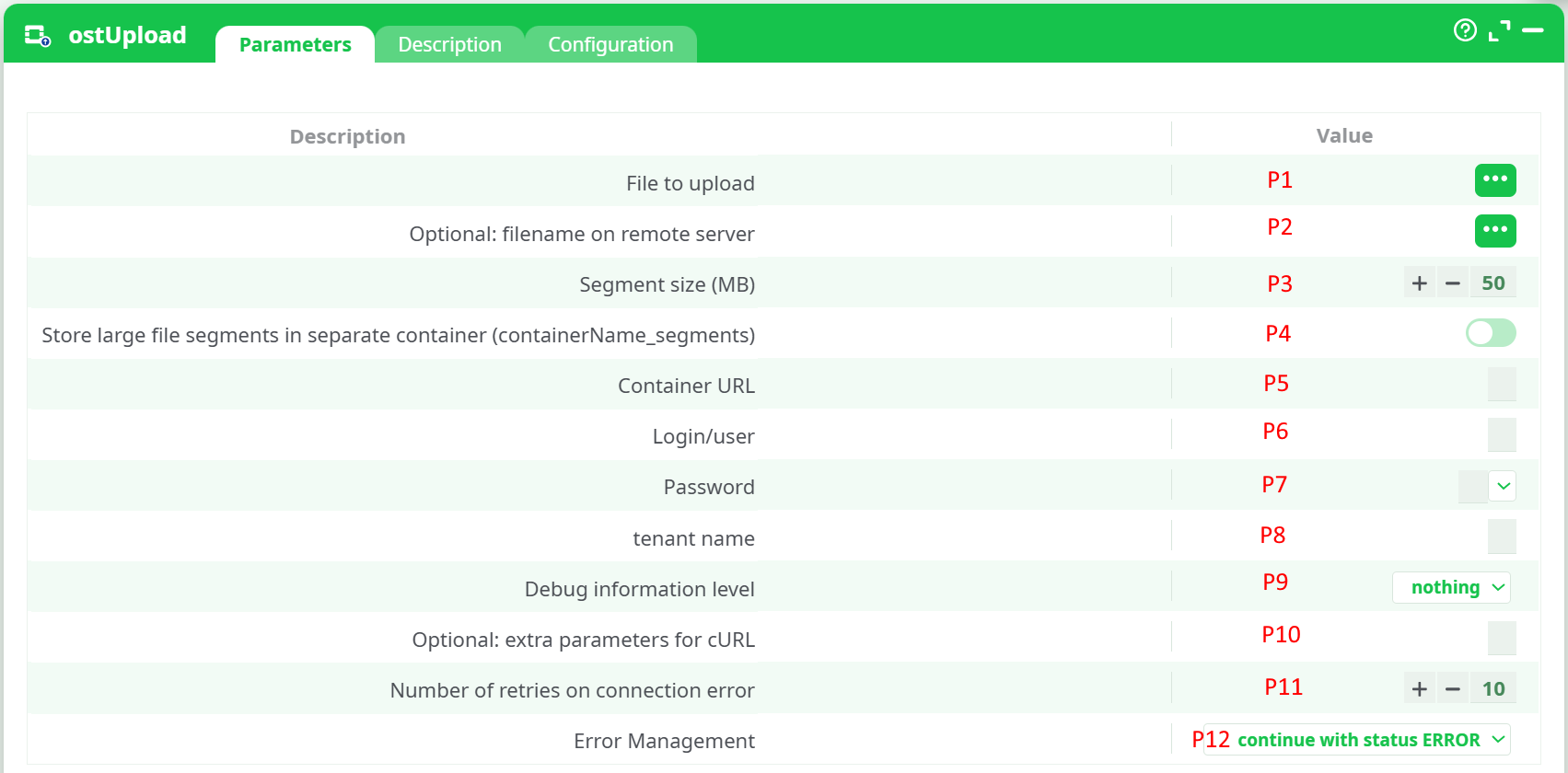
What’s happening when you upload a file that is larger than the segment size? (i.e. when you upload a file that is larger than 50MB, in the example above). For example, let’s see what’s happening if we upload a 120MB file that is named “big.txt”. The following happens:
- The “large” file named “big.txt” is splitted in many 50MB files. Each of these 50MB file is named a “segment”.
- Each segment is uploaded to the OVH Cloud object storage. Thus, we’ll have inside the OVH Cloud object storage, 3 file-segments that are:

- ETL uploads to the OVH Cloud object storage a “Manifest File” named “big.txt” that simply announce that the 3 file-segments “big.txt|1”, “big.txt|2” and “big.txt|3” are actually the different parts of a single 120 MB “logical” file that is named “big.txt”.
From now on, if you attempt to download back from the OVH cloud the file named “big.txt”, ETL will transparently download a 120MB file (that is the concatenation of all the segment-files listed inside the “Manifest File” named “big.txt”).
If you use the OST Cloud List File action to list the files inside your OVH Cloud storage, you might see these 4 files:
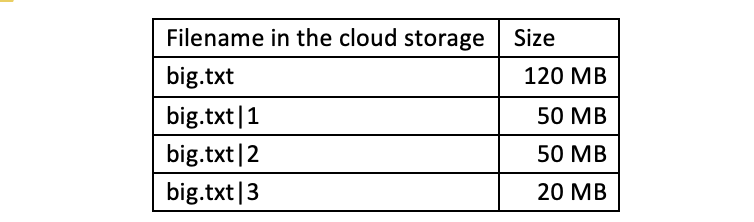
For many use-cases, we actually don’t want to see the individual file-segments that are composing the “large” files (e.g. we don’t want to see “big.txt|1”, “big.txt|2” and “big.txt|3”). So, when listing the files inside the OVH Cloud storage, there are 2 solutions to “hide” the individual file-segments:
• Solution 1 (the simplest solution)
You can uncheck the parameter P2 of the OST Cloud List File action. This will remove from the display all the files with a filename that ends with the character “|” followed by a number, so that we finally see:

This solution has one small disadvantage: i.e. it’s not always 100% accurate. For example, this solution will remove from the output filename table a file that is named “myfile.txt|9” despite the fact that this file is a perfectly valid file (i.e. it’s not a segment-file). The removal occurs just because this filename unfortunately ends with the character “|” followed by a number (i.e. it just has the same “look” as a segment-file).
• Solution 2 (the more complex solution)
This second solution involves using two different OVH Cloud object containers. The first container contains all the files, with the exception of the segment files. The second container only contains the segment files. For this solution to work, you need the following:
- The name of the second container (that only contains the segment files) must be the name of the first container followed with “_segments”. For example, if the name of the first container is “my_container”, then the name of the second container is “my_container_segments”.
- You must check the parameter P4 inside the “ostUpload” action:
- You must check the parameter P2 inside the “ostListFiles” action:
This solution is better because it’s always 100% accurate: i.e. there is no risk of “hiding” a valid, non-segment file: You just display ALL the files inside the first container and you are good!
All the ETL OVH Cloud Storage actions are built to handle flawlessly both the first and the second solution described here above. In particular, if you are using the second solution, this means that:
- When ETL must download the file “big.txt” (this file is actually just a small “manifest file” that is stored in the first container), ETL will actually transparently connect to the second container to download the appropriate file-segments.
- When ETL must delete the file “big.txt” (that is stored in the first container), it will actually also connect transparently to the second container to delete from this second container the appropriate file-segments.
- Everything is totally transparent for the final user: i.e. it looks like all the files are simply stored inside the first container.
One final note about the parameter P3 (“Chunk Size”) from the ostDownload action:
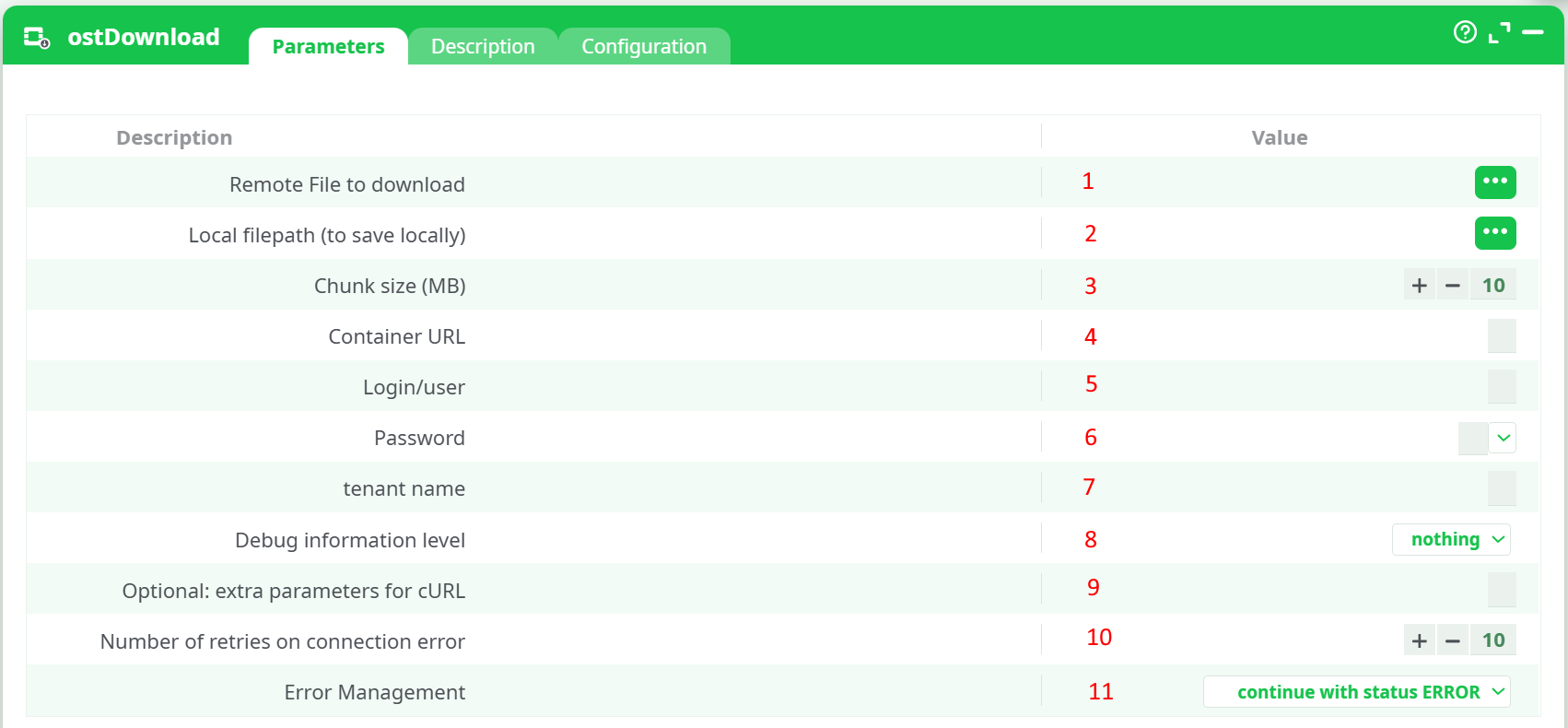
This parameter P3 (“Chunk Size”) from the ostDownload action is useful when your internet connection is unstable. ETL always downloads your files chunk-by-chunk. If the internet connection is lost during the download of one chunk, ETL will “throw away” the incomplete/corrupted chunk and attempt to re-download again the same chunk (the number of “retries” is defined in parameter P10). A small “chunk size” means that, when the internet connection is lost, we don’t have to “throw away” a large quantity of bytes. This means that, when your internet connection is bad, you should decrease the value of the “chunk size”.
What’s happening if we want to download the 120 MB file named “big.txt” from the OVH Cloud storage and the parameter P3 (“Chunk Size”) is 20 MB? At first sight, we expect ETL to run 6 downloads to download “big.txt” (since the file-size is 120MB and the chunk-size is 20 MB, we should have 120/20=6 downloads) but ETL actually runs 7 downloads:
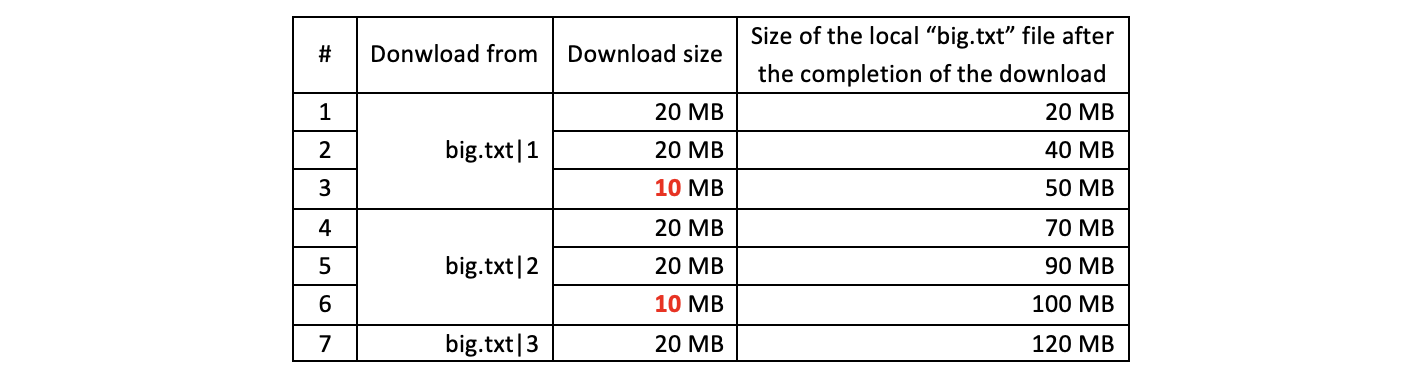
We have 7 downloads (instead of the expected 6) because the downloads #3 and #6 are only 10 MB (instead of 20 MB) because we used a 50MB segment-size during the “upload”. So, to avoid un-necessary extra downloads, it’s better to use a segment-size that is a multiple of the chunk-size.
¶ OVH Cloud Storage first time setup
Before using the OST Cloud Object storage actions inside ETL, you need to get the 4 parameters:
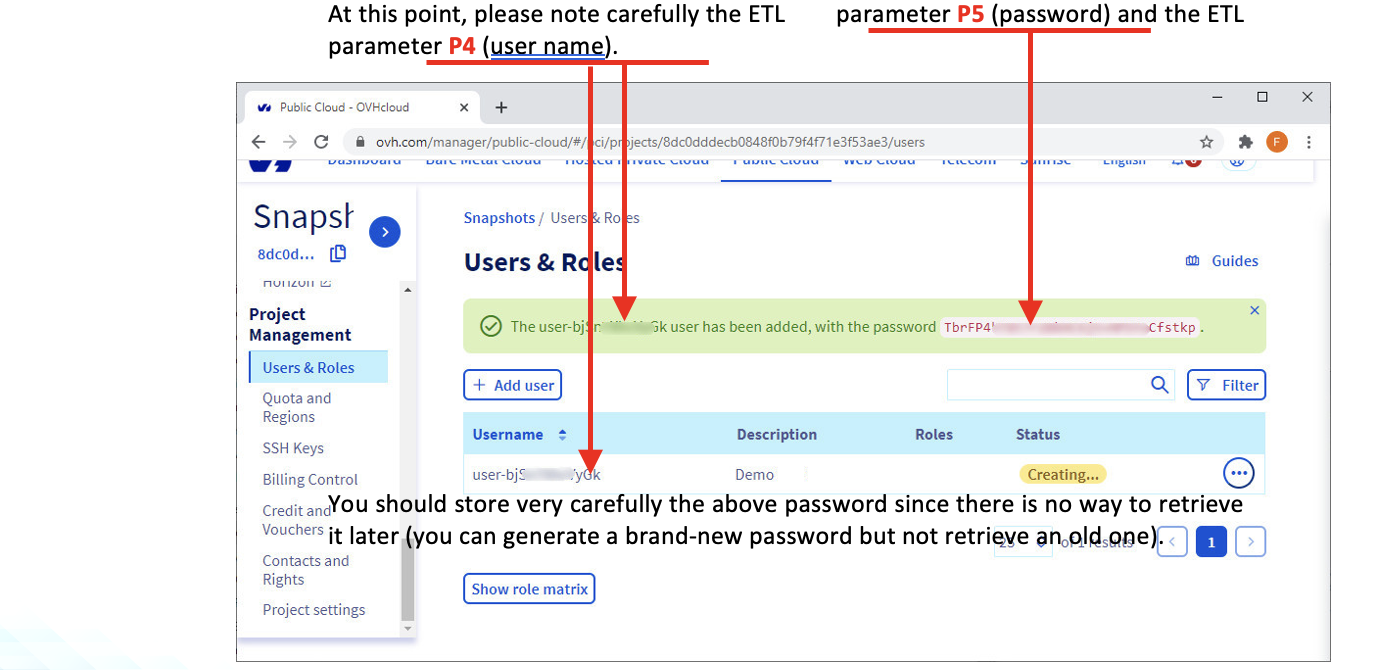
- User name (Parameter P4)
- Password (Parameter P5)
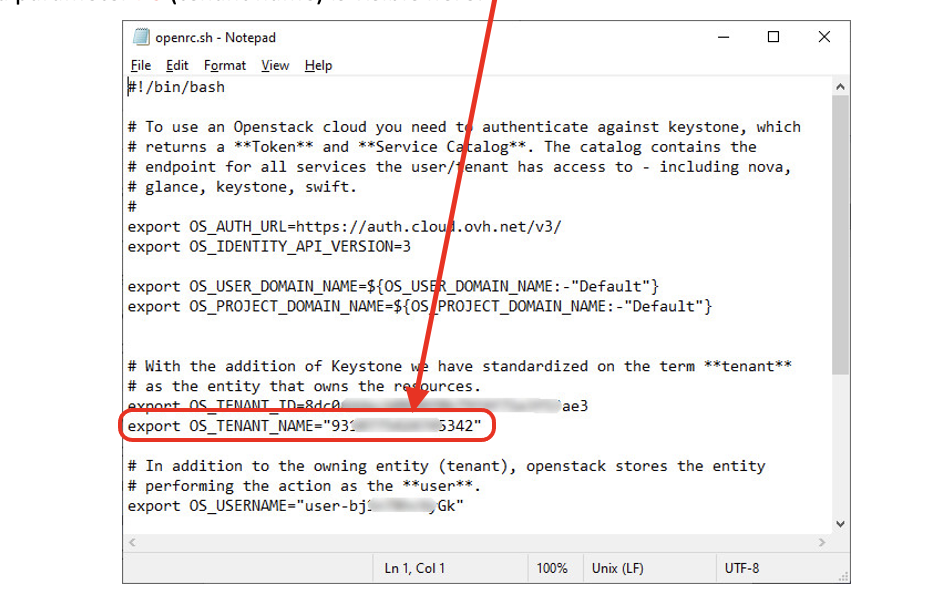
- Tenant Name (Parameter P6)
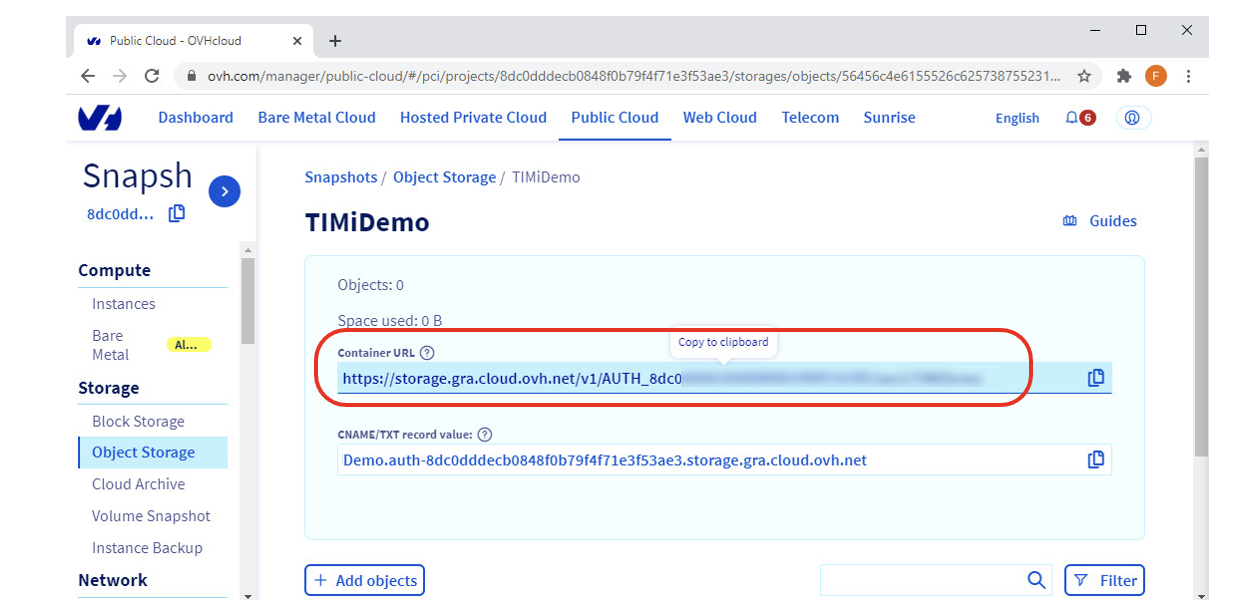
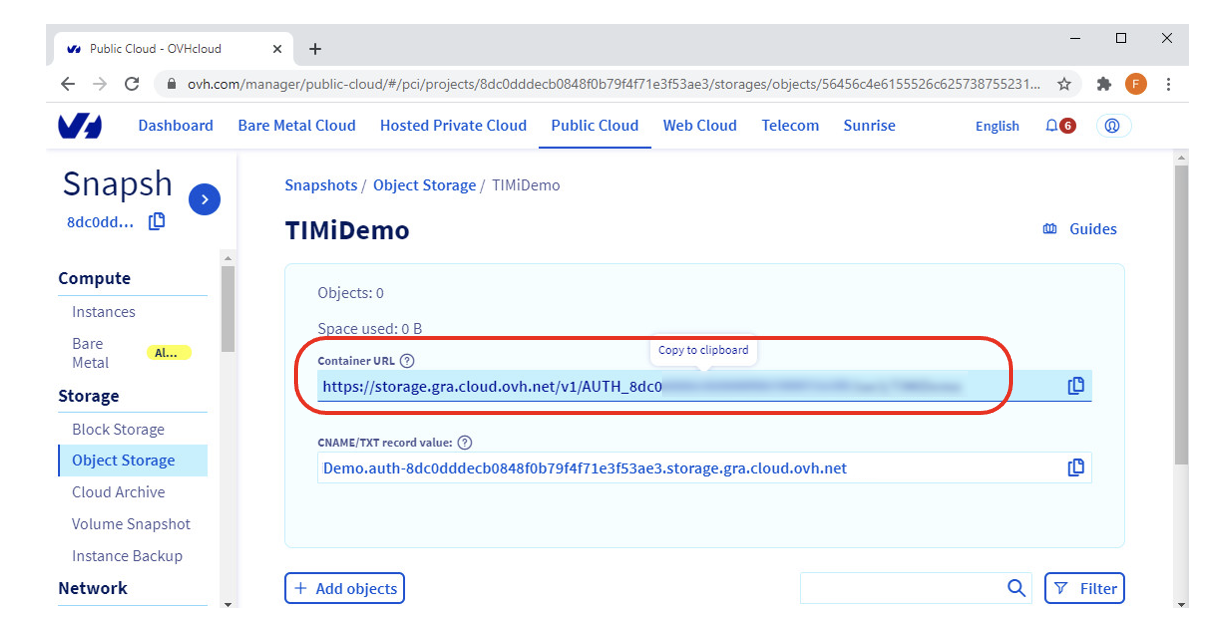
- Container URL (Parameter P3)
…from the OVH website. Here are the steps to get these 4 parameters:
- Open the URL https://www.ovh.com/auth/ and “log-in” using your normal “Login” and “Password” for OVH:
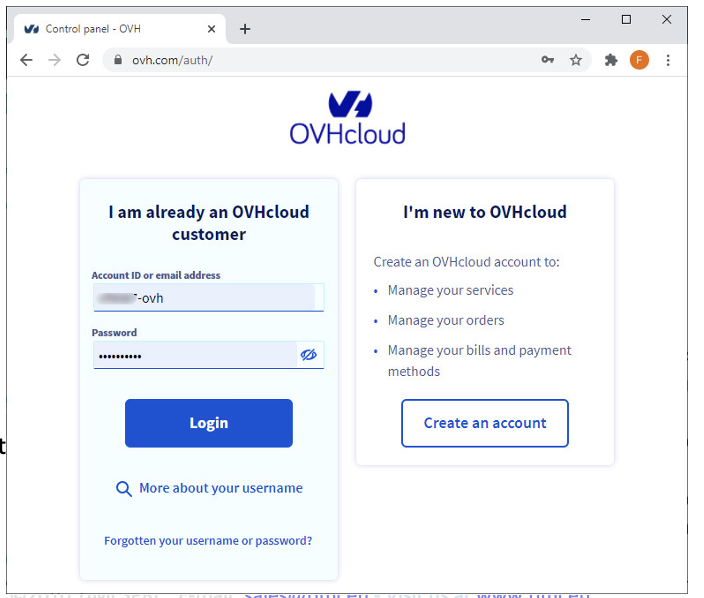
- If this is the first time that you are using the OVH Cloud Object storage:
2.1 Create an OVH project
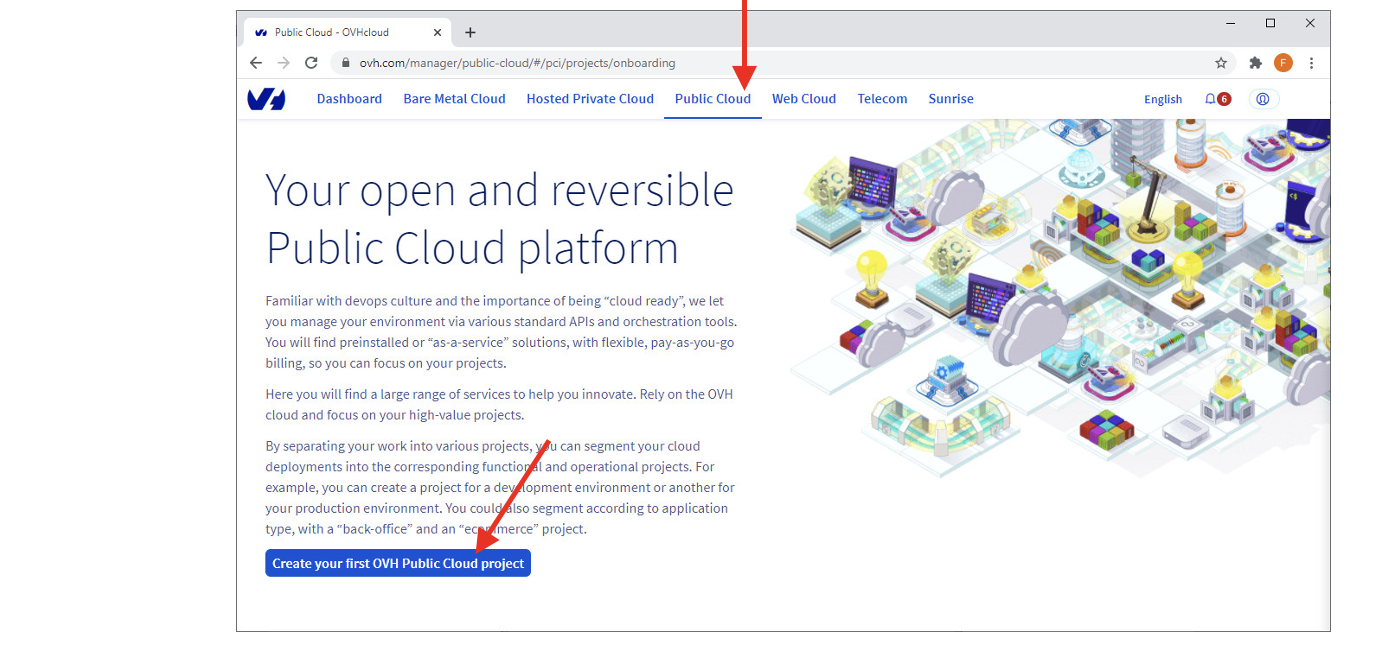
- In the top menu, click on “Public Cloud” and then click on the “Create ..project” button:
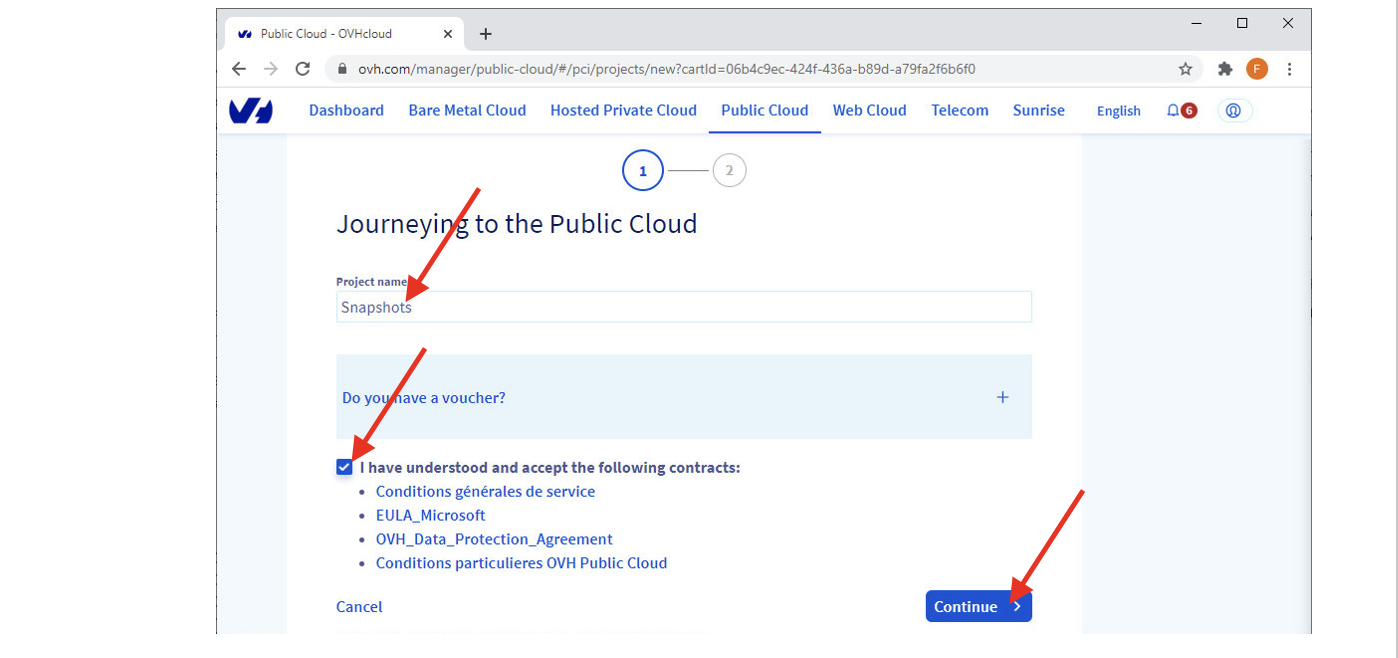
- Enter a project name (in the screenshot below, we used “snapshots” but you can use any name), check the checkbox and click “Continue”:
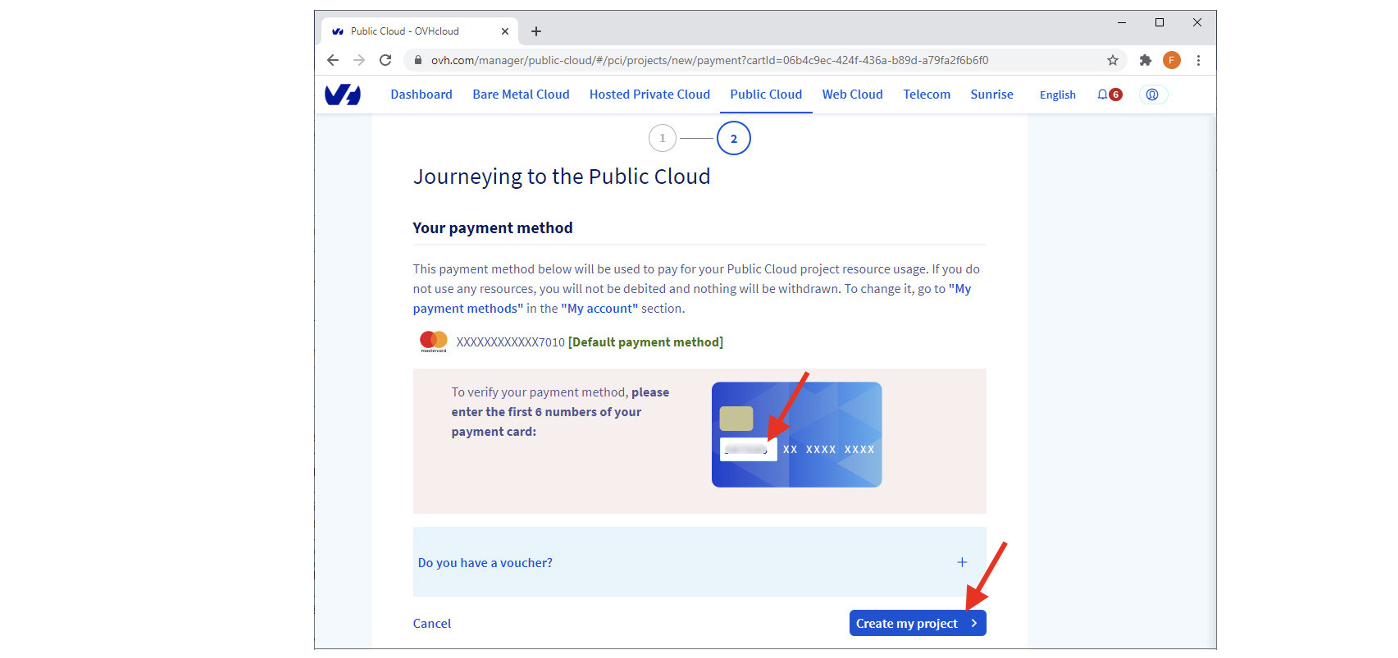
- Confirm your payment method and click on the “Create my project” button:
- After a few seconds, your project is created.
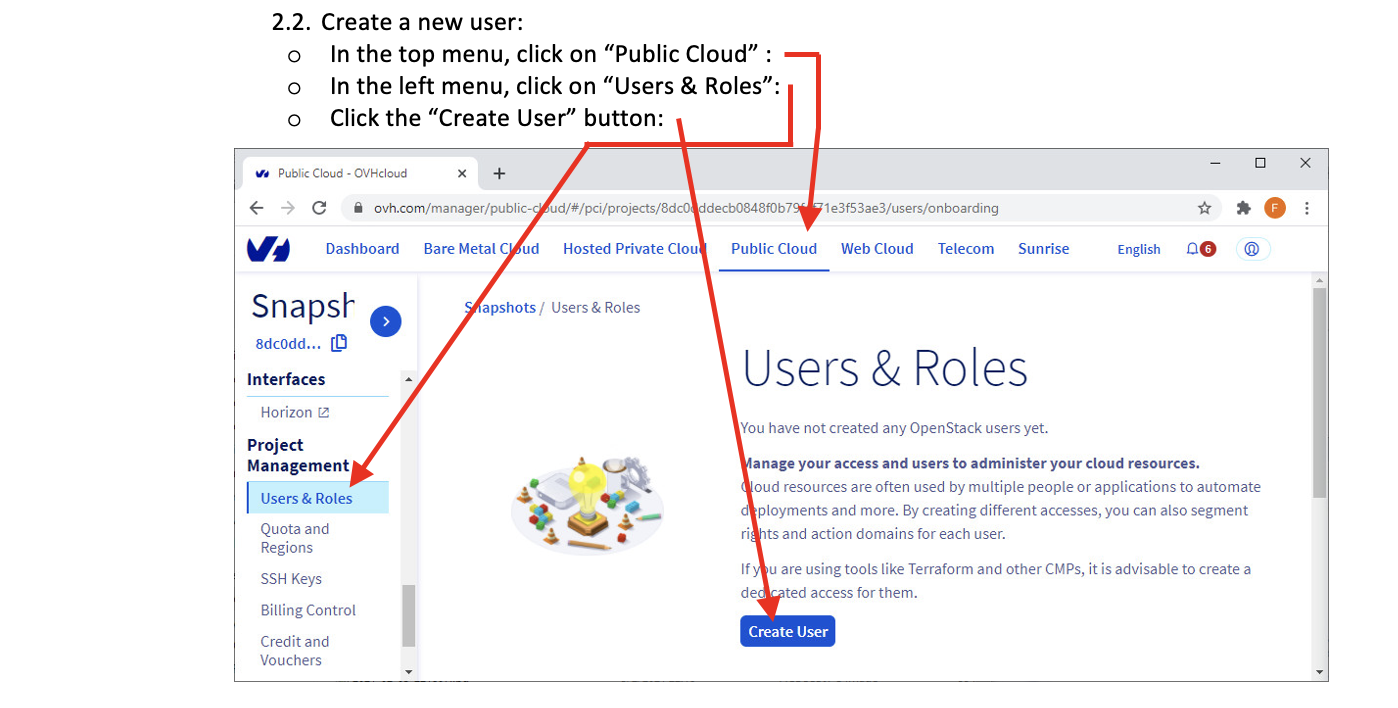
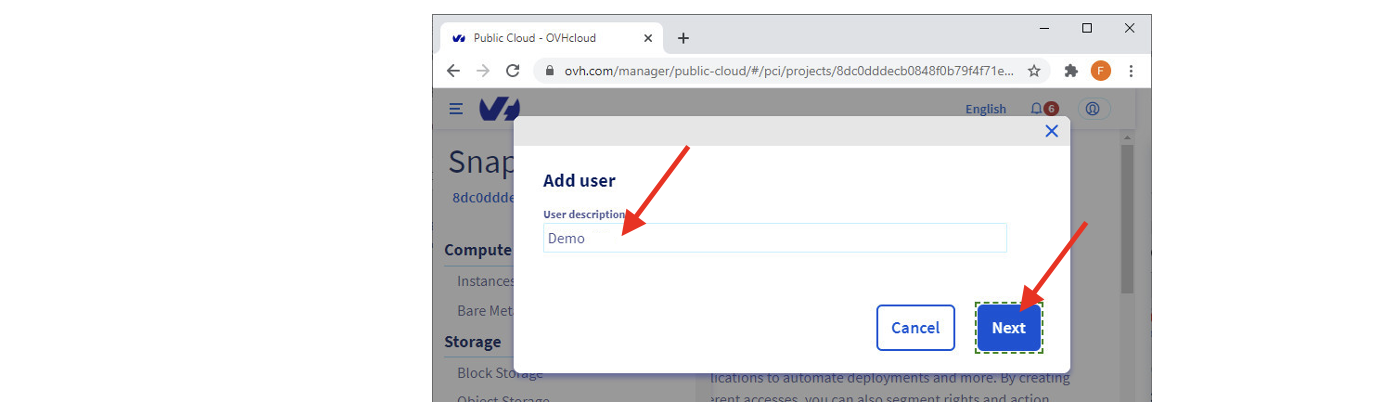
- Give a name to the new user and click the “Next” button:
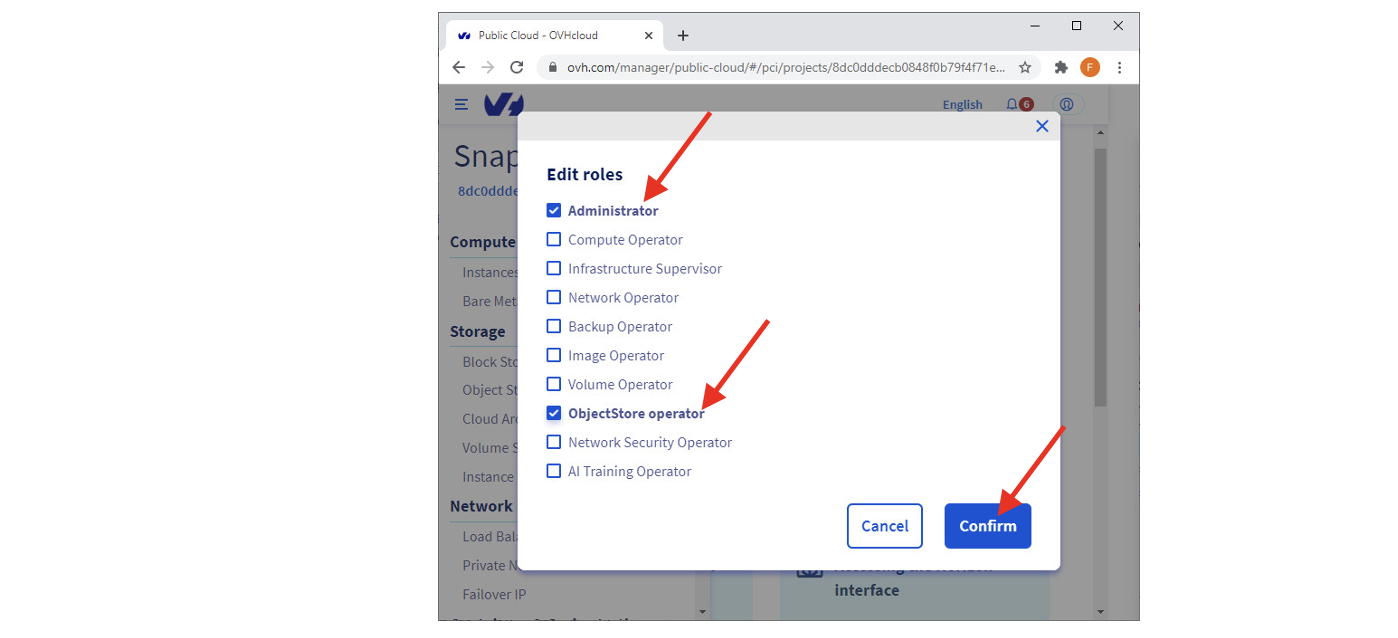
- Give the “Administrator” role and “ObjectStore Operator” role to this new user:
- You finally get your new user.
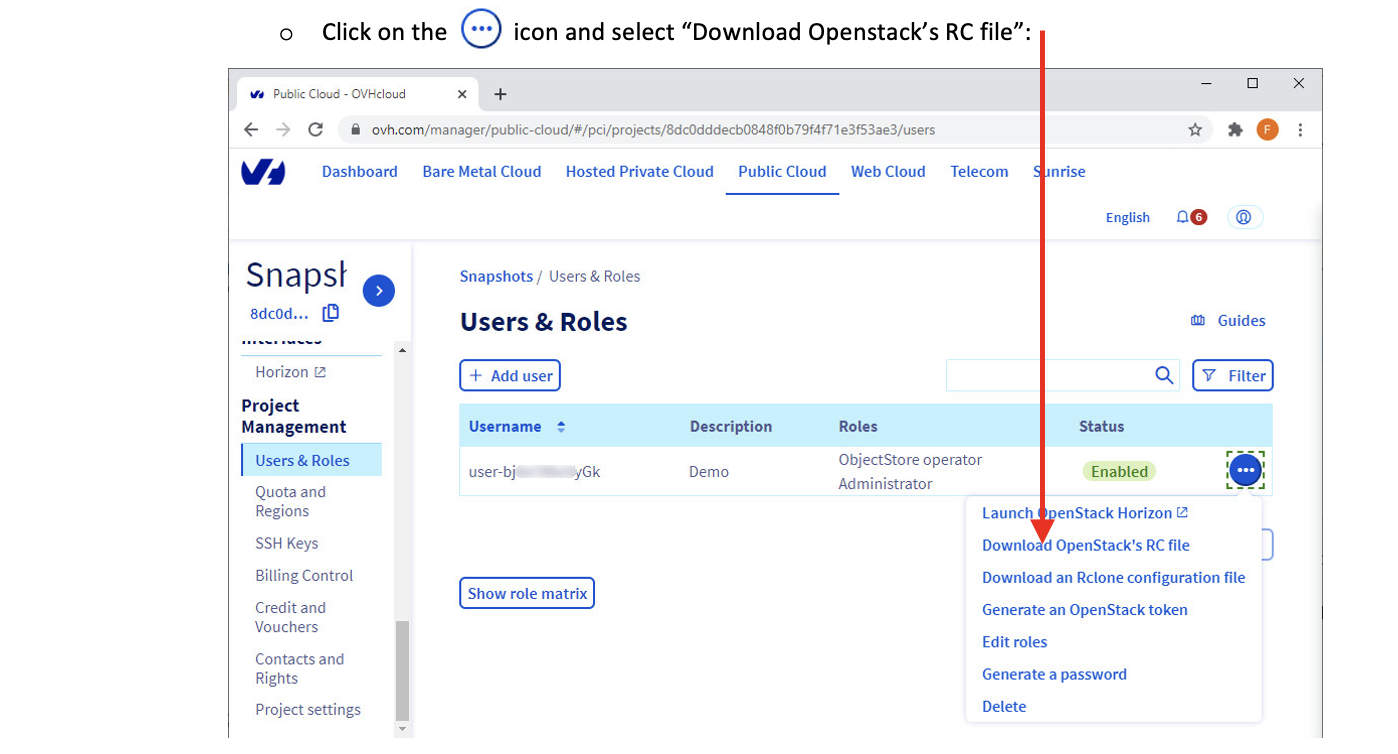
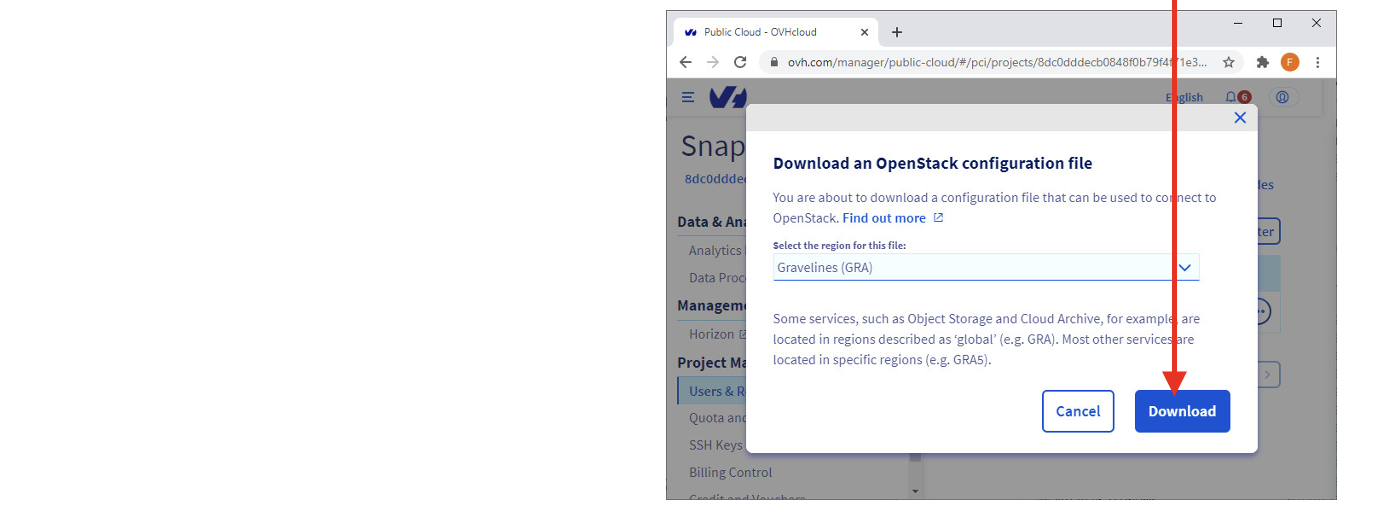
- Select the Data Center that hosts your files and click the “Download” button:
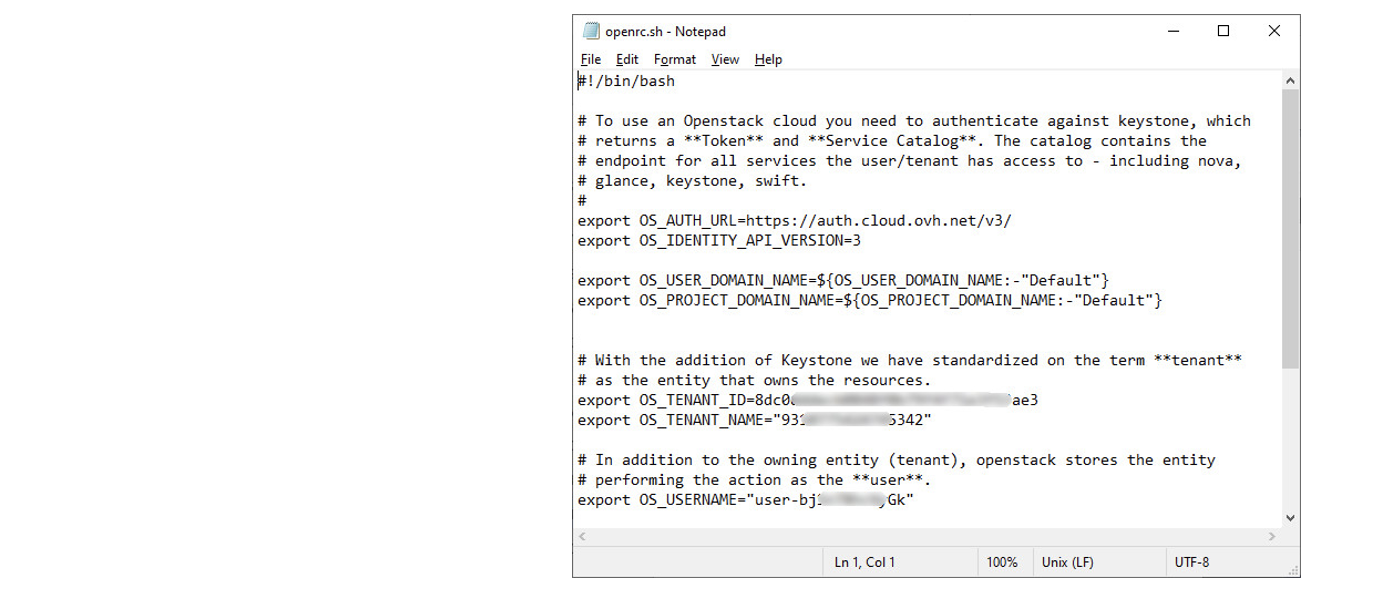
- Open the downloaded file (“openrc.sh”) inside notepad. The ETL parameter P6 (tenant name) is visible here:
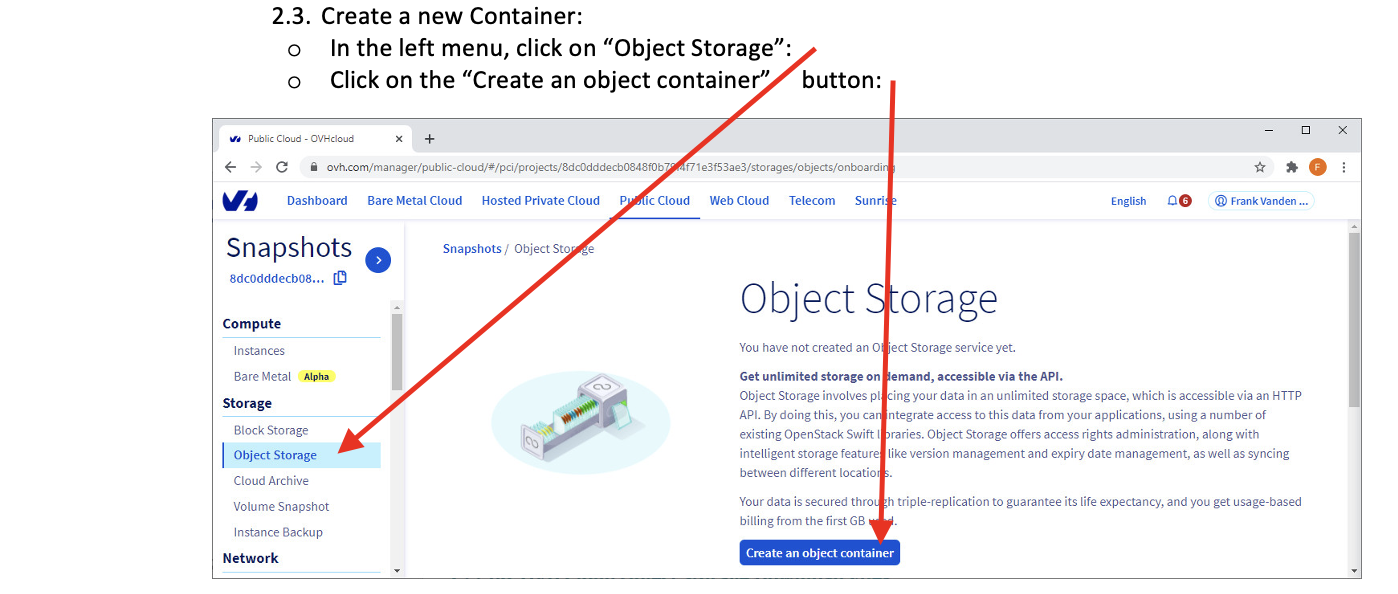
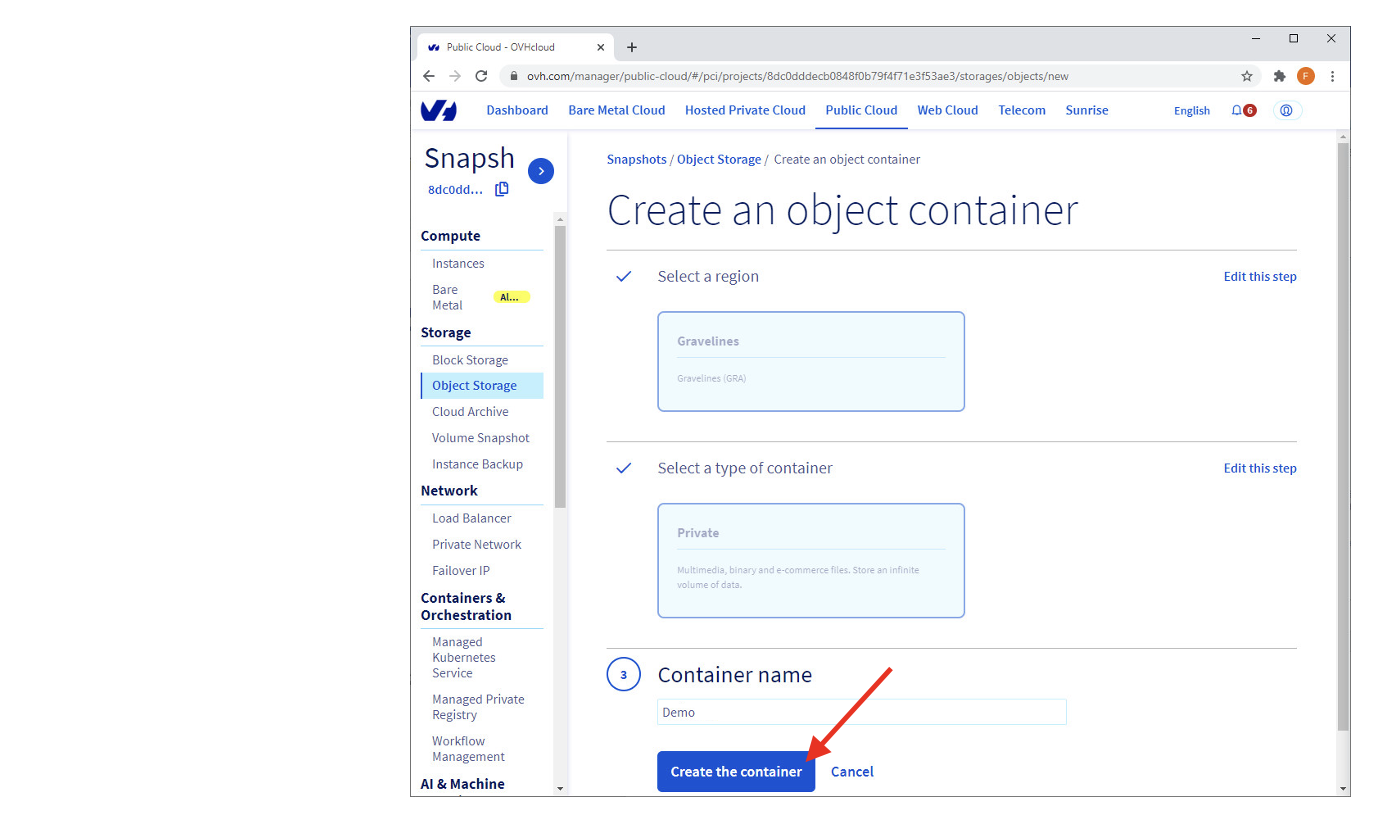
- Select the Data Center(“Region”) that will hold your files, Select the “type of container”, give a name to the container and, finally, click the “Create Container button”:
- You have now a brand-new container.
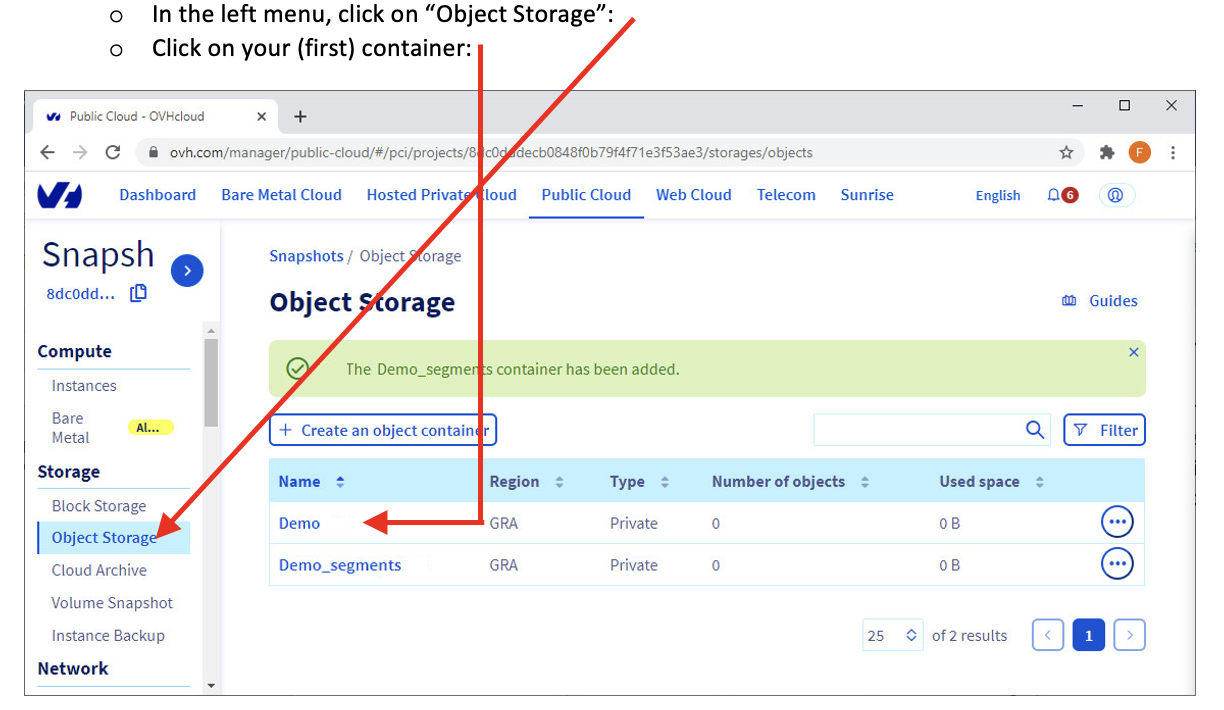
If you opted for the “Solution 2 (the more complex solution)”, you’ll need to create a second container whose name ends with “_segments”. We did exactly that (i.e. we created a second container) in the screenshot below. Click now on your (first) container:
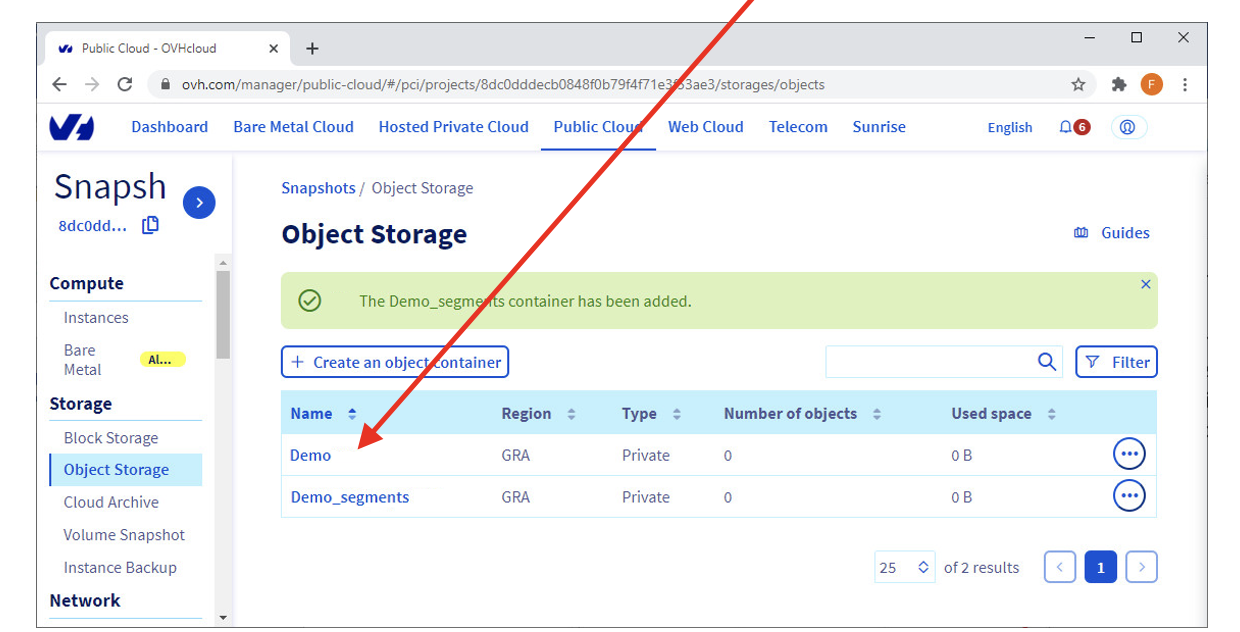
- The ETL parameter P3 (Container URL) is visible here:
You now have the 4 required parameters to connect to your OVH Cloud Object Storage.
- You want to connect to an already existing OVH Cloud Object storage:
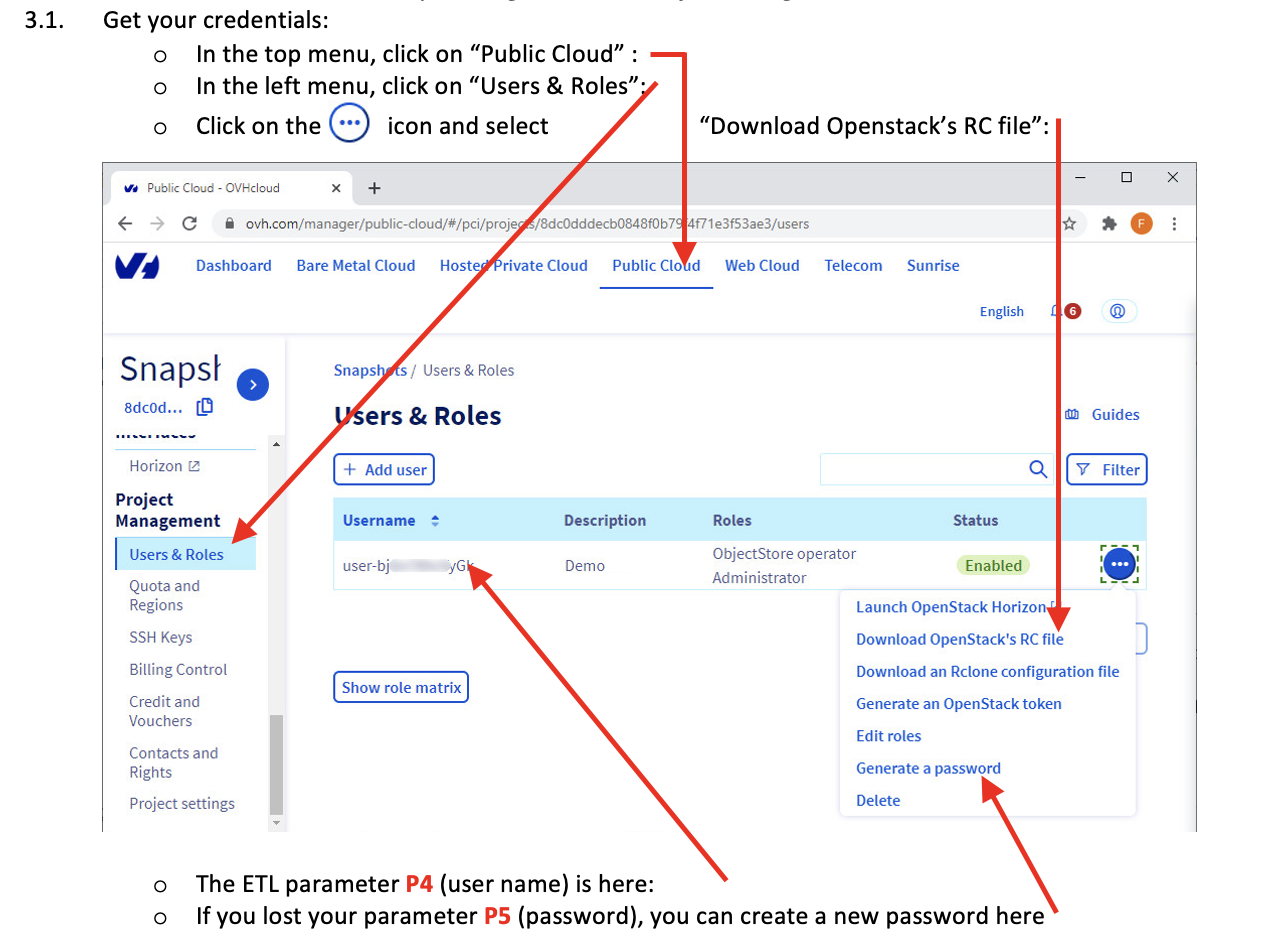
Please make sure that you selected a user that can access the Object Storage (i.e. the “roles” of this user must contain “ObjectStore Operator”). Alternatively, create a brand-new user with the correct “roles”, following the procedure given in the point 2.2. here above.
- Open the downloaded file (“openrc.sh”) inside notepad. The ETL parameter P6 (tenant name) is visible here:
3.2. Get the Container URL:
- The ETL parameter P3 (Container URL) is visible here:
You now have the 4 required parameters to connect to your OVH Cloud Object Storage.