¶ Description
Reads a table from a .gel file.
¶ Parameters
¶ Standard tab
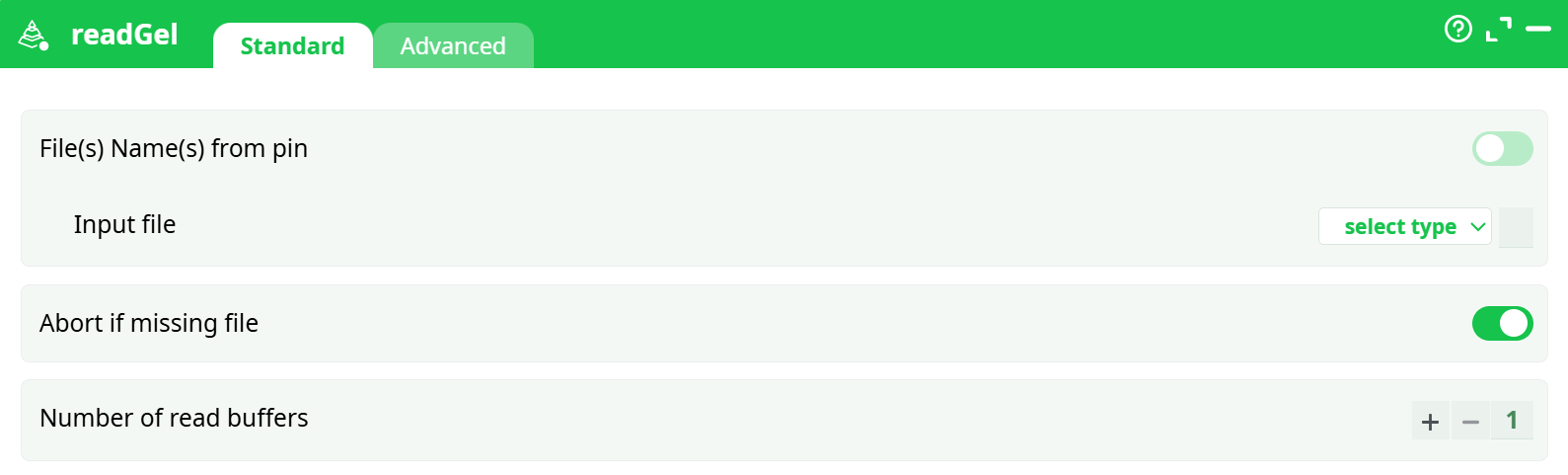
Parameters:
- File(s) Name(s) from pin:
- Input file:
- Abort if missing file:
- Number of read buffers:
¶ Advanced tab
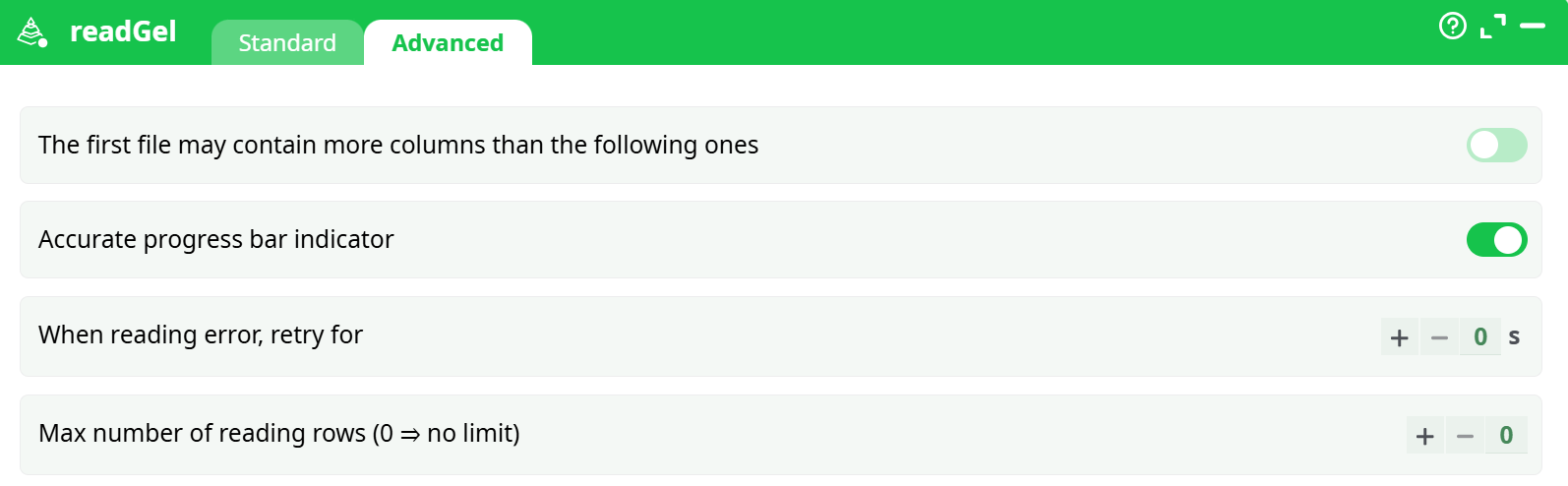
Parameters:
- The first file may contain more columns than the following ones
- Accurate progress bar indicator
- When reading error, retry for
- Max number of reading rows (0 for no limit)
¶ About
The GelFile Reader action allows you to read a table from a “.gel” file. The “.gel” file format is used to store table data, and this action can handle multiple files containing similar structures. You can specify the filename using relative paths, wildcards, or JavaScript expressions to dynamically locate the file.
You can connect to the input pin of the GelFile Reader a table containing (many) filenames. Typically, this input table will be computed using the fileListFromObsDate action. ETL reads all the corresponding “Gel files” one after the other (this is more or less equivalent to the Append action). There is a limitation: the different “Gel Files” that are read in this way must all have exactly the same meta-data.
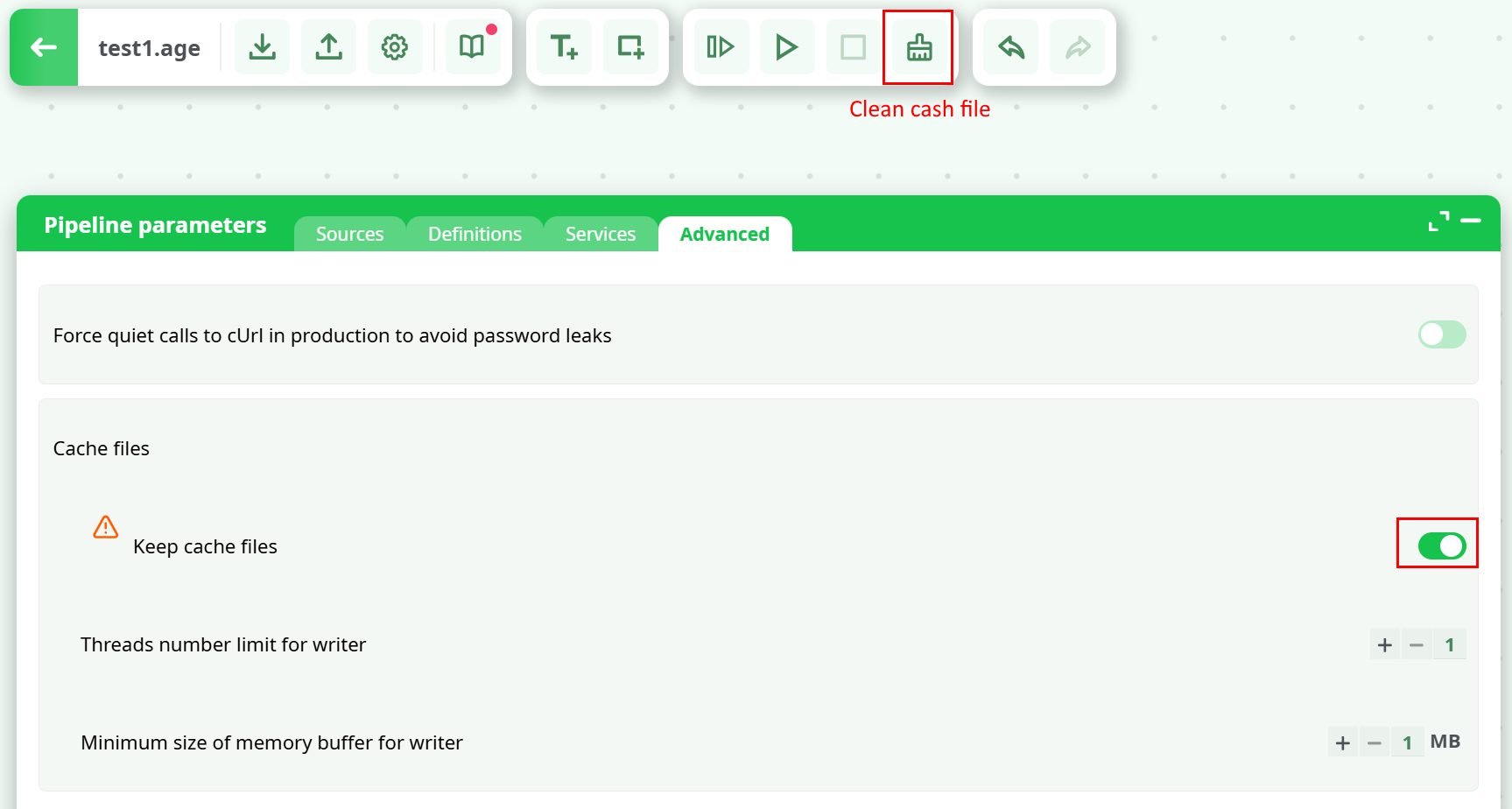
By default, when a user leaves the editor, cache files are removed. In Global Parameters, there’s a toggle to keep these files, but note they can become very large. The editor also includes a Clean cache button to remove them manually.
NOTE:
You can drag&drop a .gel file from your local machine into an ETL-Pipeline-Window: this will directly create the corresponding ReadGel action inside the ETL Pipeline.
Here is an example:
An “.gel” file contains:
- The table data
- The following meta-data:
- For each column: the name
- The columns on which the table is sorted and the type of sort used
- For each column: the content type:
- Alpha numeric (i.e. the “String” or “Unknown” type inside ETL)
- Numeric (i.e. “Floating-point numbers”: the “Float” type inside ETL)
- Integer Number (i.e. the “Key” type inside ETL)
- Date
- Pure Binary data (this might contain ‘\0’ chars, for example)
- Image
- Sound
- Unknown
- For the columns containing a date: the data format
- A flag that indicates if the “.gel” file is complete: if a user interrupted the data transformation that was computing the “.gel” file (or if the data transformation aborted due to an error), then an “incomplete” “.gel” file may be generated. This means the file likely contains only a partial dataset, missing rows that were not computed and saved.
¶ About asynchronous (and synchronous) I/O algorithms
The data inside a “.gel” file is compressed using a block-based compression algorithm. This means that the process used to read a “.gel” file follows these steps:
- Extract/read one data block from the hard drive. The data block size is defined at the time the “.gel” file is created using the writeGel action.
- You can select the data block size during the creation of the “.gel” file (i.e. when reading the file, it’s too late—you no longer have control over the block size).
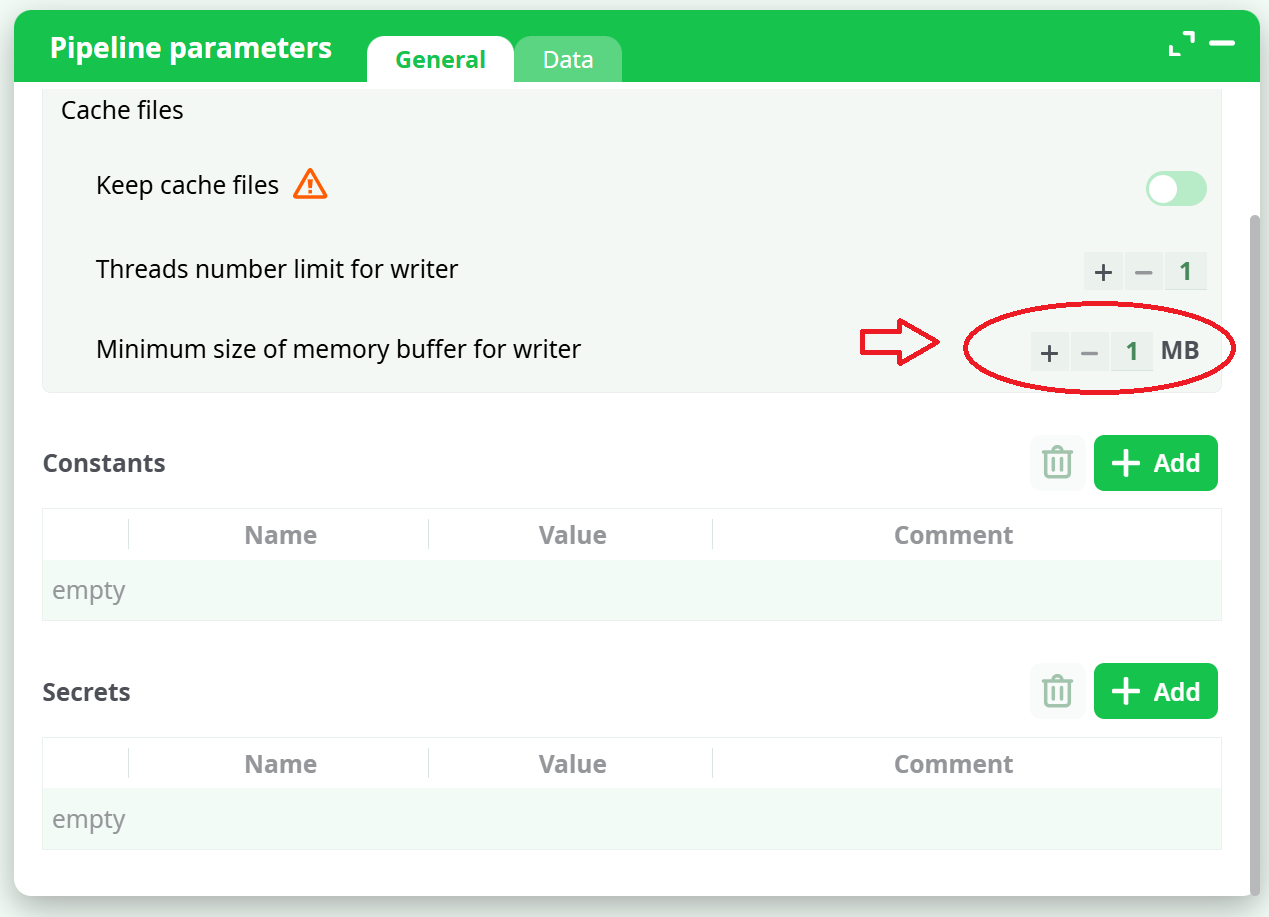
- The data block size is configured in the “Pipeline Global Parameters” window, using the “Minimum Buffer Size” option, as shown here:
It can happen that you are forced to open a large number of “.gel” files simultaneously (for example, when using the mergeSortInput action). Keep in mind that each opened “.gel” file uses (by default) around 1 MB of RAM (and it uses even more RAM if you set the “Read Buffer” parameter greater than one). Thus, to open one thousand “.gel” files simultaneously, you need at least 1 GB of RAM. This is already a lot of RAM on a small 32-bit server and might lead to some crashes.
Using a larger block size than 1 MB means that the compression is slightly better, and the reading and writing speed is also slightly improved.
The algorithm used to read a “.gel” file is the following:
- Extract and read one data block from the hard drive. The block size is defined when the “.gel” file is created using the writeGel action.
- Validate that the data block is not corrupted: ETL computes a checksum on each data block.
- Decompress the data block to retrieve data rows and send these rows to the connected actions as output.
- Wait for the actions connected to the output of the GelFileReader action to use or consume all the rows from the current data block. Once all the rows are processed, return to step 1.
In terms of speed, the above algorithm used to read the “.gel” file is not very efficient because it is a “synchronous (i.e. blocking)” I/O algorithm. That is, when the actions connected to the output of the GelFileReader action request more rows (i.e. when they have consumed all the rows from the current data block), the data transformation:
- Blocks until the extraction of the next data block from the hard drive is completed
- Blocks until the validation of the next data block is completed
- Blocks until the decompression of the next data block is completed
Only after these steps are completed does the transformation process resume and provide the next rows.
A better approach would be to use an asynchronous (i.e. non-blocking) I/O algorithm.
When you set the value “2” for the “Number of read Buffer” parameter of the GelFileReader action, ETL switches to an asynchronous (non-blocking) I/O mode. This enables the use of multiple threads in parallel.
In this mode, all extraction, validation, and decompression tasks are handled continuously in a background thread. As a result, when the actions connected to the output of the GelFileReader action request more rows (e.g. from the next data block), those rows are already available in RAM, ready to be consumed. The transformation process no longer has to wait for the data to be prepared.
The background thread continuously produces new rows in advance. These rows are stored in one of the available Read Buffers. The number of Read Buffers can be configured here:
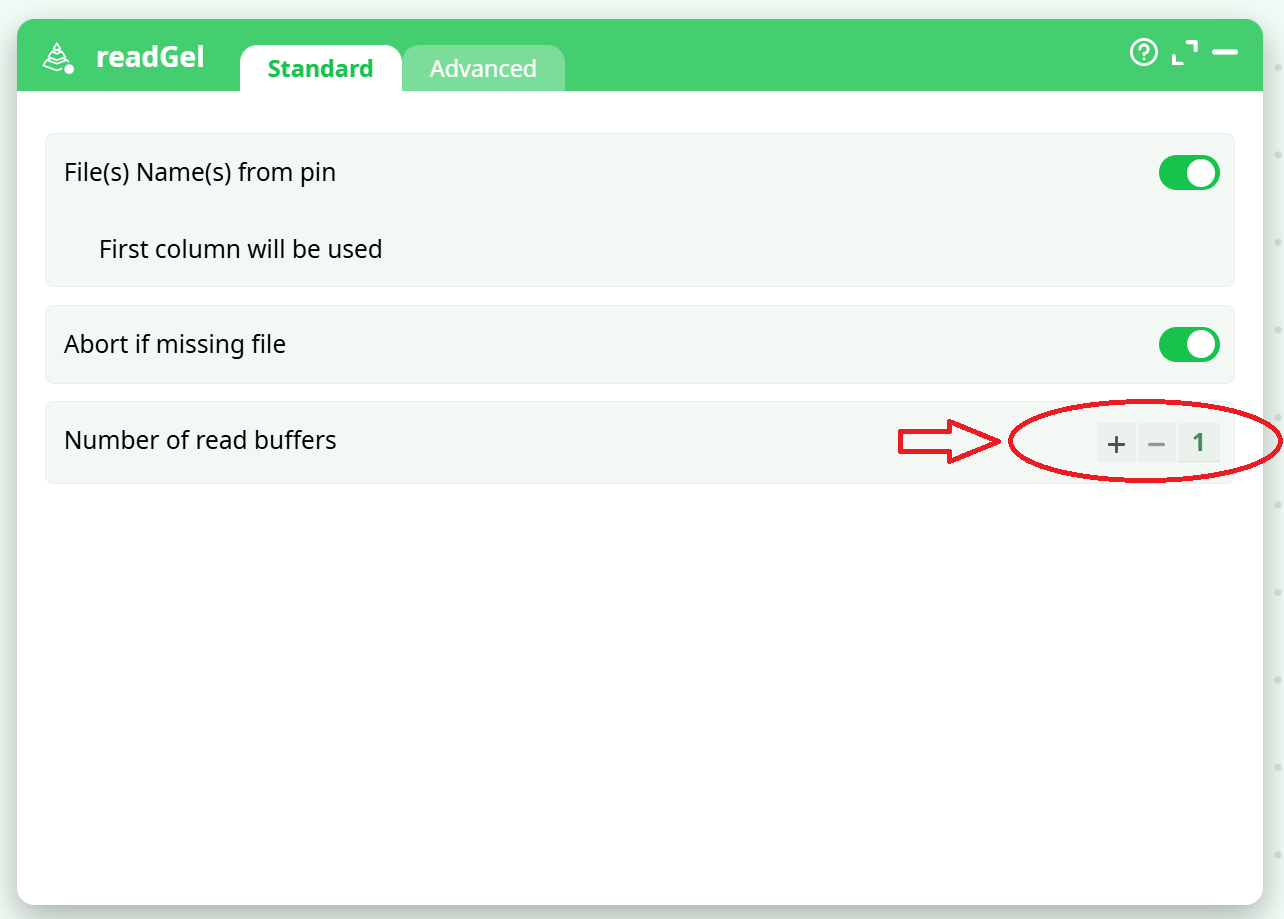
When the parameter “Number of Read Buffers” is:
-
“1”:
- ETL uses a synchronous (i.e. blocking) I/O algorithm.
- This is the best option if you want to minimize RAM consumption (at the cost of speed). By default, the GelFileReader action uses 1 MB of RAM.
-
“2”:
- ETL uses an asynchronous (i.e. non-blocking) I/O algorithm.
- Reads from the hard drive are faster, but RAM consumption doubles. With default settings, the GelFileReader action now uses 2 MB of RAM.
- This is usually the best option when your “.gel” files are stored on a local hard drive with consistent and guaranteed access speed.
-
“3 and higher”:
- ETL uses an asynchronous (i.e. non-blocking) I/O algorithm.
- Reads from the hard drive are faster, but RAM consumption increases proportionally (by default, 1 MB multiplied by the number of Read Buffers).
- This is the best option when your “.gel” files are stored on a remote server with variable or unstable network speed (e.g., when the ETL server is connected via a standard 100 Mbit/sec or 1 Gbit/sec network).
A large value for the “Number of read Buffer” parameter helps compensate for brief drops in network performance.
For example, if the remote drive stops responding momentarily due to a network issue, the actions connected to the output of the GelFileReader action can continue processing using the rows already preloaded in the N Read Buffers (with N set to a large number).
Once the network resumes, the background thread quickly refills the N buffers. This way, even if another network slowdown occurs, the data transformation can continue without interruption.
Setting a high value for the number of Read Buffers enables ETL to maintain high-speed data transformations, even over unstable network connections.