¶ Description
Create a chart into any MS-Office document.
¶ Parameters
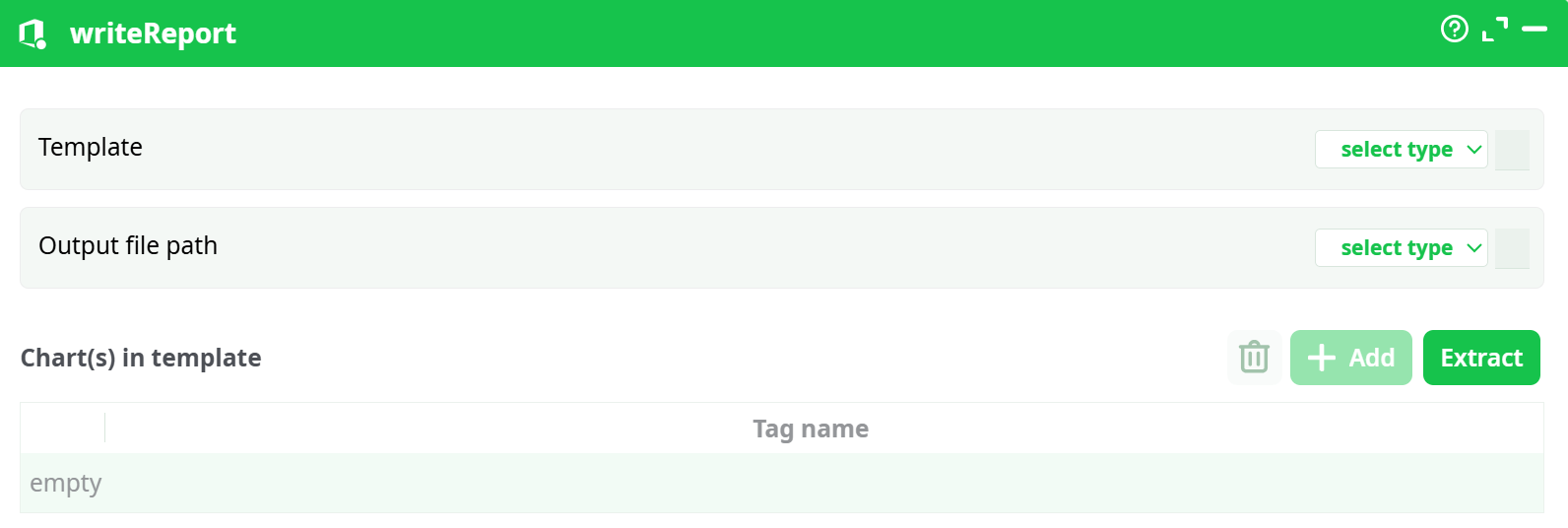
Parameters:
- Template
- Output file
- Chart(s) in template
¶ About
writeReport generates a Microsoft Office document from a template. It can copy a template as-is or replace special placeholders (“tags”) with charts/images produced earlier in the pipeline.
Supported template formats: .docx, .pptx, .xlsx (modern Office). Legacy .doc/.ppt/.xls are not supported.
¶ When to use
- You already have a branded Word / PowerPoint / Excel template and want to fill it from a pipeline.
- You need a reproducible report artifact saved to the pipeline’s records and downloadable after the run.
¶ Prerequisites
- A template file stored where the action can read it (most commonly assets).
- (Optional) Charts/images produced earlier in the pipeline, if you intend to replace tags with visuals.
¶ Parameters
¶ Standard tab
Template
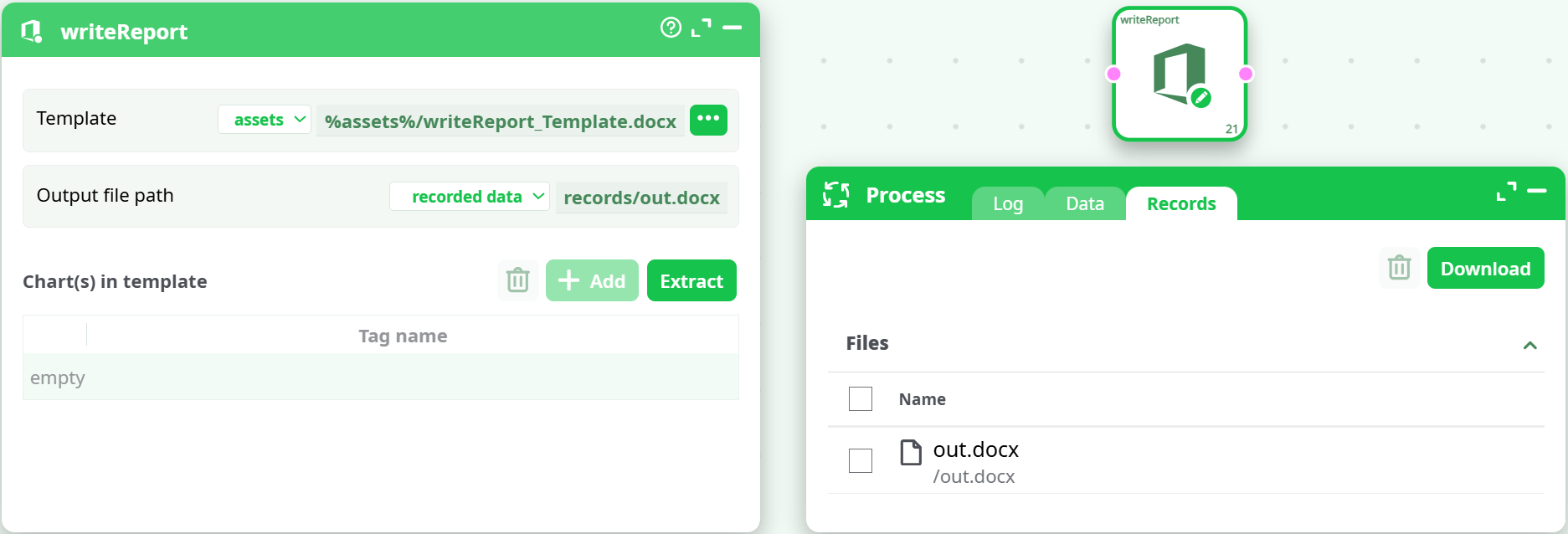
Where the input template lives and its path. Typical choice:
- assets →
%assets%/YourTemplate.docx(or.pptx,.xlsx)
If you point to a non-modern Office extension you’ll get: “template file has unknown extension type (not .xlsx, .pptx, .docx)”.
Output file path
Where to write the generated file. Recommended:
- recorded data →
records/out.docx(or.pptx,.xlsx)
This makes the output appear under the Records tab for download.
Charts(s) in template
A mapping table that lists the tags found in your template and (optionally) how the pipeline should bind them to chart outputs.
- Extract scans the template and lists discovered tags.
- Add lets you register a tag manually (use the exact tag text).
- Tag name is case-sensitive and must match what appears in the template.
If your template has no tags, the action will still run and simply copy the template to the output path (you may see a warning about “no tag to replace”—that’s harmless in this case).
¶ Advanced tab
(Only options relevant to this action’s runtime may appear here in your build. If present, defaults are safe. No special tuning is required for simple “copy template” use.)
¶ Output
- A single Office file at the path you set under Output file path.
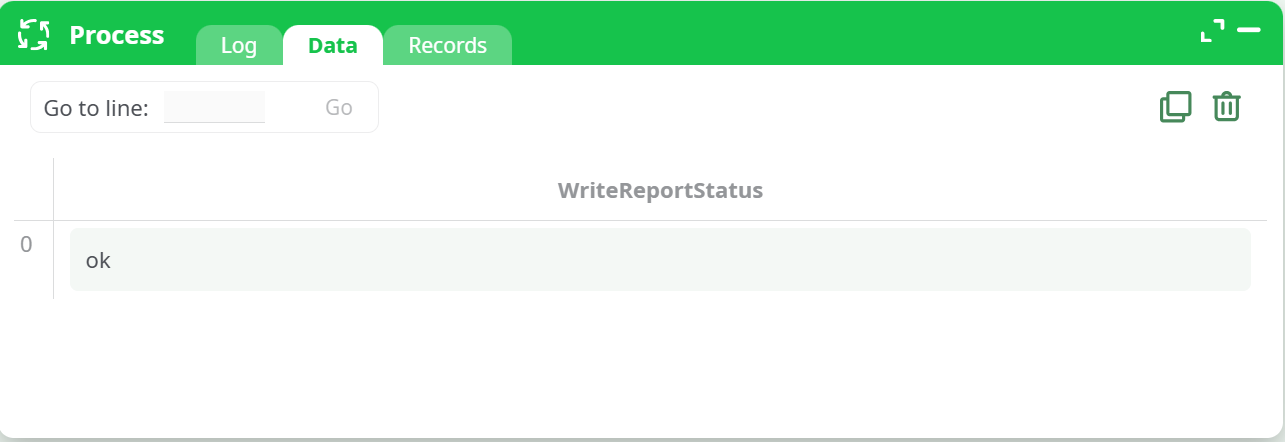
- Data tab: a status column (e.g.,
ok) when the run succeeds. - Records tab: the generated file, ready to Download.
¶ How it works (conceptually)
- The action opens your .docx/.pptx/.xlsx template.
- If there are tags inside, it replaces them with charts/images supplied by previous actions according to the mapping table.
- It writes the resulting document to recorded data.
Tag syntax varies by template authoring, but they must be plain text markers inside the doc that the extractor can find. Use Extract to confirm they’re detectable by the action.
¶ Step-by-step setup (quick start)
-
Place a template in assets, e.g.
writeReport_Template.docx. -
Open writeReport and set:
- Template → assets →
%assets%/writeReport_Template.docx - Output file path → recorded data →
records/out.docx
- Template → assets →
-
(Optional) Click Extract to list tags; add any missing tags with Add.
-
Run the action.
-
Check:
- Data tab shows
ok. - Records tab lists
out.docx→ Download.
- Data tab shows
¶ Tips & best practices
- Keep templates in assets for easy versioning and reuse; write outputs to recorded data so they’re downloadable.
- After editing a template, click Extract again so the grid reflects the current tags.
- In PowerPoint, place tags in text boxes; in Excel, place tags in cells; in Word, place tags in the body where you want charts to appear.
- If you only need a static copy, you can leave the tag grid empty—the action will still produce the output.
- Name tags clearly and uniquely; they’re case-sensitive.
¶ Troubleshooting
- “Unknown extension type” → Use
.docx/.pptx/.xlsxonly. - Warning: couldn’t find any tag to replace → The template has no recognized tags. The file will still be produced unchanged; add tags and click Extract if replacements are expected.
- No file in Records → Verify Output file path uses recorded data and a valid file name.
- File not found (template) → Ensure the Template source and path are correct (e.g.,
%assets%/...).
¶ Performance notes
- Rendering is lightweight; the main cost is embedded images/graphs. Very large images increase output size and processing time.
- Prefer compressed images for faster runs and smaller documents.
¶ Minimal runnable configuration (Word example)
- Template:
assets → %assets%/writeReport_Template.docx - Output file path:
recorded data → records/out.docx - Charts(s) in template: leave empty (copy-only) or Extract and map tags as needed.