¶ About
This page describes how XPath-style path expressions are used inside ETL to locate, iterate, and extract data from structured documents such as XML, HTML, and JSON-like hierarchical formats.
¶ What is XPath in ETL
XPath is a compact syntax used to describe a precise location inside a hierarchical document structure (tree‑like data). In ETL, path expressions are used to:
- Define where iteration starts
- Select which elements are processed
- Extract values into output columns
- Automatically discover available fields
A path expression represents a navigation route from the root of a document to a specific node or attribute.
Example structure:
/root/level1/level2/value
Each segment represents a tag, object key, or structural level.
For typical real-world XML/HTML files, the compression ratio is usually above 90–95%. Therefore, it makes a lot of sense to compress all your XML/HTML files.
Let’s assume that you have the following XML file:
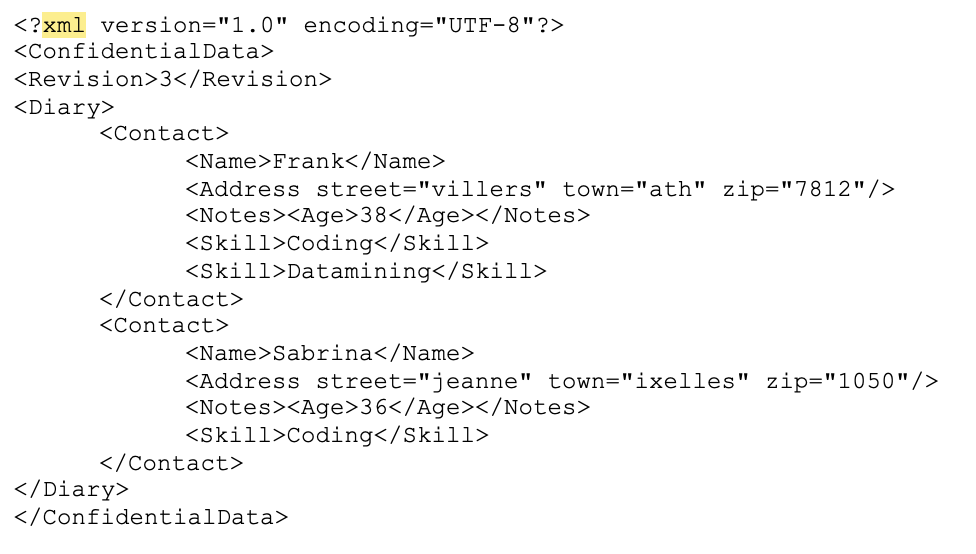
We want to extract the name and the age of each of our contact.
We’ll use the following settings:
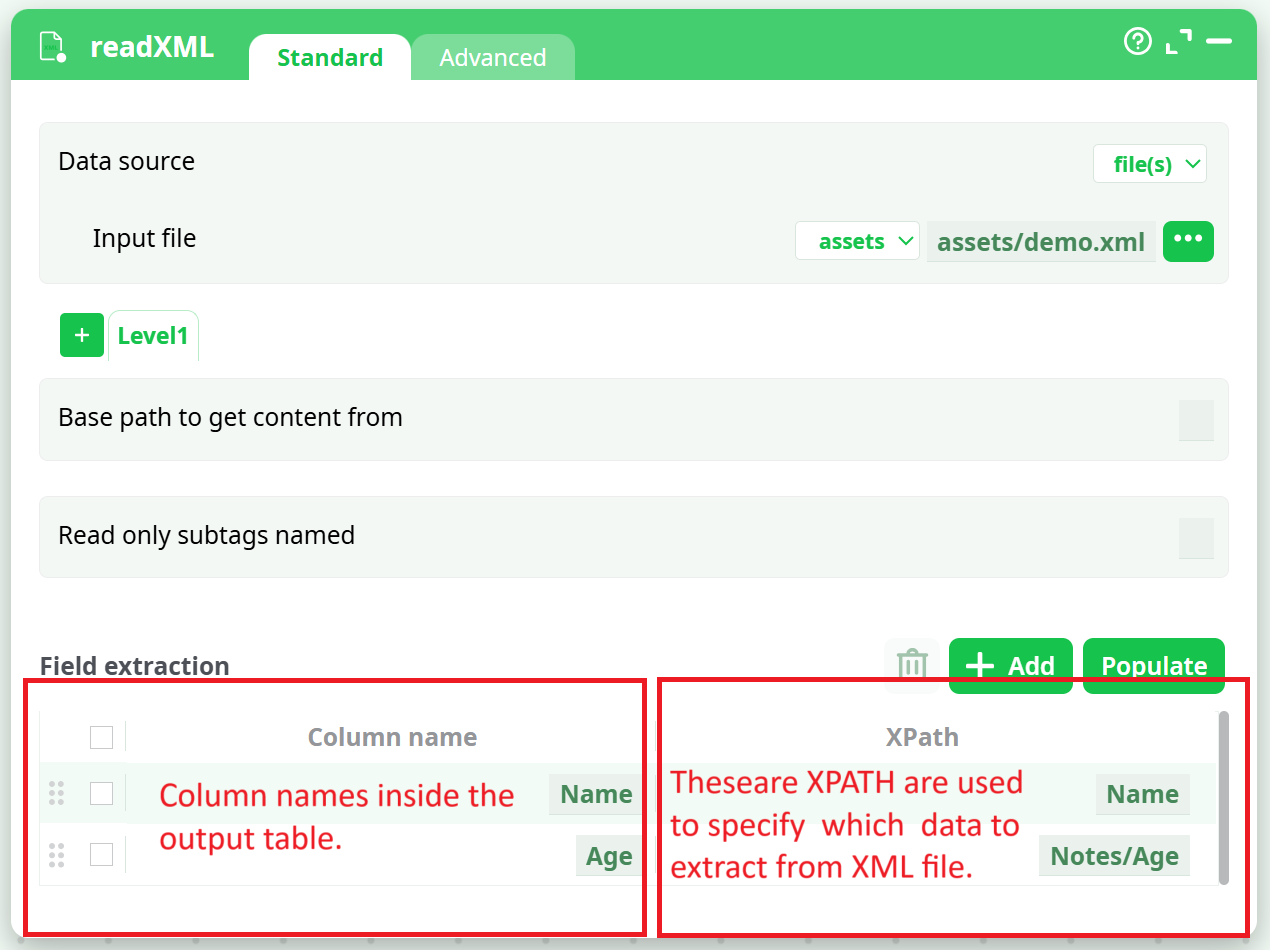
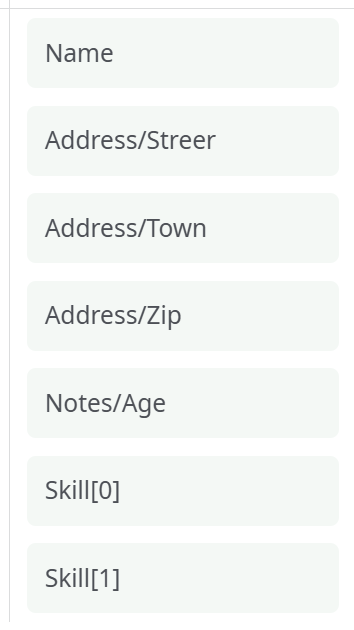
It can sometime be difficult to manually write the different XPATHs required for extraction. This is why ETL has an “Populate” button: After you finished entering the “Iterate on all subtags located at” parameter, you can click the “Populate” button. ETL will analyzes the first 100 tags (You can change this number using the “Number of line to analyse for autofill” parameter inside the “Advanced Parameters” tab) and extract all the different XPATH to all the different data contained inside these first 100 tags. For the above example, ETL will find the following XPATHs:
By default, the character encoding used by ETL to decipher the content of the XML file is found automatically based on the BOM (Byte Order Mark) of the .XML file or based on the declaration on the first row of the XML file (e.g. “” is for UTF-8 character encoding). It can happen that the BOM is missing and the XML declaration is incorrect (The XML file is using another encoding than the one specified on the first row of the XML file). In such (common) situation, you can manually specify (using the “Encoding Name” parameter inside the “Advanced Parameters” tab) which character encoding ETL must use to decipher the XML file.
¶ HTML Extraction – A Simple Example
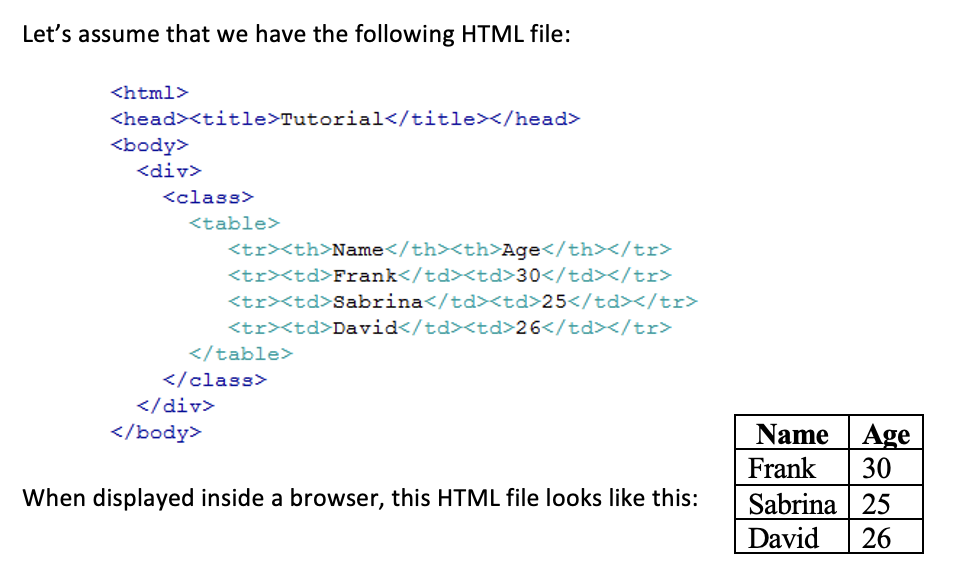
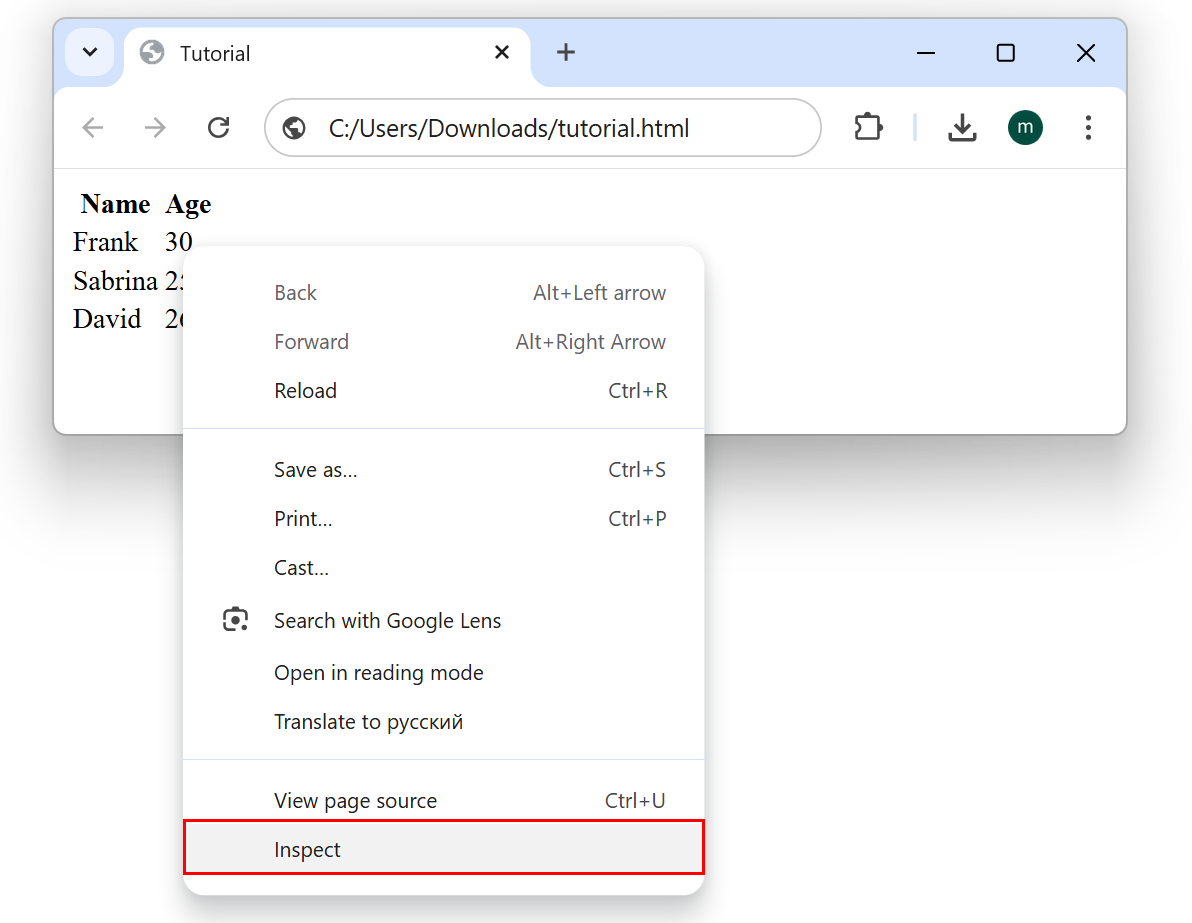
We want to import the above table inside ETL. First, we need to find the XPATH that gives the location of the table inside the HTML document. To do so, open the HTML file inside a Browser (e.g. inside “Chrome”), right-click on the first cell of the table and select “Inspect Element”: See the screenshot below:
You should now see the following window:
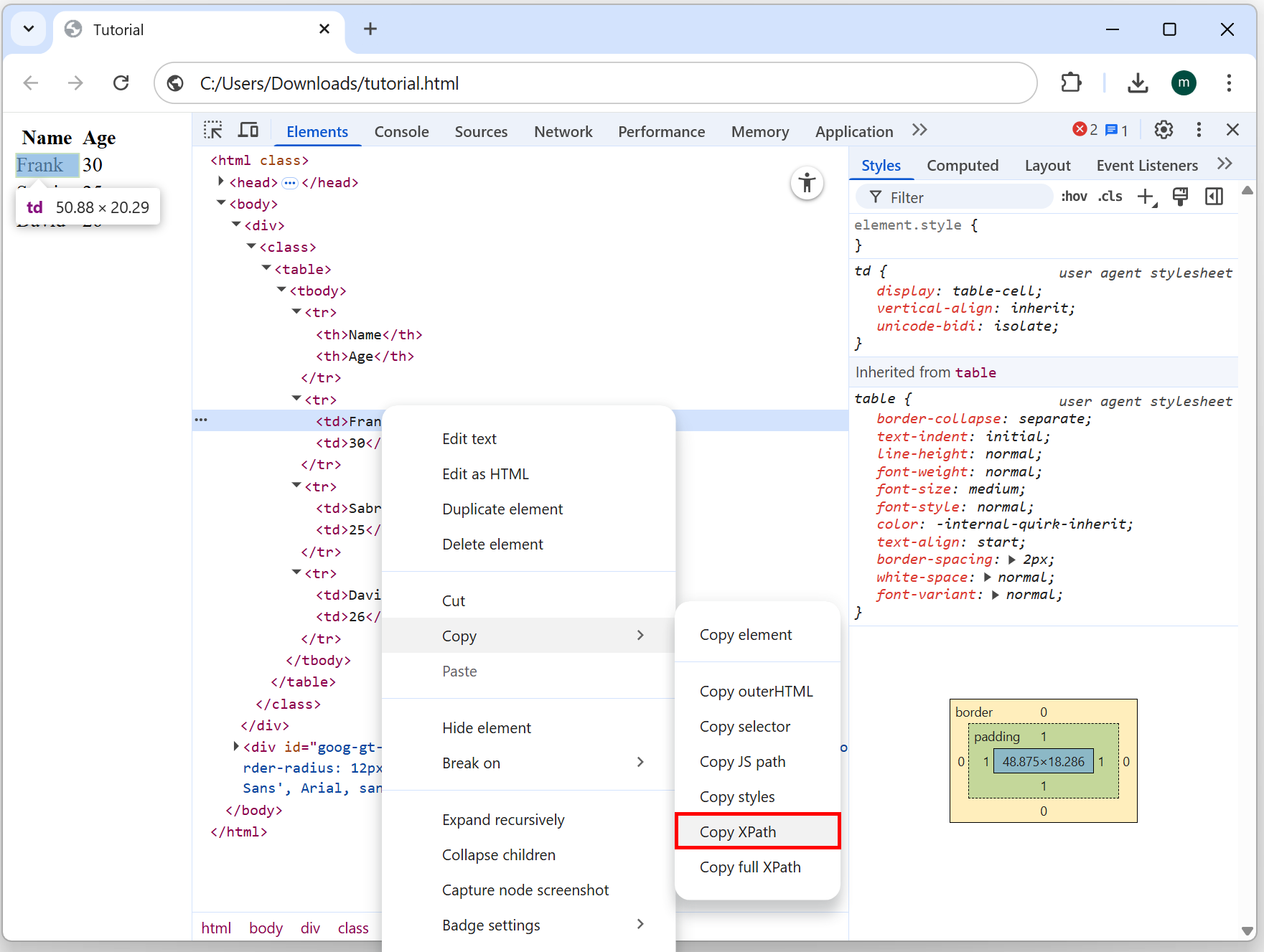
Right-click the required XML tag (i.e. the tag that contains “Frank”) and select "Copy XPath" from the context menu. The clipboard now contains the following XPath: /html/body/div/table/tbody/tr[2]/td[1]
Looking at the above XPath, you can see that the XPath that represents the start of the table is: /html/body/div/table/tbody
Open ETL, add a ReadXML action inside the pipeline, open the “Properties window” of this ReadXML action, paste the XPath there, the Populate button will be disabled.
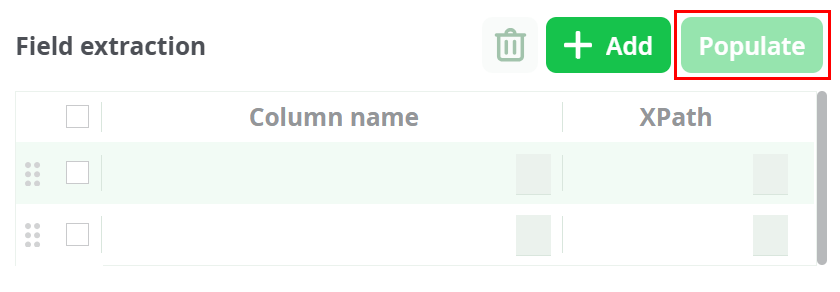
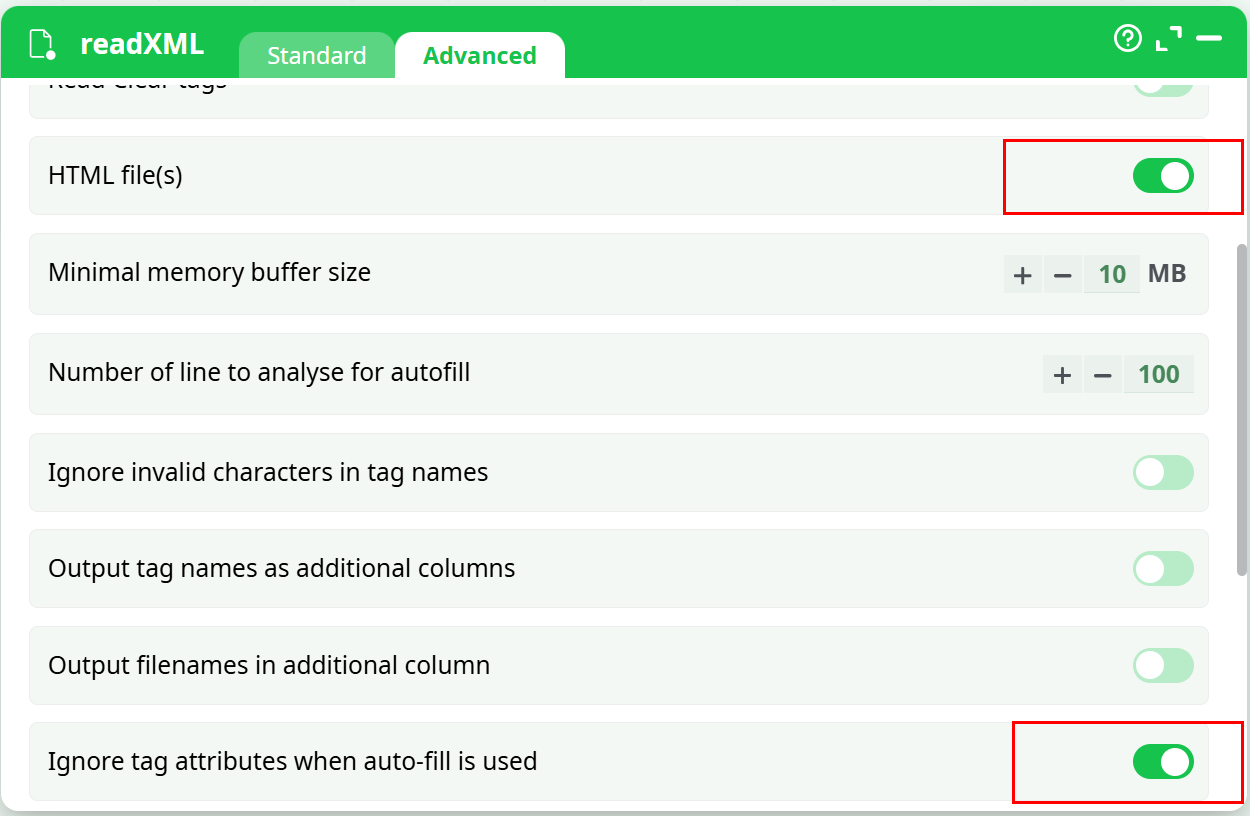
The above situation is normal because there is no “tbody” tags inside the HTML file (although a “tbody” tag appears inside your XPath expression). All the browsers always add “tbody” tags inside XPath expressions for compatibility reasons. To get around this annoying behavior from the browsers, open the “Advanced Parameters” panel and:
- Enable the check action “HTML file(s)”: In addition to properly handle “tbody” tags, ETL now also properly handles “br”, “img”, “link”,… tags that all have a special behavior in HTML.
- Optional: Enable the check action “Ignore tags attributes when using the “Populate” button.
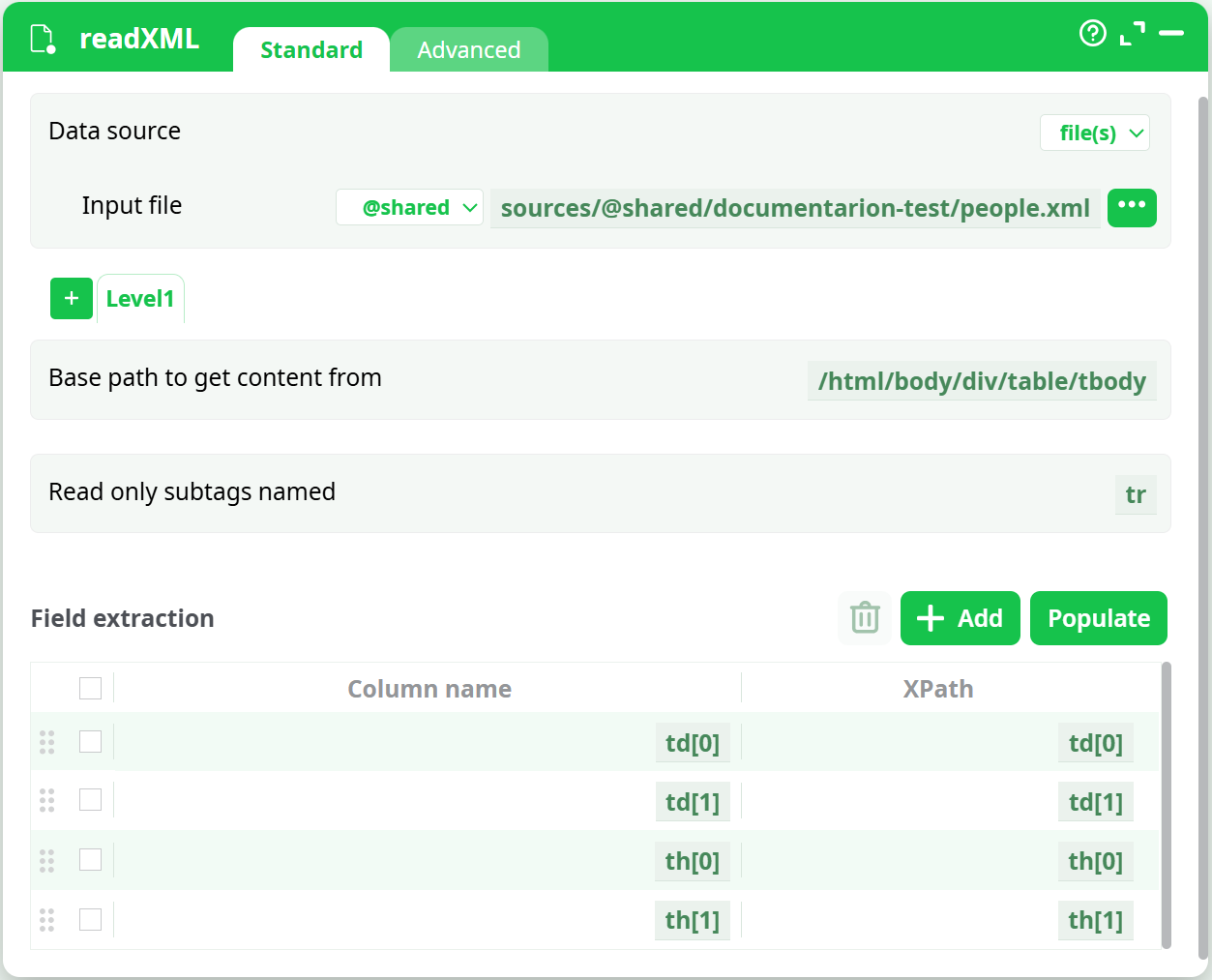
You should have:
Go the “Standard Parameters” panel and click again the “Populate” button: You now get:
Discard the last 2 rows (i.e: the last 2 extractions - You don’t need them) and rename “by hand” the first 2 rows: You now have:
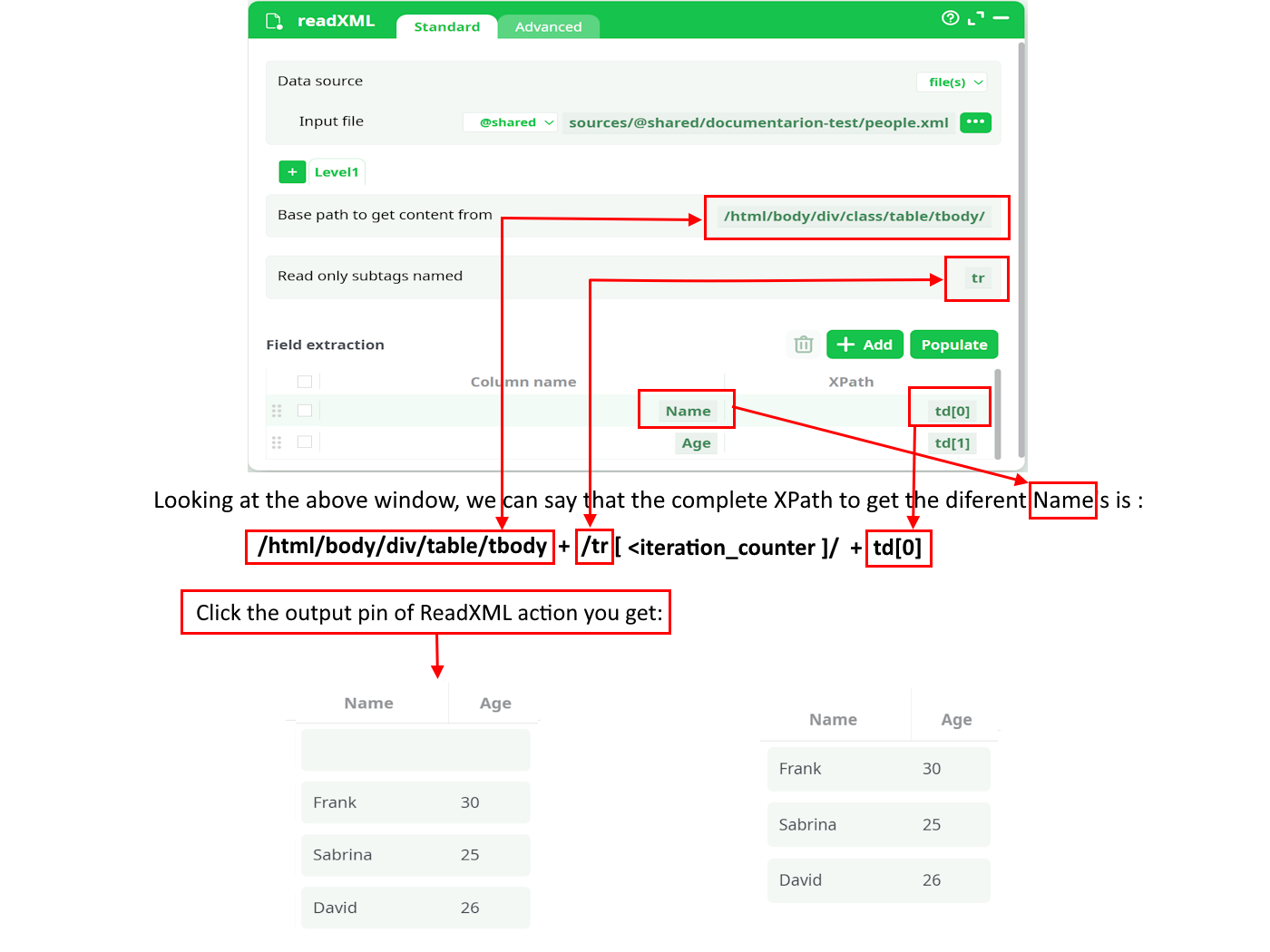
You should still add a simple FilterRow action to remove the “empty rows” (e.g. use the following expression: “strlen(Name)>0”). You finally get this second "DataTable(3 rows)(complete).
NOTE :
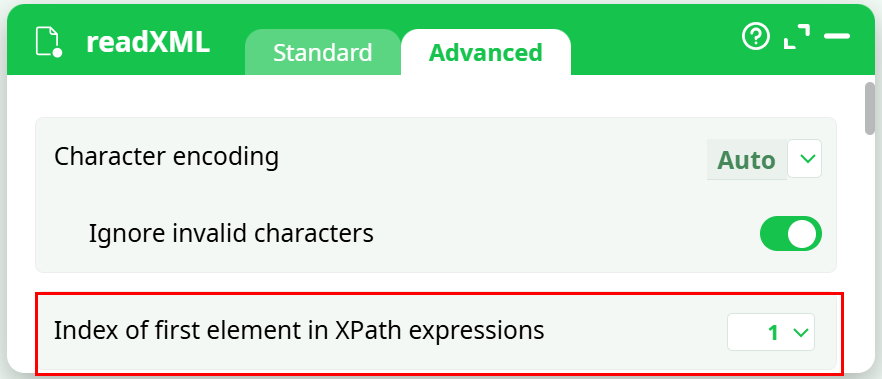
Inside ETL, by default, the XPath indexes are zero-based (everything is zero-based in ETL). This means that, inside ETL, “td[0]” is equivalent to “td”. Unfortunately, HTML browsers are using indexes inside XPath expression that are “one-based” (i.e. for HTML browsers, “td[1]” is equivalent to “td”). Thus, to be able to directly copy/paste XPath expressions from your browser into ETL, please verify that you changed the ETL’s setting to use “one-based” XPath expression: Click here:
.
¶ HTML Extraction – A More Complex Example
Let’s assume that we have the following HTML file:
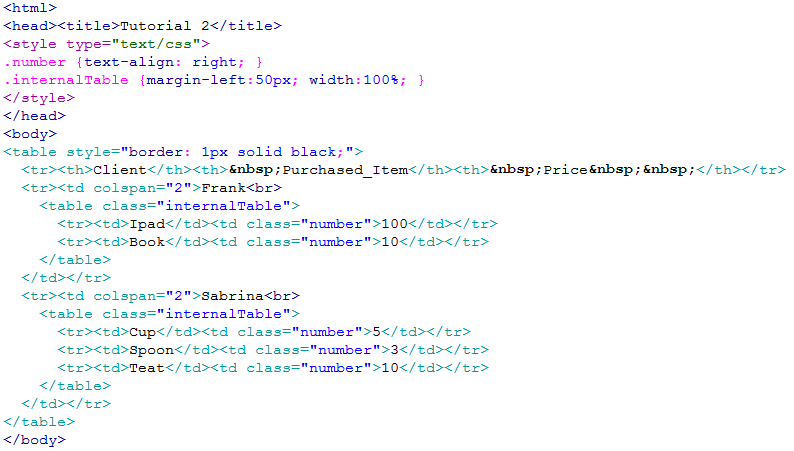
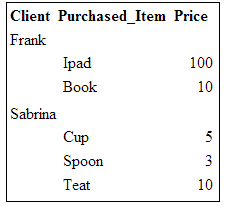
When displayed inside a browser, this HTML file looks like this:
There are two “iteration levels” inside this HTML file:
- The first iteration is about the Clients
- The second level of iteration is about the transactions that each client commited. The second level is “embedded” inside the first level.
To extract this HTML, you have 2 solutions.
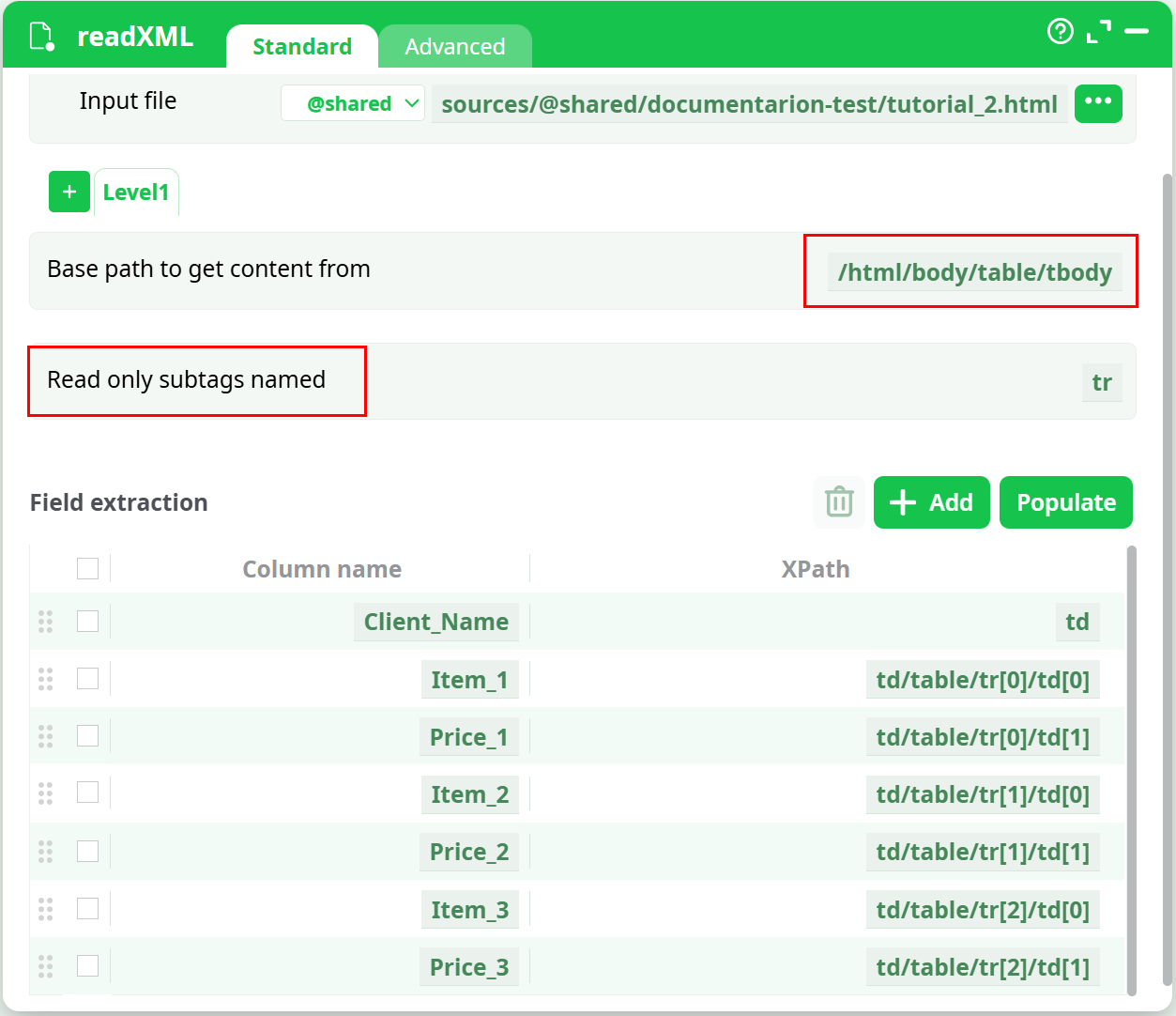
Here are the parameters for the first solution:
NOTE :
The parameter “Read only the subtags named:” is optional.
If left blank, ETL simply iterates on all the subtags found here .
E.g. for the above example, you can let this parameter blank: It does not change anything.
The output of the first solution is (after removing the empy row):
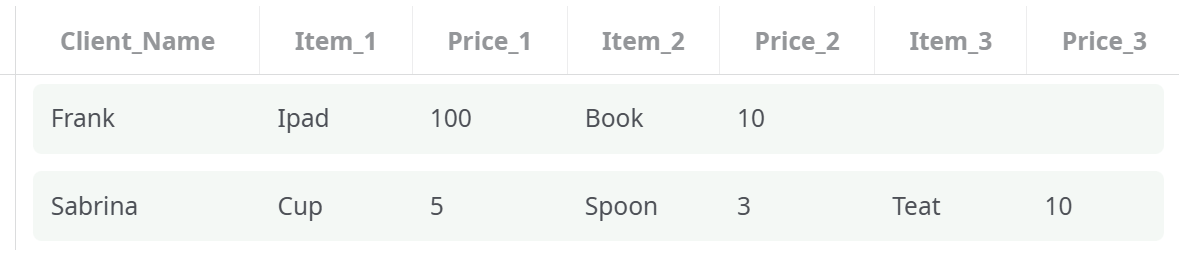
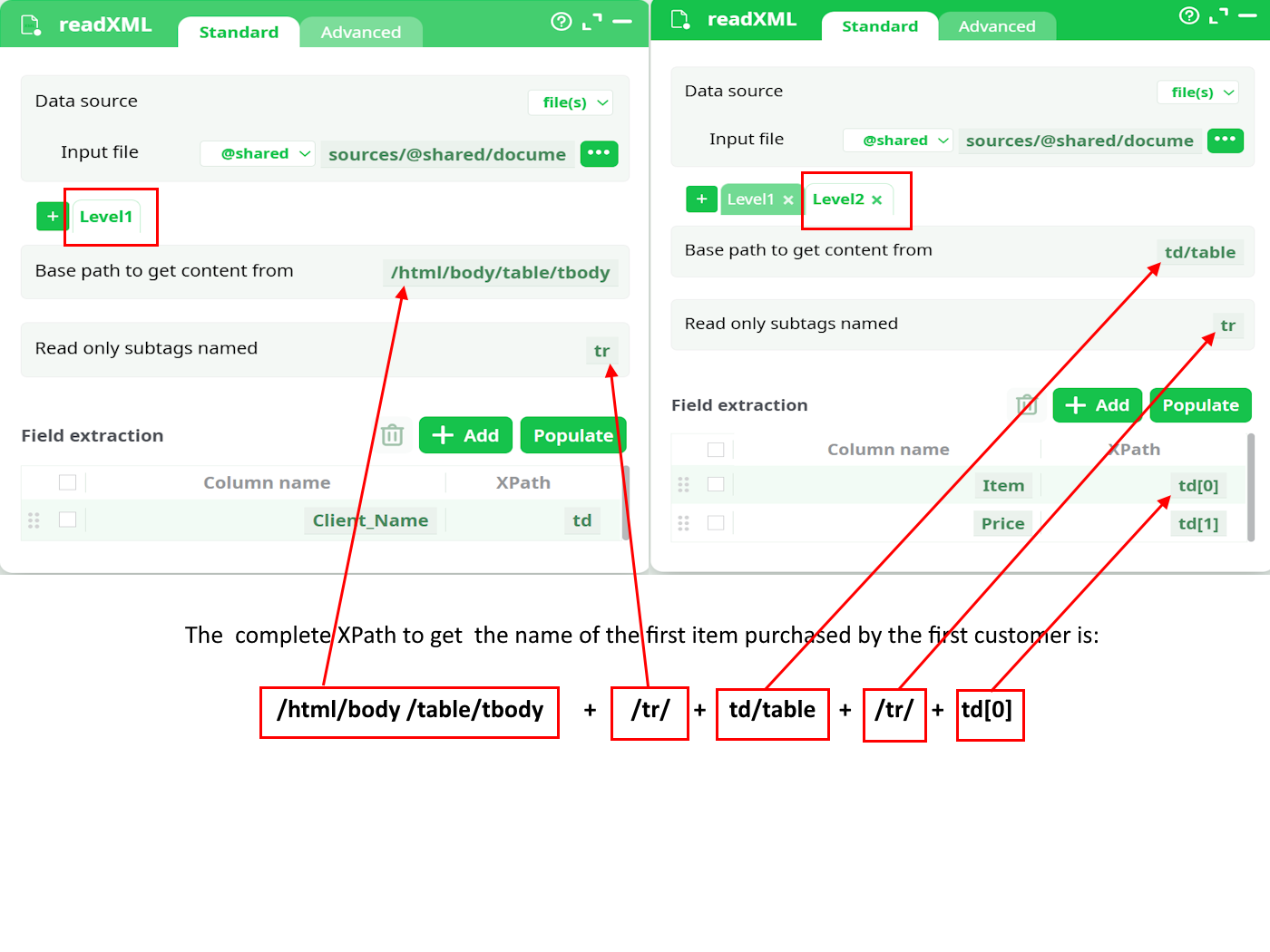
This first solution is not very good because the number of “Purchased items” extracted is limited to 3. Here are the parameters for the second solution: Please note that we are now defining 2 levels:
The output of this second solution is (after removing the empy row):
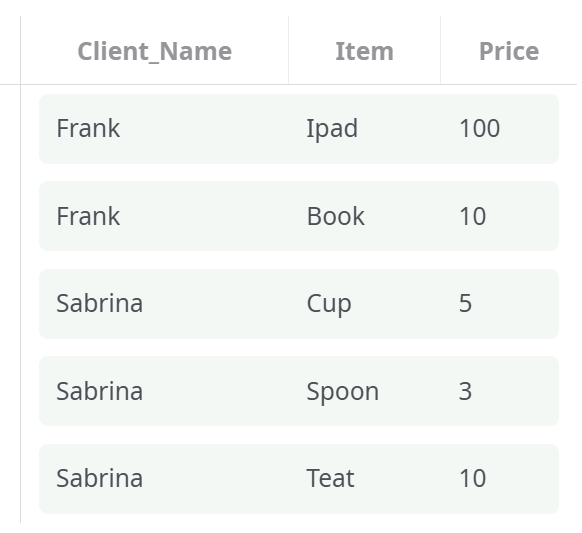
This second solution is better than the first one because it does not impose any restriction on the number of transactions that each client commited (and, also, it looks more like the original HTML file).
ETL allows you to define as many levels as you like, so that you can easily extract any data from any HTML file, whatever the size and structure. Furthermore, it’s very easy to find the right extraction parameters for the readXML action (i.e. the right XPATHs) because you can directly use the XPath expressions generated by Chrome, Firefox or IE (i.e. nearly all other HTML parsers that are based on XPath expressions can’t use XPath expressions generated by Chrome, Firefox or IE because they have problems with tags).
¶ Where path expressions are used in ETL
Path expressions are typically used in:
- Base path to get content from
- Iteration / Level definitions
- Field extraction (column XPaths)
- Auto‑discovery (Populate / Autofill)
These concepts are shared across multiple reader actions.
¶ Field extraction using XPath
Each extracted column in ETL is defined by:
- A column name → the output table header
- A path expression → where to read the value from
Example:
Column name: Name
XPath: Diary/Contact/Name
This means:
For each iterated element, read the value located at
Namerelative to the current node.
Path expressions can reference:
- Nested elements
- Attributes
- Indexed elements
- Repeated structures
¶ Iteration levels (how ETL creates rows)
ETL creates rows by iterating over elements defined by a base path or level path.
Conceptually:
- One iteration = one output row
- Nested iterations = multiple levels of row expansion
¶ Single level example
/contacts/contact
Each <contact> produces one row.
¶ Multi‑level example
/clients/client
  └── /transactions/transaction
This creates:
- One row per transaction
- Repeating client data for each transaction
ETL supports any number of levels to handle deeply nested data.
¶ Indexing rules in ETL
ETL uses zero‑based indexing by default.
Meaning:
| Expression | Meaning |
|---|---|
td or td[0] |
first element |
td[1] |
second element |
¶ Browser vs ETL indexing
Most web browsers generate XPath using one‑based indexing:
| Browser | ETL |
|---|---|
td[1] |
td[0] |
td[2] |
td[1] |
To copy XPath directly from browsers, ETL provides a setting:
Index of first element in XPath expressions
Set it to 1 to enable one‑based compatibility.
¶ The Populate (Autofill) mechanism
Manually writing all required path expressions can be difficult for large or unknown structures.
ETL provides a Populate button that:
- Scans the first N elements of the iterated structure
- Detects all unique paths
- Automatically fills the extraction table
¶ How it works
- Define the iteration base path
- Click Populate
- ETL analyzes the first entries
- All detected fields are listed as extraction candidates
¶ Configuration
The number of analyzed elements is controlled by:
Number of line to analyse for autofill
Located in the Advanced parameters.
Increasing this value increases discovery accuracy but also processing time.
¶ Relative vs absolute paths
Inside extraction tables, paths are relative to the current iteration node.
Example:
Base path:
/contacts/contact
Extraction path:
Name
Equivalent to:
/contacts/contact/Name
Relative paths make configurations shorter and easier to maintain.
¶ Attributes in path expressions
Attributes are accessed using @:
Address/@zip
This extracts the zip attribute from the Address tag.
¶ HTML specific considerations
HTML files are structurally similar to XML but browsers modify them internally.
Common behaviors:
- Browsers automatically inject
<body>and<tbody>tags - Some tags (
br,img,link) behave differently
To ensure correct parsing:
- Enable HTML file(s) option in advanced parameters
- Optionally enable ignoring tag attributes during Populate
This allows ETL to correctly match browser‑generated XPath expressions.
¶ Character encoding impact
Incorrect encoding can cause:
- Broken characters
- Invalid parsing
- Missing fields
ETL normally auto‑detects encoding using:
- BOM (Byte Order Mark)
- XML header declaration
When detection fails, manually specify encoding in advanced parameters.
¶ Common mistakes
- Using browser XPath without enabling one‑based indexing
- Using absolute paths instead of relative ones inside extraction
- Iterating on too high or too low level
- Using Populate before defining correct iteration base
- Forgetting HTML mode for HTML documents
¶ Performance considerations
- Path evaluation is streaming and memory‑efficient
- Populate scans only the configured number of elements
- Deeply nested structures increase evaluation cost
- More iteration levels = more output rows
¶ Recommended workflow
- Inspect document structure
- Identify repeating elements
- Define iteration base path
- Use Populate to discover fields
- Remove unnecessary fields
- Rename columns
- Validate output
¶ Terminology summary
- Path expression / XPath – navigation route inside structured data
- Iteration level – structure that generates rows
- Relative path – evaluated from current iteration node
- Populate – automatic discovery of available fields
- Index base – zero‑based or one‑based element numbering