¶ Description
Run a ssh command on a remote server.
¶ Parameters
¶ Parameters tab
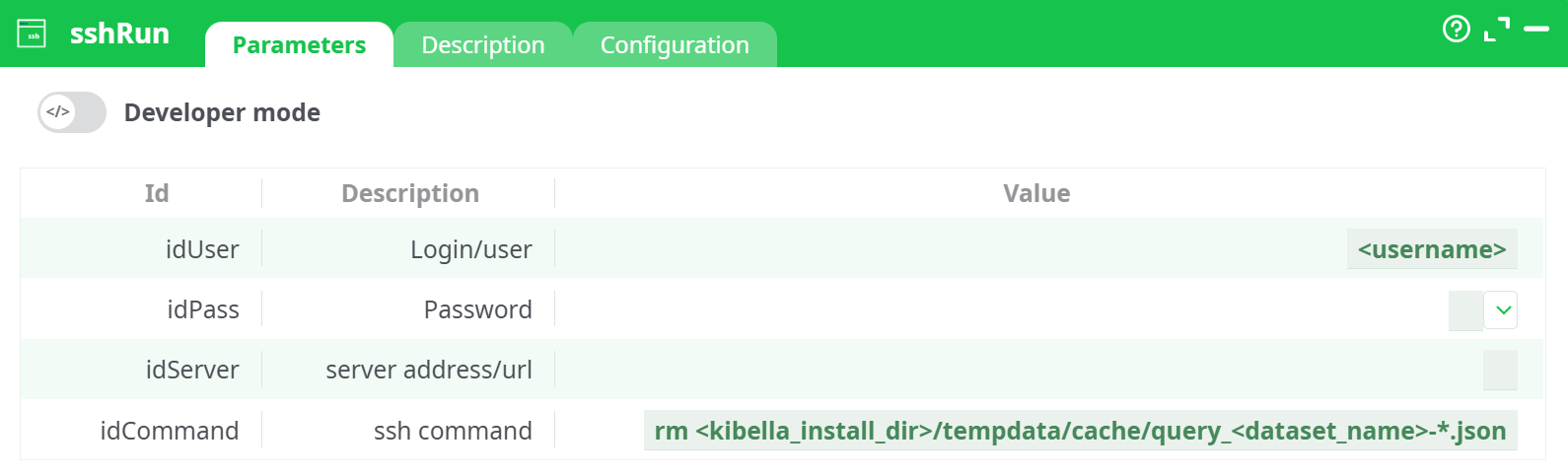
Parameters:
- Developer mode: activate/deactivate code tab.
- Login/user
- Password
- Server address/url
- ssh command
¶ Description tab
See dedicated page for more information.
¶ Configuration tab
See dedicated page for more information.
¶ About
Runs a remote SSH command from your ETL server.
Use sshRun to orchestrate work on other machines directly from your pipeline—without extra agents:
- File housekeeping (rotate logs, purge temp/cache, move or chmod files).
- Trigger application jobs (run shell scripts, kick off ingestion, reload services).
- Operational checks (tail a log, check versions, read counters).
- Lightweight deployments (pull latest code, restart a container/service*****).
* Keep restarts idempotent and guarded; use && to stop on first failure.
¶ How it works
- The action builds a non-interactive SSH call.
- It passes your user, password, server, and command.
- It returns success if the remote process exit code is
0; any non-zero exit code is treated as an error and appears in the action log.
¶ Usage Examples
¶ 1) Clear Kibella query cache for a dataset
rm <kibella_install_dir>/tempdata/cache/query_<dataset_name>-*.json
¶ 2) Restart a systemd service (Linux)
sudo systemctl restart etl-worker.service && systemctl is-active etl-worker.service
Ensure the remote user has passwordless sudo for that command, or the run will block.
¶ 3) Run a project script
/opt/projects/acme/bin/nightly.sh --date=$(date +%F)
¶ 4) Chain commands and stop on first failure
cd /data/inbox && ./ingest.sh && ./verify.sh
¶ Best Practices
- Make commands idempotent (safe to run twice).
- Prefer absolute paths on the remote host.
- For multiple steps, call a remote script maintained under version control.
- Handle errors with
set -ein scripts or usecmd1 && cmd2inssh command. - Least privilege: use a dedicated service account restricted to the needed folders/commands.
- Avoid dangerous wildcards in
rm; when needed, add safety checks (e.g.,test -n "$TARGET" && rm -f "$TARGET").
¶ Security Notes
- Password is handled as a secret; restrict who can view or edit it.
- Rotate credentials regularly; consider moving to key-based auth with Pageant/agent if your environment allows (even though this action exposes user/password fields,
plinkitself supports keys). - Log output may include parts of your command; avoid embedding secrets in
ssh command.
¶ Quick Start
- Fill Login/user, Password, server address/url.
- Enter your ssh command (test it manually first on the remote host).
- Run the action; check the Log pane for the remote exit code and output.