¶ Description
Download data from Facebook pages.
¶ Parameters
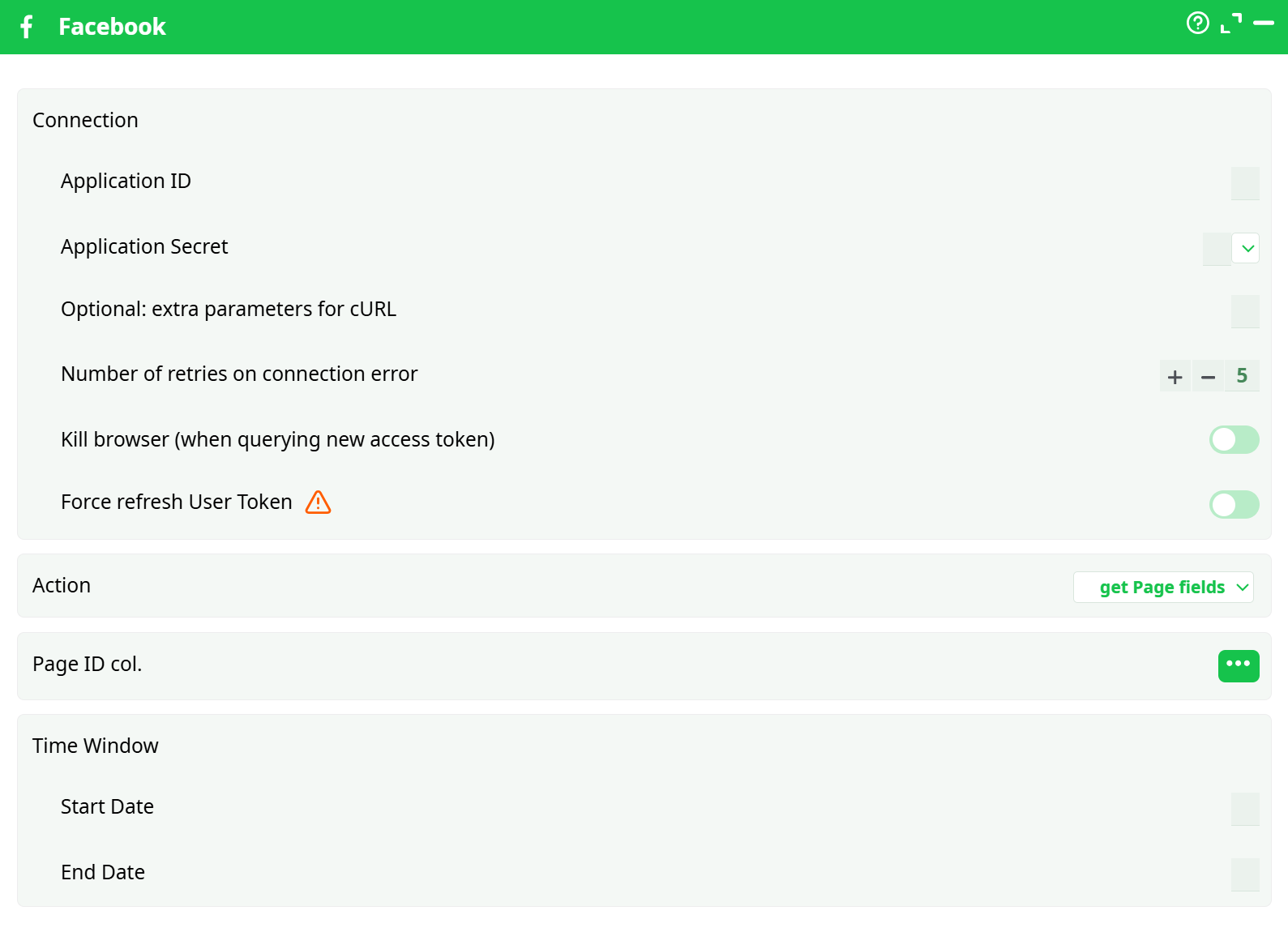
Parameters:
- Action
- Page ID col.
- Page fields
- Time Window
- Start Date
- End Date
- Connection
- Application ID
- Application Secret
- Optional: extra parameters for cURL
- Retries on connection error
- Kill browser (when querying new access token)
- Force refresh User Token
¶ About
This action also works when accessing the web through a PROXY server.
To use this action, you’ll need to get several parameters from Facebook:
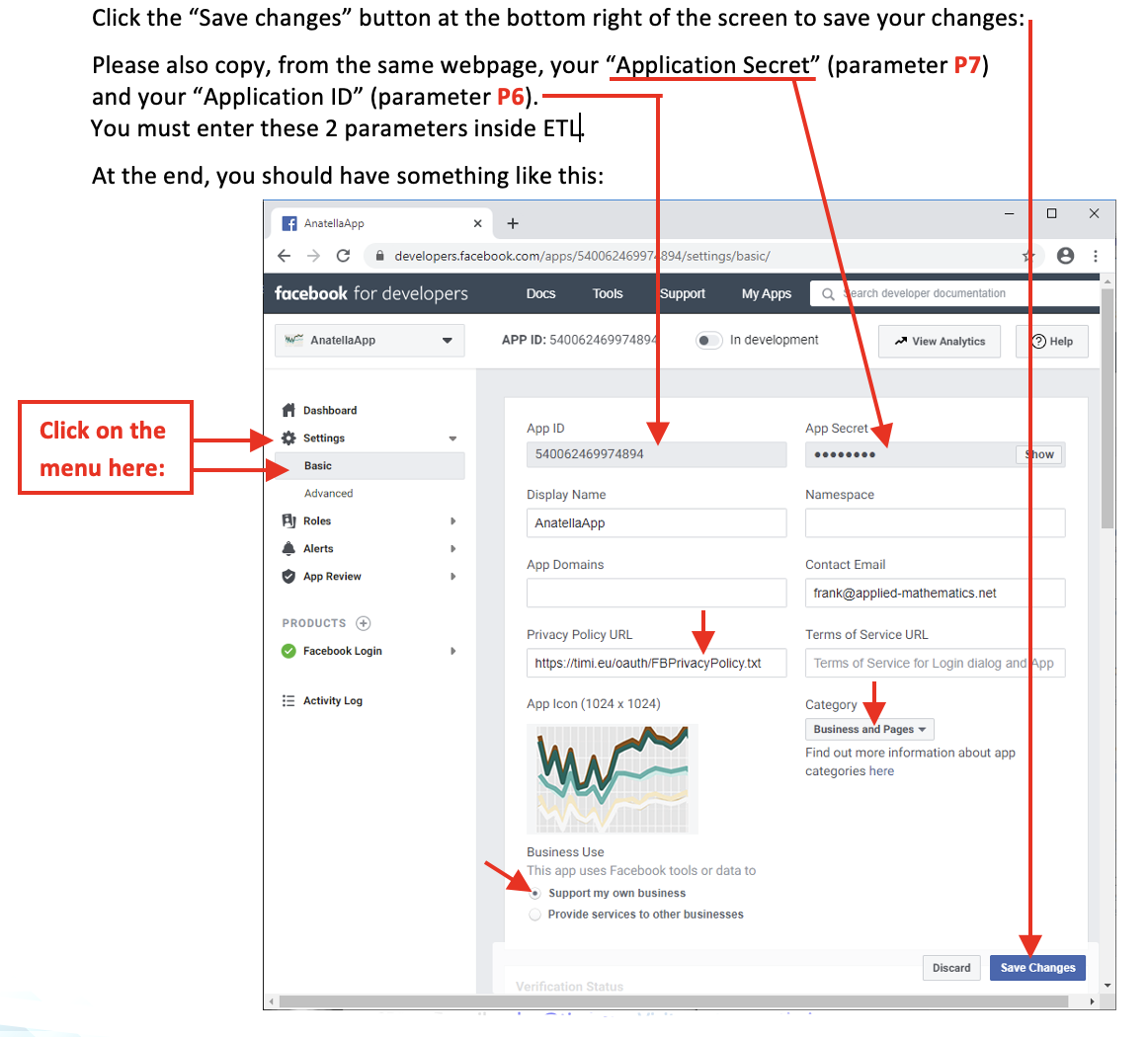
- your “Application ID” (parameter P6) and “Application Secret” (parameter P7), so that your application can login into facebook to get these 2 parameters.
- the “Page ID” (the parameter P2 is the name of the column of the input table that contains all the required “Page ID’s”) of all the pages that you want to query with ETL.
Once you have completed the “setup process”, you can use the parameters P1, P3, P4, P5 to select the data to extract from your Facebook pages. More precisely, you can extract from your Facebook pages all the “Page fields”, all the “Page Post fields” and all the “Page Post Comments fields”.
After a few months (usually every 3 months), Facebook forces you to re-authenticate yourself before you can get access to any data again (i.e. your “User Access Token” becomes expired). When this happens, ETL automatically open a browser that will automatically re-new your authentification token (i.e. ETL automatically gets a fresh “User Access Token”). No worries: The whole procedure is fully automated (unless you deleted your Facebook cookies from your browser, in which case, you need to manually login yourself, using your keyboard): i.e. you’ll only see a browser that opens with the word “Success” displayed. You can check the parameter P10 to automatically close ALL the running internet browser after the authentification procedure is complete (Warning: This will close all the currently running internet browser!).
NOTE :
The automated authentification procedure (described in the above paragraph) also happens the first time that you run the Facebook action.
¶ Facebook action: First time setup
Before getting data from Facebook, you need to create a new Facebook application.
Here are the steps:
- Open the url https://developers.facebook.com/ inside your browser and manually login into Facebook (if required).
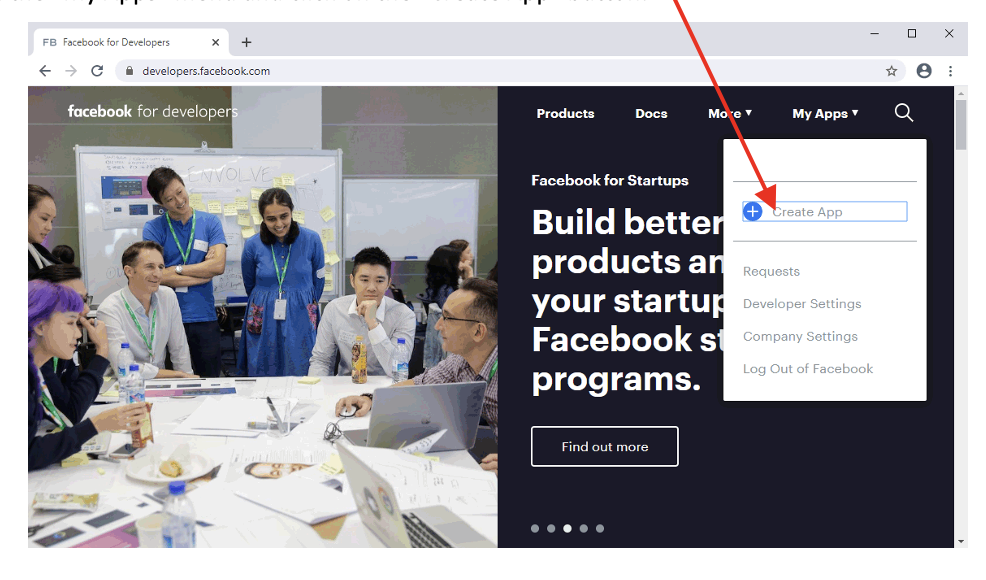
- Open the “My Apps” menu and click on the “Create App” button:
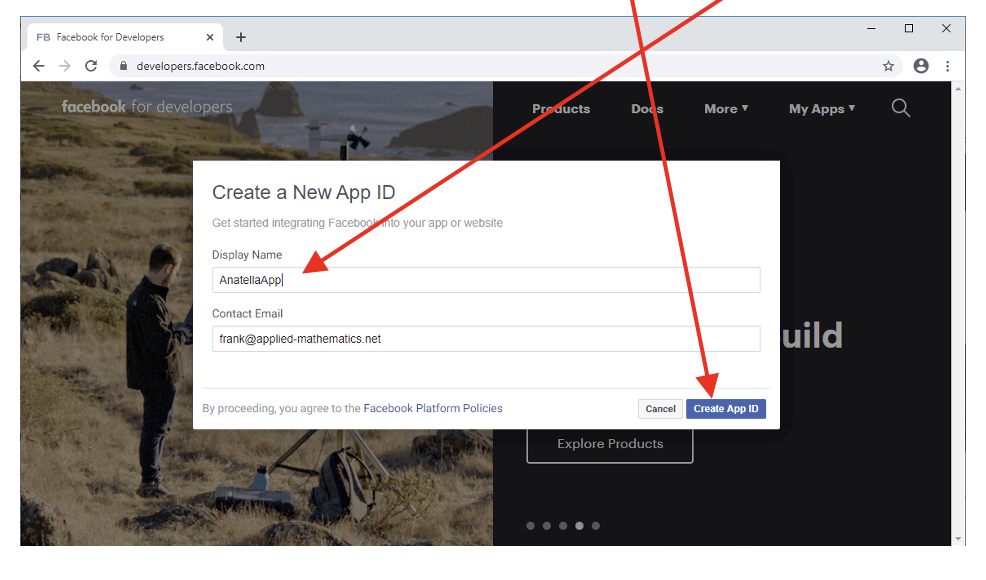
- Fill-in the form: Enter a name for your app (you can use any name: e.g. “ExampleApp”) and give your email. Once finished, click the “Create App ID” button:
- In the new webpage, in the left menu, select “Settings”, “Basic” and fill-in the following fields:
o Privacy Policy URL: you can use: https://timi.eu/oauth/FBPrivacyPolicy.txt
o Category: select “Business and Pages”
o Business Use: select “Support my own business”
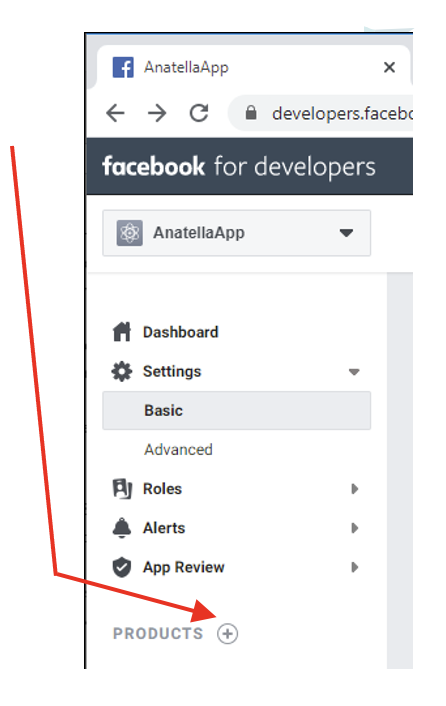
- Click the icon to open the “Products” page:
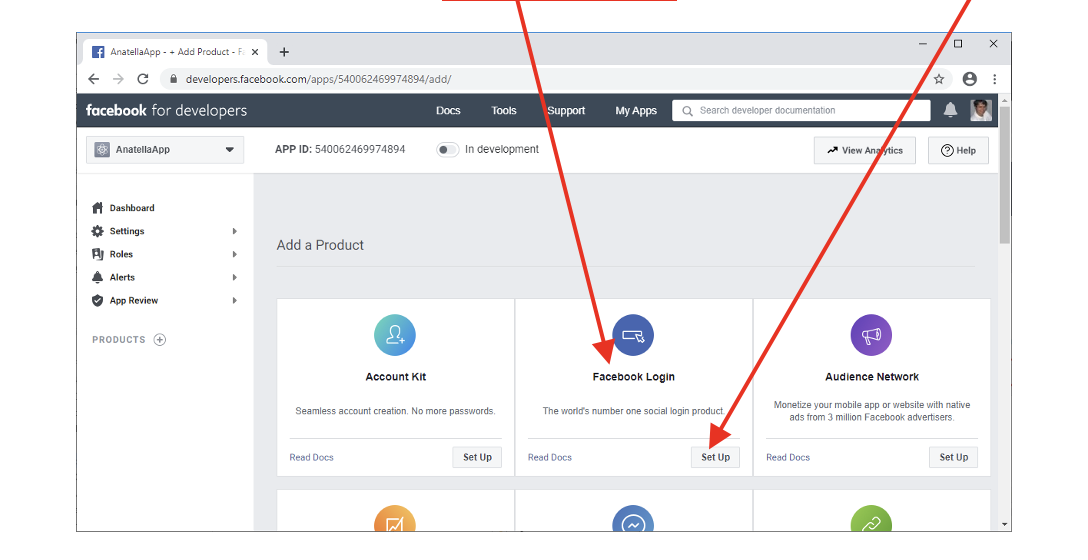
- On the “Product” page, inside the “Facebook login” action, click the “Set Up” button:
- This is important!
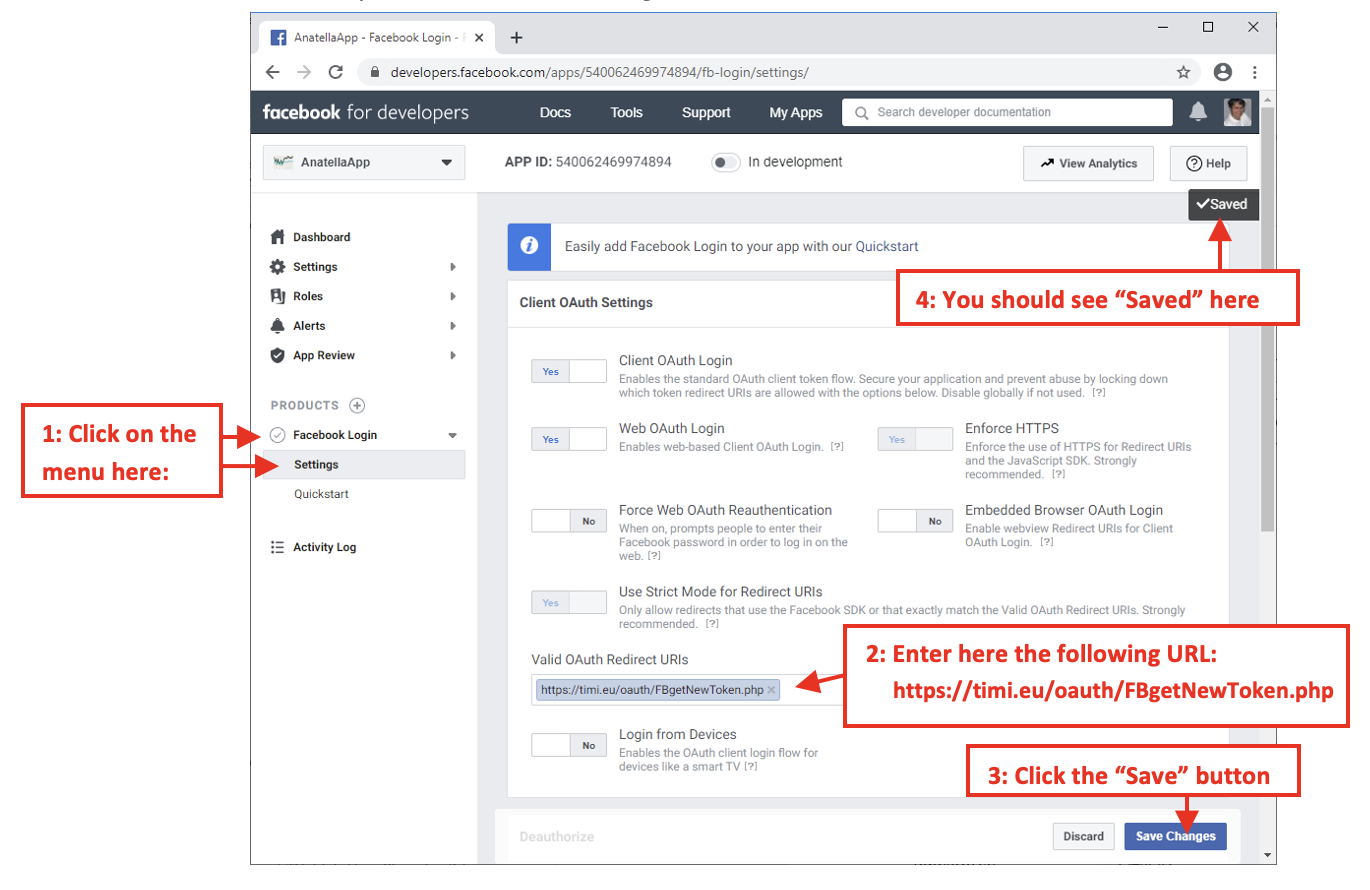
On the menu on the left, click directly the “Settings” button inside the “Facebook Login” menu (see the illustration on the next page). Inside this “Settings” webpage, add inside the parameter named “Valid OAuth Redirect URIs” the following URL:

Click the “Save changes” button at the bottom right of the screen to save your changes.
At the end, you should have something like this:
¶ How to get the Facebook PageID’s?
Here are the steps:
- You need to grant to your new App the access to all the required pages. To do so:
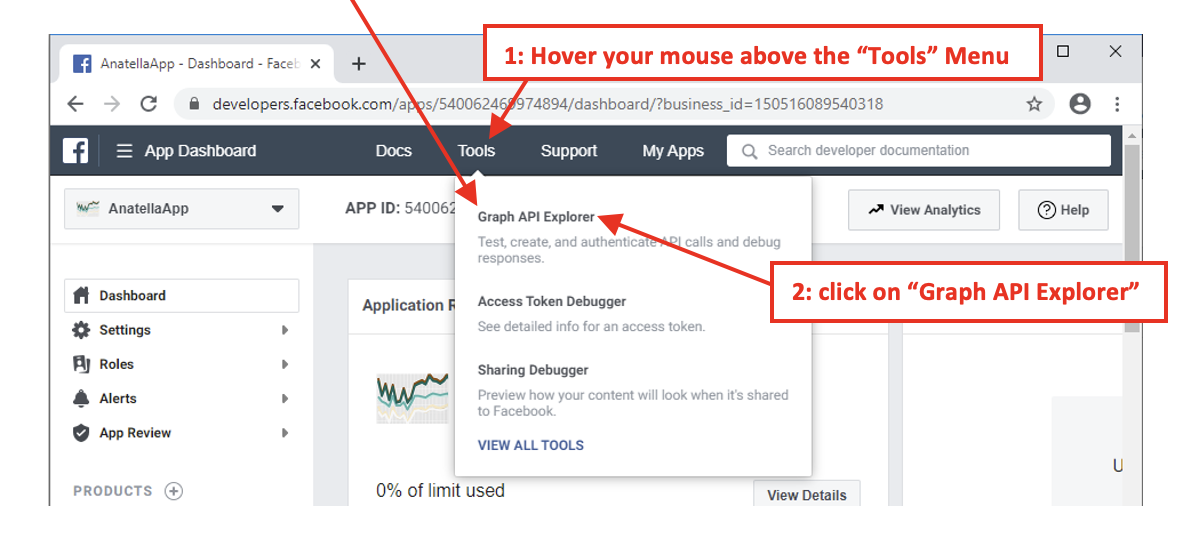
1.1. Open the Facebook Explorer tool:
Open in your browser this URL: https://developers.facebook.com/tools/explorer
You can also click here:
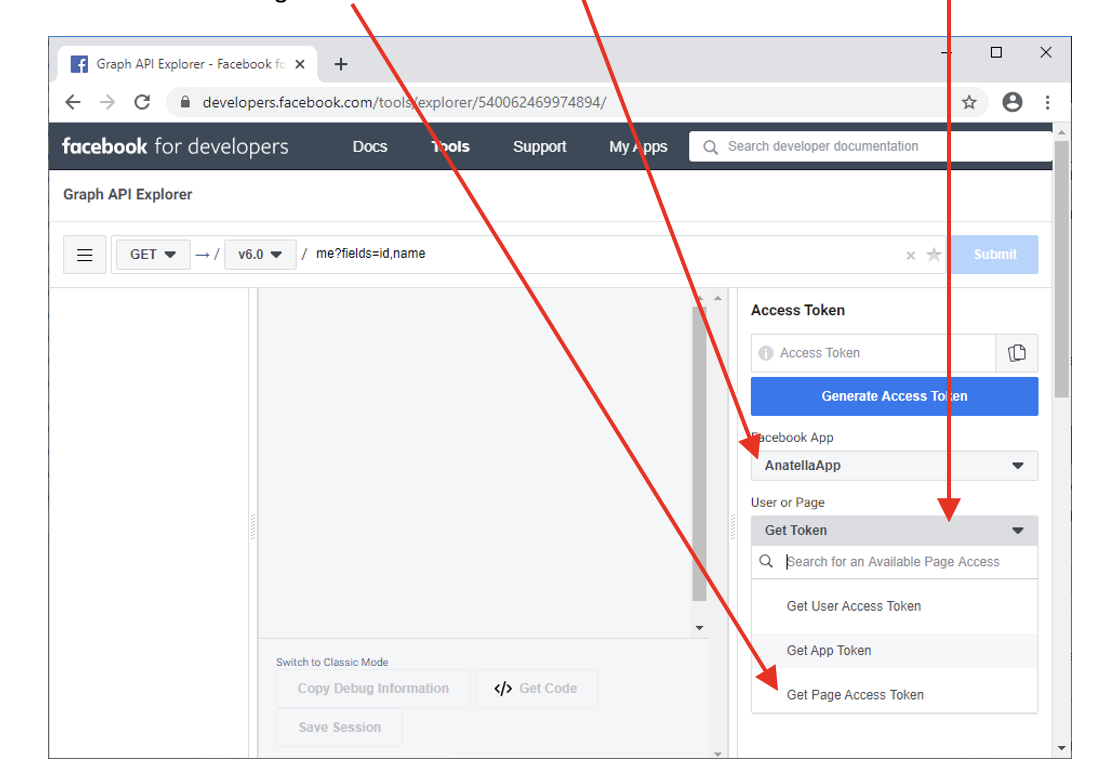
1.2. Inside the “Facebook Explorer tool”, select your App, open the “User or Page” Dropdown and select “Get Page Access Token”:
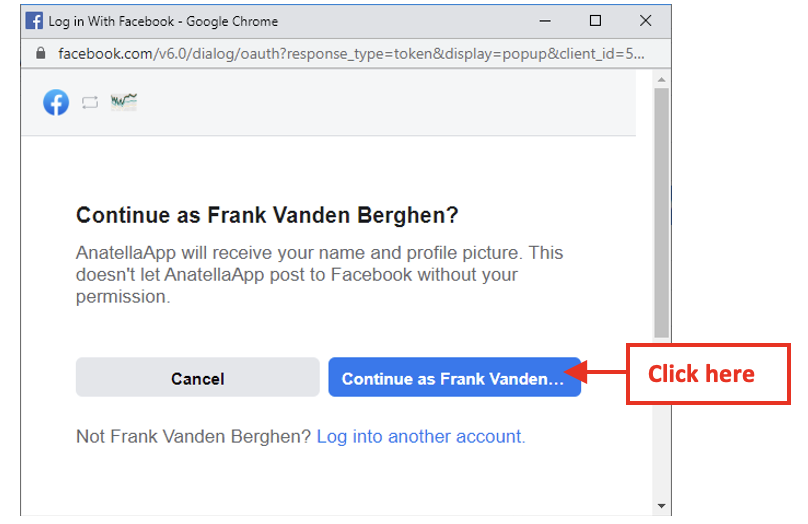
1.3. Confirm your login:
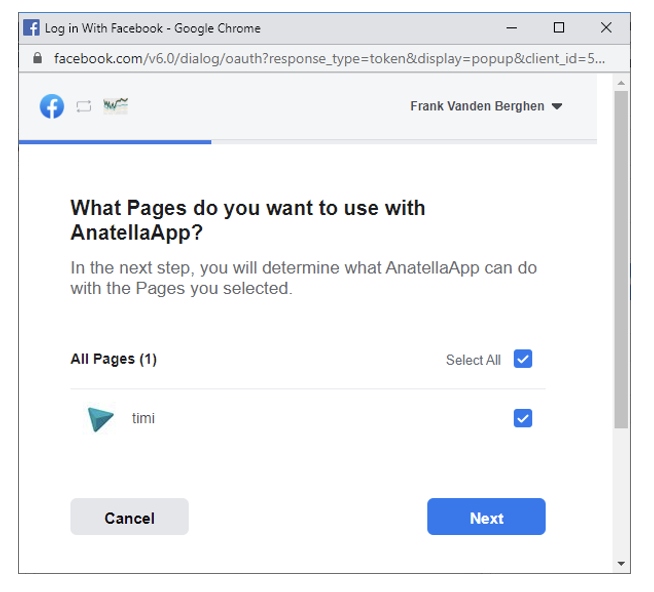
1.4. Select all the Pages that you want to access using ETL and click the “Next” button:
1.5. You should now see this:
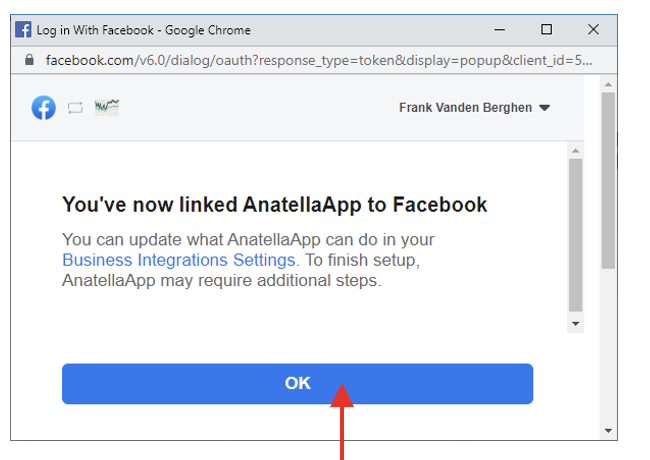
1.6. Click the ok button to close this window.
- The Facebook action inside ETL works this way:
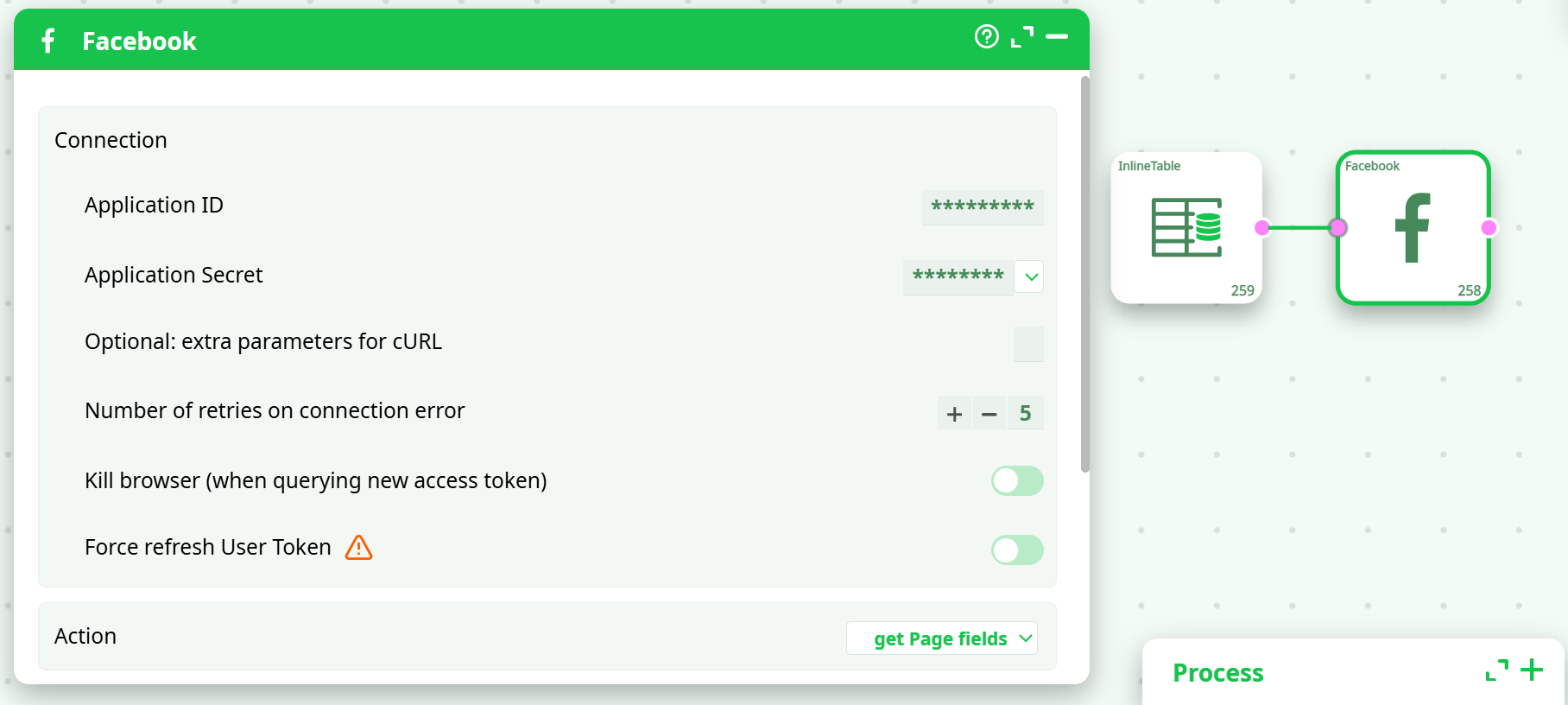
The Facebook action requires as input a table with the PageID’s of all the Facebook pages that you want to analyze with ETL. To get the PageID of a Facebook page, open the desired Facebook page in a browser and click the “About” link in the column on the left: For example, for the “TIMi Suite” facebook page, you click the “About” link here:
The required “Page ID” (that you need to copy in ETL) is at the bottom of the “About” WebPage: