¶ Description
Access Google Translate Services.
¶ Parameters
¶ Standard tab
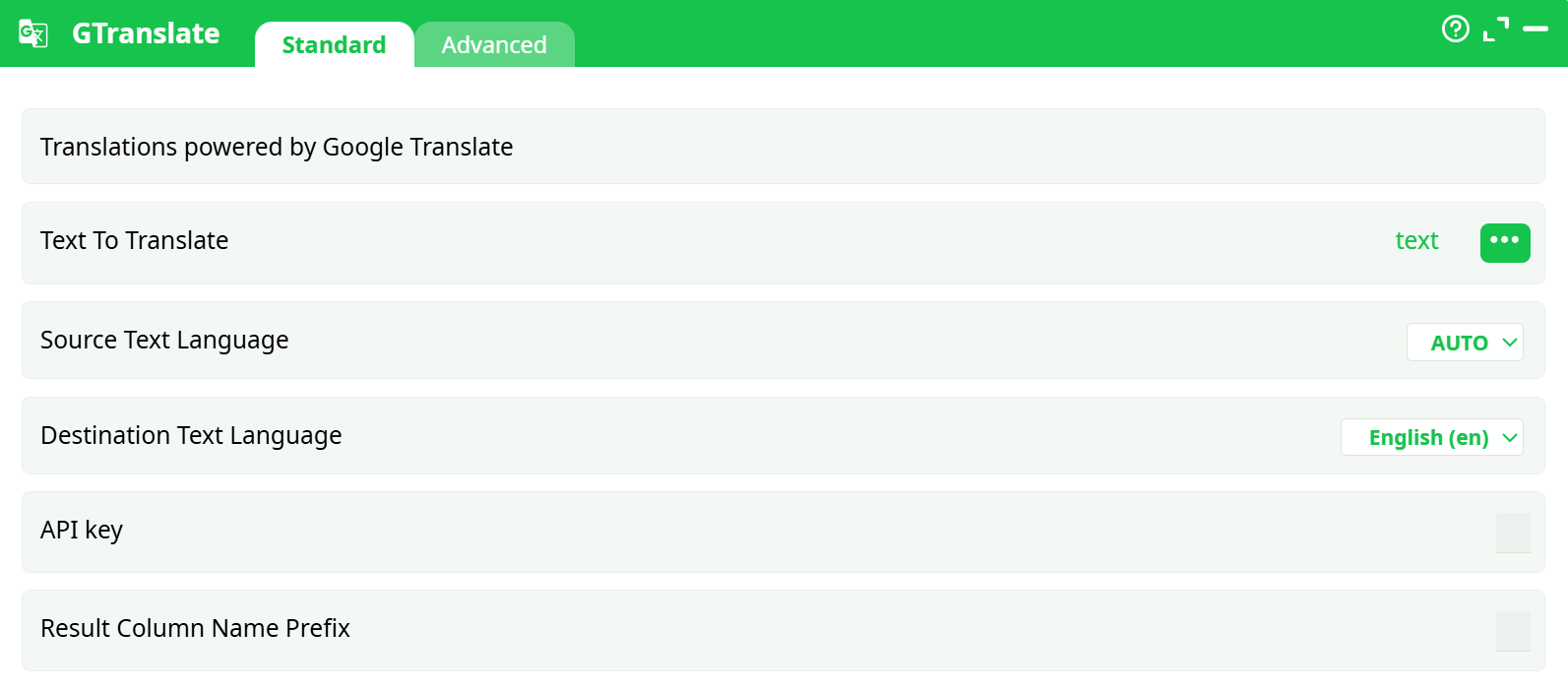
Parameters:
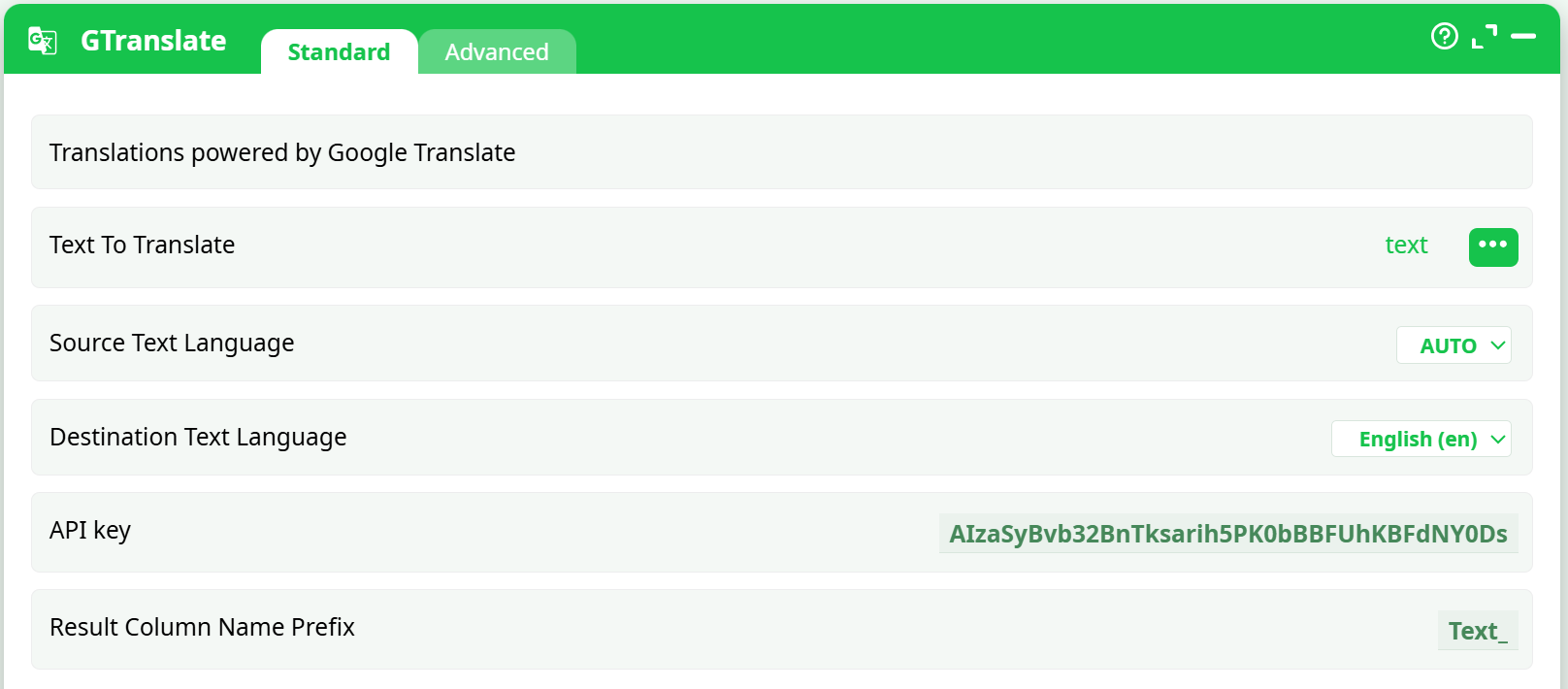
- Translations powered by Google Translate
- Text To Translate
- Source Text Language
- Destination Text Language
- API key
- Result Column Name Prefix
¶ Advanved tab
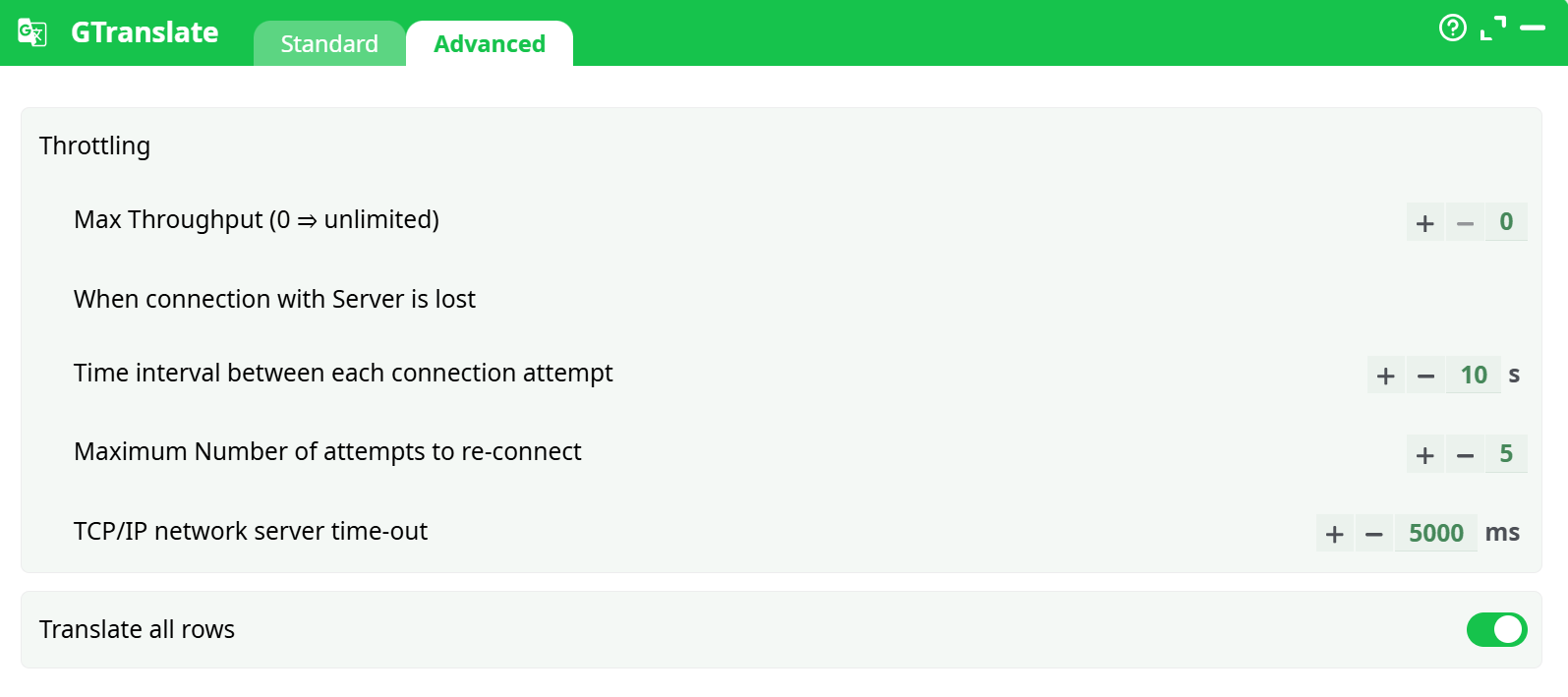
Parameters:
- Throttling
- Max Throughput (0 = unlimited)
- When connection with Server is lost
- Time interval between each connection attempt
- Maximum Number of attempts to re-connect
- TCP/IP network server time-out
- Translate all rows
¶ About
The GTranslate action button translates multilingual text into a specified target language using the Google Cloud Translation API. It automatically detects the source language (if not explicitly provided) and appends translated text along with metadata into the output dataset. This is especially useful for multilingual ETL pipelines or content normalization.
¶ Input
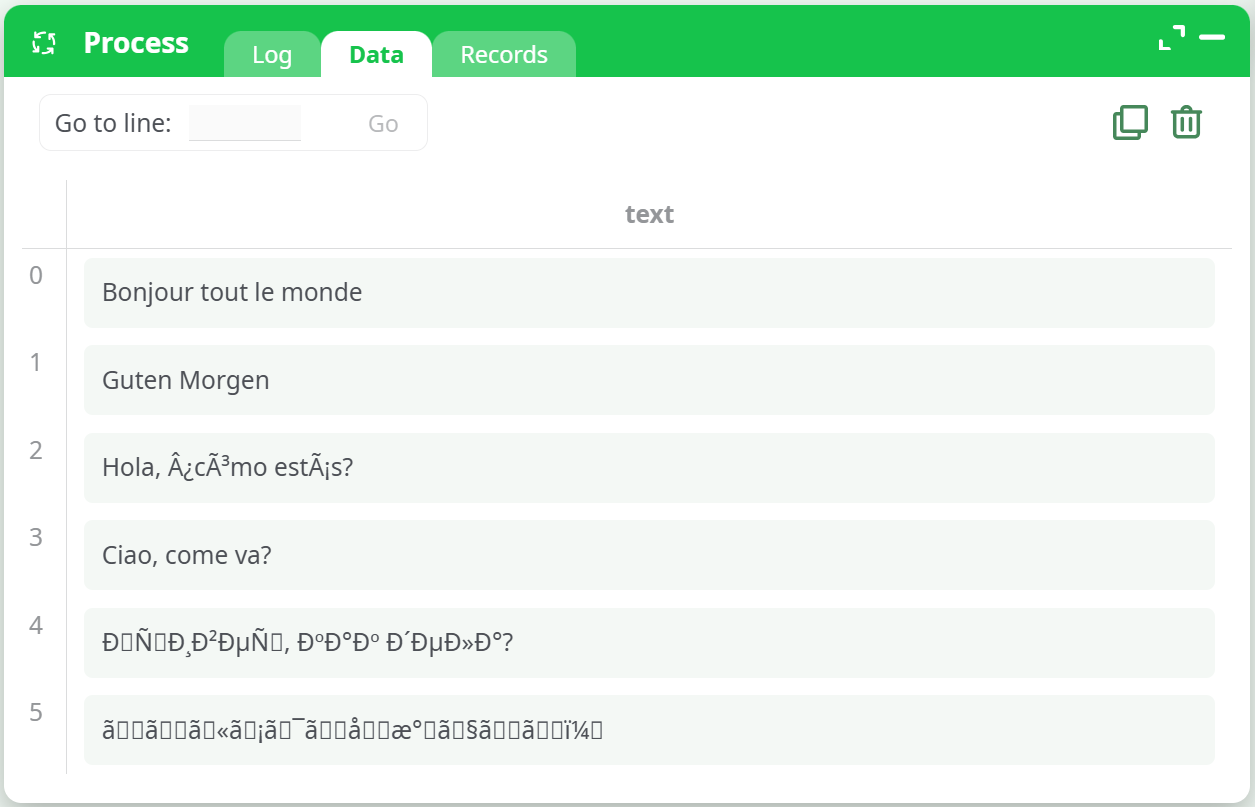
The input table must contain:
- A text column containing phrases or sentences in any language.
- UTF-8 encoded values (other encodings may cause garbled output).
Required columns:
text– The column containing multilingual text to be translated.
Accepted input format:
- CSV file or table from a previous pipeline step.
- Example:
¶ Output
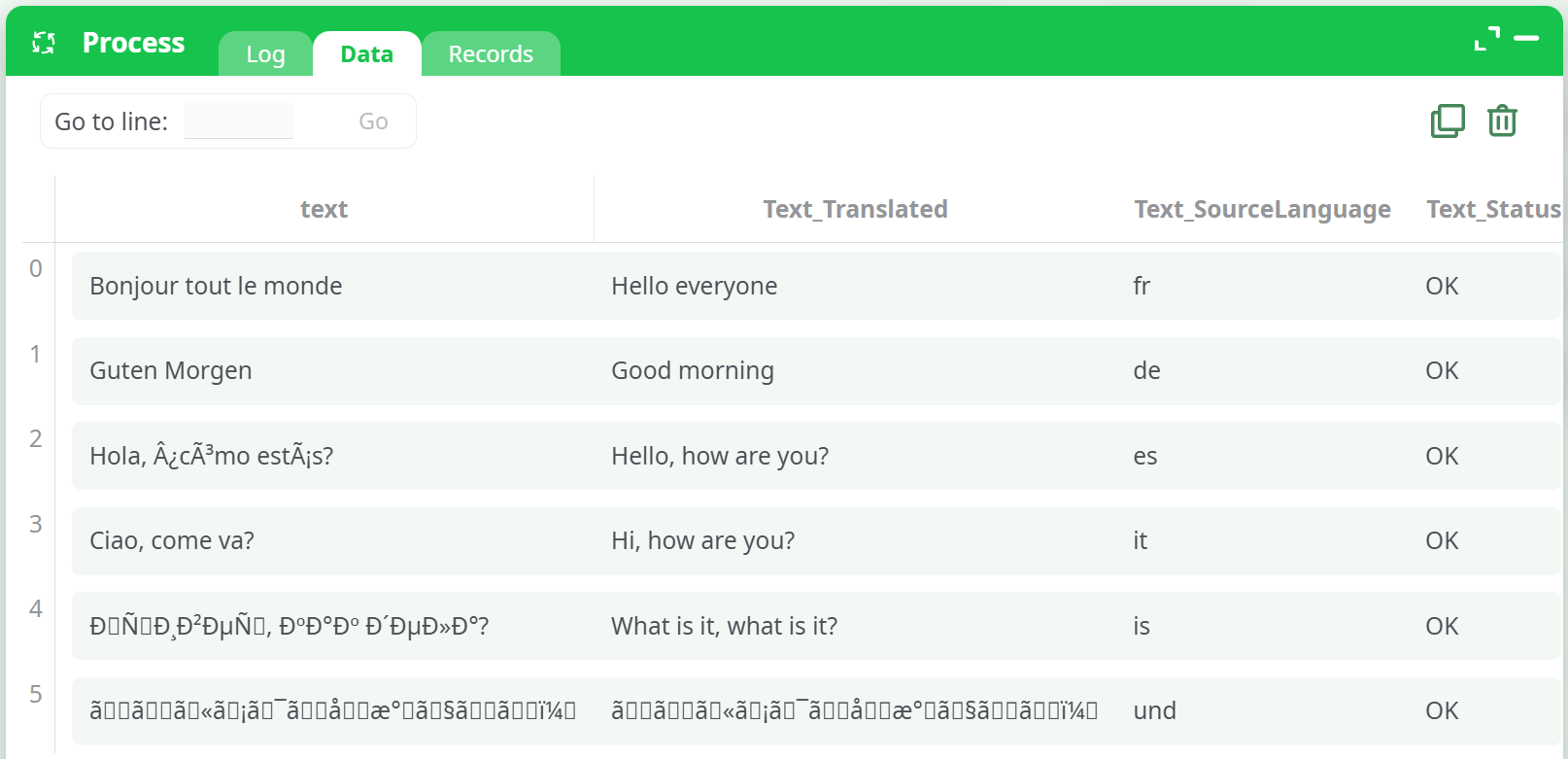
The output is a table with the original text and translated results. Additional columns include:
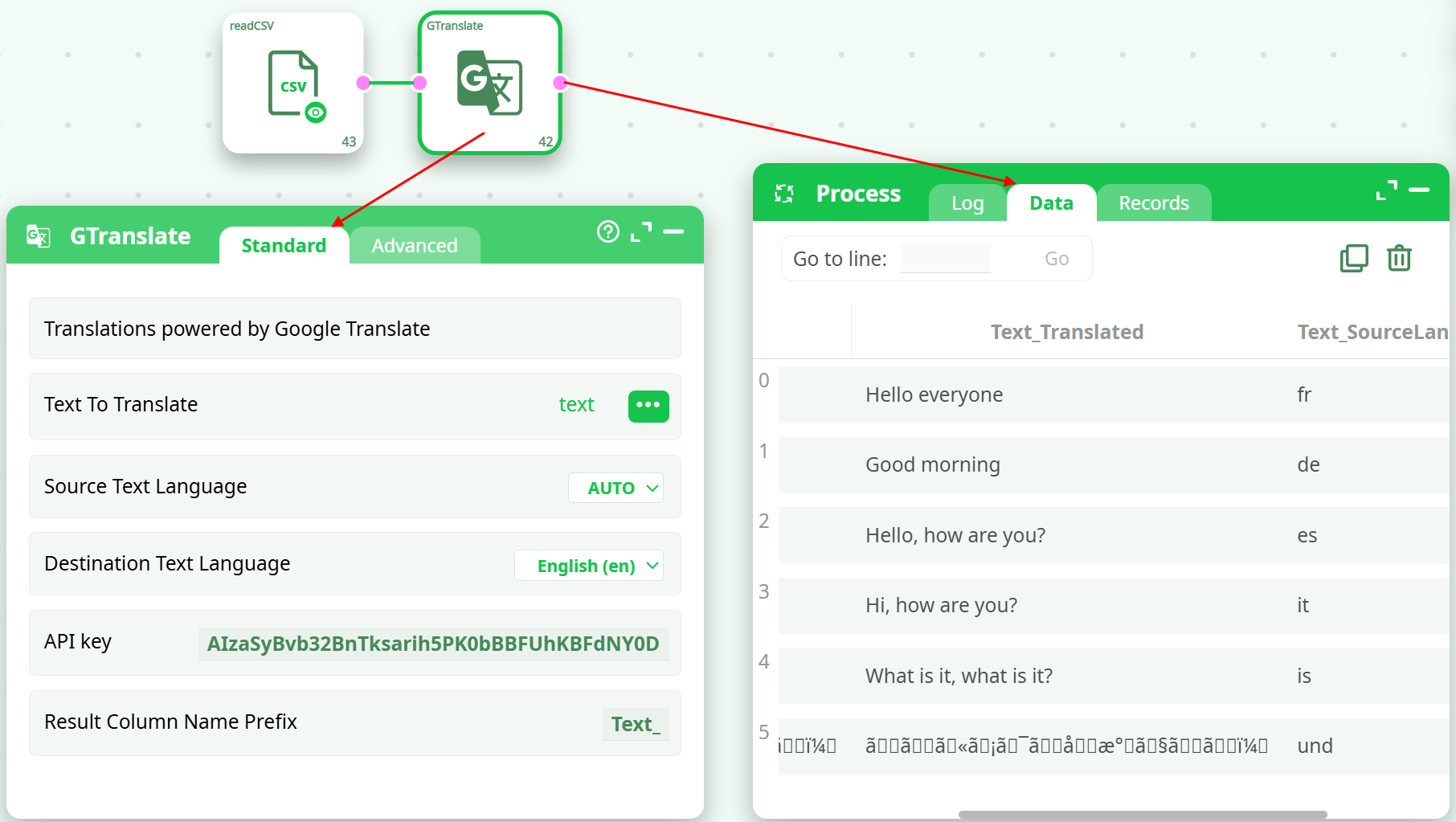
<prefix>Translated: Translated sentence in the target language.<prefix>SourceLanguage: Detected ISO 639-1 source language code (e.g.,fr,de,es).<prefix>Status: Status of translation (e.g.,OK,NULL).
The result can be viewed in the Data tab after processing.
Example:
¶ Parameters
¶ Standard Tab
| Parameter | Description |
|---|---|
| Text To Translate | Select the input column with the original text. |
| Source Text Language | Choose AUTO to auto-detect or select a specific language code (e.g., fr). |
| Destination Text Language | Select the target language for translation (e.g., English (en)). |
| API Key | Paste your Google Translate API key. Required for external API access. |
| Result Column Name Prefix | Prefix to prepend to result columns (e.g., RESELT_). |
¶ Advanced Tab
| Parameter | Description |
|---|---|
| Max Throughput | Maximum number of requests per second (0 = unlimited). |
| When connection with Server is lost | Time before retry begins (in seconds). |
| Time interval between each attempt | Interval between retry attempts (in seconds). |
| Maximum Number of attempts to re-connect | Maximum retry attempts before failure. |
| TCP/IP network server time-out | Timeout value in milliseconds. |
| Translate all rows | If enabled, all rows will be translated regardless of prior result. |
¶ How to Run
-
Upload your input table with a
textcolumn. -
Drag the
GTranslateaction button into the pipeline and connect it to the input. -
In the Standard tab:
- Select the column containing multilingual text (e.g.,
text). - Set Source Text Language to
AUTOor manually select one. - Choose the Destination Text Language (e.g.,
English). - Paste your Google API Key.
- Set a Result Column Prefix (e.g.,
Text_).
- Select the column containing multilingual text (e.g.,
-
(Optional) In the Advanced tab, configure retry policies and throughput settings.
-
Run the pipeline.
-
View the output under the Data tab.
¶ Use Cases
- Multilingual survey normalization: Automatically translate open-ended responses for analysis.
- Content localization: Prepare product descriptions or messages for international audiences.
- Language detection pipelines: Enrich data with source language information before routing or classification.
¶ How to Get a Google Translate API Key
-
Go to Google Cloud Console.
-
Select or create a project.
-
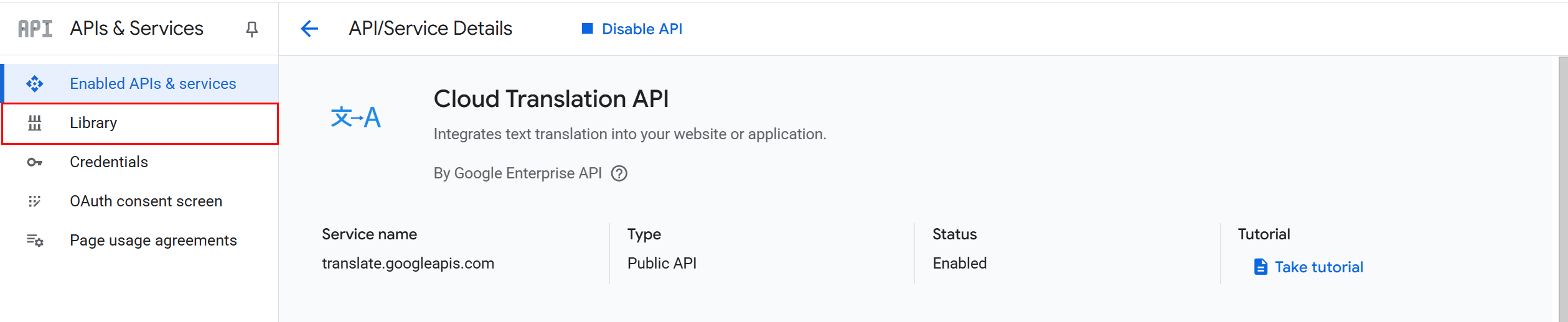
In the left sidebar, navigate to:
APIs & Services > Library
-
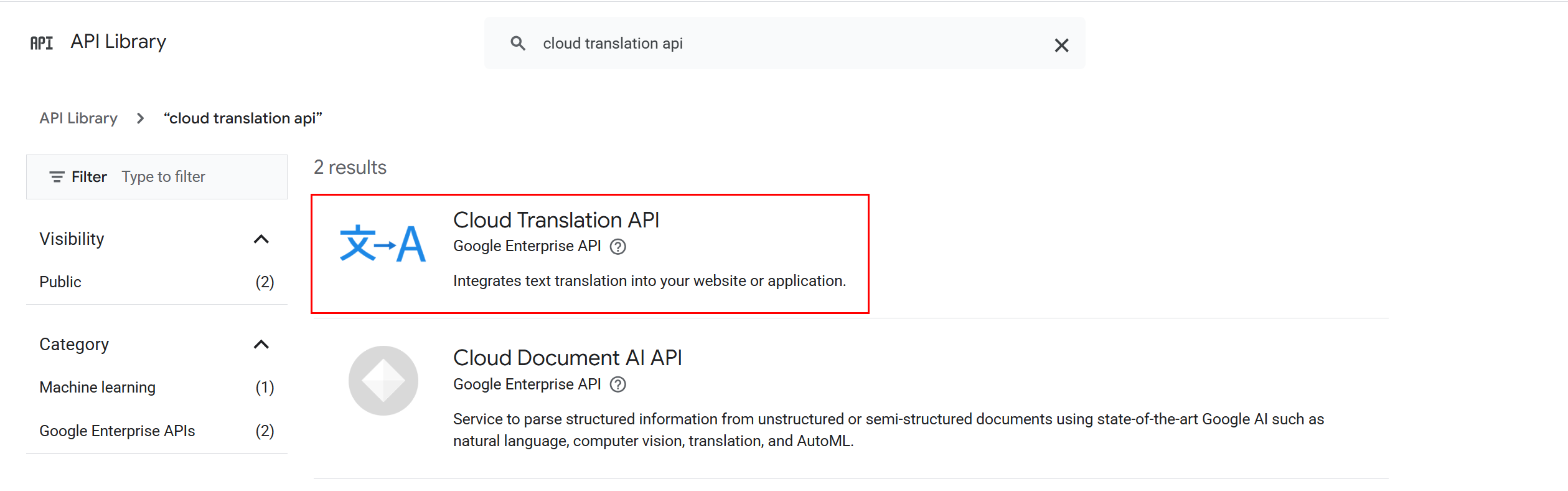
Search for Cloud Translation API and click Enable.
-
Go to
APIs & Services > Credentials. -
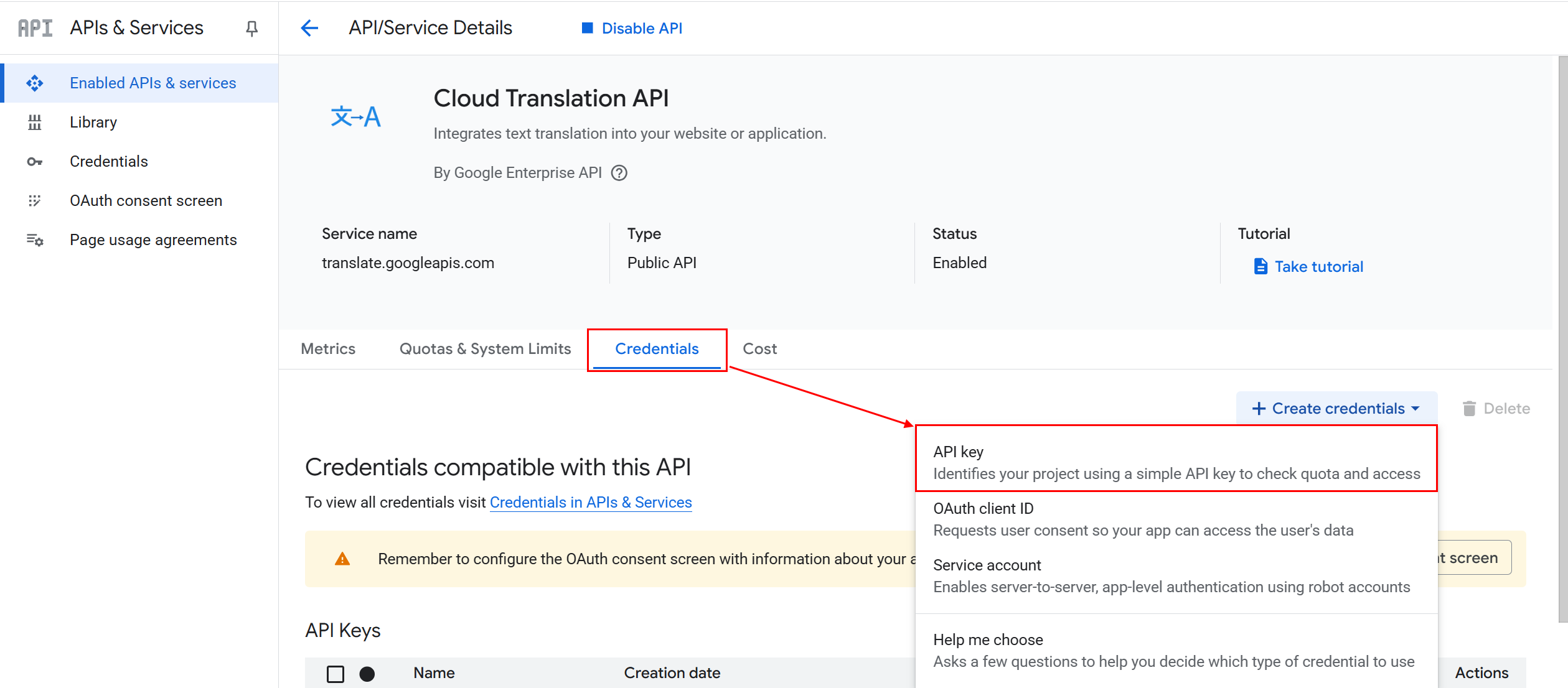
Click Create Credentials > API Key.
-
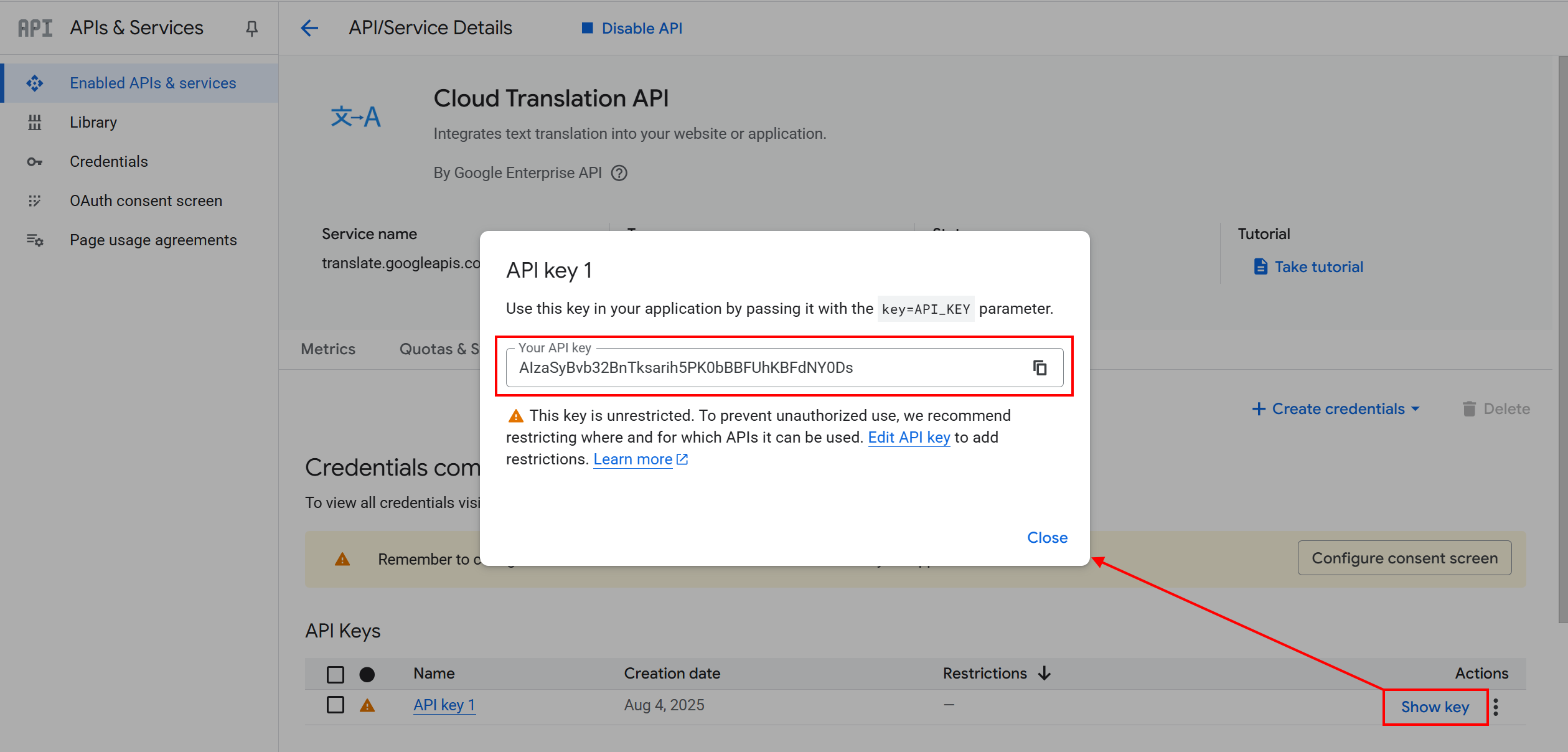
Copy the key shown in the dialog.
-
Paste the key into the API Key field of the GTranslate action button.
Tip: Restrict your key to avoid unauthorized use (recommended by Google).
