¶ Description
Phantom buster.
¶ Parameters
¶ Parameters tab
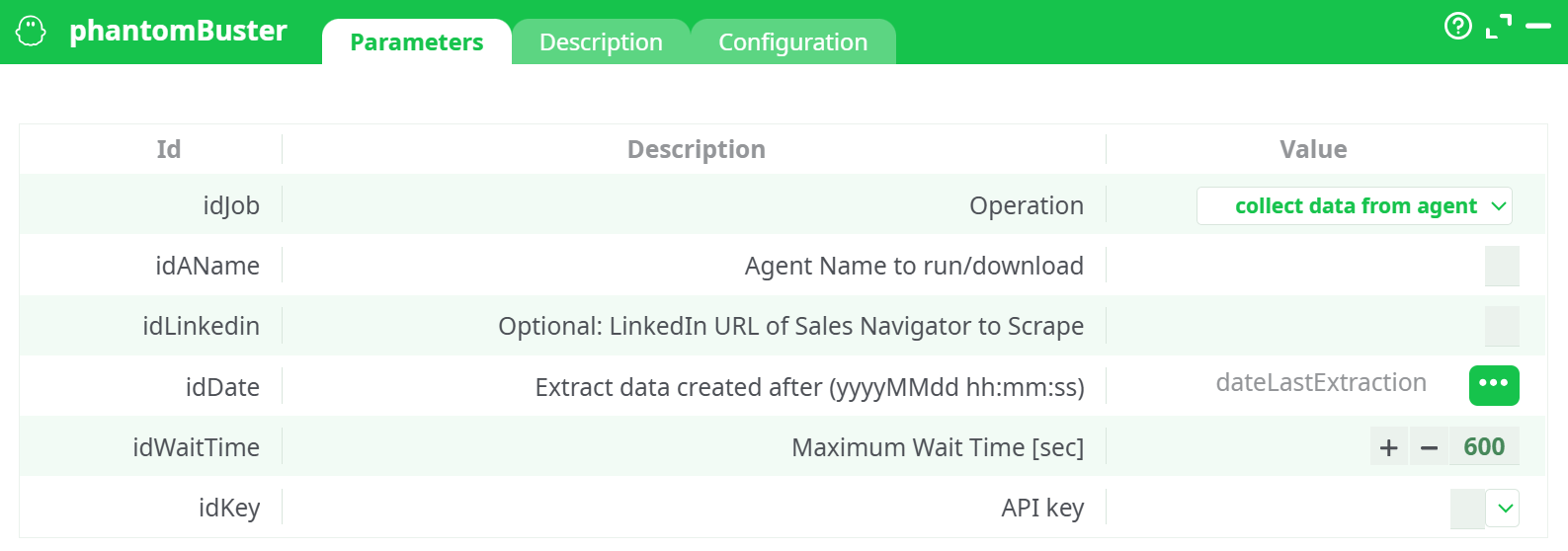
Parameters:
- Job
- Agent Name to run/download
- (optional)LinkedIn URL of Sales Navigator to Scrape
- Extract data created after (yyyyMMdd hh:mm:ss)
- Maximum Wait Time (sec)
- API key
¶ Description tab
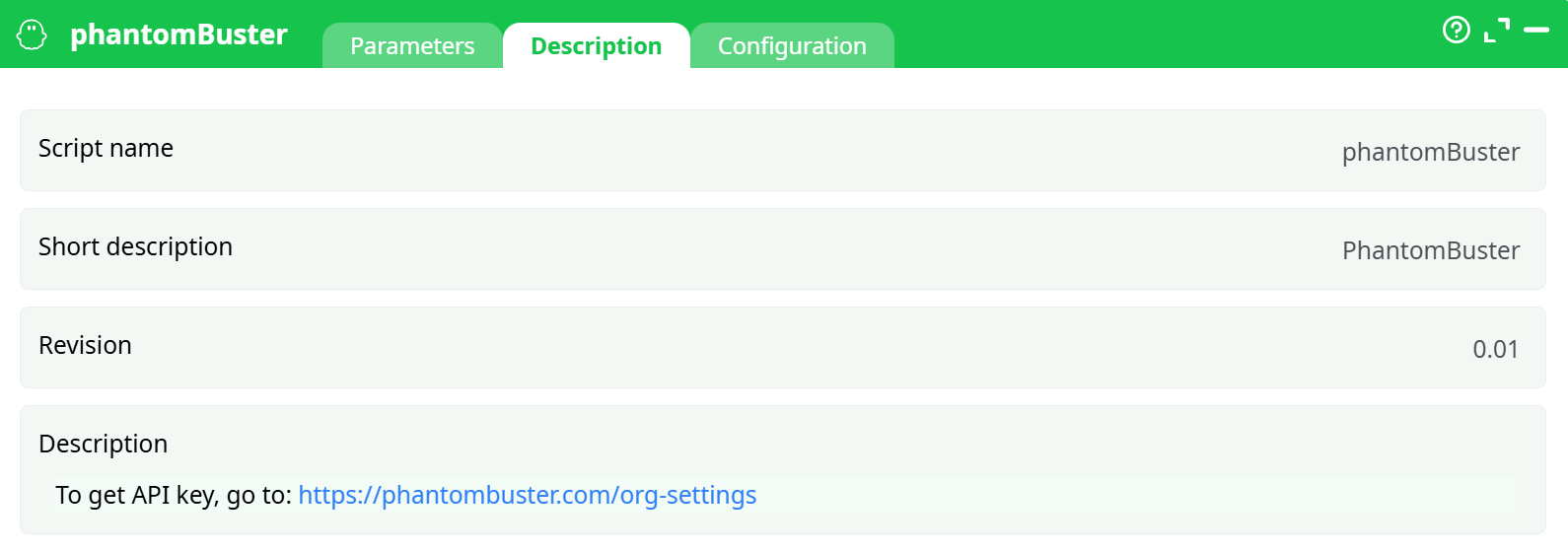
Parameters:
- Script name
- Short description
- Revision
- Decription
¶ Configuration tab
See dedicated page for more information.
¶ About
This action lets you control PhantomBuster agents from a pipeline and (optionally) download their results.
Typical uses:
- Run a PhantomBuster agent (e.g., LinkedIn Sales Navigator search, profile/companies scrapers).
- Wait for the run to finish (with a safety timeout).
- Fetch the latest dataset produced by an agent, optionally only the data created after a given timestamp (incremental loads).
Please ensure your usage complies with PhantomBuster’s Terms and with the target website’s terms (e.g., LinkedIn). Use dedicated accounts/proxies when required.
¶ Getting the API key
- Log in to PhantomBuster.
- Go to Settings → API key.
- Copy the key and paste it into idKey.
¶ Operations & outputs
¶ 1) list All Agents
- What it does: Reads your account’s agents (id, name, status, last run info, etc.).
- Output: One row per agent with basic metadata.
¶ 2) run agent
- What it does: Triggers a run for idAName (uses idLinkedin if the agent expects a URL input).
- Output: A small table with the launch/run identifiers and initial status.
¶ 3) run agent + wait
- What it does: Triggers the run then waits up to idWaitTime seconds for completion.
- Output: Final run status (success/failed/timeout) and run identifiers.
¶ 4) run agent + wait + collect data
- What it does: Triggers the run, waits up to idWaitTime, then downloads the resulting dataset.
- Output: The agent’s dataset, optionally filtered by idDate (if provided).
¶ 5) collect data from agent
- What it does: Downloads the latest dataset produced by idAName without starting a new run.
- Output: The agent’s dataset, optionally filtered by idDate (if provided).
Filtering with
idDate
When provided, rows withcreatedAt(or the agent’s equivalent timestamp) strictly afteridDateare returned. The time is interpreted as UTC.
¶ Typical setups
¶ A) One-shot download of the latest data
- idJob:
collect data from agent - idAName: your agent name (exact match)
- idDate: leave empty (full dataset)
- idKey: your API key
Run the box → you get the most recent dataset produced by the agent.
¶ B) Fully automated refresh (run → wait → fetch)
- idJob:
run agent+wait+collect data - idAName: your agent name
- idLinkedin: (only if your agent expects a Sales Navigator URL)
- idWaitTime: e.g.,
600 - idDate: point it to a pipeline column (e.g.,
dateLastExtraction) for incremental loads - idKey: your API key
To supply
idDatefrom upstream, connect a small table with a column (e.g.,dateLastExtraction) and pick it in the selector. The screenshot shows exactly this pattern.
¶ Notes & best practices
- Time zone: PhantomBuster APIs and many agents use UTC timestamps. Provide
idDatein UTC to avoid gaps/overlaps. - Incremental loads: Store the max createdAt you consumed and feed it back into
idDatenext run. - Wait time vs. plan limits: If the agent often exceeds
idWaitTime, either raise the value or switch to “run agent” followed by a later “collect data from agent.” - LinkedIn URL: Only relevant for LinkedIn agents that accept a Sales Navigator URL; otherwise leave it blank.
- Security: Keep idKey in a secret; avoid logging it or saving it in plain text.
- Rate limits / daily minutes: Respect your PhantomBuster plan limits. Stagger runs if needed.
¶ Output schema
Because each PhantomBuster agent can output different fields, the box returns whatever the agent produced (CSV/JSON converted to rows/columns). Common columns include identifiers, URLs, names, titles, company, and timestamps such as createdAt. Use downstream steps to normalize/rename columns as needed.