¶ Description
Upload data to Salesforce
¶ Parameters
¶ Parameters tab
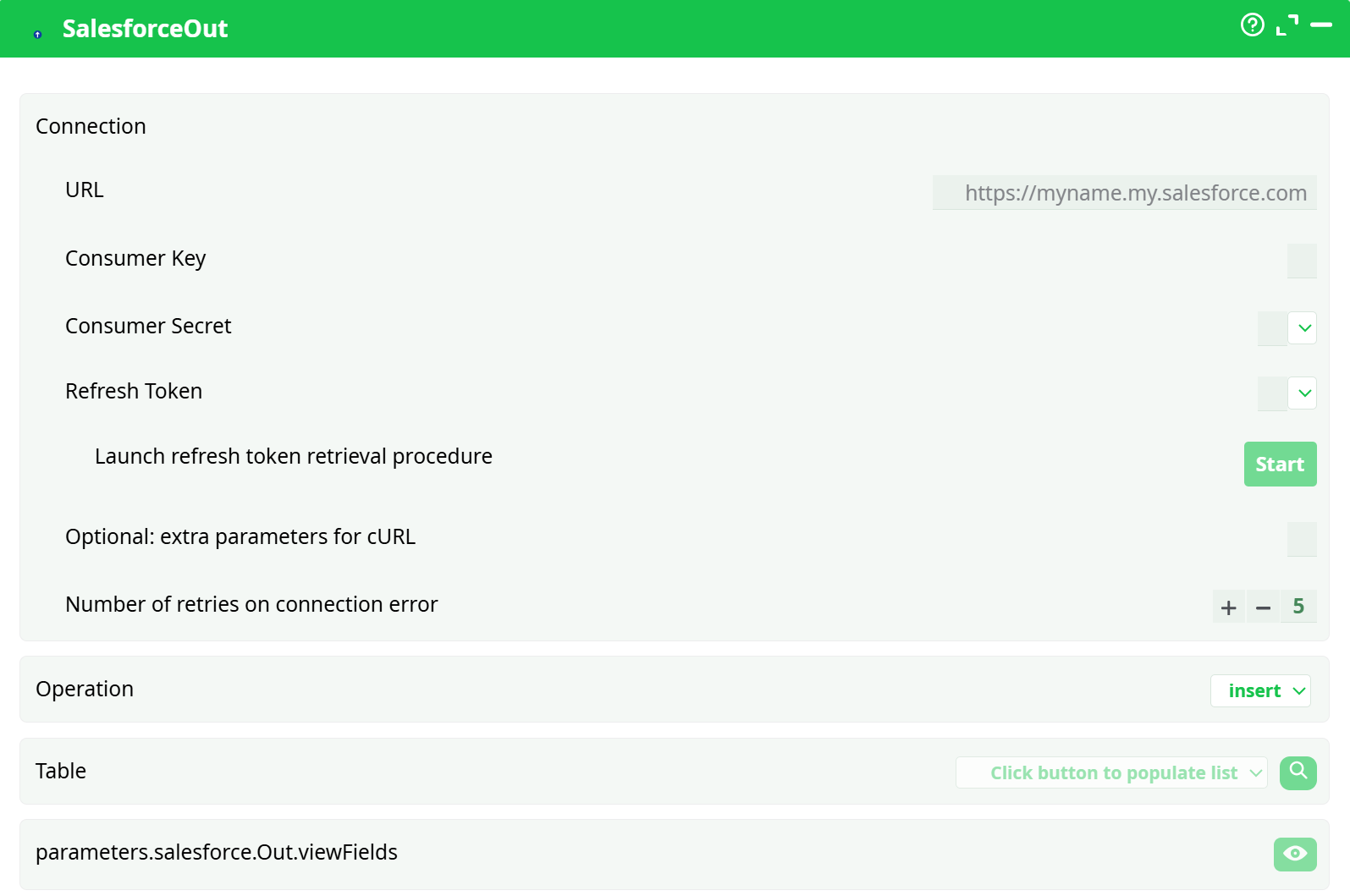
Parameters:
- Connection:
- URL
- Consumer Key
- Consumer Secret
- Refresh Token:
- Launch refresh token retrieval procedure
- Optional: extra parameters for cURL
- Number of retries on connection error
- Operation
- Table
- parameters.salesforce.Out.viewFields
¶ About
SalesforceOut authenticates with OAuth (Refresh Token flow), then sends the incoming table rows to a Salesforce object you choose (e.g., Account, Contact).
Write rows from your ETL table into Salesforce objects using REST/Bulk APIs. Supports insert, update, and delete.
- Insert: create new records from columns you provide.
- Update: modify existing records; you must include the Salesforce
Idcolumn. - Delete: remove records; you must provide only the
Idcolumn.
Writes typically do not occur in Preview. Run the pipeline normally to persist changes.
¶ UI Map (what’s what)
- URL – Your Salesforce login base URL (use your My Domain), e.g.
https://yourdomain.my.salesforce.com(Sandbox:https://test.salesforce.comor sandbox My Domain). - Consumer Key / Consumer Secret – From your Salesforce Connected App.
- Refresh Token – Filled after running the Start flow below.
- Optional: extra parameters for cURL – Leave empty unless you must pass advanced flags (proxy, timeout).
- Number of retries on connection error – Keep the default unless your network is flaky.
- Operation –
insert|update|delete. - Table – The Salesforce object (e.g.,
Account). Click the lookup/search button to fetch the list after you connect. - parameters.salesforce.Out.viewFields (eye icon) – Displays available fields for the selected object to help you shape your input table.
¶ One-time Connection Setup (OAuth Refresh Token)
-
In Salesforce, create (or reuse) a Connected App and note its Consumer Key and Consumer Secret. Ensure OAuth is enabled.
-
In SalesforceOut:
- Set URL, Consumer Key, Consumer Secret.
- Click Start to launch the refresh-token retrieval flow.
- Complete the Salesforce login/consent; the Refresh Token field will be populated.
-
Save your pipeline. From now on, SalesforceOut will use the stored Refresh Token to obtain access tokens at run time.
If your org enforces My Domain, the URL must use it (e.g.,
https://acme.my.salesforce.com). Using the wrong host can cause login/redirect errors.
¶ Minimal Working Examples (Copy-Paste)
¶ A) INSERT — Account
Input table (any upstream action; headers must match Salesforce API field names you’re sending):
Name,Phone,Website
Acme Demo,+1-415-555-0100,https://acme.example
Beta Holdings,+44-20-7946-0000,https://beta.example
Parameters
- Operation:
insert - Table:
Account - Other connection fields as set above
Run checklist
- You can omit optional Account fields; provide only what you need (e.g.,
Nameis usually required). - Run (not preview). Confirm new records in Salesforce.
¶ B) UPDATE — Account (requires Id)
Id,Phone,Website
0015g00000ABCDeAAH,+1-415-555-7777,https://acme-updated.example
0015g00000FGHIjAA1,,https://beta-updated.example
Parameters
- Operation:
update - Table:
Account
Notes
Idmust be a valid Salesforce record ID for the chosen object.- Include only the fields you want to change (plus
Id).
¶ C) DELETE — any object (requires Id only)
Id
0015g00000ABCDeAAH
0015g00000FGHIjAA1
Parameters
- Operation:
delete - Table: (object matching the Ids, e.g.,
Account)
Notes
- Only the Id column is used. Rows with invalid IDs will fail for that row.
¶ End-to-End Quick Start
-
Connect
- URL:
https://yourdomain.my.salesforce.com - Consumer Key / Secret: from Connected App
- Click Start → complete auth → Refresh Token saved
- URL:
-
Choose Object
- Click Table → search → pick
Account - (Optional) Click the eye to view fields and confirm required names
- Click Table → search → pick
-
Prepare Input
- For insert/update: the column names must match Salesforce field API names (e.g.,
Name,Phone,Website, custom fields likeCustom_Field__c). - For update/delete: include Id
- For insert/update: the column names must match Salesforce field API names (e.g.,
-
Set Operation
insert|update|delete
-
Run (not Preview)
- Review the log for per-row success/errors
- Verify records in Salesforce
¶ Mapping Rules & Tips
- Field names are case-insensitive but must match the API names (custom fields end with
__c). - You do not need every field—only the subset you want to set.
- Nulling a field: provide the column with an empty value if you intend to clear it (respecting object permissions and field settings).
- Lookups: supply the Id of the related record in the lookup field (or use an upsert pattern with external IDs—if your connector version supports upsert; otherwise resolve Ids upstream).
- Bulk size is handled by the connector; you can tune retries via Number of retries.
¶ Troubleshooting
-
Auth failures (401/invalid_grant)
- My Domain/host mismatch; use your org’s correct login URL
- Connected App not authorized / wrong key/secret
- Refresh Token revoked; click Start again to re-consent
-
Field name errors (
No such column)- Use Salesforce API names (e.g.,
Industry,Custom_Field__c)
- Use Salesforce API names (e.g.,
-
Object/permissions errors (
INSUFFICIENT_ACCESS,FIELD_INTEGRITY_EXCEPTION)- The running user lacks CRUD or FLS permissions; fix profile/permission sets
-
Row-level failures mixed with successes
- Check the log for each failed row; fix data and re-run only failed rows
-
Nothing appears after “Preview”
- Run the pipeline normally; writes usually don’t commit in Preview
¶ Recommended Settings
-
Number of retries on connection error:
5(default) -
Optional cURL params: leave blank unless required (e.g., corporate proxy).
Examples (only if needed):--proxy http://proxy.example:8080--max-time 120
¶ Validation Checklist (before Run)
- Refresh Token present (auth completed via Start)
- Table (Salesforce object) selected
- Operation set correctly
- Input table headers use API field names
- For update/delete,
Idcolumn included - Run the full pipeline (not Preview) for real writes