¶ Description
Create/Update the new Tableau Hyper files.
¶ Parameters
¶ Standard tab
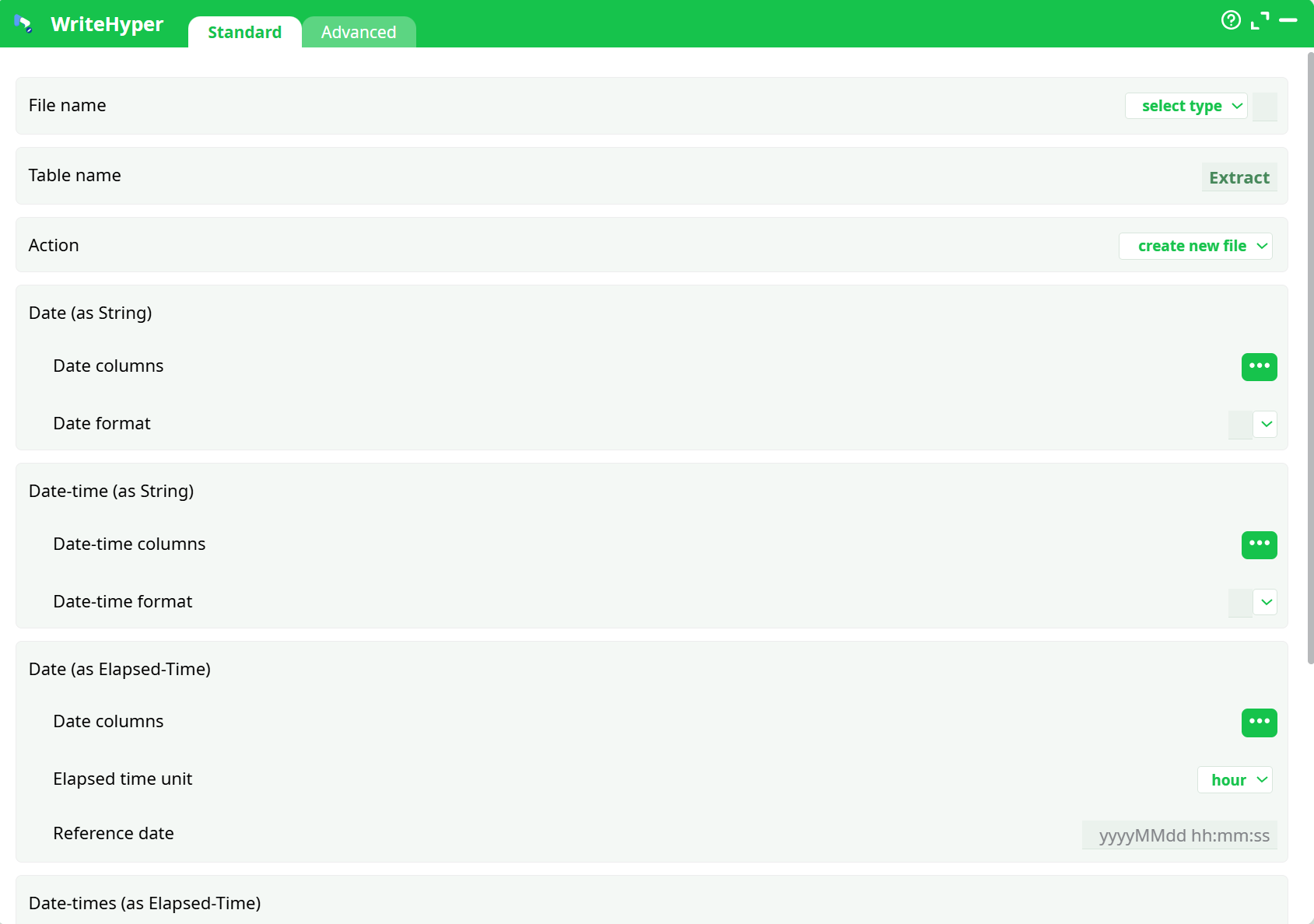
Parameters:
-
File name : Path for the Hyper file.
-
Table name: Target table name inside the Hyper file (e.g.,
orders). -
Action:
create new file– overwrite/create the target Hyper fileupdate file– update the target Hyper file
-
Date (as String)
Converts string columns into Tableau Date fields.- Date columns: choose one or more text columns that contain dates
- Date format: pattern of your source (e.g.,
yyyy-MM-dd)
-
Date-time (as String)
Converts string columns into Tableau DateTime fields.- Date-time columns: choose one or more text columns that contain datetimes
- Date-time format: pattern of your source (e.g.,
yyyy-MM-dd HH:mm:ss)
-
Date (as Elapsed-Time) / Date-times (as Elapsed-Time)
Build date or datetime from an elapsed numeric value (e.g., hours since a reference date).- Columns: numeric columns to transform
- Elapsed time unit: second | minute | hour | day
- Reference date: base date used for the calculation (
yyyyMMdd hh:mm:ss)
-
Spatial (as String) (optional)
Create a spatial column from a formatted string.- Columns: select or create a column with values like
POINT(<lat><lon>) - Example:
POINT(47.6062-122.3321)(lat, then lon)
- Columns: select or create a column with values like
¶ Advanced tab
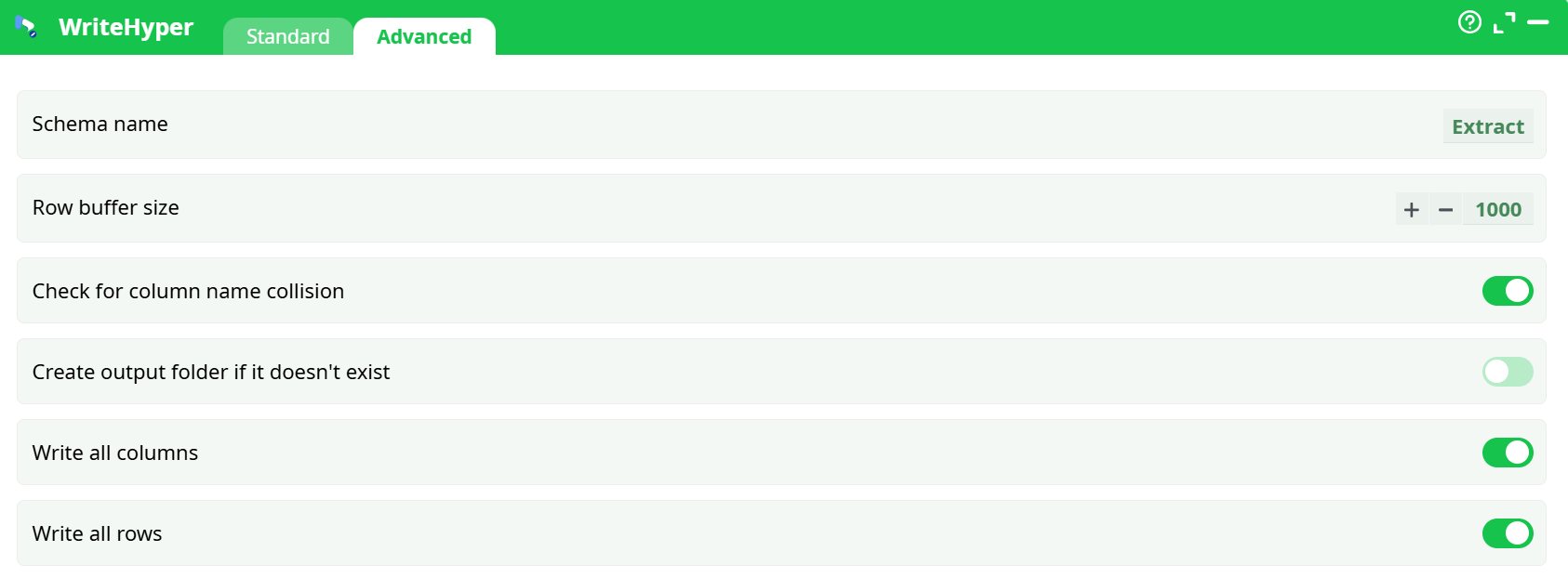
Parameters:
- Schema name: optional logical schema/tag inside the Hyper file.
- Row buffer size: write buffer (default
1000). Increase for very large exports. - Check for column name collision: prevents accidental overwrites of duplicated names.
- Create output folder if it doesn’t exist: auto-create directories when writing to the filesystem.
- Write all columns / Write all rows: master switches if you’re conditionally filtering upstream.
¶ About
WriteHyper saves the incoming dataset as a Tableau .hyper file you can open in Tableau Desktop/Server/Cloud. It supports date/time formatting, elapsed-time columns, and optional spatial fields.
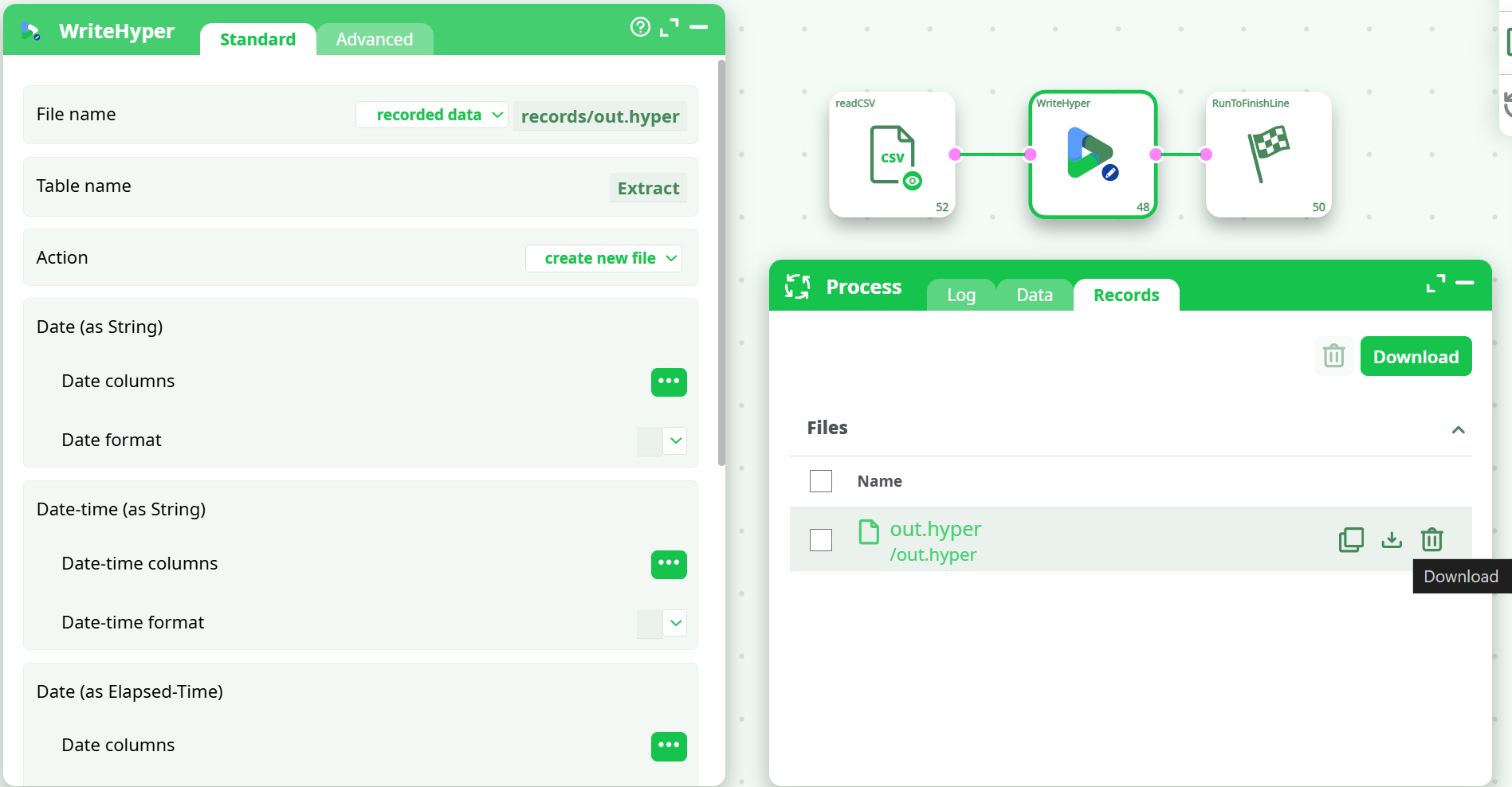
Build the tiny pipeline
-
readCSV
- Input file: e.g.
hyper_orders.csv(or upload the CSV and point to it) - Delimiter:
, - First line contains column names:
ON
- Input file: e.g.
-
WriteHyper (connect from
readCSV)- File name:
records/out.hyper - Table name:
orders - Action:
create new file - (Optional date handling shown below)
- File name:
-
Run → open Process ▸ Records → download
out.hyper.
¶ Inputs & Outputs
-
Input: any tabular dataset on the incoming pin.
Typical types:- string, integer, decimal/float
- date (as
yyyy-MM-dd) or date-time (asyyyy-MM-dd HH:mm:ss) - optionally lat/lon if you plan to write a spatial column
-
Output: one
.hyperfile at the path you specify (e.g.,records/out.hyper).
You’ll see it in Process ▸ Records after a successful run.
¶ Troubleshooting
-
File doesn’t appear in Records
Ensure File name starts withrecords/…or check write permissions for your path. -
Wrong date/datetime types in Tableau
Your format pattern must match the text exactly.
Common fixes:yyyy-MM-dd(notYYYY)HHfor 24-hour clock (hhis 12-hour)- Include seconds if present:
yyyy-MM-dd HH:mm:ss
-
Large exports are slow
Increase Row buffer size (e.g.,5000or10000) and ensure upstream actions aren’t limiting throughput.