¶ Description
Insert/Update/Delete some rows inside a Clickhouse database.
¶ Parameters
¶ Standard tab
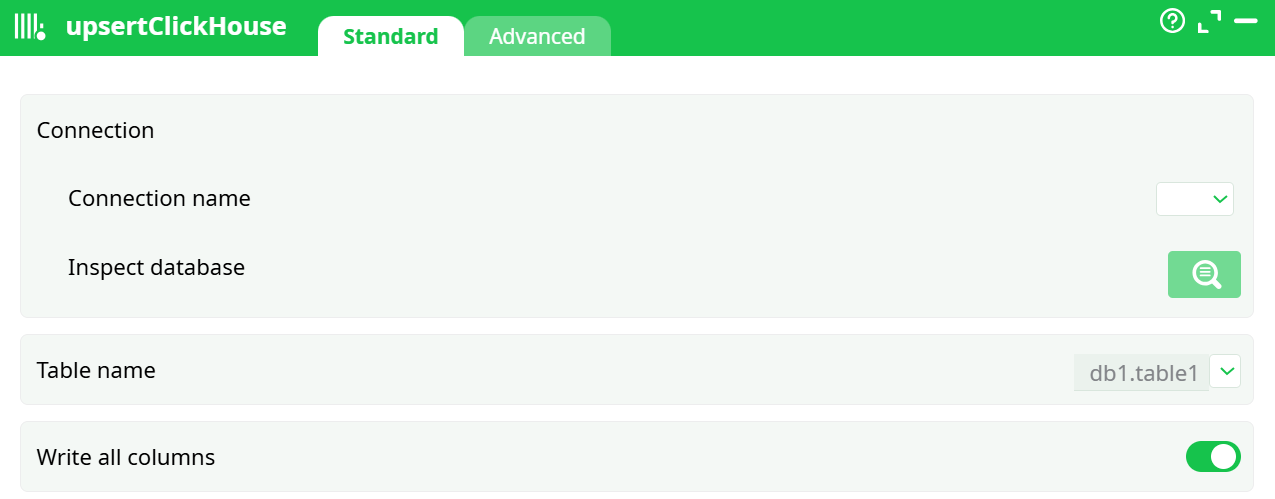
Parameters:
Connection name
Pick the entry you created under Global parameters → Services (driver = ClickHouse ANSI/Unicode).
Inspect database
Opens a browser to confirm connectivity and list databases/tables the user can see.
Table name
Fully qualified database.table (e.g., db1.table1). You can type it or pick from the inspector.
Write all columns (toggle)
- ON: every incoming column with a matching name in the table is written.
- OFF: shows Columns selection so you can choose the exact subset to send.
Columns selection
Appears when Write all columns = OFF. Opens the selector to pick input columns to write.
¶ Advanced tab
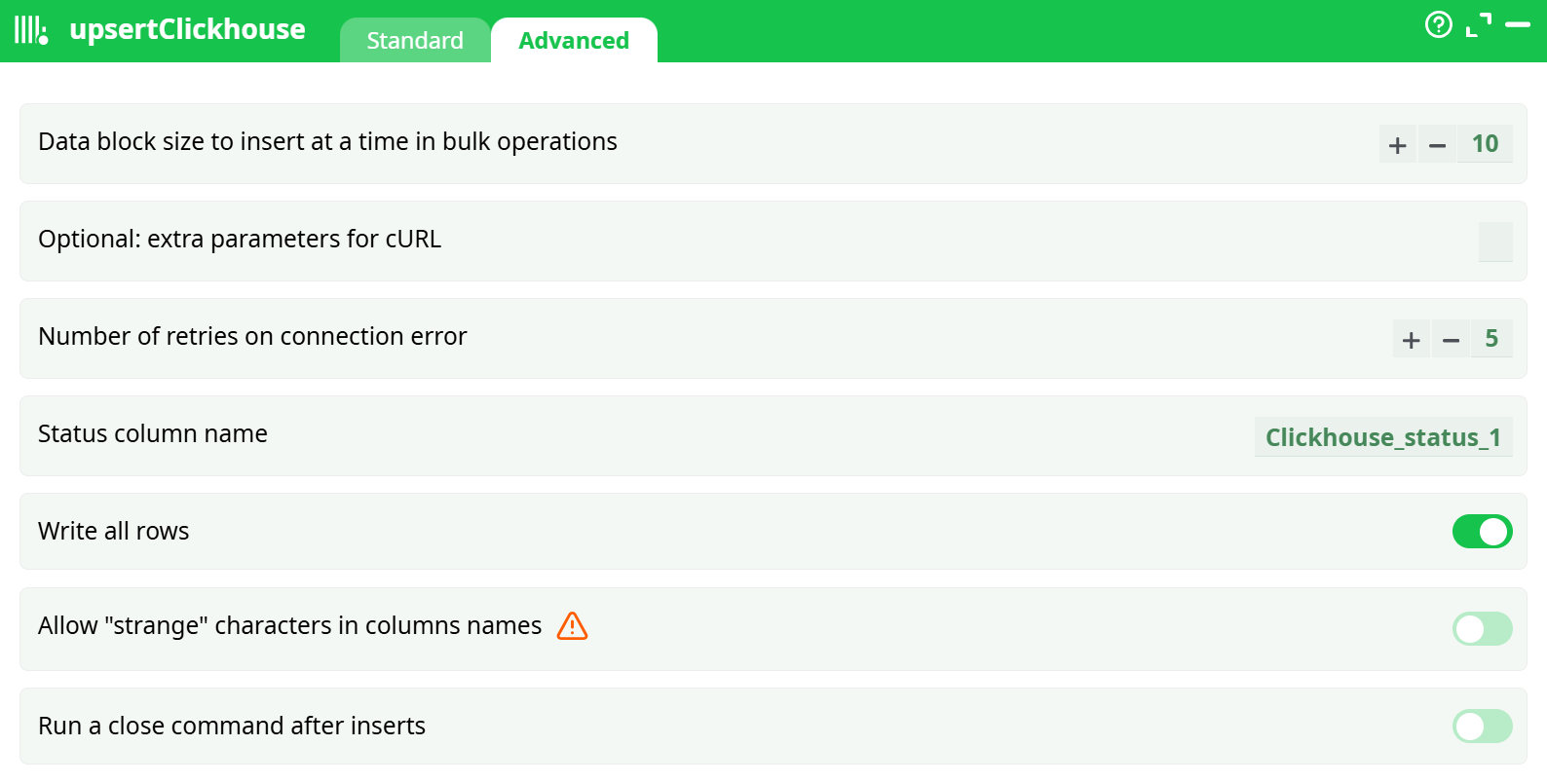
Parameters:
- Data block size to insert at a time in bulk operations
- Optional: extra parameters for cURL
- Number of retries on connection error
- Status column name
- Write al rows
- Allow "strange" characters in columns names
- Run a close command after inserts
¶ About
upsertClickHouse writes rows from your pipeline into a ClickHouse table using a predefined connection. It’s built for high-throughput, idempotent-style loads: you insert batches and let the table engine (e.g., ReplacingMergeTree, CollapsingMergeTree) resolve “latest row wins” semantics during merges.
ClickHouse doesn’t support
UPDATE … ON CONFLICT. If you need true upsert behavior, create the target table with an engine/keys that deduplicate or replace rows (e.g.,ReplacingMergeTree(version)).
¶ Field-by-field reference
¶ Standard tab
Connection name
Pick the entry you created under Global parameters → Services (driver = ClickHouse ANSI/Unicode).
Inspect database
Opens a browser to confirm connectivity and list databases/tables the user can see.
Table name
Fully qualified database.table (e.g., db1.table1). You can type it or pick from the inspector.
Write all columns (toggle)
- ON: every incoming column with a matching name in the table is written.
- OFF: shows Columns selection so you can choose the exact subset to send.
Columns selection
Appears when Write all columns = OFF. Opens the selector to pick input columns to write.
¶ How it works
- Resolves Connection name to your ClickHouse connection from Global parameters.
- Builds an
INSERTinto Table name from either all input columns or the subset you selected. - Sends rows in batches (internally optimized by the platform/driver).
- If the target engine supports deduplication/replacement, ClickHouse will realize upsert-like results during merges.
¶ Quick start
-
Create the connection (see Connection setup).
-
Drop upsertClickHouse on the canvas → Standard:
- Connection name = your ClickHouse entry
- Table name =
db1.table1 - Write all columns = ON (first run)
-
Run and verify:
- Check pipeline logs for row counts.
- In ClickHouse:
SELECT count() FROM db1.table1and spot-check a few rows.
¶ Column mapping rules
- Mapping is by exact column name (ClickHouse case rules apply; avoid exotic identifiers).
- Columns missing from the input use ClickHouse defaults/nullability.
- Extra input columns not present in the table are ignored (or must be deselected when Write all columns = OFF).
- If you need renames/casts, do them upstream before this box.
¶ Troubleshooting
Auth or connection errors
- Confirm Server/Port/DB/User/Password in Global parameters → Services.
- Ensure network/TLS settings are correct under Others.
Table or column not found
- Check spelling and database in Table name; use Inspect database to confirm visibility.
- Ensure the user has metadata rights if browsing fails.
Type mismatch / parsing failures
- Cast upstream or adjust table types; ClickHouse is strict about many types (e.g.,
StringvsUInt32,DateTimezones).
Duplicates after repeated loads
- Expected if the engine doesn’t collapse duplicates. Use
ReplacingMergeTree(version)(or a suitable engine) and include the version/business key in your inserts.
¶ Performance tips
- Prefer Columns selection to send only what you need.
- Choose table engines/partitioning and
ORDER BYto match your query patterns. - For very large loads, consider inserting into a staging table first, then
INSERT … SELECTwith casts. - Keep identifiers simple (lowercase_with_underscores) to avoid quoting and friction.
¶ Security
- Store passwords as Secrets (Definitions → Secrets) and reference them from Services.
- Use HTTPS endpoints where available and set trust parameters in Others according to your org’s policy.
- Grant least-privilege on the target database/table.
