¶ Description
Create Qlickview QVX files
¶ Parameters
¶ Standard tab
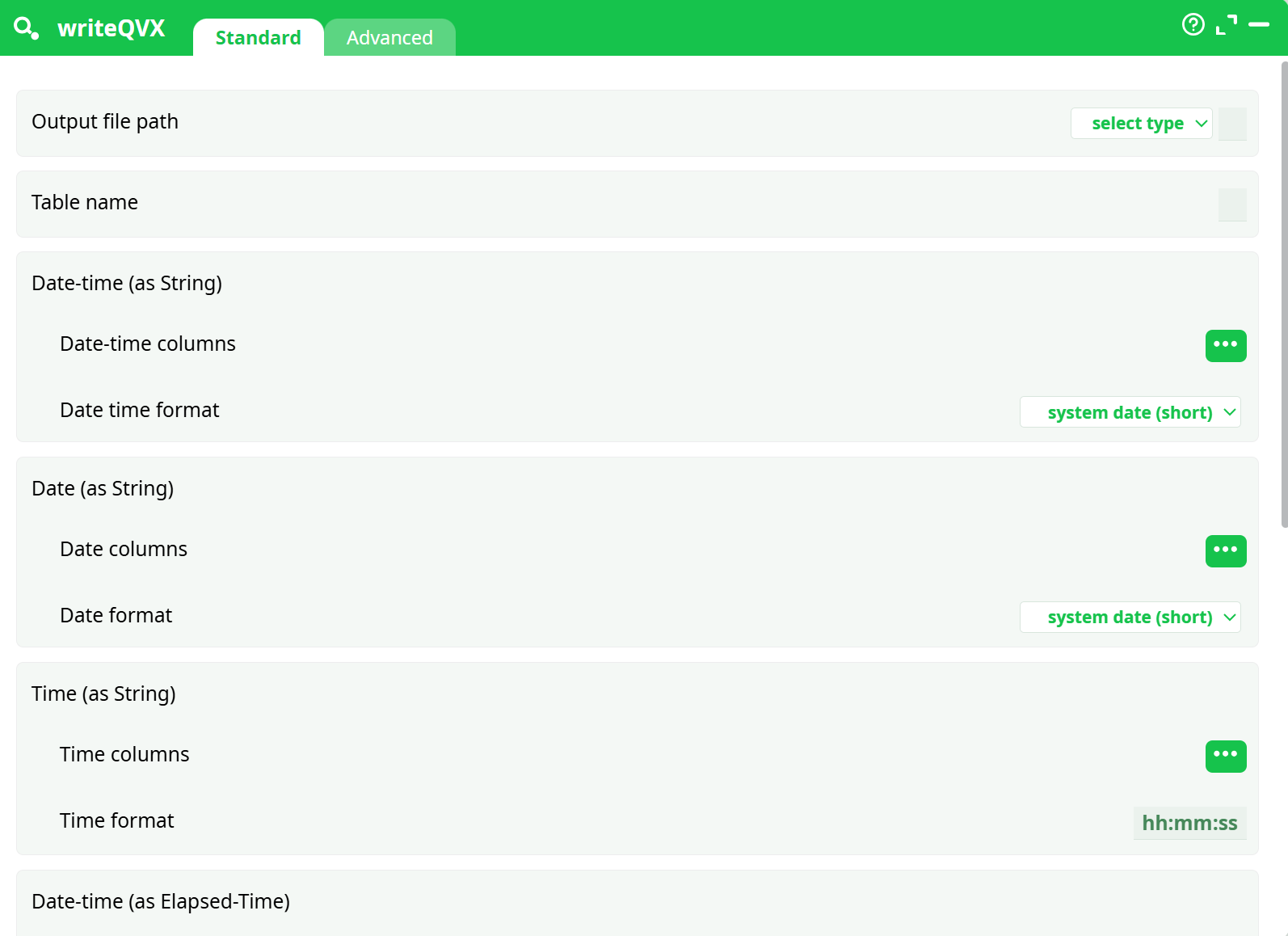
Parameters:
- Output file path
- Table name
- Date-Time (as String)
- Date-Time columns
- Date-Time format
- Date (as String)
- Date columns
- Date format
- Time (as String)
- Time columns
- Time format
- Date-Time (as Elapsed-Time)
- Date-Time columns
- Elapsed Time Unit
- Reference Time
- Date (as Elapsed-Time)
- Date columns
- Elapsed Time Unit
- Reference Time
- Time columns (as Elapsed-Time)
- Columns with DUAL type
- Integer & String
- Double & String
¶ Advanced tab
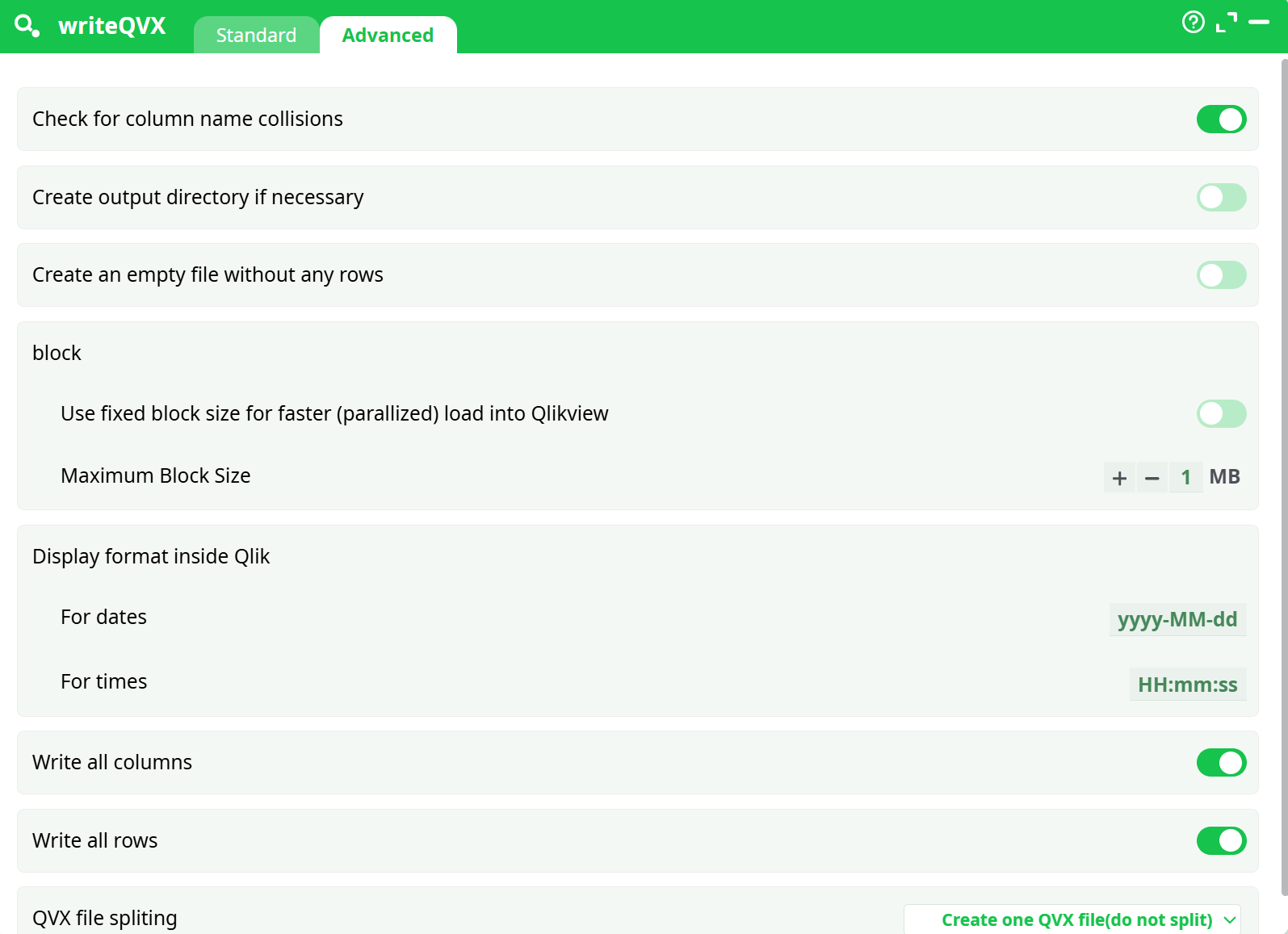
Parameters:
- Check for column name collisions
- Create output directory if necessary
- Create an empty file without any rows
- block
- Use fixed block size for faster (Paralled) load into Qlikview
- Maximum Block Size
- Display format inside Qlik
- For dates
- For times
- Write all columns
- Write all rows
- QVX file spliting
¶ About
A QVX file (QlikView Data eXchange) is a data file format used by QlikView and Qlik Sense for fast data import/export operations. It stores structured table data along with data types and metadata.
The writeQVX action in the ETL platform allows you to:
- Export datasets from your ETL pipeline into a
.qvxfile. - Define date, time, and elapsed time formats precisely.
- Handle dual-type columns (integer & string or double & string).
- Optimize file size and reading performance in Qlik applications.
- Split large files and configure advanced export options.
This makes it ideal for:
- Sharing datasets between ETL processes and Qlik.
- Preprocessing large datasets for QlikView/Qlik Sense dashboards.
- Archiving or exchanging structured data.
¶ How to Create a QVX File Using ETL
¶ 1. Prepare Input Data
Create or load a dataset containing various types of data. Here's an example CSV input:
ID,Name,DateTime,Date,Time,ElapsedDateTime,ElapsedDate,IntegerString,DoubleString
1,Alice,2024-01-01 12:00:00,2024-01-01,12:00:00,20240101 12:00:00,20240101,100,"100.25"
2,Bob,2024-06-15 15:30:00,2024-06-15,15:30:00,20240615 15:30:00,20240615,200,"200.50"
¶ 2. Build the Pipeline
Create the following ETL pipeline:
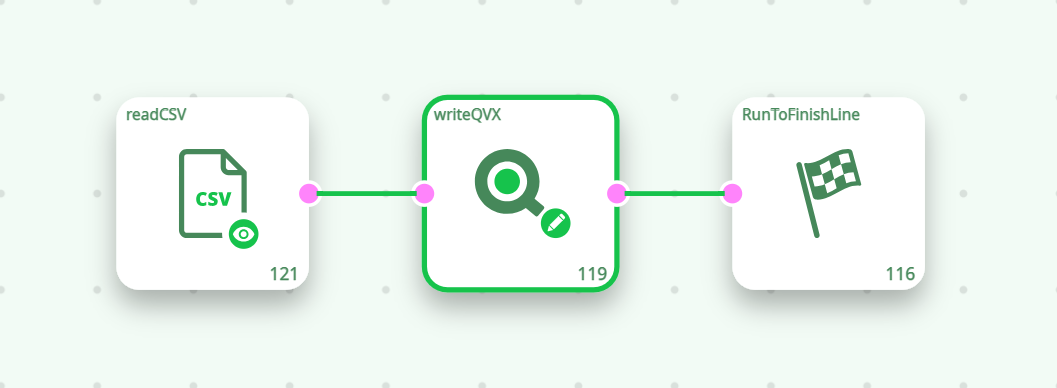
¶ 3. Configure writeQVX Action
In the writeQVX action:
-
Output file path: out.qvx
-
Date-time (as String): Map column DateTime, set format to system date (long)
-
Date (as String): Map column Date, set format to system date (short)
-
Time (as String): Map column Time, set format to hh:mm:ss
-
Date-time (as Elapsed-Time): Map column ElapsedDateTime, unit: second
-
Date (as Elapsed-Time): Map column ElapsedDate, unit: second
-
Dual Type Columns:
- IntegerString → Integer & String
- DoubleString → Double & String
These settings ensure that the exported QVX file contains structured data with correct formats and types
¶ Key Settings:
- Output file path: Set to recorded data → out.qvx
- This setting ensures the QVX file is stored and visible in the Records tab after pipeline execution.
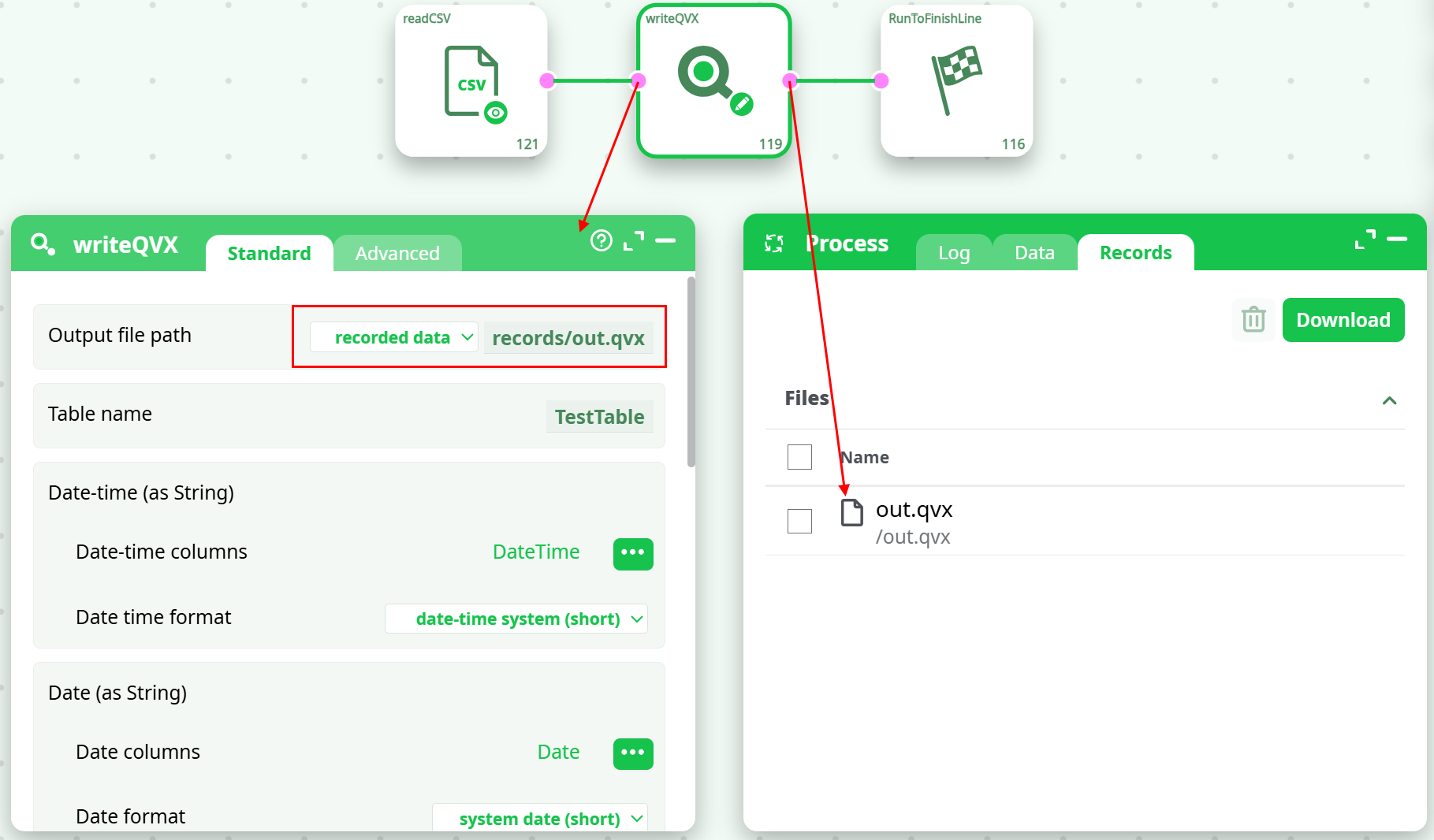
This is a recommended configuration when you need to export and retrieve files from within the ETL interface.
¶ Result: QVX File Output
After pipeline execution:
- The output QVX file (e.g., out.qvx) is available in the Records section of the ETL interface.
- You can download this file for use in other processes or keep it stored for later use.
¶ Important
- To read this QVX file in another pipeline or process, simply use the readQVX action button in ETL.
- This enables seamless data sharing between pipelines and ensures compatibility with Qlik tools.
¶ Summary:
- This method allows you to easily:
- Export any ETL data to QVX format.
- Customize date/time formats.
- Share or archive data for Qlik or ETL reuse.