¶ Description
Unlock Dropbox services.
¶ Parameters
¶ Parameters Tab
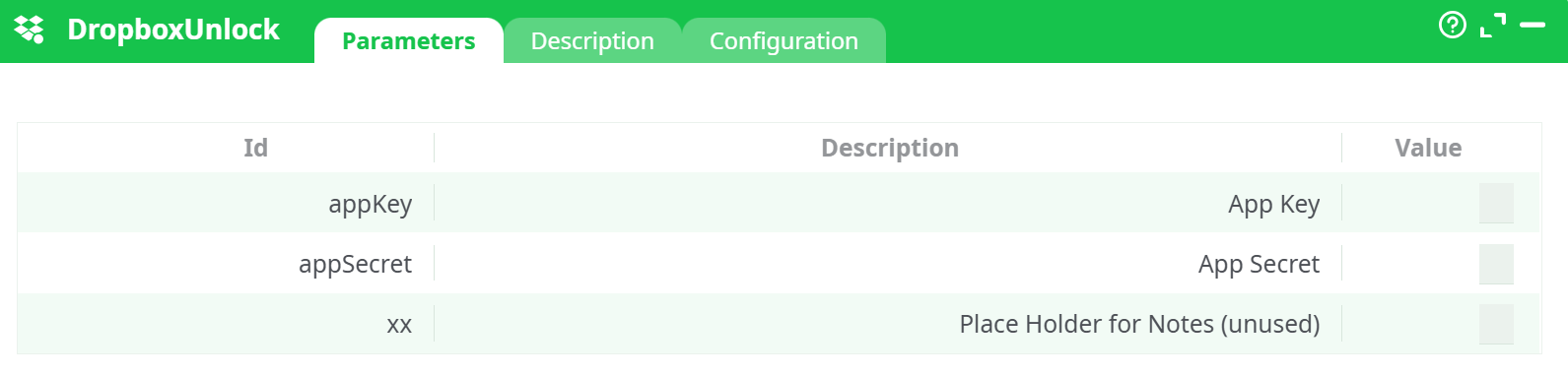
Parameters:
- App Key
- App Secret
- Place Holder for Notes (unused)
¶ Description Tab
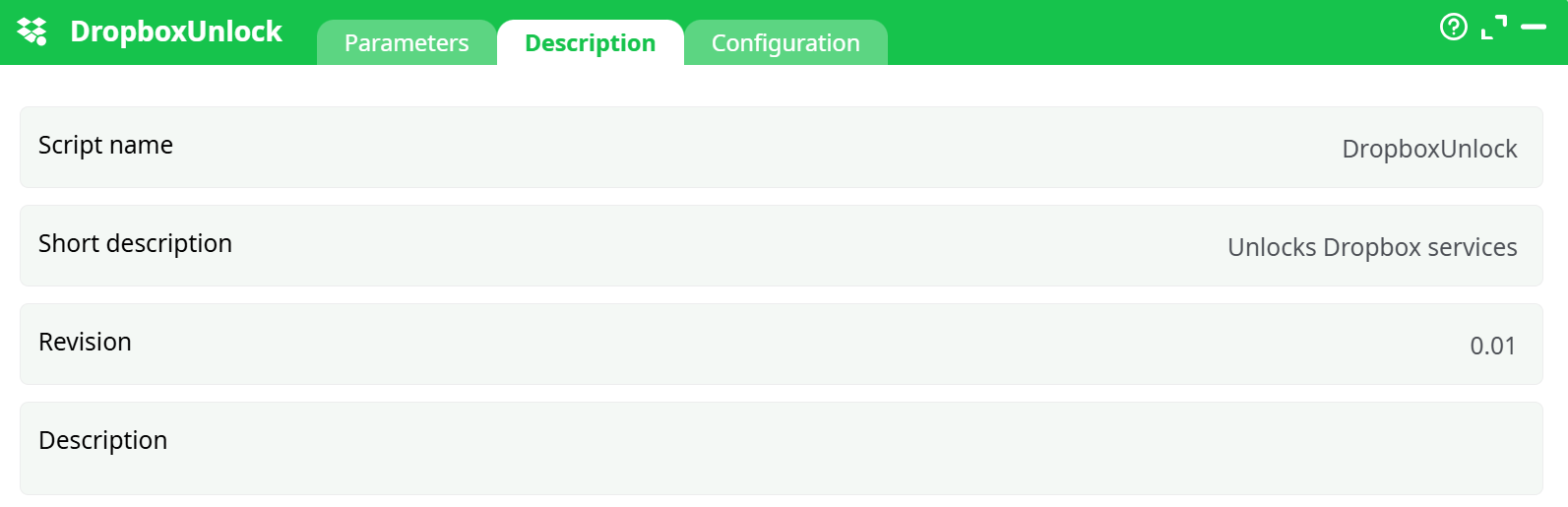
Parameters:
- Script name
- Short description
- Revision
- Decription
¶ Configuration Tab
See dedicated page for more information.
¶ About
The Dropbox Unlock action performs the OAuth 2.0 handshake needed to use all other Dropbox actions. On first run it prints an Authorize URL in the Log; you open that URL, grant access in Dropbox, and you’re redirected to a page that shows a Refresh Token. Copy that token and paste it into the other Dropbox actions (Upload/Download/List/Delete) along with your App Key and App Secret. Those actions will then exchange the refresh token for short-lived access tokens automatically at runtime—no further manual steps required. The Unlock box itself doesn’t move files; it only helps you obtain the refresh token. You can remove or disable it after the token is captured.
¶ What you’ll need
- A Dropbox account (a free Basic account is enough for testing).
- Browser access to the Dropbox App Console.
¶ Glossary
- App key / App secret: Credentials you get from the Dropbox developer console.
- Redirect URI: Where Dropbox sends you back after you grant access.
- Refresh Token: A long-lived token your ETL uses to obtain short-lived access tokens automatically.
¶ Part 1 — Create a Dropbox app (once)
-
Go to the Dropbox App Console:
https://www.dropbox.com/developers/apps

-
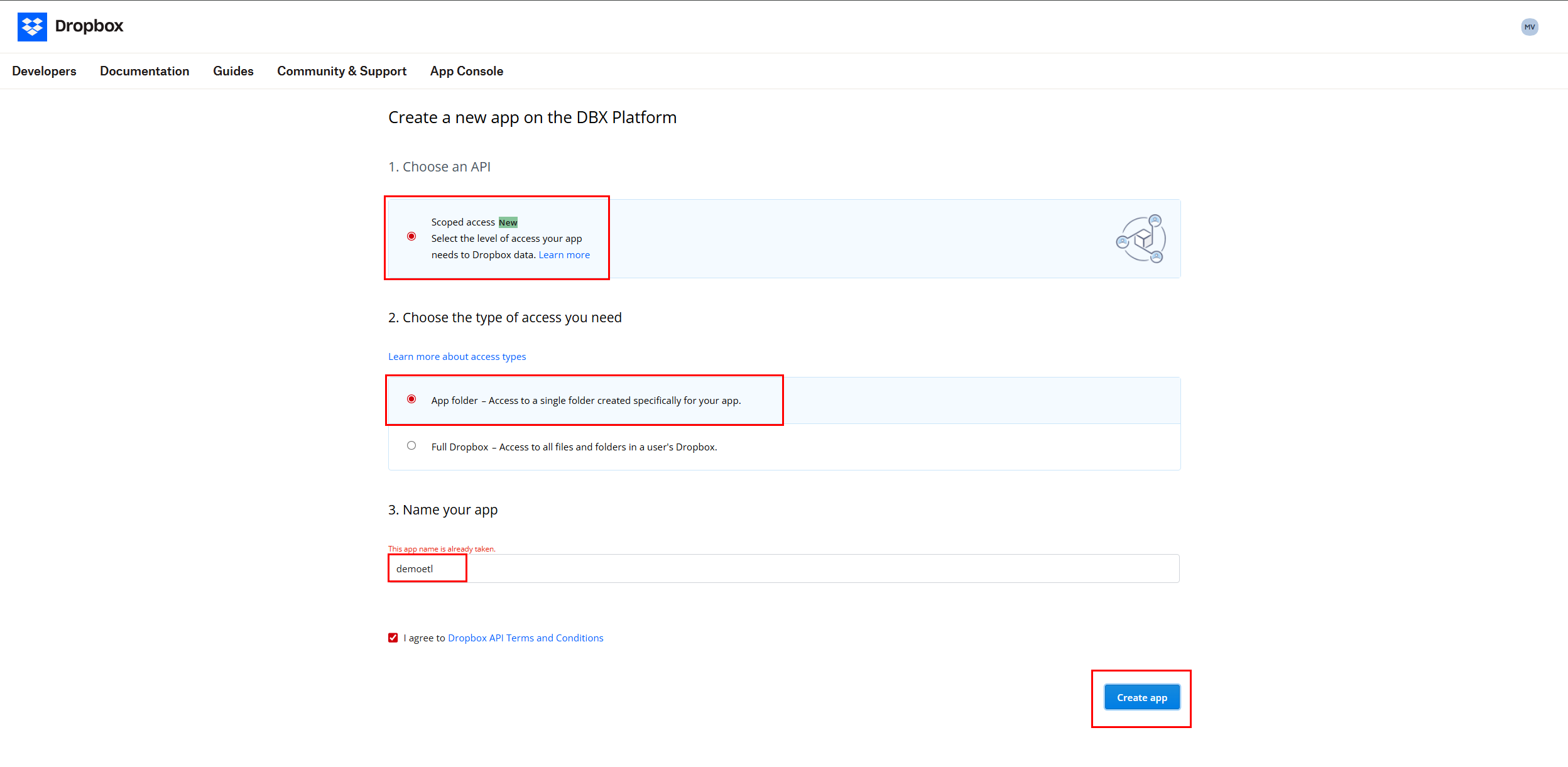
Click Create app.
- Choose API: Scoped App
- Access type: App Folder (recommended for demos; it isolates your app under
/Apps/<your-app-name>). - App name: e.g.,
demoetl
-
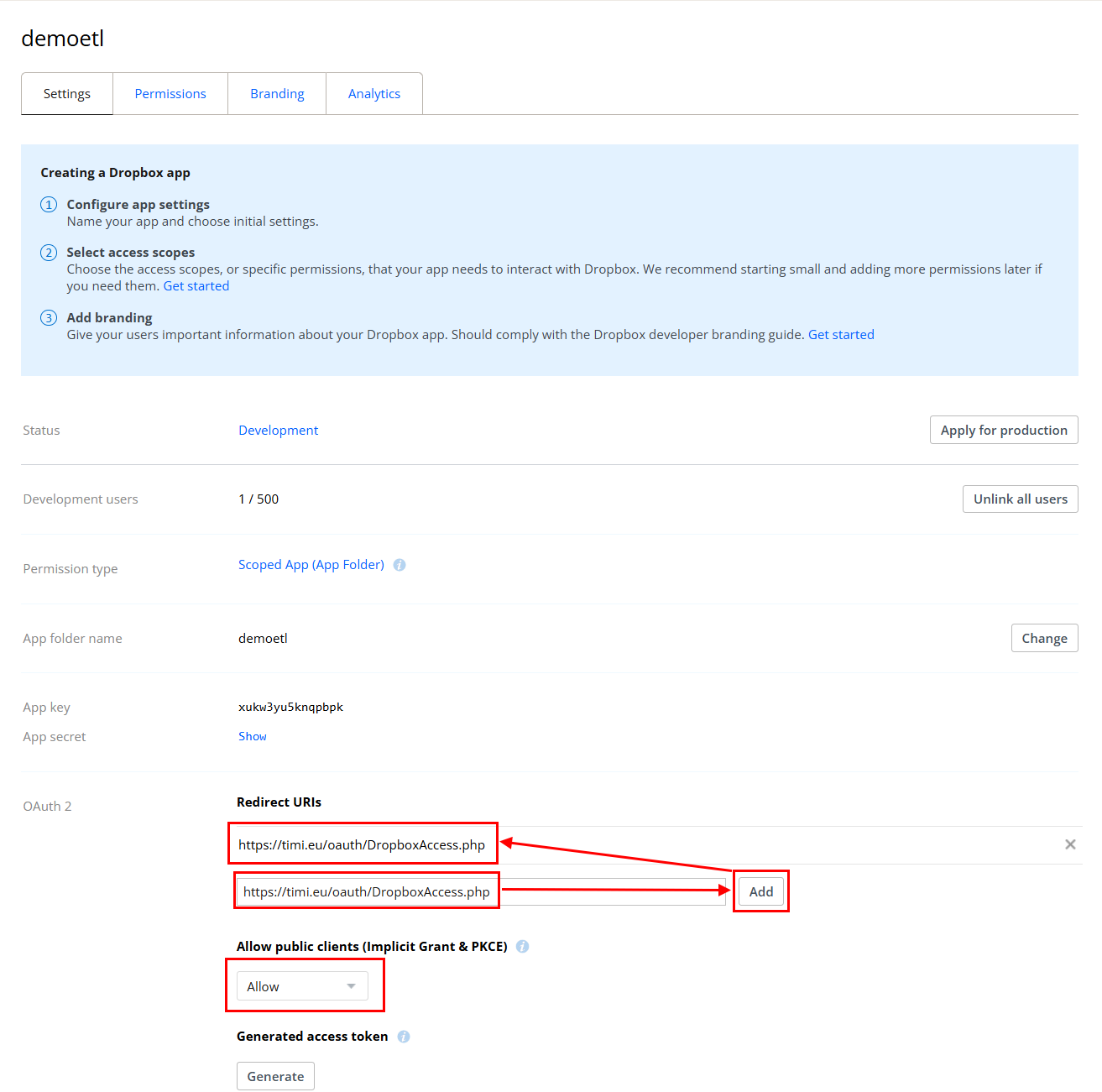
In your new app, open the Settings tab:
- Copy App key and App secret somewhere safe; you’ll paste them into the ETL actions later.
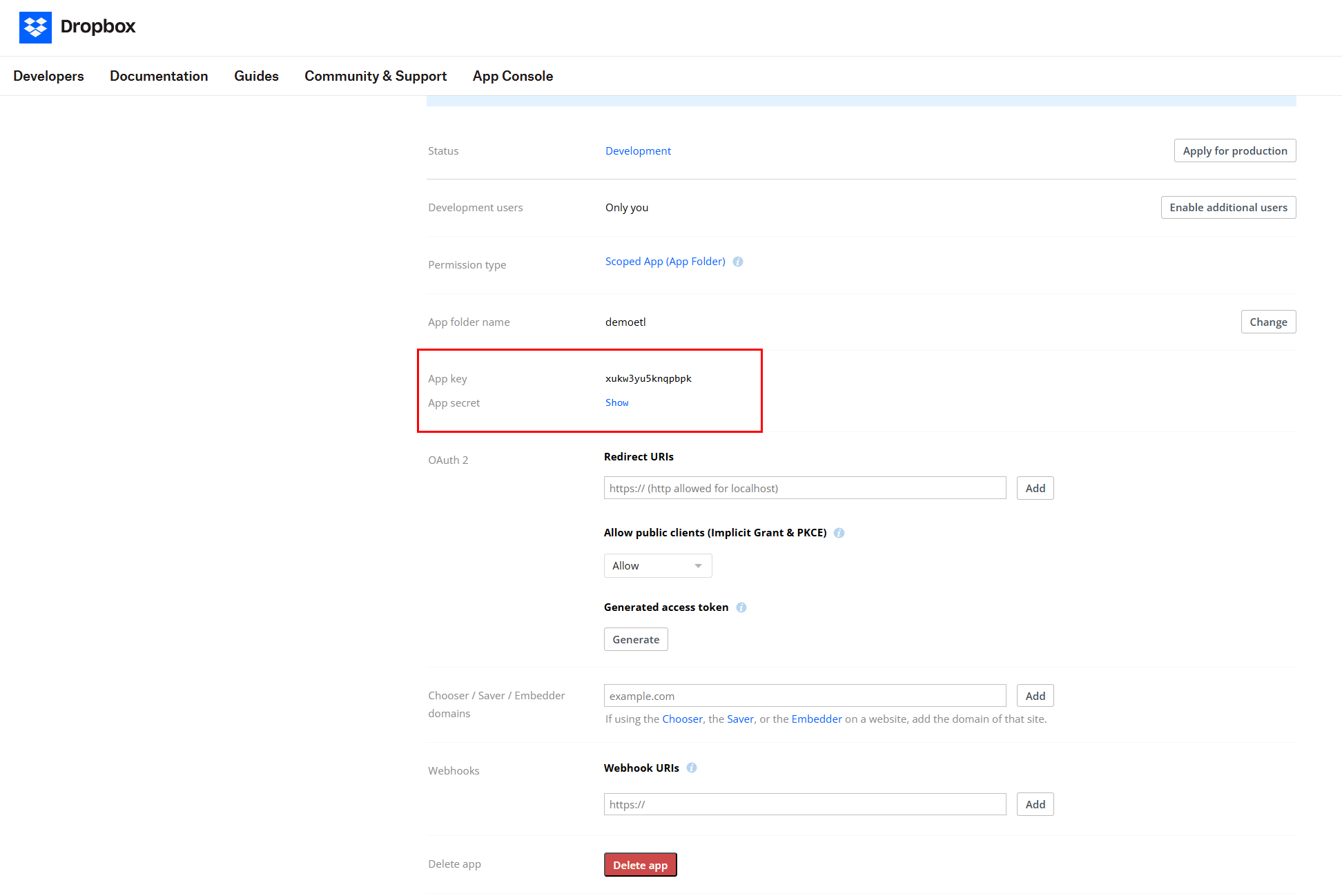
- Copy App key and App secret somewhere safe; you’ll paste them into the ETL actions later.
-
Add Redirect URI (required):
-
In OAuth 2 → Redirect URIs, add:
https://timi.eu/oauth/DropboxAccess.php -
Click Add.
-
-
Allow public clients (PKCE):
- In OAuth 2 → Allow public clients (Implicit Grant & PKCE), set to Allow.
-
Open the Permissions tab and tick these scopes (minimum for Upload/Download/List/Delete):
- account_info.read
- files.metadata.read
- files.metadata.write
- files.content.read
- files.content.write
Click Submit or Save.
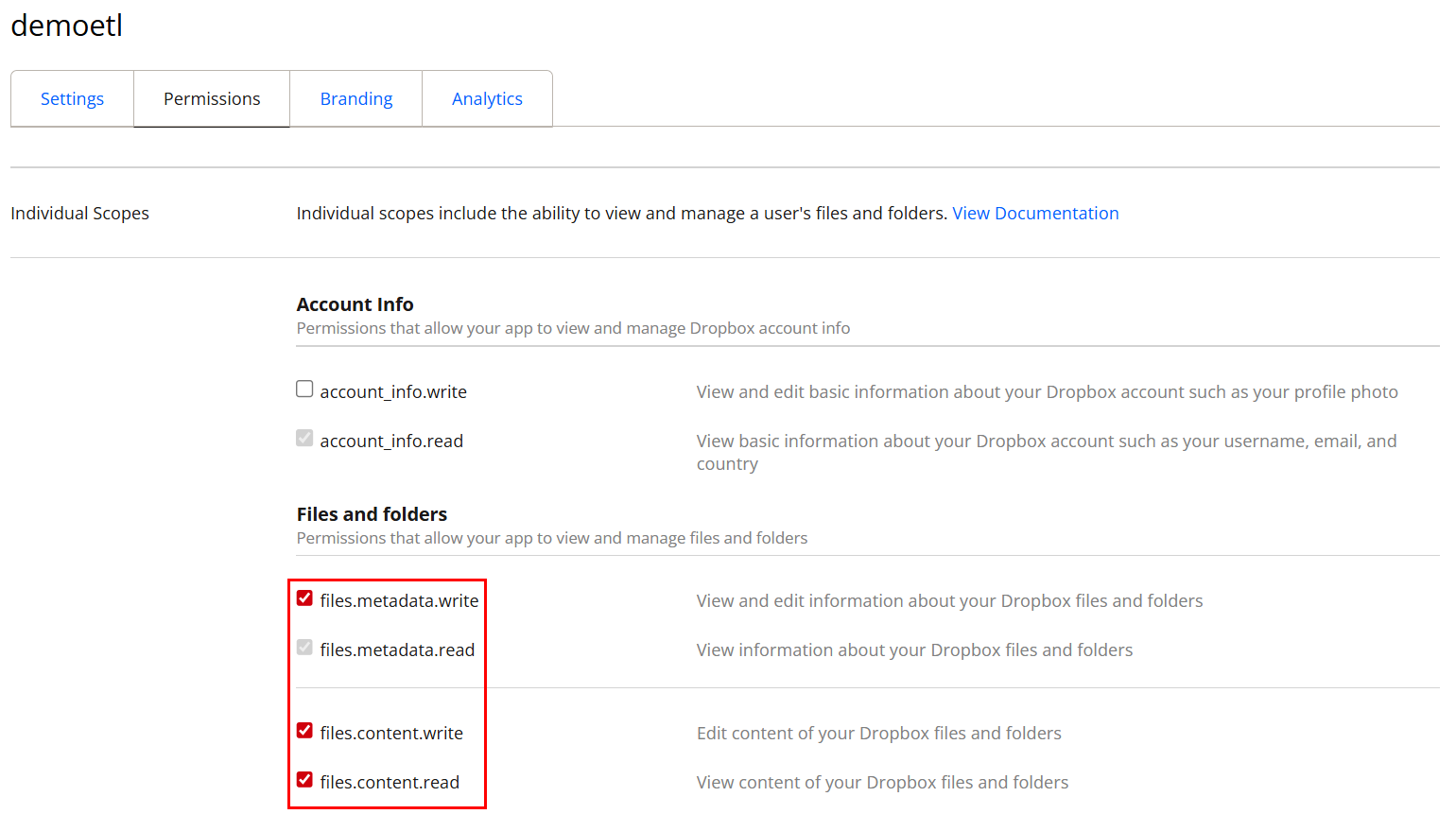
Least privilege tip: If you only need read-only listing/downloading, you can untick the two
*.writescopes.
¶ Part 2 — Generate your Refresh Token (one-time per app/account)
There are two easy ways. Pick A (from ETL logs) or B (direct crafted URL).
¶ A) From the ETL “Dropbox Unlock” action (recommended)
-
In your pipeline, open Dropbox Unlock.
-
Paste your App key and App secret.
(Other fields can be left as-is.) -
Run the pipeline.
-
The first run will show in the Log something like:
Authorization required, but no authorization protocol specifiedfollowed by a long https://www.dropbox.com/oauth2/authorize?... URL.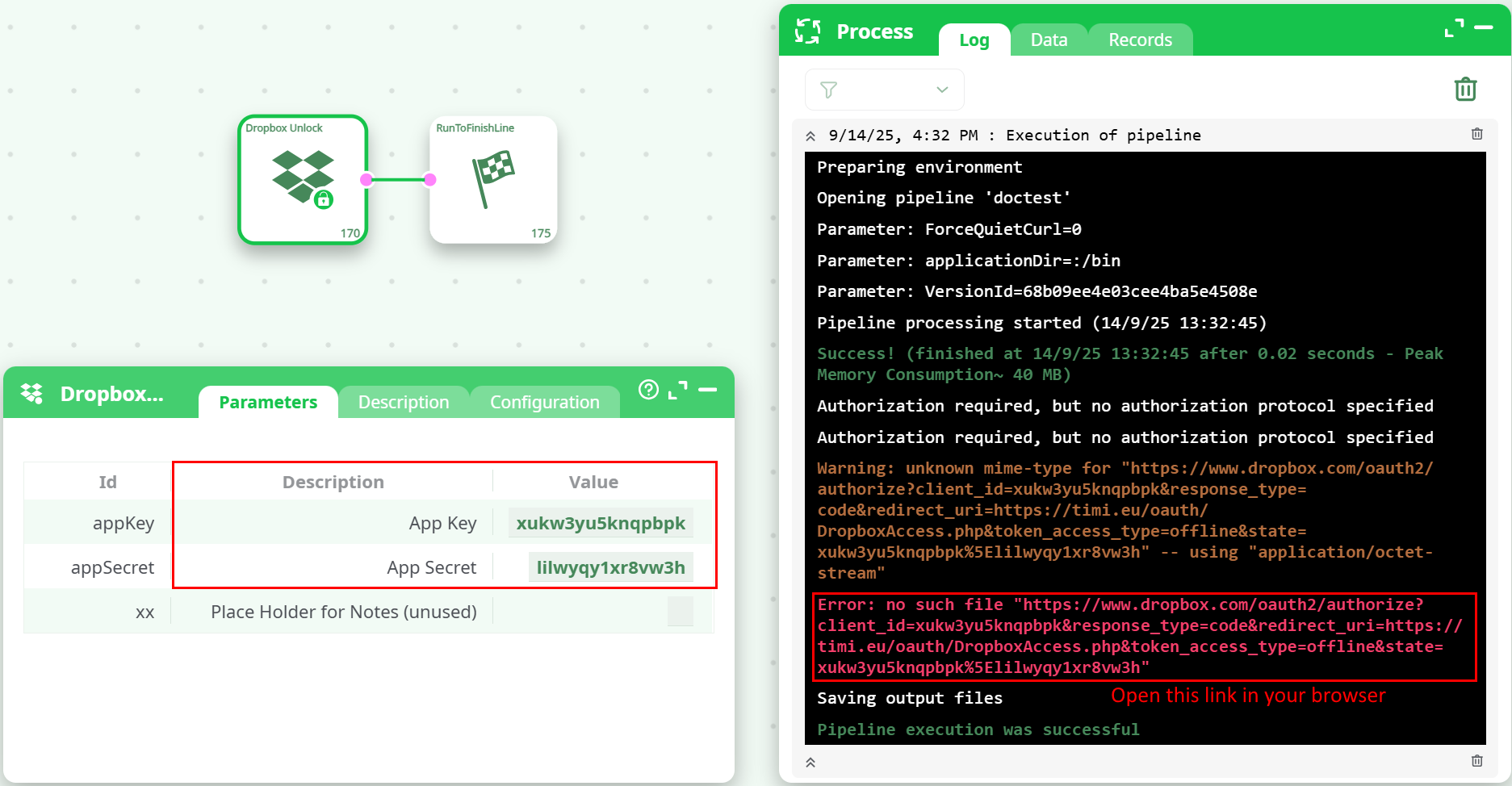
-
-
Copy the full authorize URL from the log and open it in your browser.
-
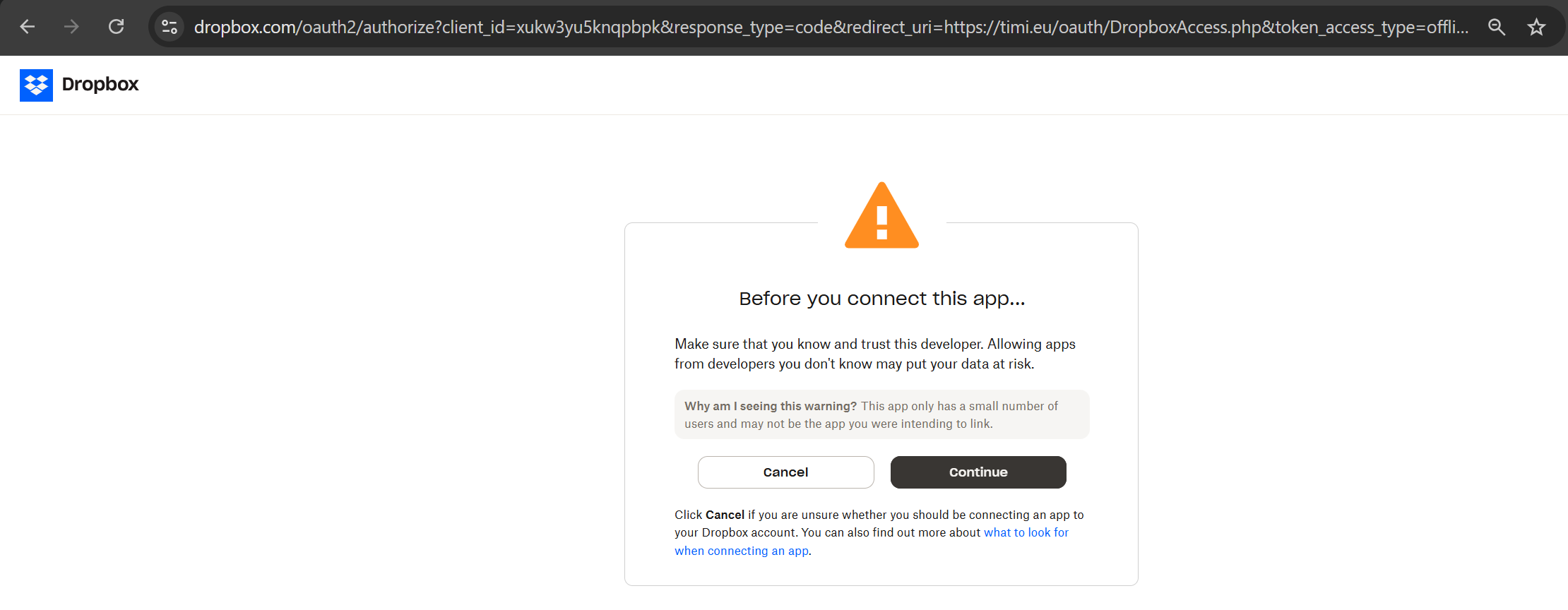
In Dropbox:
-
You’ll see Before you connect this app... → click Continue.
-
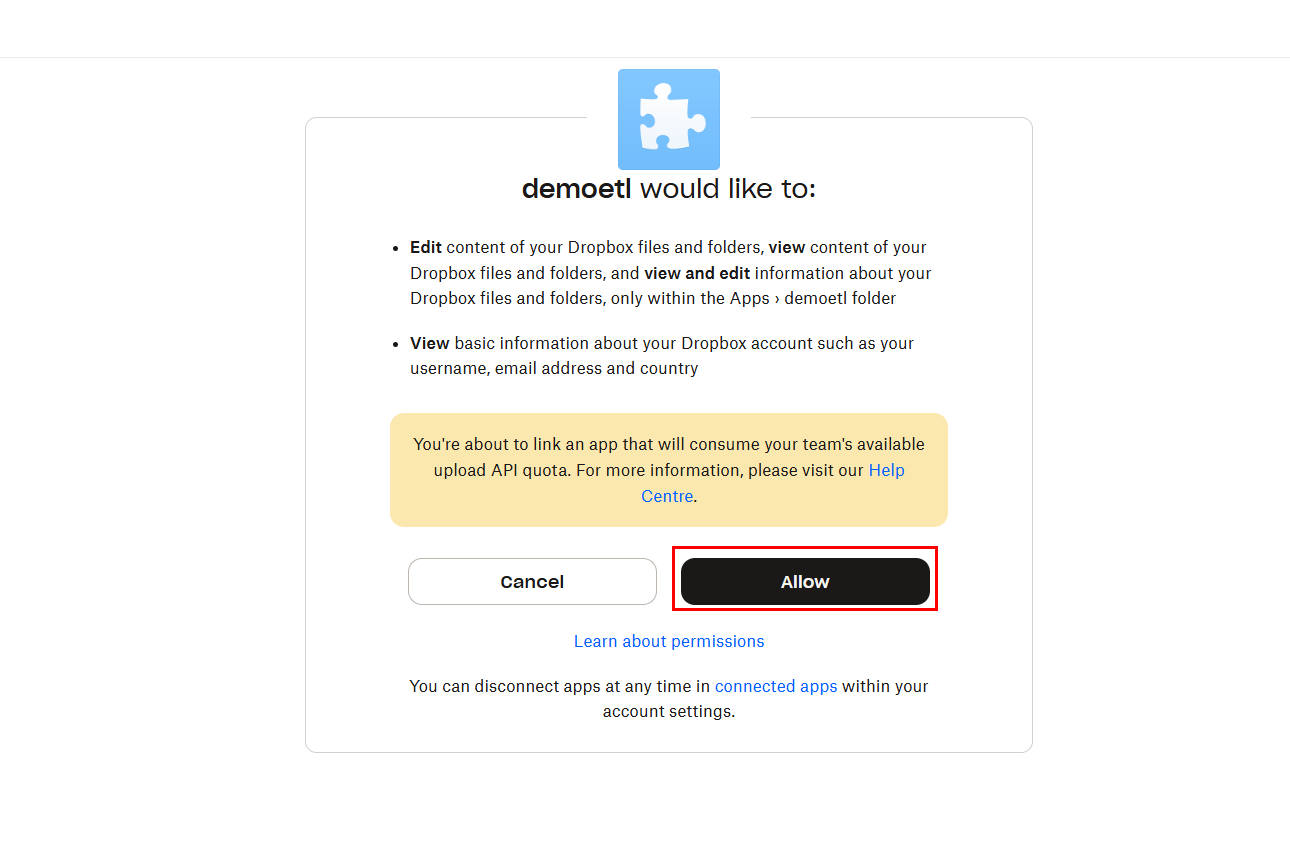
Review permissions → click Allow.
-
-
You’ll be redirected to
https://timi.eu/oauth/DropboxAccess.phpand see Success! with a text box:- Copy the Refresh Token from that page.
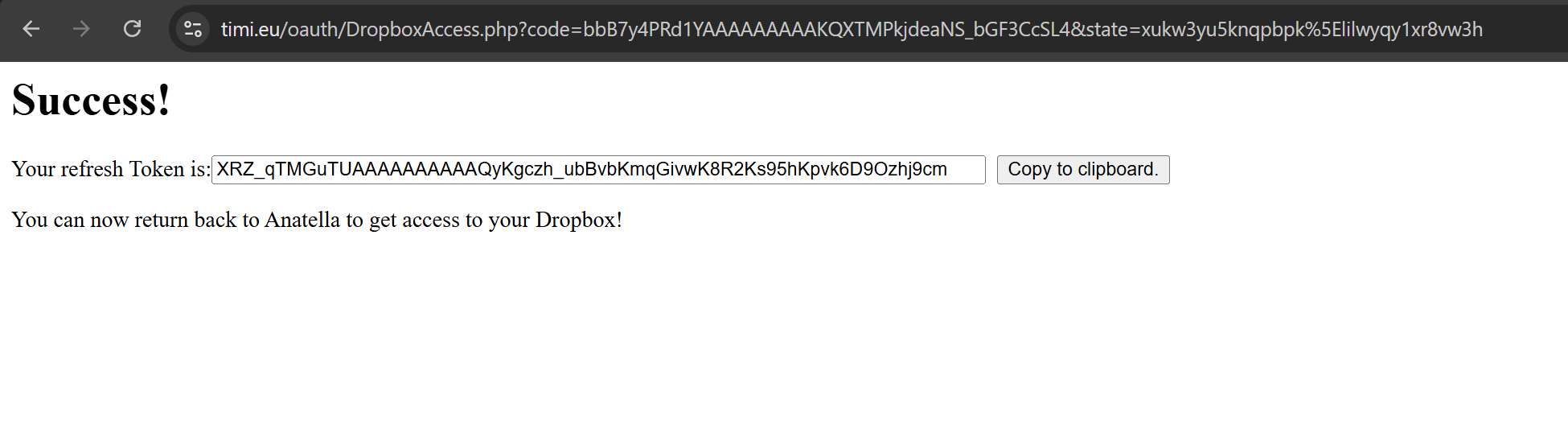
- Copy the Refresh Token from that page.
If you re-run Dropbox Unlock, you’ll get prompted again. That’s expected. The unlock box is mainly to help you obtain the refresh token. You’ll paste the token in the other Dropbox actions.
¶ B) Direct crafted URL (alternative)
Open this in your browser (replace APP_KEY with yours; the redirect must exactly match what you added in settings):
https://www.dropbox.com/oauth2/authorize
  ?client_id=APP_KEY
  &response_type=code
  &redirect_uri=https://timi.eu/oauth/DropboxAccess.php
Then proceed with Allow and copy the Refresh Token shown on the success page.
¶ How it works (quick mental model)
- Your Refresh Token never expires (until you revoke it).
- Each Dropbox action uses it (with your App Key/Secret) to silently fetch a short-lived Access Token at runtime.
- That’s why, after you paste the token once, the actions can run unattended.
¶ Troubleshooting
“Authorization required, but no authorization protocol specified”
You haven’t done the OAuth grant yet. Copy the /oauth2/authorize URL printed in the Log, open it in a browser, click Allow, then copy the Refresh Token from the Success page and paste it into your Dropbox actions.
“no such file https://www.dropbox.com/oauth2/authorize?... application/octet-stream”
The ETL tried to fetch the authorize page as if it were a file. You must open the authorize URL in your browser (not inside the ETL). Then grant access and paste the Refresh Token back into the action.
Redirect URI mismatch
Ensure the Redirect URI in your Dropbox app exactly matches:
https://timi.eu/oauth/DropboxAccess.php
Any typo or missing https:// will cause a mismatch.
Missing permissions / 409 errors
If uploads or deletes fail:
- Confirm the app is App Folder type and you’re using paths under
/Apps/<your-app-name>/... - Re-check Permissions: for uploads/deletes you need
files.content.writeandfiles.metadata.write.
Team warning dialog
On consent you might see a note about consuming your team’s available upload API quota. That’s normal for Business/Team accounts—click Allow.
¶ Security & hygiene
- Treat App Secret and Refresh Token like passwords. Rotate them if exposed.
- To revoke access, go to Dropbox Security → Connected apps and disconnect the app, or delete the app in the App Console.
- Prefer App Folder for demos: it confines access to
/Apps/<app-name>.