¶ Description
Change the Data Type of some columns.
¶ Parameters
¶ Float tab
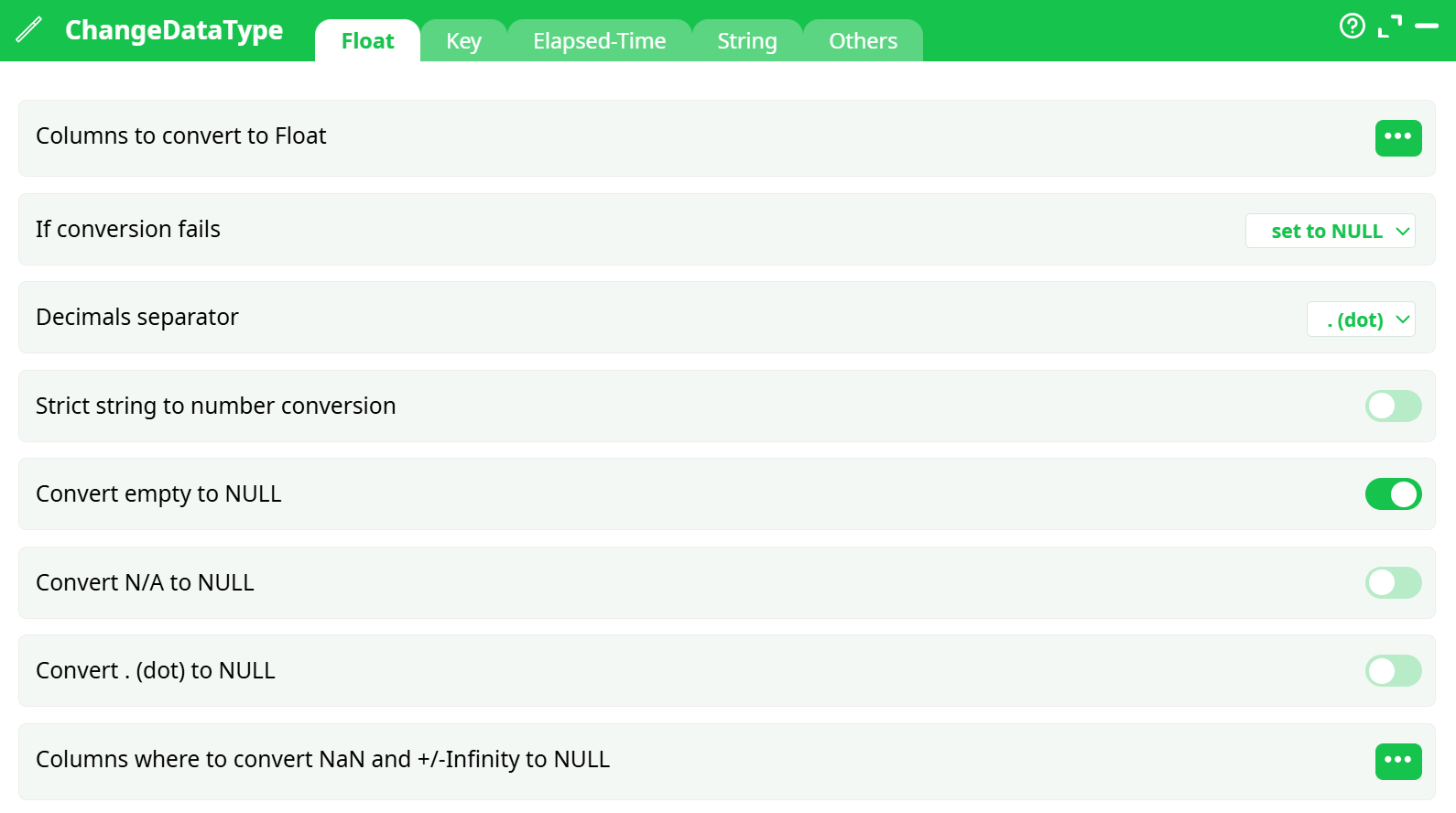
Parameters:
- Columns to convert to float
- If conversion fails
- Decimals separator
- Strict string to number conversion
- Convert empty to NULL
- Convert N/A to NULL
- Convert . (dot) to NULL
- Columns where to convert NaN and +/-Infinity to NULL
¶ Key tab
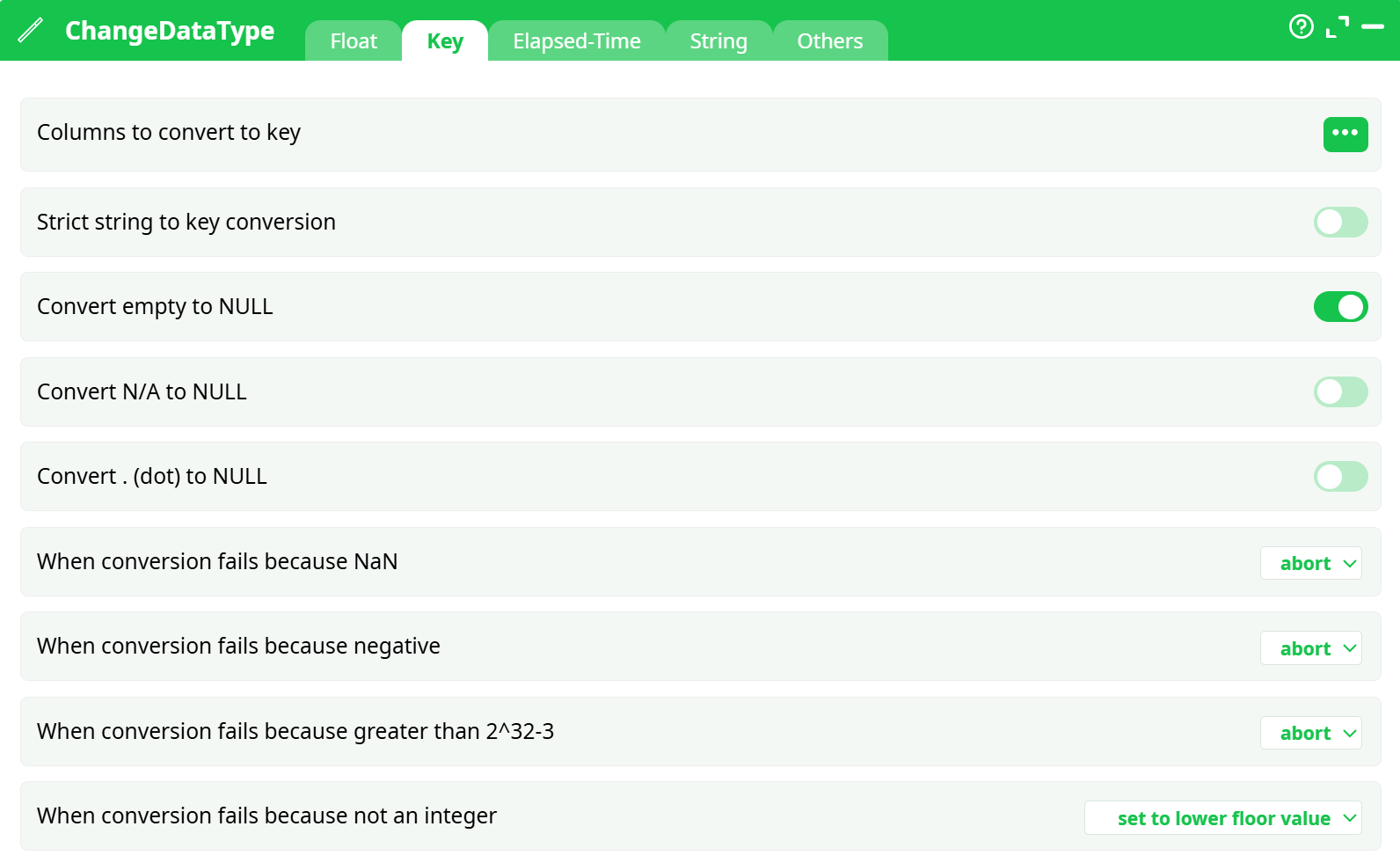
Parameters:
- Columns to convert to key
- Strict string to key conversion
- Convert empty to NULL
- Convert N/A to NULL
- Convert . (dot) to NULL
- When conversion fails because NaN
- When conversion fails because negative
- When conversion fails because greater than 2^32-3
- When conversion fails because not an integer
¶ Elapsed time tab
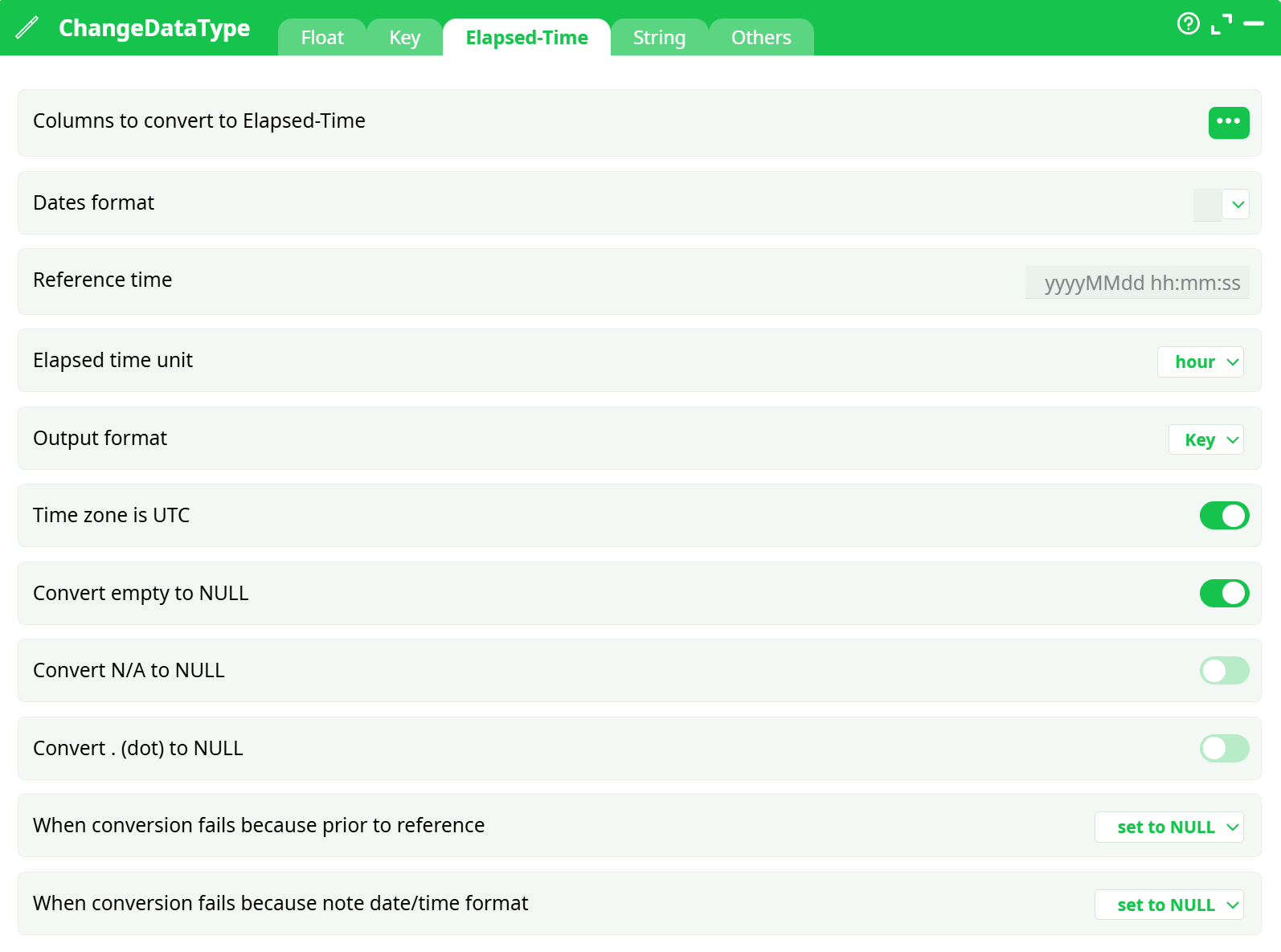
Parameters:
- Columns to convert to Elapsed Time
- Dates format
- Reference time
- Elapsed Time Unit
- Output format
- Time zone is UTC
- Convert empty to NULL
- Convert N/A to NULL
- Convert . (dot) to NULL
- When conversion fails because prior to reference
- When conversion fails because note date/time format
¶ String tab
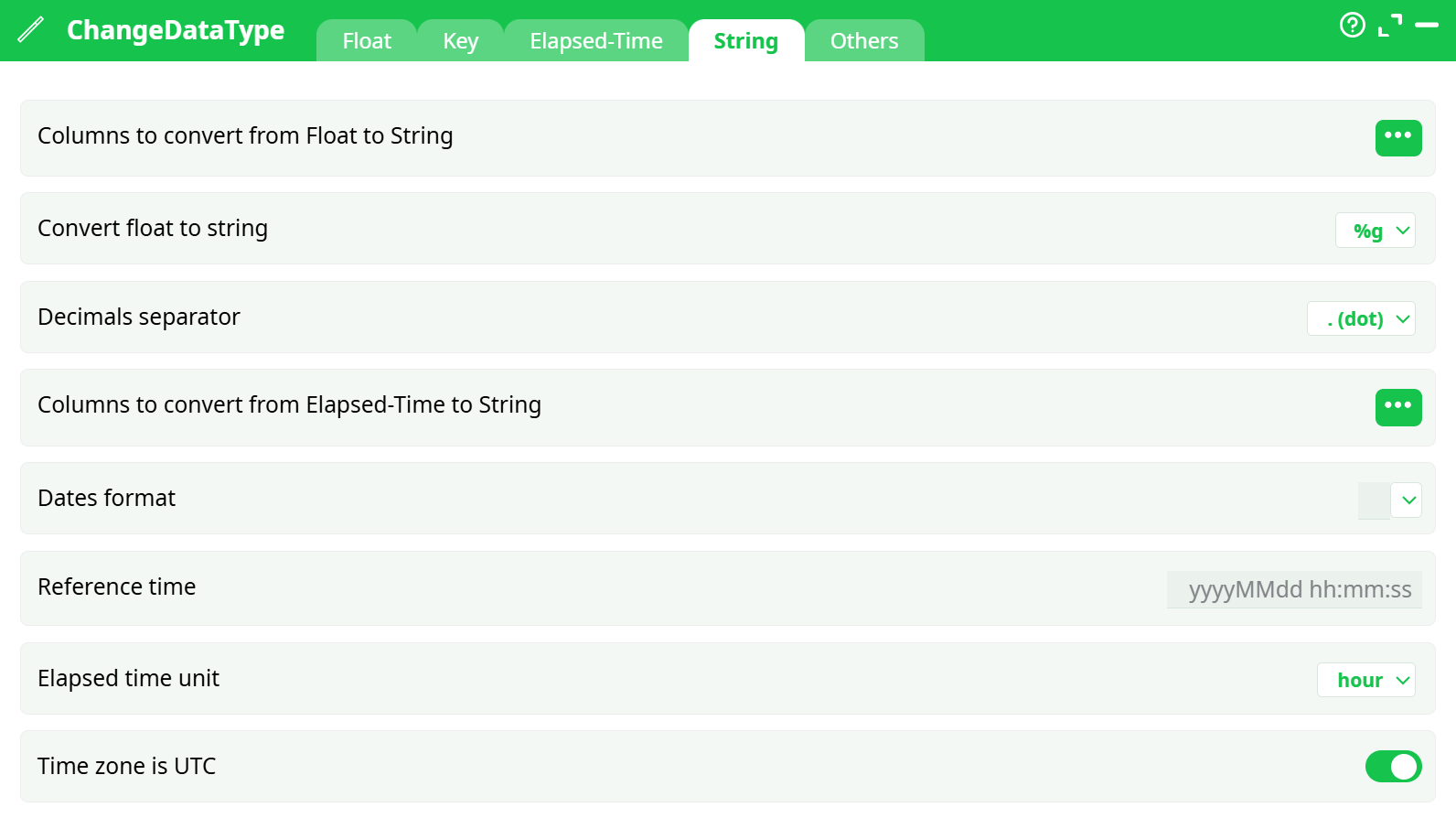
Parameters:
- Columns to convert from float to string
- Convert float to string
- Decimals separator
- Columns to convert from Elapsed Time to string
- Dates format
- Reference time
- Elapsed Time Unit
- Time zone is UTC
¶ Others tab
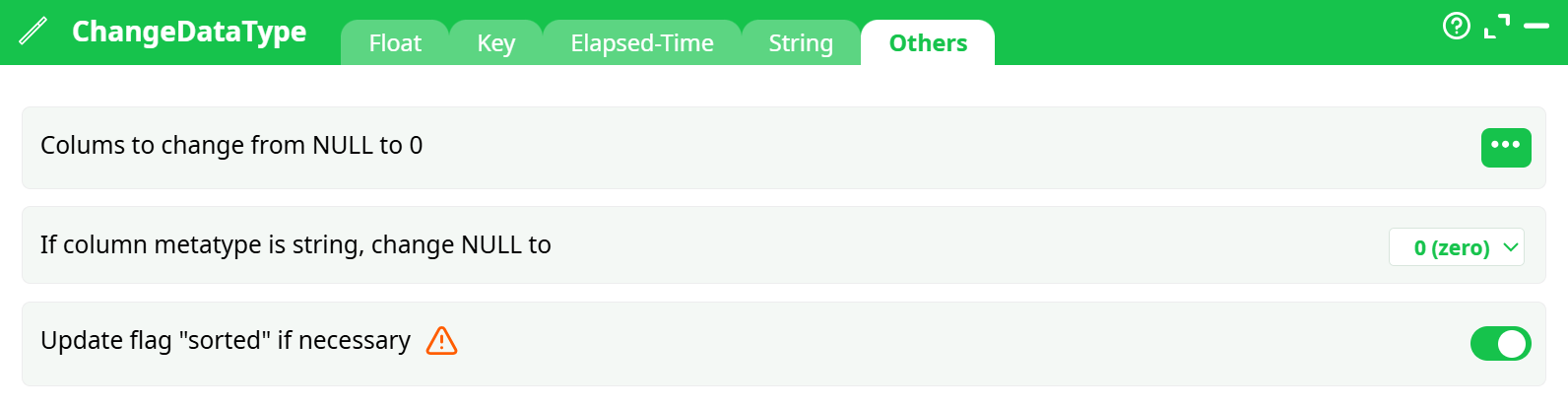
Parameters:
- Colums to change from NULL to 0
- If column metatype is string, change NULL to
- Update flag "sorted" if necessary
¶ About
Use the ChangeDataType action to convert columns from one data-type to another.
¶ Converting to (& checking) floating-point numbers
You can also use the ChangeDataType action to check if a column really contains floating-point numbers. This “sanity check” can potentially detect and prevent difficulties when manipulating tables of doubtful origin.
For example, to CHECK & convert the column A, B and C to floating-point numbers, we’ll have:
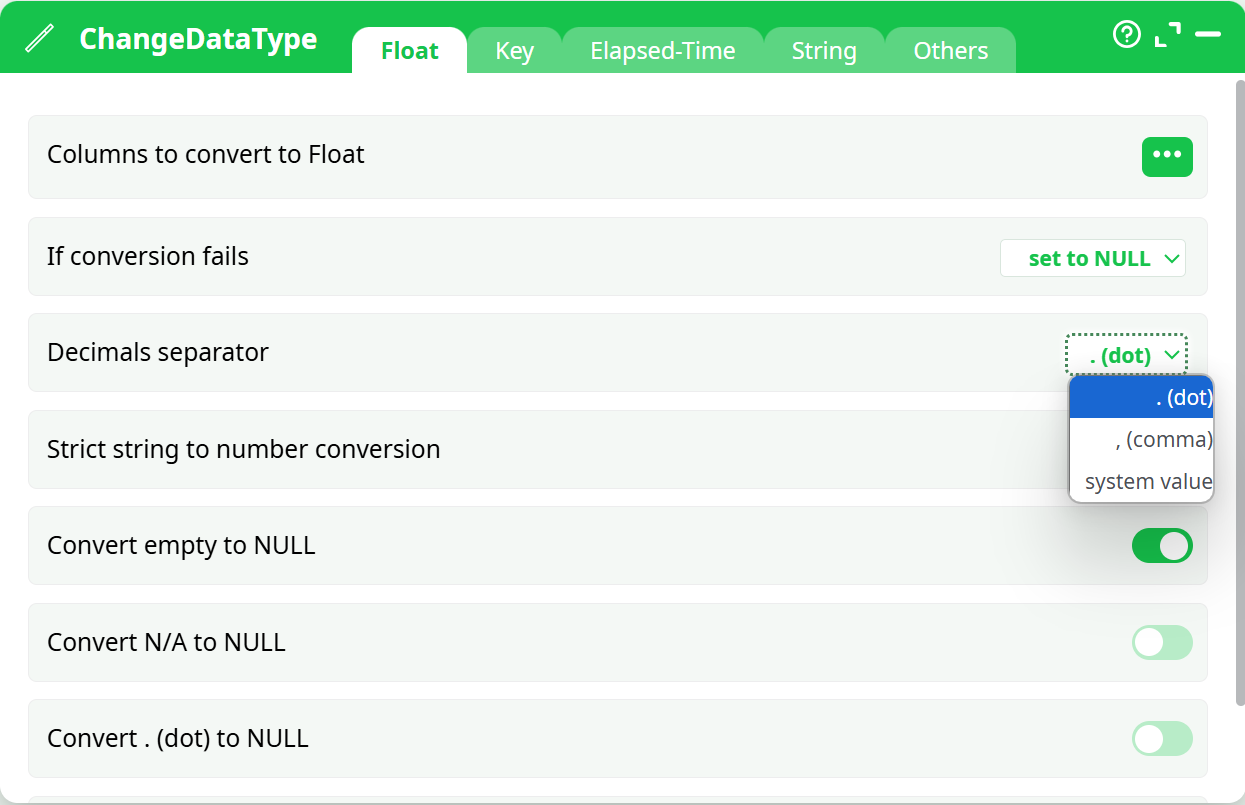
We decided to completely abort the data transformation if some non-numbers are found inside the column A, B and C. For example, if the column A contains “0,5”, ETL will abort the execution of the data transformation pipeline.
One very common pitfall when importing columns with numbers inside ETL is that: In some countries the decimal separator is the dot (“.”) and in some other it’s the comma (“,”). By default, ETL is using the dot as decimal separator (i.e. ETL uses the English notation). Inside the ChangeDataType action, you can change the Decimal Separator here: . The third option (that is named “use system locale”) is special: When using this option, ETL uses the decimal separator that is globally defined inside the MSWindows Operating System (inside the “format” tab of the “Region and Language” option found inside the MSWindows “control panel”). This means that ETL will dynamically change, at run-time, the decimal separator to always use the globally defined decimal separator from MSWindows.
¶ Converting to (& checking) dates
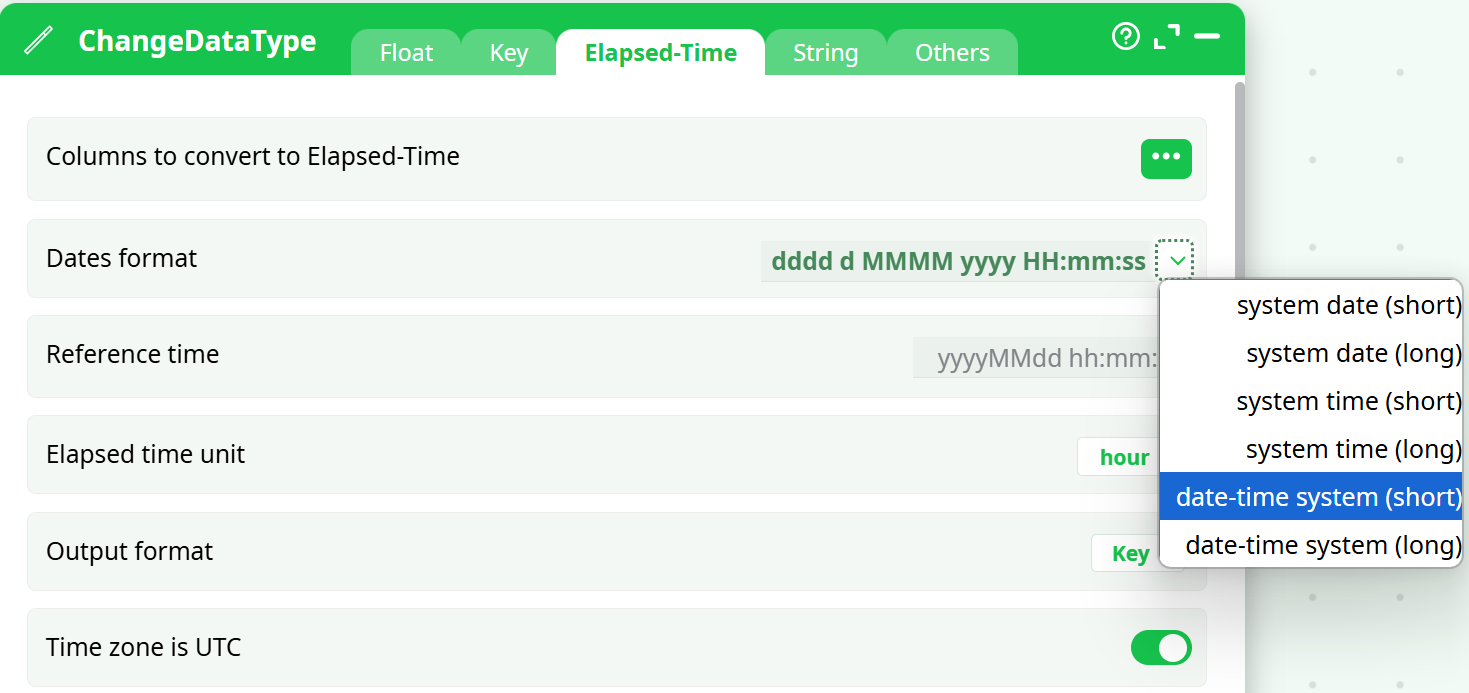
The same importation difficulties that appeared for numbers also appear when importing dates and times. Each country has a different way of writing dates (and times). One again, you can use the “system locale” settings (more precisely, use one of the six “System” options: ) to dynamically change, at run-time, the importation settings to reflect the Date & Time settings globally defined inside MSWindows:
¶ Converting Numbers to Strings
Inside ETL, there are basically two different notations to display floating-point numbers:
- Standard notation.
- Scientific notation.
- “Short” notation (that is the shortest of the 2 above notations)
Here are some examples:
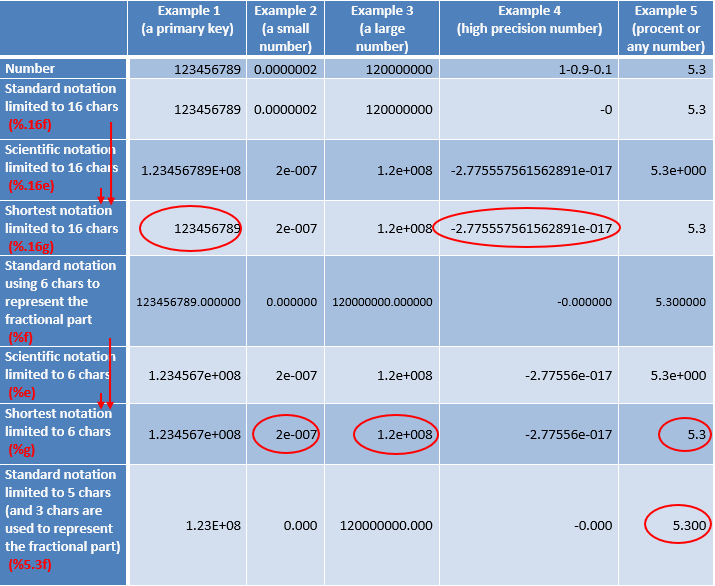
The “shortest” notation is noted (%g). It’s based on either the standard (%f) or the scientific (%e) notation. The “shortest” notation is the more “compact” of the 2 basic notations (standard or scientific). Furthermore, trailing zeros are truncated, and the decimal point appears only if one or more digits follow it.
For the (%.16g): The scientific notation is used only when the exponent of the value is less than –4 or greater than 16.
For the (%g): The scientific notation is used only when the exponent of the value is less than –4 or greater than 6.
To select a number notation follow these guidelines:
- The easiest to read and the most compact notation is usually the (%g) notation.
This is the default notation that is used everywhere inside ETL.
The (%g) notation is used:- inside the data preview window.
- as default notation when exporting your data inside a simple text file.
- to (automatically) convert a number to a string inside the Calculator Action.
- The (%g) notation works very well almost all the time. There however are 2 cases when it’s better to use the (%.16g) notation rather than the (%g) notation:
- When the number that you want to display is a primary key. In such case, you never want to use the scientific notation (especially for large numbers): See the example 1 here above.
- When you are exporting your data to another software for further processing, you don’t want any “rounding” or “truncation” errors that might jeopardize the next computations: See the example 4 here above.
- When your numbers are “percents”, then it’s sometime better to use the (%5.3f) notation to obtain a nicer and clearer display.
If you want to use other notations inside ETL, you can manually edit the .age files with a text editor and write the requested notation in it.
If you want more information about the different notations (%g,%e,%f) and the different precisions (%.16g or %5.3f), please refer to the following webpages:
-
About printf:
http://msdn.microsoft.com/en-us/library/wc7014hz(v=vs.90).aspx -
About notations (%g,%e,%f):
http://msdn.microsoft.com/en-us/library/hf4y5e3w(v=vs.90).aspx -
About precision:
http://msdn.microsoft.com/en-us/library/0ecbz014(v=vs.90).aspx
¶ Dynamically changing the Data Type
On the second input pin (pin 1) of the ChangeDataType action, you can connect a small table with 2 columns:
- The first column contains the names of the columns to process on the first input pin
- The second column contains a string that describes the transformation to apply. The accepted values are:
- KEY
- FLOAT
- ET
- STRING
- STRINGFROMET
- ZERO or 0
- NULL