¶ Description
This action encrypts (or protects) XLSX files.
¶ Parameters
¶ Standard tab
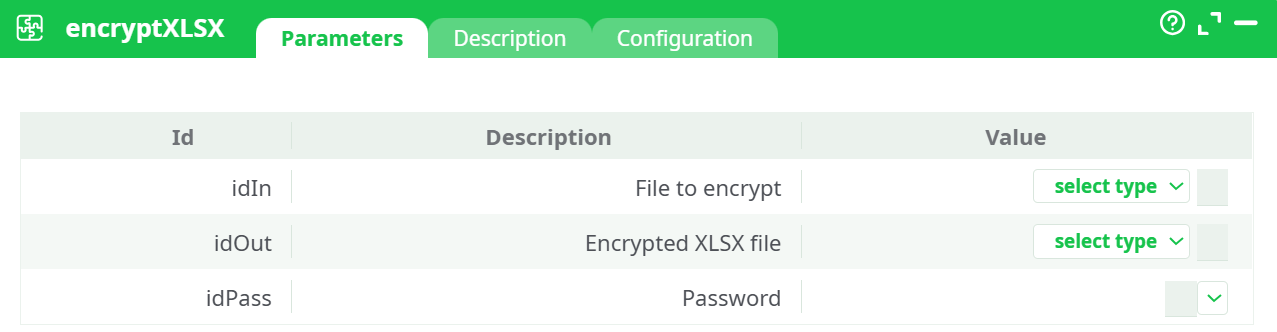
Parameters:
- File to encrypt
- Encrypted XLSX file
- Password
¶ Description tab
See dedicated page for more information.
¶ Configuration tab
See dedicated page for more information.
¶ About
Encrypt (password-protect) an existing .xlsx workbook and produce a protected copy. Typical uses:
- Distribute sensitive spreadsheets that require a password to open.
- Produce “download-ready” protected reports at the end of a pipeline.
- Enforce access control when sharing files via email/FTP/S3.
Caveats
- The action protects the workbook with an Office-compatible password so Excel/LibreOffice will prompt for it when opening. It does not manage row/worksheet permissions or IRM; it’s an “open password” protection.
- Very large workbooks may take longer to process. Keep file paths simple (ASCII) to avoid OS/zip edge cases.
¶ Prerequisites
- Input workbook available in the workspace (e.g., Assets, previous step output, or mounted storage).
- A chosen password (store as a secret when possible).
- Write access to the selected output location (e.g.,
temporary dataorrecorded data).
¶ Input Requirements
- Pin 0 (left pin): no tabular input required.
- File to encrypt: path to an existing
.xlsxfile.
¶ Parameters
-
File to encrypt
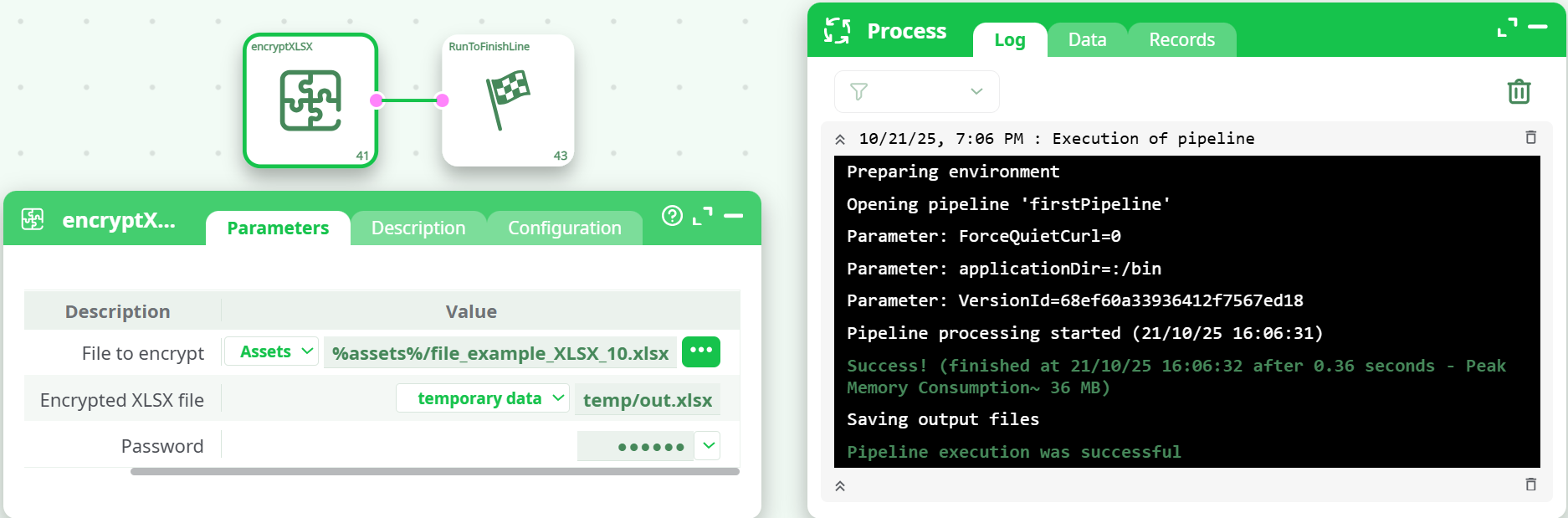
Path to the source.xlsx. You can pick from Assets (e.g.,%assets%/file_example_XLSX_10.xlsx) or browse the workspace. -
Encrypted XLSX file
Target path for the protected file.
Tips:- Use temporary data →
temp/out.xlsxfor quick tests. - Use recorded data →
records/out.xlsxif you want the file surfaced in the Records panel for download.
- Use temporary data →
-
Password
The open password to apply to the workbook. Prefer storing as a secret and referencing it here. Example shown masked in UI.
¶ How It Works
- The action reads the source workbook and writes a password-protected copy to the chosen location.
- No schema/row output is produced; this action is file-oriented.
- On success, opening the resulting file in Excel/LibreOffice shows a password prompt.
¶ Minimal Setup to Run
- File to encrypt:
%assets%/file_example_XLSX_10.xlsx - Encrypted XLSX file:
temporary data → temp/out.xlsx - Password:
MyStrongPwd123!(example; store as secret in real pipelines)
¶ Step-by-Step Run Instructions
-
Open encryptXLSX.
-
Set File to encrypt to your workbook (e.g., Assets →
%assets%/file_example_XLSX_10.xlsx). -
Set Encrypted XLSX file to temporary data →
temp/out.xlsx(or recorded data if you want it in Records). -
Enter Password (use a strong value; avoid spaces at the ends).
-
Run preview or full run. Expect Success in Log, and the output file at the configured path.
¶ Output
- Protected workbook at the Encrypted XLSX file path (e.g.,
temp/out.xlsxorrecords/out.xlsx). - Logs show a green Success! line on completion.
¶ Post-Run Validation
- From the file location (or Records tab if you used recorded data), download
out.xlsx. - Open in Excel/LibreOffice: you should be prompted for the password.
- Enter the password you set; the file should open normally.
¶ Troubleshooting
-
Error: file not found / path invalid
- Cause: Incorrect File to encrypt path or missing asset.
- Fix: Select the file via the picker or verify the
%assets%/...reference.
-
No file produced / write error
- Cause: Output path not writable or invalid folder.
- Fix: Switch to temporary data or recorded data, and provide a concrete filename like
temp/out.xlsxorrecords/protected.xlsx.
-
Opening file doesn’t ask for password
- Cause: Empty password entered.
- Fix: Provide a non-empty password (prefer a stored secret) and rerun.
¶ Use Cases & Tips
- Scheduled secure reports: Chain this after a report generator, then ship the protected file via SFTP/Email.
- Records surfacing: Use recorded data so end-users can download from the Records pane.
- Secrets hygiene: Save the password as a Secret in pipeline parameters, and reference it here (keeps logs clean).
- Naming convention: Include a suffix like
_protected.xlsxto distinguish from the source.