¶ Description
Move/Copy files from many directories to many directories.
¶ Parameters
¶ Parameters tab
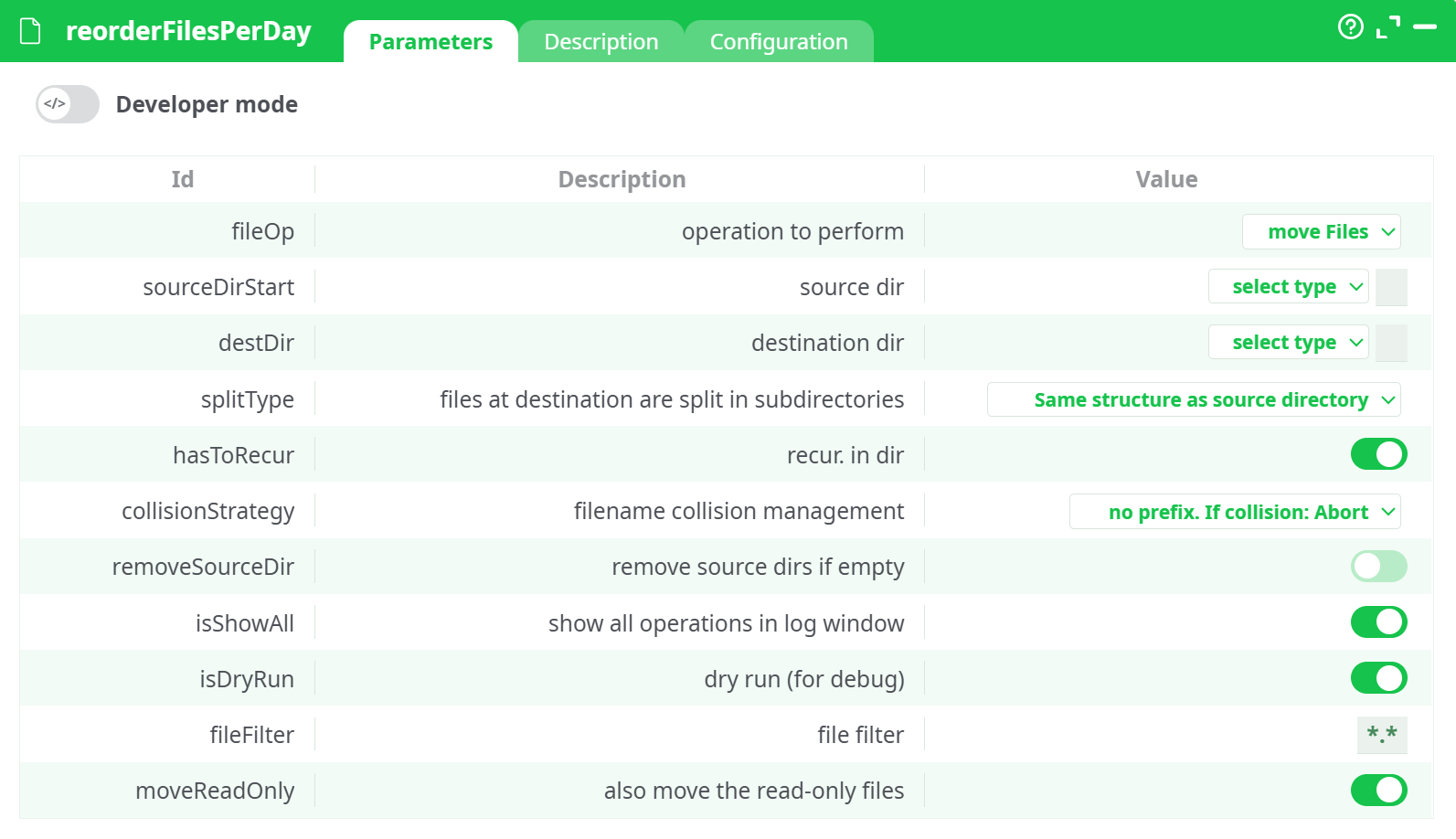
Parameters:
- operation to perform
- source dir
- destination dir
- files at destination are split in subdirectories
- recur. in dir
- filename collision management
- remove source dirs if empty
- show all operations in log window
- dry run (for debug)
- file filter
- also move the read-only files
¶ Description tab
See dedicated page for more information.
¶ Configuration tab
See dedicated page for more information.
¶ About
¶ About
reorderFilesPerDay is your “file librarian.” Point it at a folder tree and tell it what to do—move, copy, or delete files—and it will also rebuild a clean directory structure for you at the destination. The smart bit: that structure can be date-driven, based on each file’s last modification date. Need all yesterday’s CSVs under /2025/08/16/? Or monthly buckets like /2025/08/? Or just mirror the original tree? This box handles the heavy lifting while you stay in control with dry-run, filters, collision rules, and recursion.
Typical jobs:
- Daily landing-zone: copy incoming files into
/YYYY/MM/DD/…folders. - Log grooming: move last month’s logs out of hot storage into
/YYYY/MM/. - One-off cleanup: flatten a messy share into neat date buckets, then remove empty source directories.
The destination folders are created on the fly. Date buckets use each file’s last modified timestamp (filesystem time, not EXIF/embedded metadata).
¶ Prerequisites
- Read permission on source and write permission on destination.
- Stable paths (local drive, network share, or mounted location available to the runner).
- Enough free space if you copy; move does not duplicate data.
- If you care about timezone boundaries for “day/month/year,” make sure the host time is correct.
¶ Input (what the box expects)
- A source directory (optionally including subfolders).
- Optionally, a file filter (wildcards) to target specific files like
*.csvor2025-*.log.
No data table input is required; this box operates on the filesystem.
¶ Parameters (explained plainly)
¶ Operation to perform — fileOp
Choose Move files, Copy files, or Delete files.
- Move: cut-and-paste to the destination. Fast and space-efficient on the same volume. Pair it with Remove source dirs if empty for tidy cleanups.
- Copy: leave the original in place, make a dated copy at the destination. Use for staging or backups.
- Delete: remove matching files in the source tree. Always start with Dry run + narrow file filter before flipping this on for real.
¶ Source directory — sourceDirStart
Where to start scanning. You can pick from:
- Assets / @shared / recorded data / temporary data (environment sources), or
- a JavaScript expression (handy for dynamic paths like
"/data/in/" + today).
¶ Destination directory — destDir
Where files end up (required for Move and Copy; ignored for Delete). The box creates missing folders as needed, based on your Split type setting below.
¶ Split type (how to build subfolders) — splitType
This decides the folder layout under the destination:
- Each day is a different subdirectory →
/YYYY/MM/DD/filename.ext
Great for daily partitions and retention policies. - Each month is a different subdirectory →
/YYYY/MM/filename.ext
Good for logs, invoices, and monthly reporting. - Each year is a different subdirectory →
/YYYY/filename.ext
For archival buckets. - Same structure as source directory → mirrors the entire source tree at the destination (no date buckets).
- No subdirectory → dumps files flat into the destination (be careful with name collisions).
The date used is the file’s last modification date from the filesystem.
¶ Recurse into subfolders — hasToRecur
Turn this ON to include all subdirectories of the source.
- With Same structure as source, you’ll get a full mirror.
- With date buckets, the tree is flattened into the chosen date structure (day/month/year) regardless of the original layout.
¶ Filename collision management — collisionStrategy
What to do if a file with the same name already exists at the destination bucket:
- Abort (safe default): stop at the first collision.
- Overwrite & continue: replace the destination file.
- Simply continue: skip writing the colliding file, keep going.
- Add a prefix: keep both by adding a prefix to the new file (useful when consolidating many sources).
Choose Abort when you’re unsure; switch to Overwrite only if downstream logic expects the latest copy.
¶ Remove source dirs if empty — removeSourceDir
After a Move, delete any directories that became empty. It won’t touch non-empty folders.
¶ Show all operations in log — isShowAll
Verbose logging. Enable this during testing to see exactly what would happen to each file.
¶ Dry run (for debug) — isDryRun
The safety catch. When ON, the box does not change the filesystem; it only logs the actions it would take.
Always start with Dry run = ON, then turn it OFF once the plan looks right.
¶ File filter — fileFilter
Wildcard pattern to narrow the scope. Examples:
*.csv— only CSV files**/*.log— all logs, including subfolders (with recursion)report_*.pdf— specific naming scheme2025-08-*.parquet— month slice
¶ Also move the read-only files — moveReadOnly
If OFF, read-only files may be skipped on some systems. Turn ON to force the operation when you have permissions.
¶ Example Workflow (step-by-step)
-
Plan the action
- Start with Copy files (safer than Move) and Dry run = ON.
- Set File filter to a small slice, e.g.
*.csv.
-
Select paths
- Source: your inbound folder (e.g., a share or mounted path).
- Destination: your curated landing zone.
-
Choose layout
- Split type: Each day is a different subdirectory.
- Recurse: ON (pull from all subfolders).
-
Collisions
- Keep Abort for the first pass.
-
Run (dry)
- Review the log: it should list the from → to actions for each file.
-
Go live
- Turn Dry run OFF.
- (Optional) switch Copy → Move if you want to free the source.
- (Optional) enable Remove source dirs if empty to tidy up.
¶ Safety & best practices
- Always dry run first. Especially with Move or Delete.
- Use a narrow file filter to test, then broaden it.
- Be deliberate with collisionStrategy; Abort is your seatbelt.
- If buckets look off by a day/month, remember it uses last modification time; adjust timestamps upstream if needed.
- On network shares, long paths and permission quirks can bite—test with a handful of files before scaling up.
¶ Troubleshooting
-
Nothing happens in live run
- Dry run still ON. Flip Dry run OFF for the actual move/copy/delete.
-
Files didn’t appear under expected date
- The modification time is different from creation time. Normalize timestamps upstream (e.g., touch the files) if you need specific bucketing.
-
“Access denied” or skipped files
- Check permissions and moveReadOnly. On Windows shares, clear the read-only flag or run with sufficient privileges.
-
Unexpected overwrites
- Collision strategy set to Overwrite. Switch to Abort or Add a prefix for safer merges.
-
Empty folders left behind
- Enable Remove source dirs if empty (only works with Move).