¶ Description
Convert .yxmd to pipeline.
¶ Parameters
¶ Parameters tab

Paramters:
- Developer mode: activate/deactivate code tab.
- Add button: Add custom parameters
- Trash button: Delete selected parameter(s)
- .yxmd file to convert to pipeline: self-explained.
¶ Decription tab
See dedicated page for more information.
¶ Code tab
yxmdConvert is a scripted action. Embedded code is accessible and customizable through this tab.
¶ configuration tab
See dedicated page for more information.
¶ About
yxmdConvert ingests one or more Alteryx Designer workflow files (.yxmd) and converts them into a platform-readable structure. It’s designed for cataloging, auditing, or migrating Alteryx workflows into your data-ops environment without executing the original flows.
At a high level the action:
- Reads each
.yxmdpath supplied by the upstream table. - Loads and validates the XML content of the workflow.
- Parses tools, connections, and core metadata.
- Emits normalized outputs to the downstream pin so you can save, inspect, or visualize the conversion results.
Typical uses: centralizing workflow inventories, reviewing dependencies before migration, keeping a searchable catalog of legacy Alteryx assets, or preparing automated rebuilds in your new platform.
¶ How it works (conceptual flow)
- Upstream table of file paths. You feed a single column that lists the filesystem paths to
.yxmdfiles (one row per file). - Batch conversion.
yxmdConvertiterates row-by-row, converting each referenced file. - Downstream consumption. Connect any exporter/visualizer to capture the results (e.g., write records to disk, push to a metadata store, or trigger a reporting step).
¶ Minimum setup (end-to-end)
-
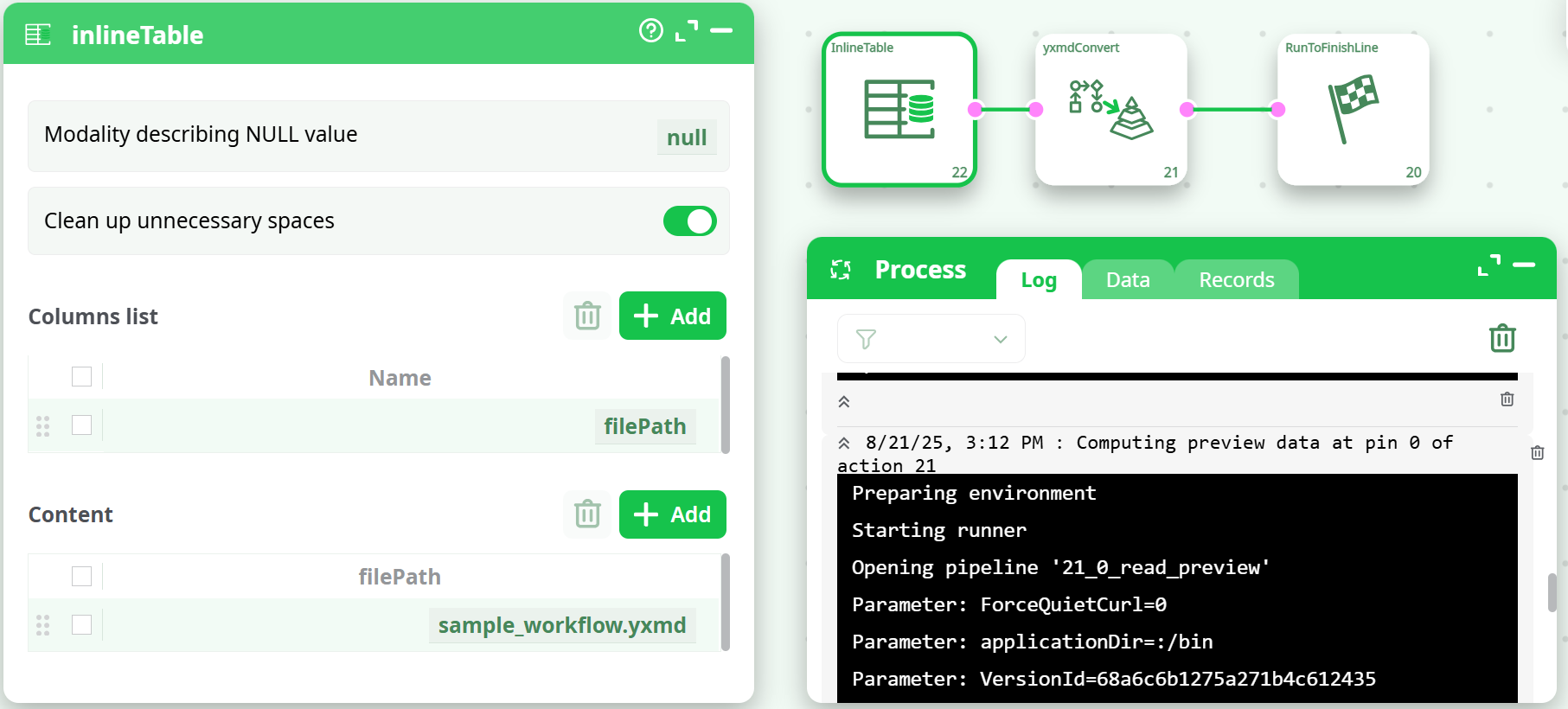
Create the list of files to convert
- Drop an InlineTable (or any reader) and add a single text column, e.g.,
filePath. - In the content grid, insert the relative path(s) to your
.yxmdfile(s).
Example path style:assets/sample_workflow.yxmd(visible in the asset browser pane). - Keep “Clean up unnecessary spaces” ON so trailing spaces don’t break path resolution.
- Drop an InlineTable (or any reader) and add a single text column, e.g.,
-
Map the column in yxmdConvert
- Open yxmdConvert and set Column with paths of files to convert to your column name (e.g.,
filePath).
- Open yxmdConvert and set Column with paths of files to convert to your column name (e.g.,

-
Run and validate
- Connect to RunToFinishLine and execute.
- In Process → Log, look for a success message. Use Records/Data to view the conversion output and capture files if the action writes any artifacts.
¶ Input & file handling specifics
- Supported input: Plain
.yxmdfiles (Alteryx Designer workflow XML). - Where files live: Place them under a reachable workspace folder such as
assets/so the asset picker and runtime can resolve the paths reliably. - How many files: Any number—add one row per file in the upstream table.
¶ Security & compliance notes
.yxmdfiles are XML text and may contain embedded credentials or connection strings. Store and process them only in approved locations and scrub/export redacted metadata if required.- Treat untrusted
.yxmdas untrusted input; do not open outside controlled environments.
¶ Troubleshooting guide
“cannot open file … No such file or directory”
- The path in
filePathdoesn’t match the asset’s real location or the file wasn’t uploaded/unzipped. - Verify it appears in the right-side assets browser and that the name is exact (case, spaces, extension).
Nothing appears at output
- Ensure the upstream column name exactly matches the mapping in yxmdConvert (e.g.,
filePath). - Preview the output pin; if your flow expects files, add a writer/exporter node after yxmdConvert.