¶ Description
Download data from Microsoft SharePoint.
¶ Parameters
¶ Standard tab
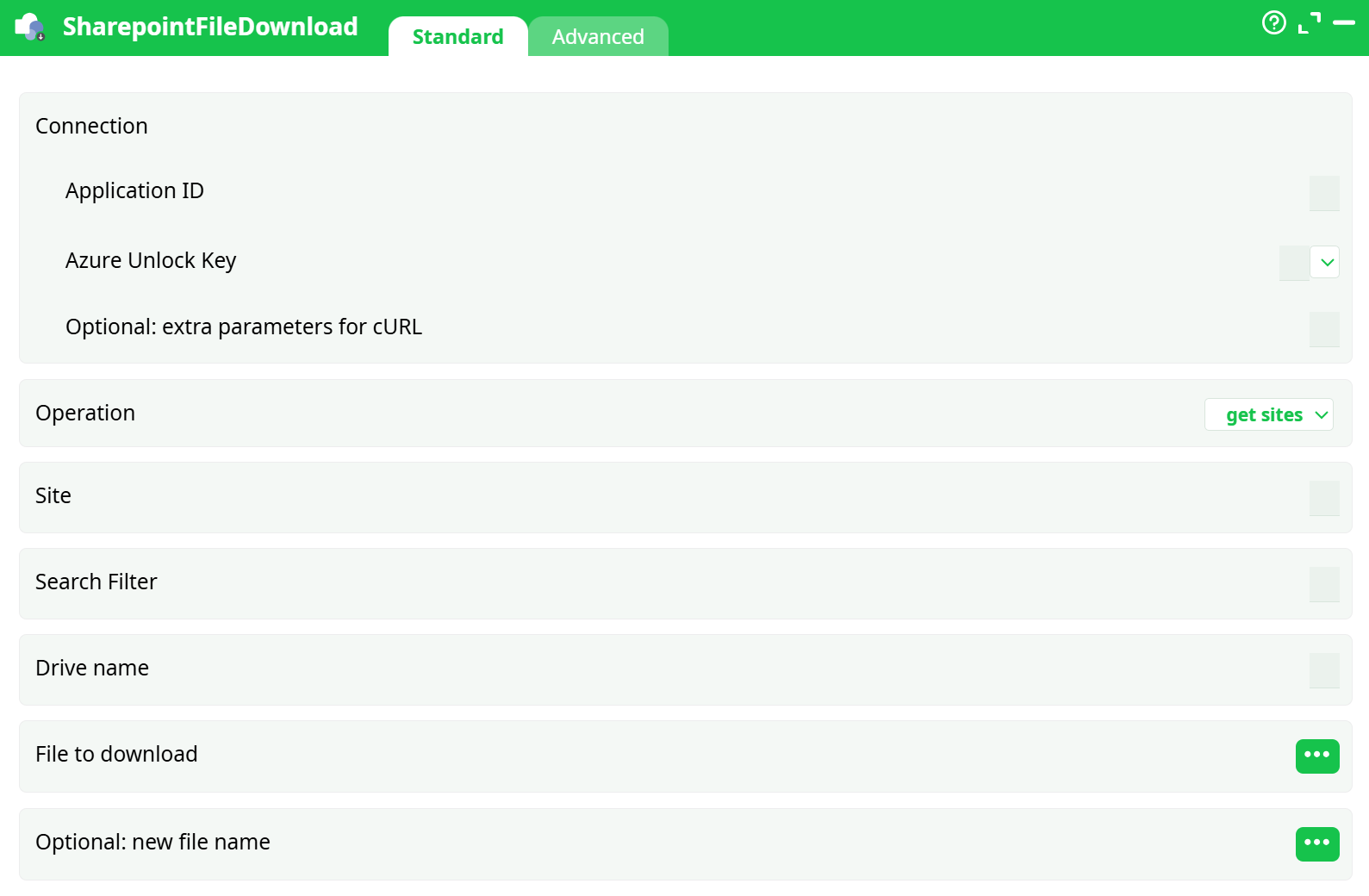
Parameters:
-
Connection
- Application ID
- Azure Unlock Key
- Optional: extra parameters for cURL
-
Operation
-
Site
-
Search Filter
-
Drive name
-
File to download
-
Optional: new file name
¶ Advanced tab

Parameters:
- On no response from Sharepoint
¶ About
This action also works when accessing the web through a PROXY server.
This action currently only supports Microsoft Sharepoint on Azure.
- For detailed instructions on how to configure the Azure service, see: AzureServiceConfiguration
To use this action, you’ll need to setup several parameters on the Azure Website and you’ll also need to obtain your “Application ID” (parameter P1), also from the Azure Website.
Once you have completed the “setup process”, you can use the parameters P6 to P10 to download data from your Microsoft SharePoint system.
The parameter P9 allows you to download items from several different lists: Just give as input to this action a table with the name of all the “lists” that you want to download (the parameter P8 change to a button that allows to select the column that contain the “Lists” names).
¶ SharePoint, OneDrive, Office365-eMails first time setup
Before accessing Microsoft Sharepoint or before accessing your Microsoft OneDrive, you need to create and setup a new Azure application. Here are the steps:
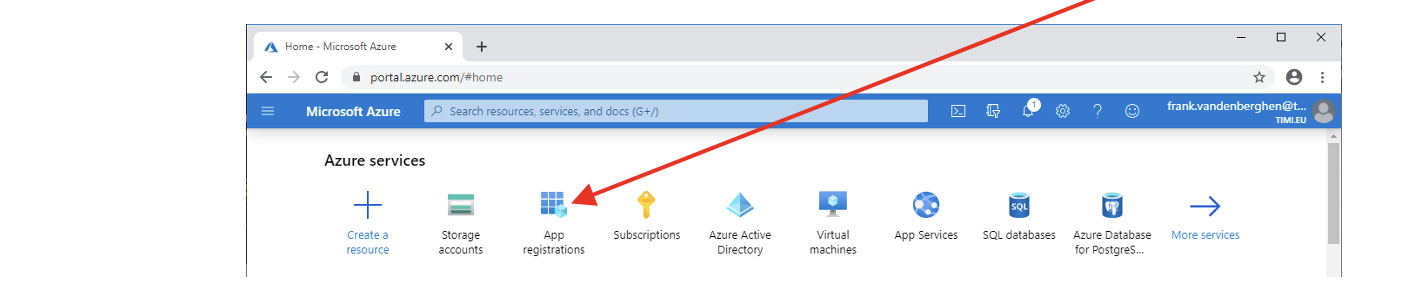
- Open the URL https://portal.azure.com and “log-in” using your normal “Login” and “Password” for Azure (These are the same “Login” and “Password” that are required for parameters P2 and P3 inside ETL). Then, click on the “App Registration” icon:
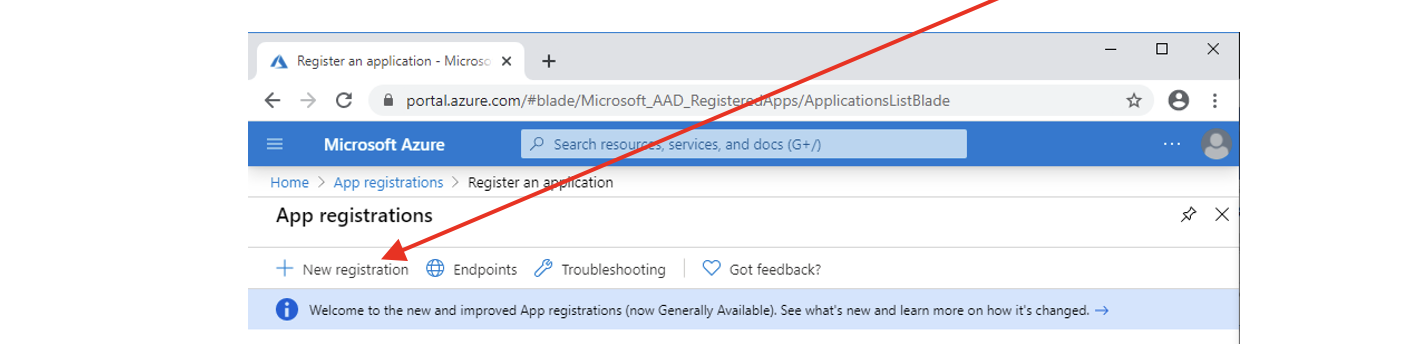
- We will create a new Azure App: Click the “New registration” button:
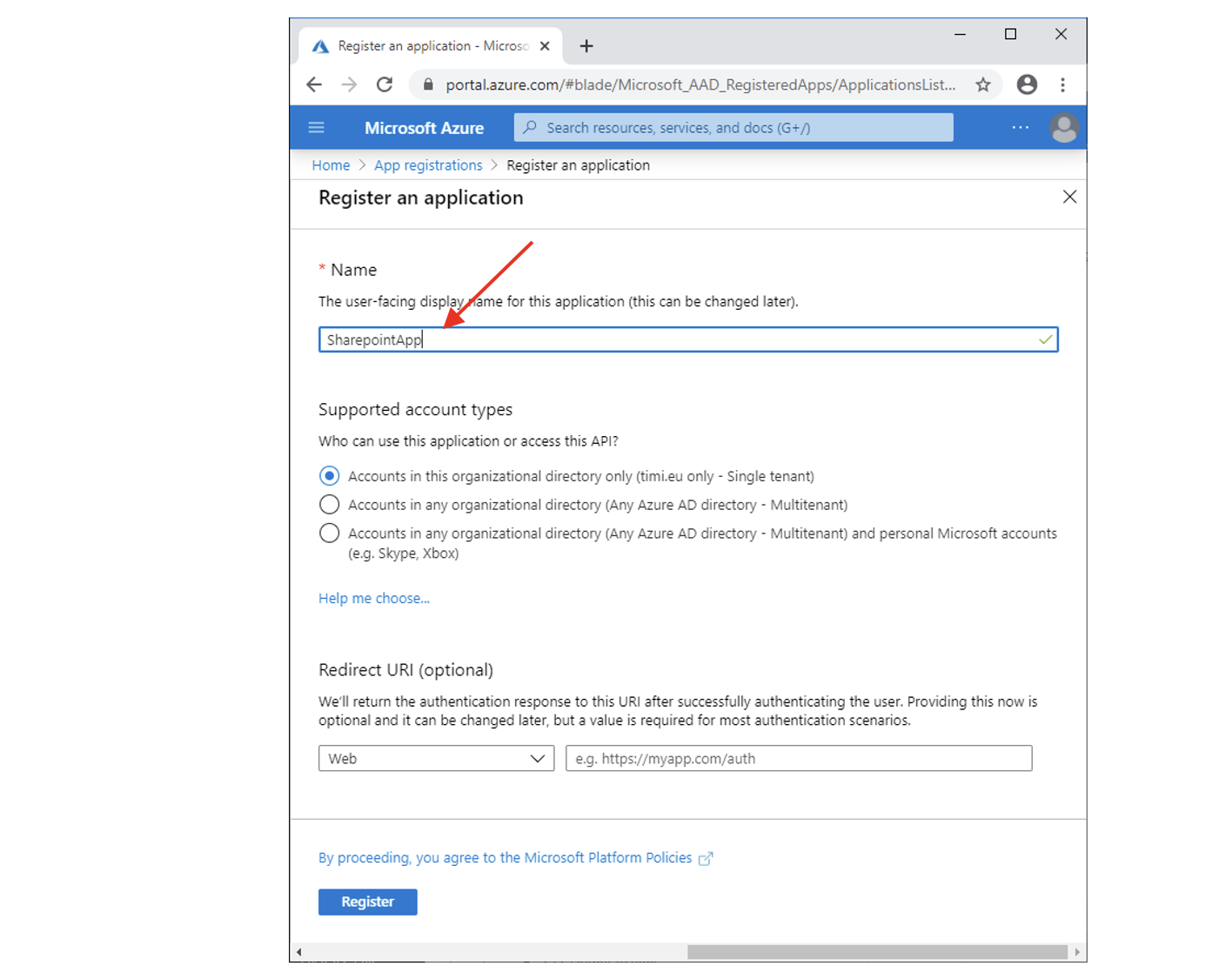
- Give a name to your Azure App (you can use any name) and click the “Register” button:
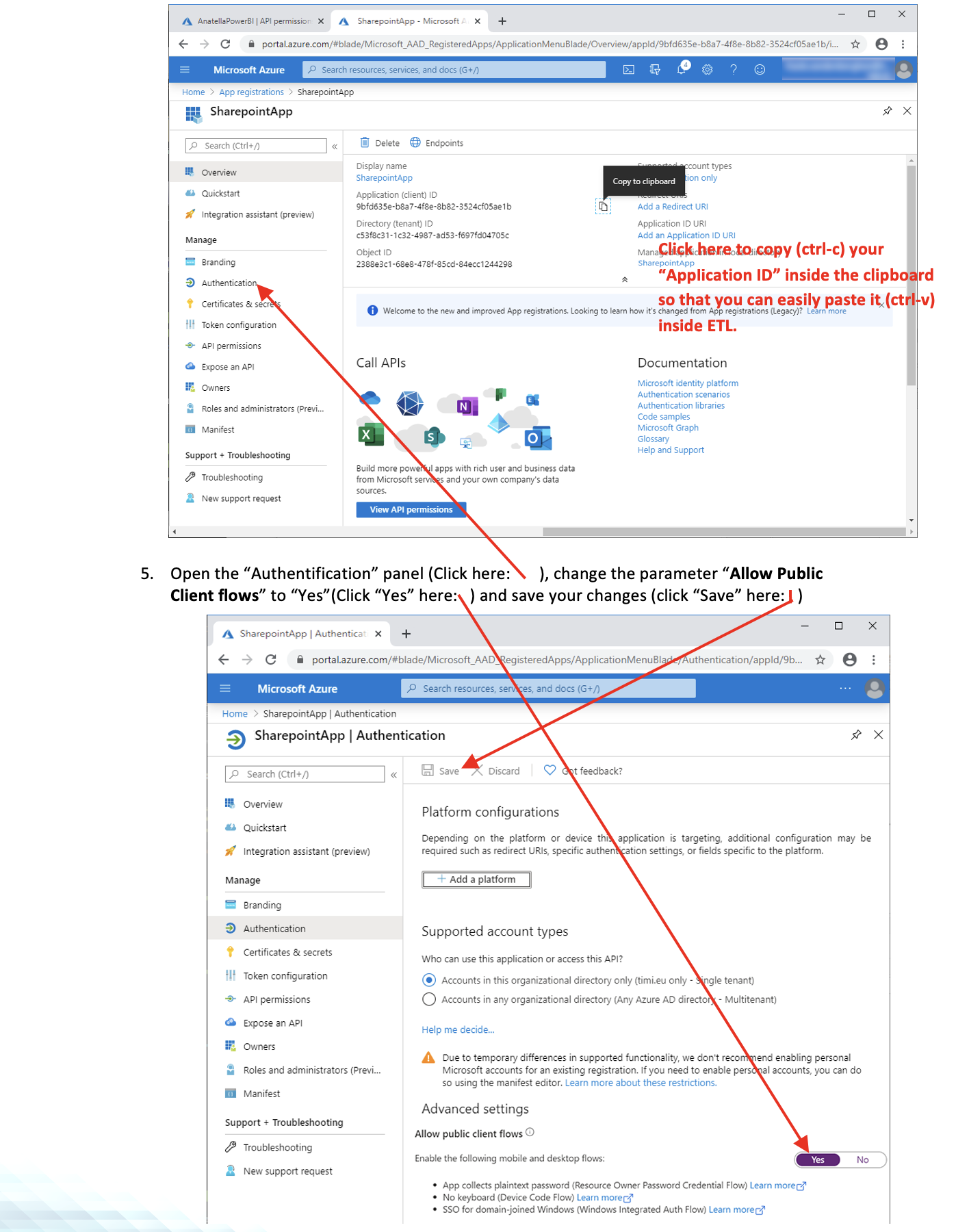
- You are now receiving the ETL parameter P1 (i.e. your “Application ID”): it’s here:
NOTE :
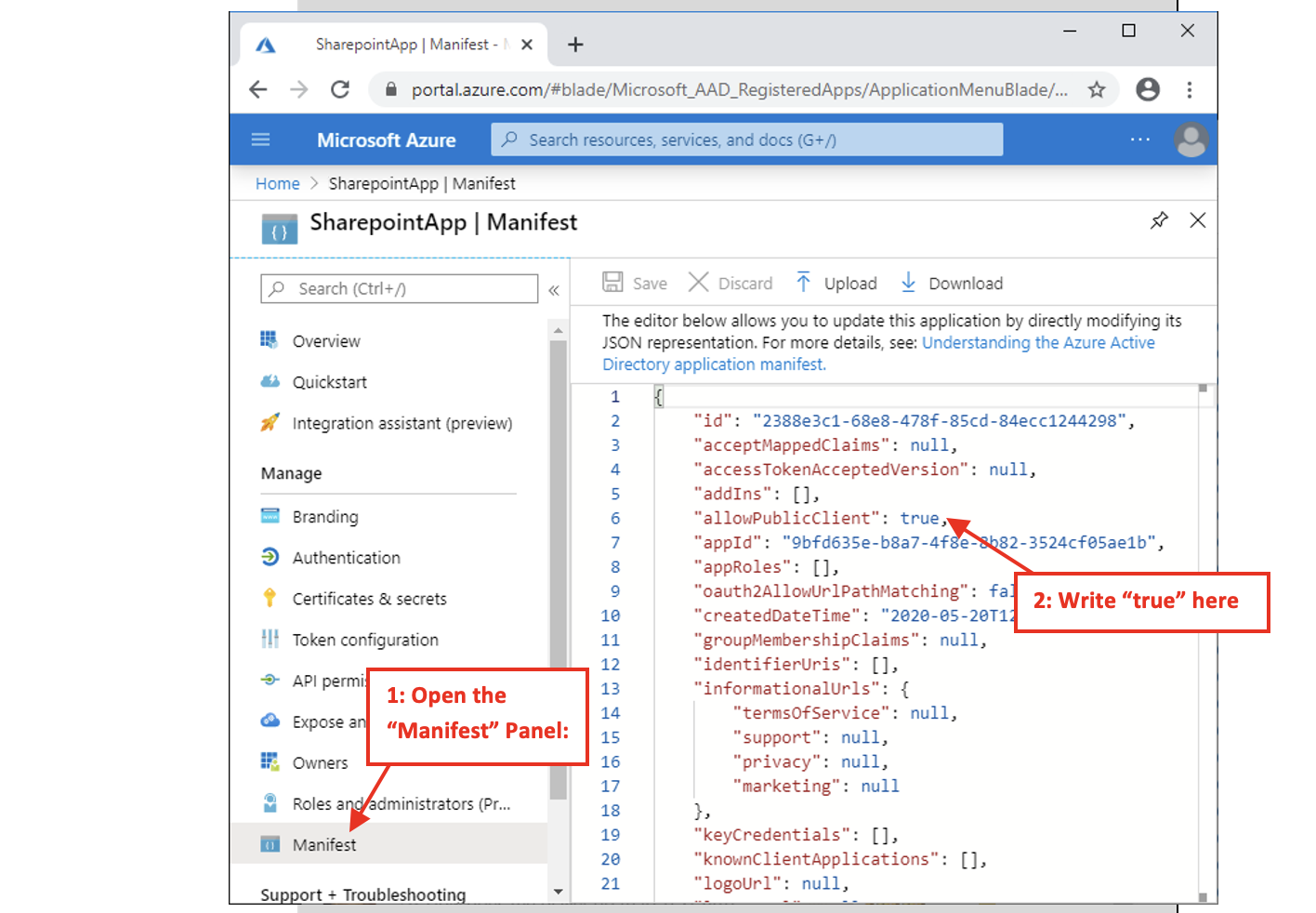
Alternatively, another way to change the parameter “Allow public client flows” to “Yes” is the following:
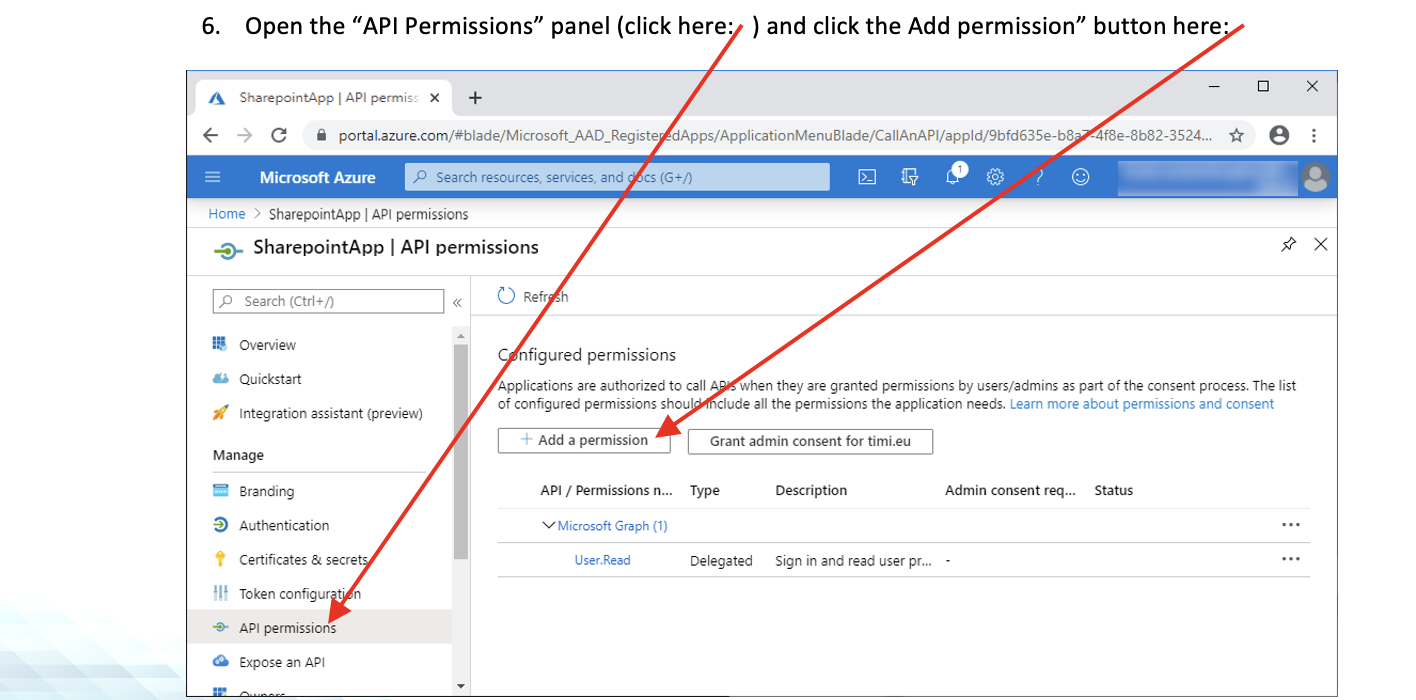
- Click on “Microsoft Graph”:
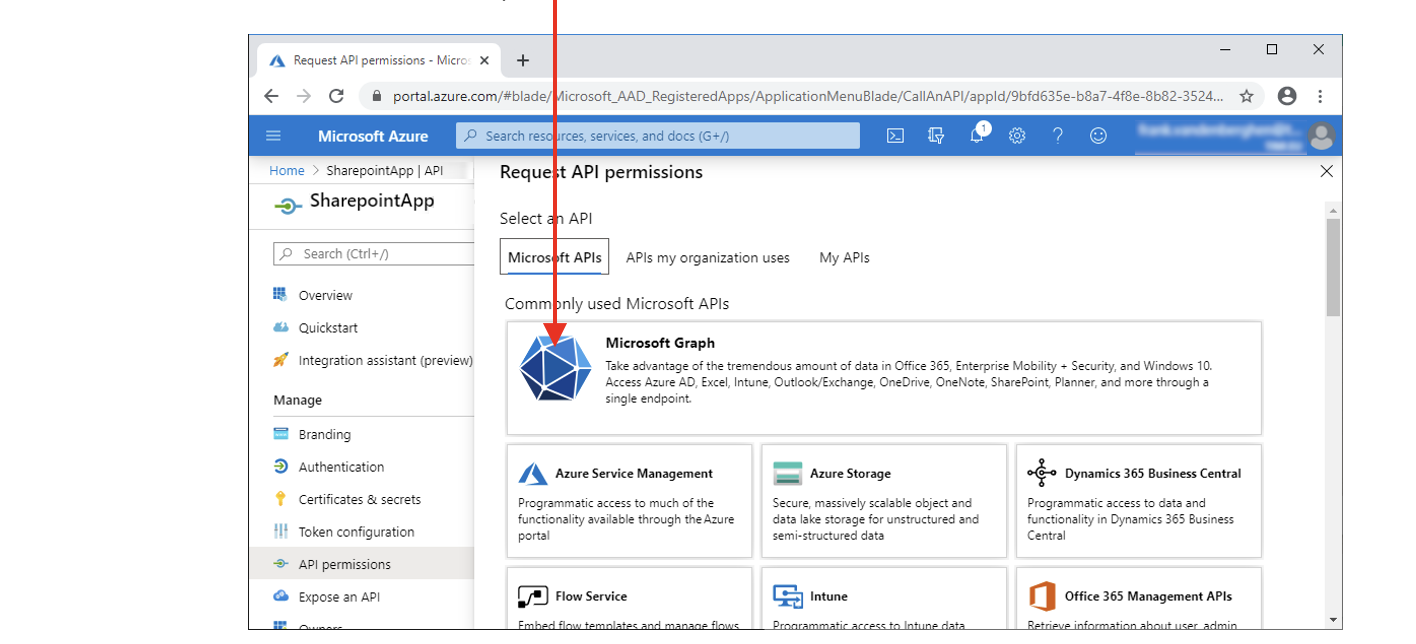
- Click on the “Delegated Permissions” button.
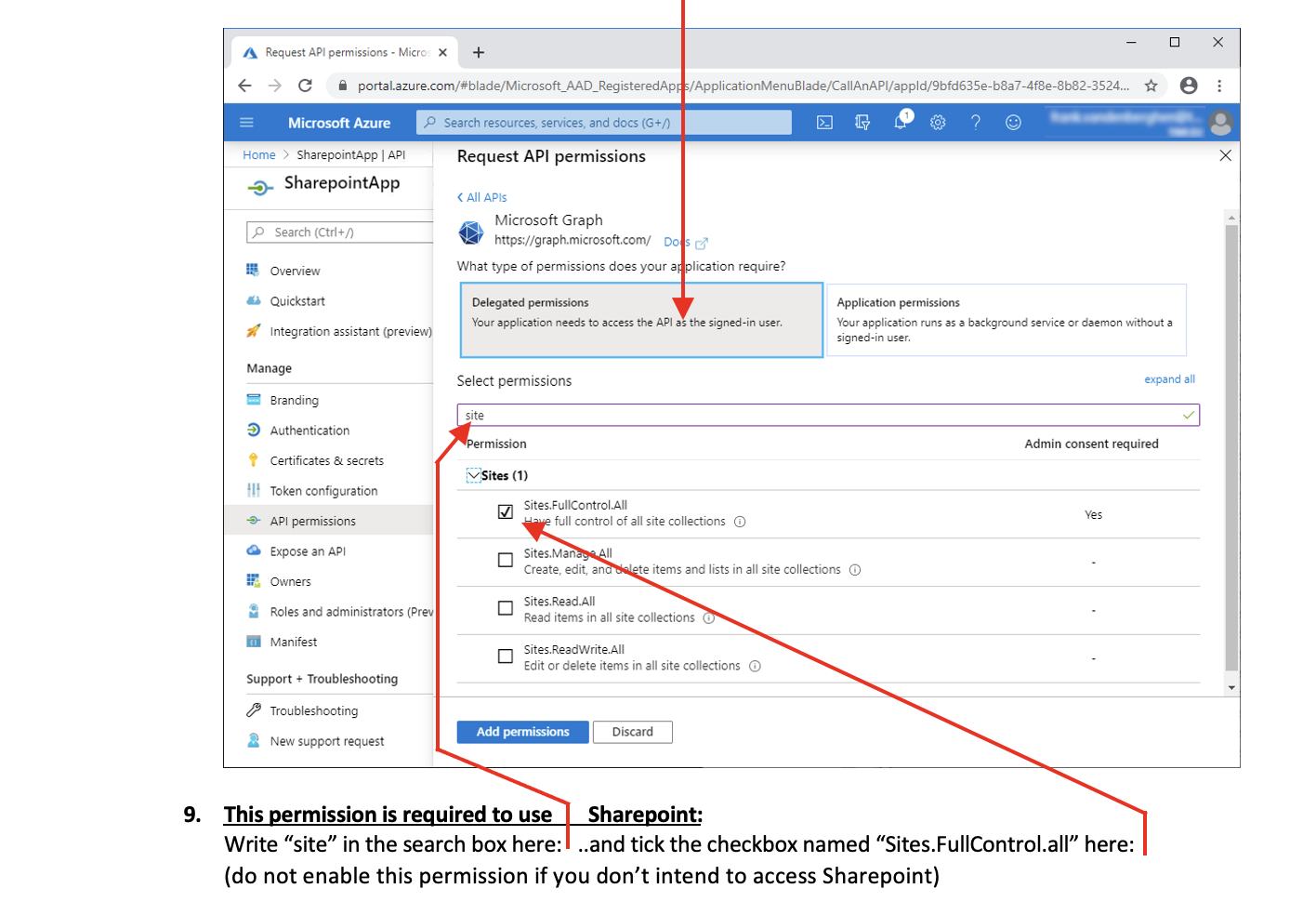
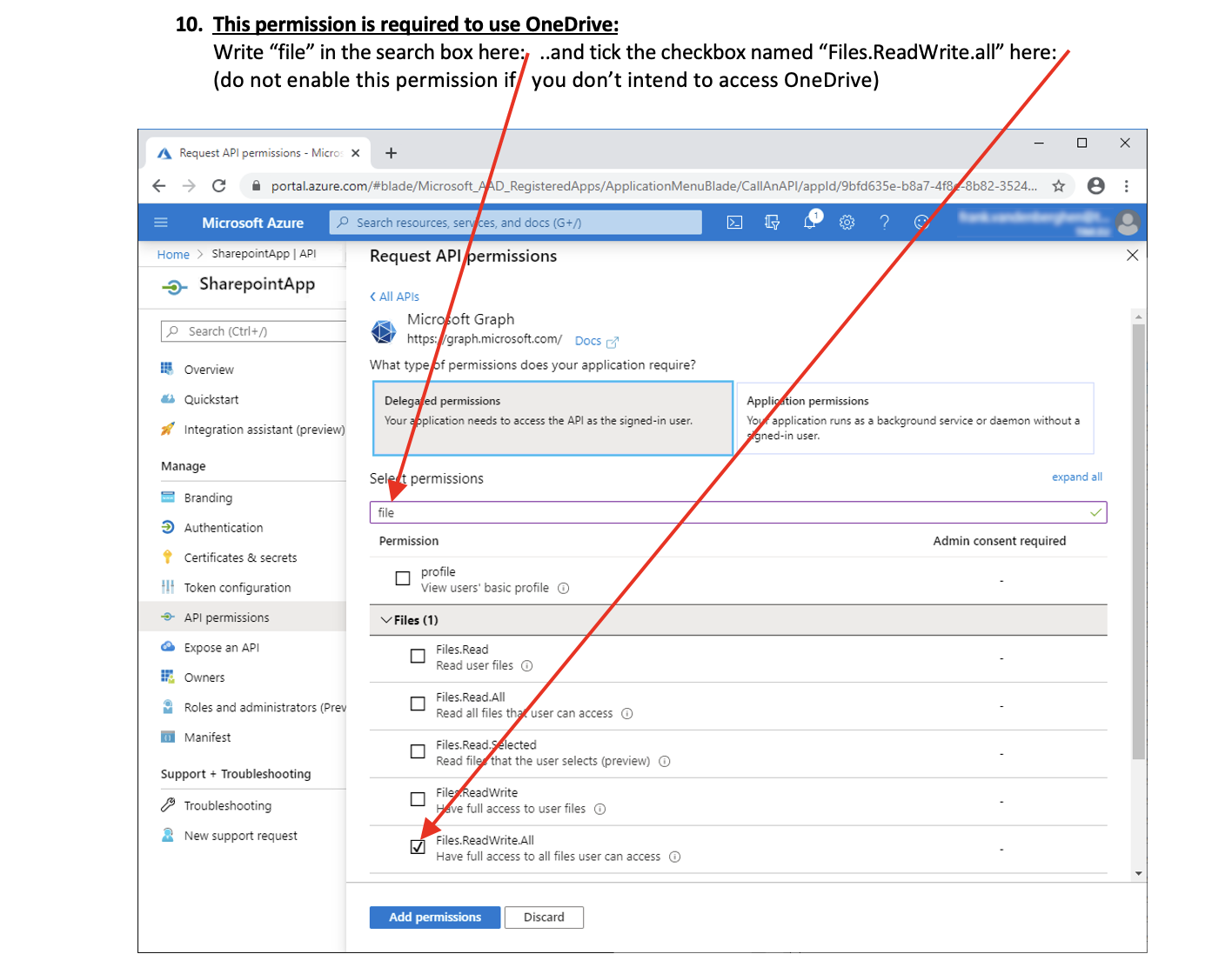
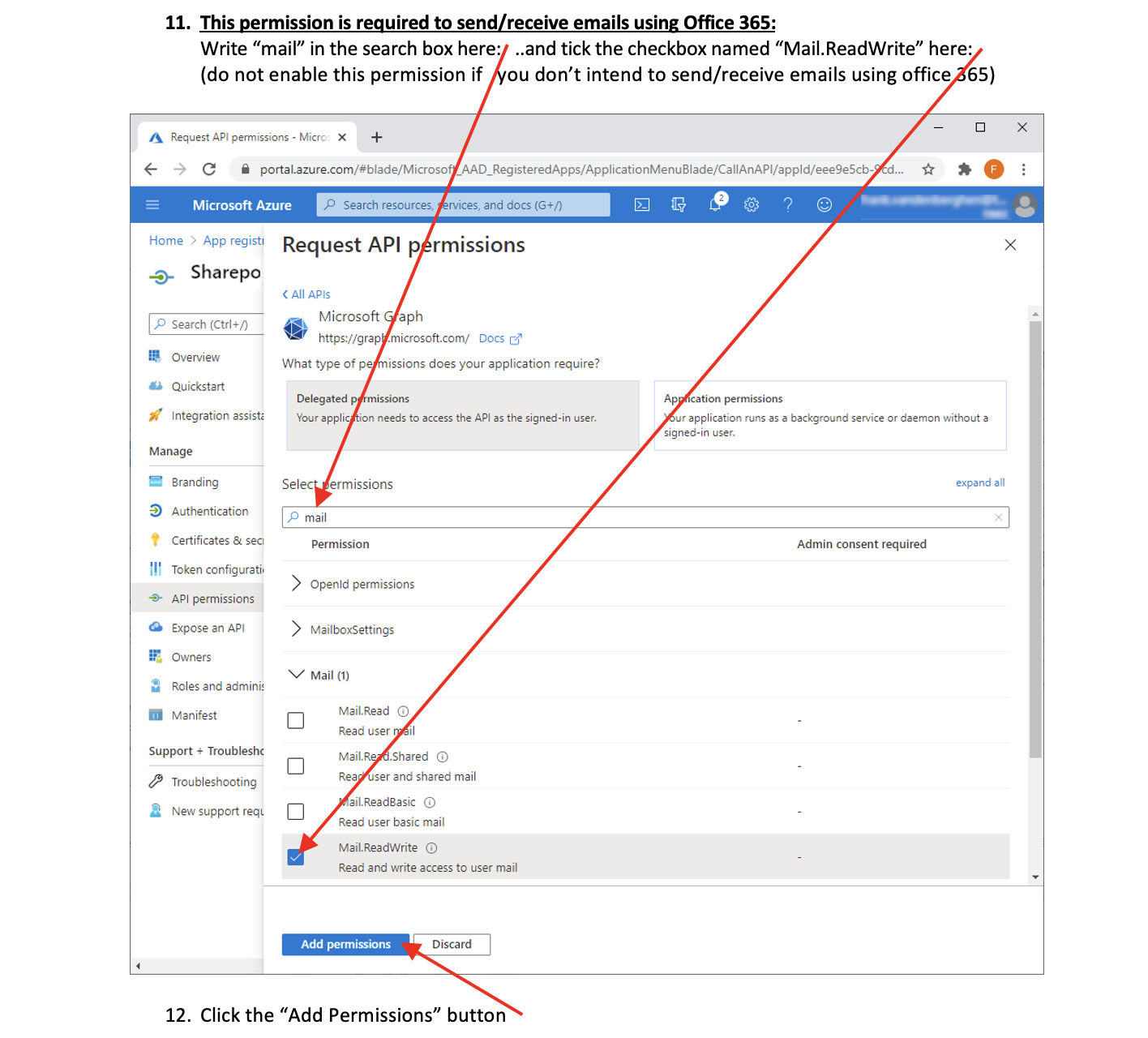
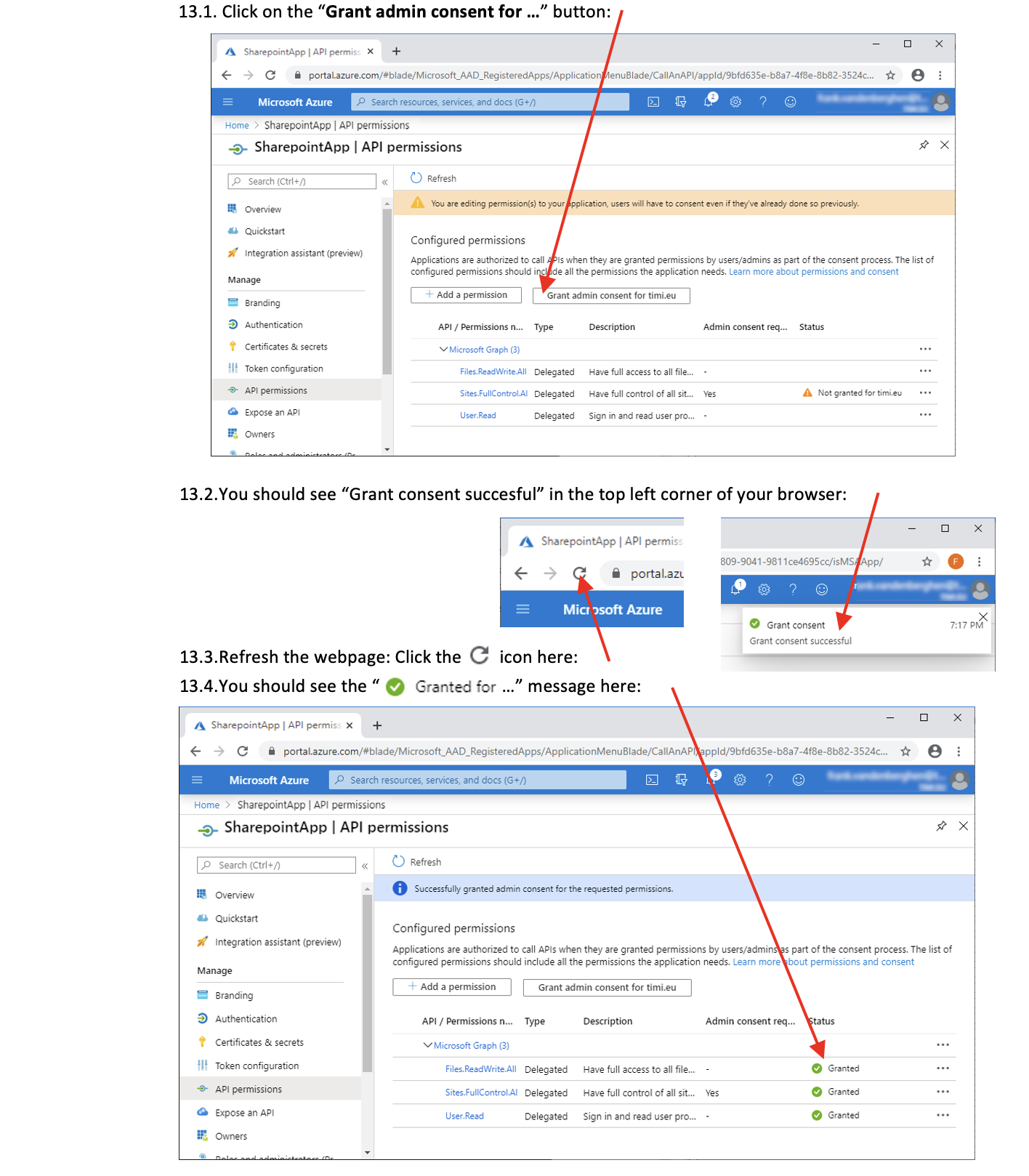
13. Grant “Admin consent” to your application: