¶ Description
Get Emails using your Office 365 subscription.
¶ Parameters
¶ Standard tab
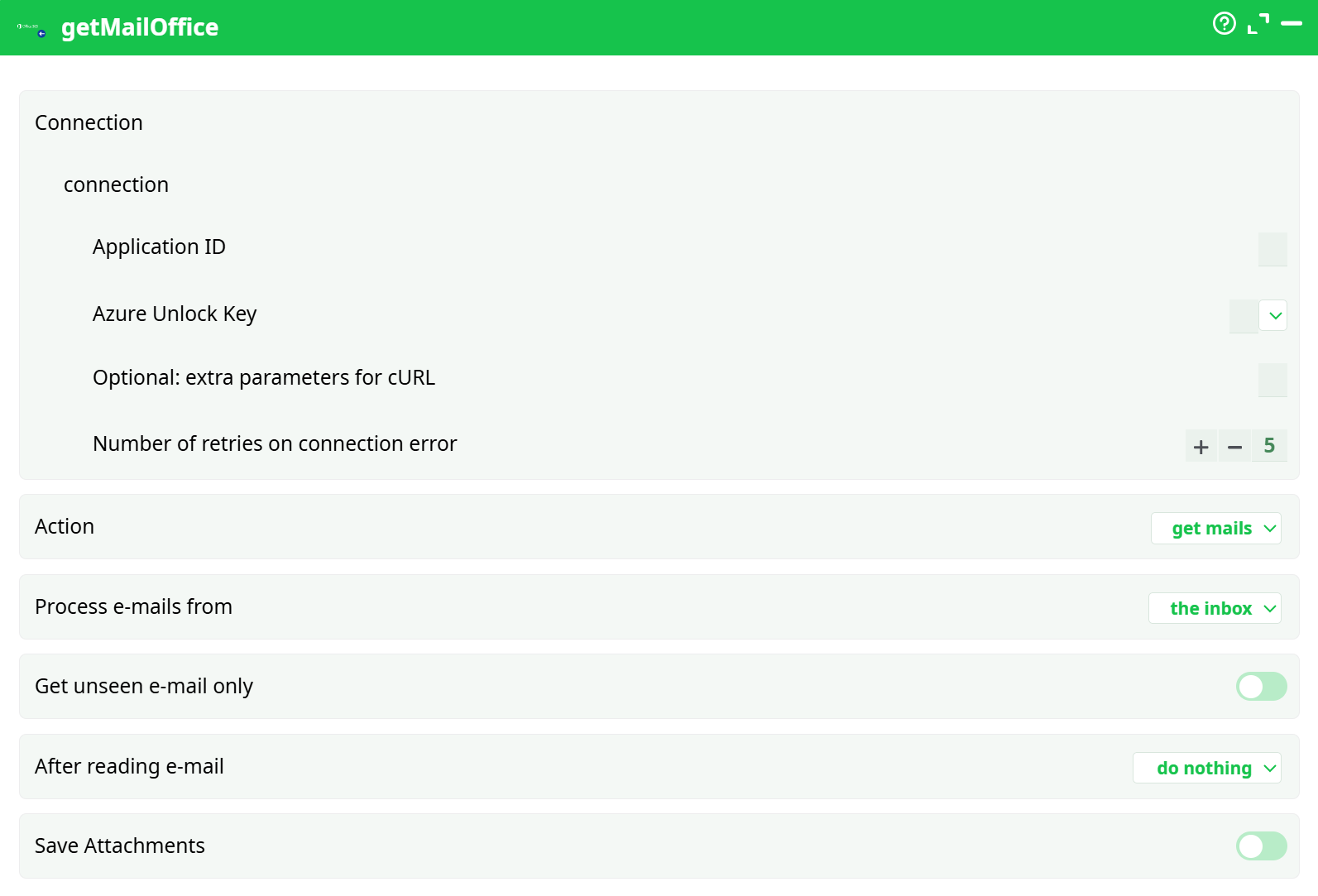
Parameters:
- connection
- Application ID
- Azure Unlock Key
- Optional: extra parameters for cURL
- Number of retries on connection error
- Action
- Process e-mails from
- Get unseen mail only
- After reading email
- Save Attachments
¶ About
This action fetches email messages from a Microsoft 365 mailbox using Microsoft Graph. It can also list mailboxes, optionally save attachments, and (if allowed) mark messages as read or delete them after processing.
- For detailed instructions on how to configure the Azure service, see: AzureServiceConfiguration
¶ Prerequisites
- P1 — Application ID (your Entra ID / Azure AD App’s Application (client) ID)
- P2 — Azure Unlock Key (the secure key you generated during the sendMailOffice setup)
-
Register the app in Microsoft Entra ID → App registrations (single tenant is fine).
-
Add Microsoft Graph permissions → Application type:
Mail.Read(required to read messages)Mail.ReadWrite(required if you will mark as read or delete***)- (You may also have
Mail.Sendfrom the sendMailOffice step; it’s fine to keep it.) - Give Admin consent for the tenant.
-
Create a client secret (or use your existing one) and generate the Azure Unlock Key the same way you did for
sendMailOffice. -
Copy the Application (client) ID and your Azure Unlock Key into this box.
**If you do not grant
Mail.ReadWrite, set “After reading e-mail” to “do nothing”. Marking as read / deleting will fail without that permission.
¶ Parameters
¶ Connection
- Application ID: paste the App (client) ID from Entra ID.
- Azure Unlock Key: paste the unlock key you generated (same one you used for
sendMailOffice). - Optional: extra parameters for cURL: keep empty unless you must add corporate proxy flags.
- Number of retries on connection error: default
5is safe.
¶ Action
- get mails: download messages from the chosen mailbox/folder(s).
- list mail boxes: output the available mailbox folders (Inbox, Archive, custom folders, etc.).
- purge mails: permanently delete matching messages (use cautiously).
¶ Process e-mails from
- the inbox: reads from the Inbox folder.
- the boxes whose names are given on the input pin: pass a column (list) with folder names (e.g.,
["Inbox","Invoices","Vendors"]) to read multiple folders in one run.
¶ Get unseen e-mail only
- On: fetch only unread (helps prevent duplicates).
- Off: fetch all messages that match the box/folder.
¶ After reading e-mail
- do nothing: leaves messages unchanged (works with
Mail.Read). - mark as read: set the message as read (requires
Mail.ReadWrite). - delete: deletes the message (requires
Mail.ReadWrite). Use carefully.
¶ Save Attachments
- Toggle: enable to save attachments as files.
- Attachment Dir: choose the storage area and path (e.g.,
temporary data / temp/attachments). - Overwrite Attachments: enable if you want to replace files that already exist.
- Save PNG/GIF images / Save JPG images: turn off to skip inline/logo images that often clutter attachment folders.
¶ Typical outputs
Depending on the selected Action:
- get mails → a table with one row per email containing common fields such as:
id,mailbox,subject,from,to,cc,date,isRead, and body fields (text,html) plus attachment info (saved file paths when saving is enabled). - list mail boxes → a list of folder names and metadata you can feed back into Process e-mails from → the boxes whose names are given on the input pin.
- purge mails → returns a summary of deletions.
Exact column names may vary by version; use the column picker to see what’s available in your environment.
¶ Common recipes
¶ 1) Read only new messages from Inbox and save attachments
- Action:
get mails - Process e-mails from:
the inbox - Get unseen e-mail only: On
- After reading e-mail:
mark as read(requires Mail.ReadWrite) - Save Attachments: On →
Attachment Dir = temporary data / temp/attachments - Run. Attachments will be saved; messages will be marked as read.
¶ 2) Read from multiple folders provided upstream
- Upstream, build a column like
["Inbox","Vendors","Finance/Invoices"]. - In Process e-mails from select:
the boxes whose names are given on the input pin. - Keep Get unseen e-mail only: On, and After reading e-mail:
do nothingfor testing. - Run and verify output from all folders.
¶ 3) List all mailboxes (folders)
- Action:
list mail boxes - Use the resulting list to drive the previous recipe.
¶ 4) Purge a folder (dangerous)
- Action:
purge mails - Process e-mails from: choose the folder(s) carefully.
- Get unseen e-mail only: usually Off (you likely want all).
- Requires
Mail.ReadWrite. Consider running first with get mails to review before purging.
¶ Tips & troubleshooting
-
Permissions errors when marking as read or deleting: verify the app has Graph → Application → Mail.ReadWrite and that Admin consent is granted.
-
No emails returned:
- Check the selected folder(s) and the Get unseen e-mail only flag.
- Make sure your app has access to that mailbox (for multi-mailbox/daemon scenarios, the app must be allowed organization-wide or you must scope to the intended mailbox).
-
Attachment noise: turn off Save PNG/GIF images and Save JPG images to skip inline logos.
-
Proxy environments: set your proxy flags in Optional: extra parameters for cURL.