¶ Description
Delete files from a container in an Azure Blob Storage.
¶ Parameters
¶ Parameters tab
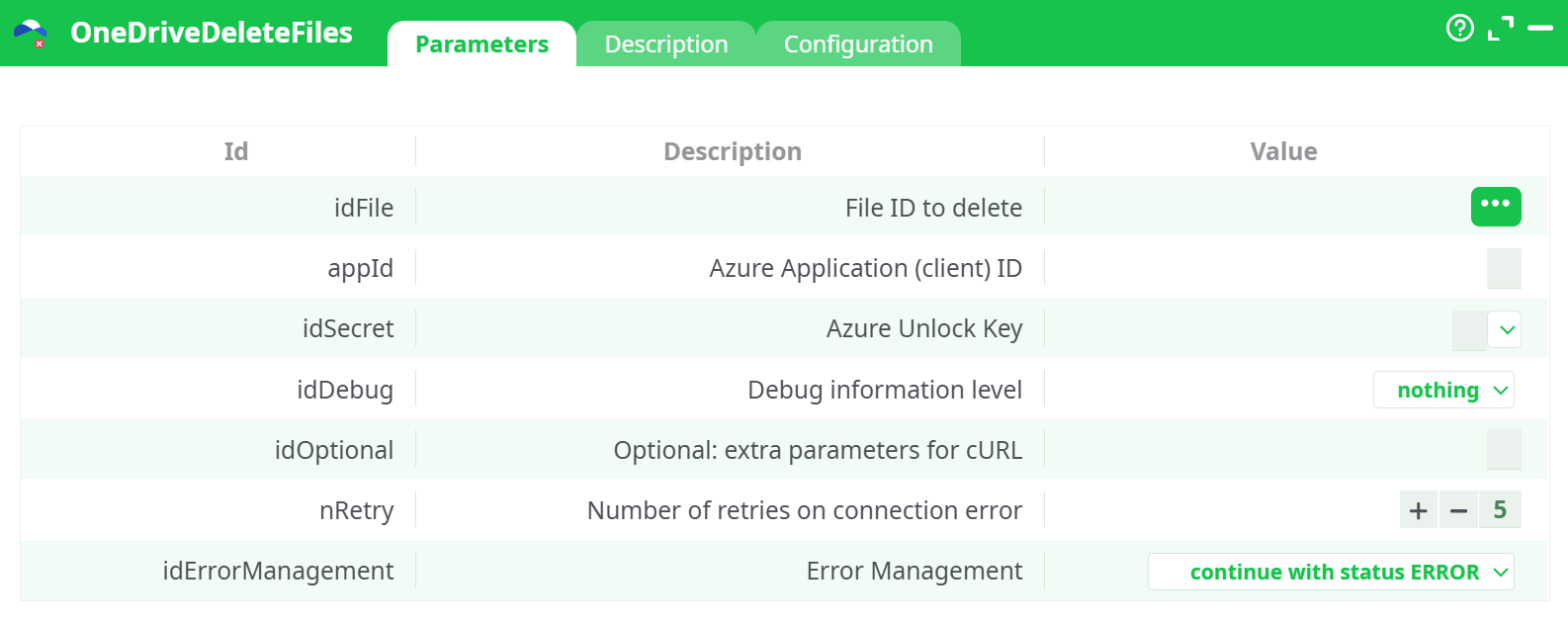
Parameters:
- File ID to delete
- Azure Application (client) ID
- Azure Unlock Key
- Debug information level
- Optional: extra parameters for cURL
- Number of retries on connection error
- Error Management
¶ Description tab
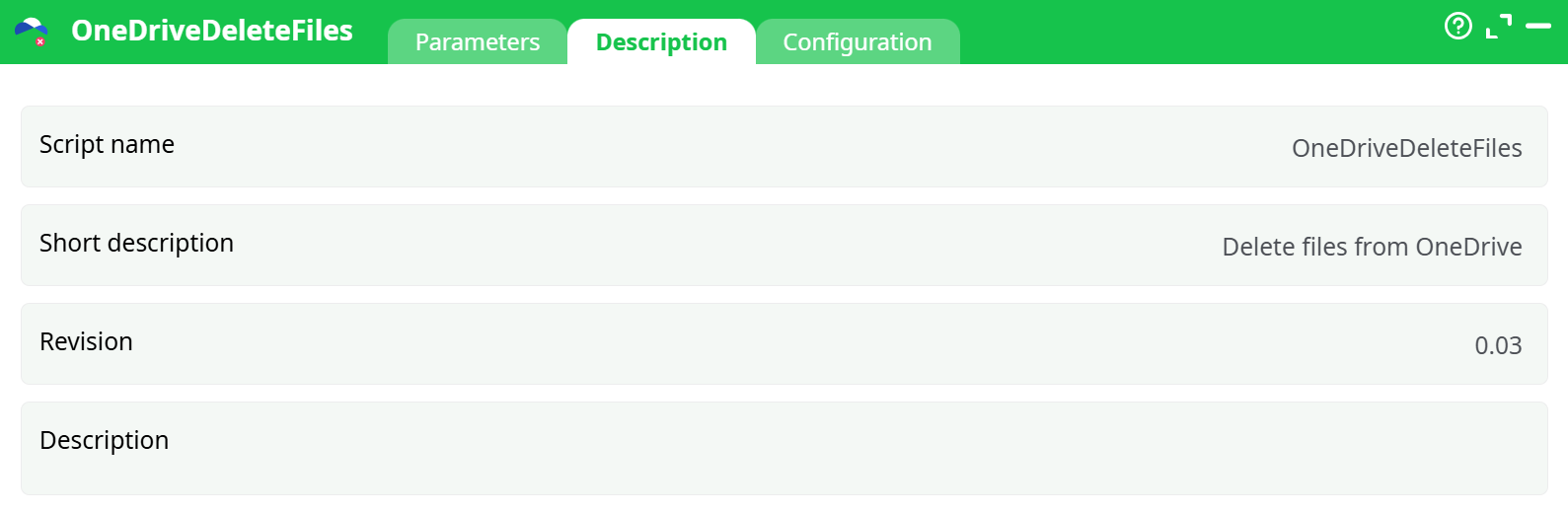
Parameters:
- Script name
- Short description
- Revision
- Decription
¶ Configuration tab
See dedicated page for more information.
¶ About
OneDriveDeleteFiles removes a single item from OneDrive or a SharePoint document library by its File ID (the Graph driveItem.id).
Use it to clean up temporary exports, remove stale reports, or chain after a filter to bulk-delete many items. The action calls Microsoft Graph’s DELETE /drives/{drive-id}/items/{item-id}. By default Microsoft moves items to the drive’s Recycle Bin; permanent purge is outside the scope of this action.
Tip: Pair this with OneDriveListFiles to discover
File IDs and with a filter to decide what to delete.
¶ Prerequisites
You need the same Azure application and permissions used for the upload and list actions:
-
An Azure App Registration (client) with application permissions on Microsoft Graph:
Files.ReadWrite.All(or narrower if your tenant allows it)Sites.ReadWrite.Allif you target SharePoint sites
-
Admin consent granted.
-
Your app’s Application (client) ID.
-
An Azure Unlock Key produced by the Azure Unlock action (uses your client ID, tenant ID and client secret to mint the key).
- For detailed instructions on how to configure the Azure service, see: AzureServiceConfiguration
¶ How it works (at a glance)
-
Upstream, use OneDriveListFiles (optionally with a search prefix) to get the
idcolumn for the items you want to remove. -
Feed each row (or a selected row) into OneDriveDeleteFiles:
File ID to delete= the file’sidvalue.Azure Application (client) ID= your Azure Application (client) ID.Azure Unlock Key= the Azure Unlock Key.
-
The action issues a Graph
DELETEfor that item.
Check the Log tab for a204 No Contentsuccess. The Data/Records tabs remain empty by design.
¶ Typical flows
¶ A. Delete a single known item
- Drop OneDriveDeleteFiles on the canvas.
- Set
File ID to deleteto the item’sid(from a prior List or your logs). - Fill
Azure Application (client) IDandAzure Unlock Key. - Run. Confirm
204in the log.
¶ B. Bulk-delete by rule (e.g., “all .tmp files under /exports”)
- OneDriveListFiles →
prefixFolder=/exports,idSearch=.tmp, recurse on if needed. - (Optional) Filter rows (date, size, owner…).
- OneDriveDeleteFiles consumes each row’s
id. - Set
idErrorManagement=continue with status ERRORso one failure doesn’t stop the batch.
¶ Where do I find the File ID?
- From OneDriveListFiles result table (column
id). - From your upload/list logs if they print
driveItem.id. - The public sharing URL is not the same as
id; always resolve with ListFiles if unsure.
¶ Troubleshooting
-
“Authorization required, but no authorization protocol specified”
The Azure Unlock Key is missing/expired. Re-run Azure Unlock and re-select the fresh key inAzure Unlock Key. -
401 / 403 (Unauthorized / Forbidden)
The app lacks permissions or admin consent. EnsureFiles.ReadWrite.All(andSites.ReadWrite.Allfor SharePoint) application permissions with tenant-wide consent. -
404 (Item not found)
Theidbelongs to another drive (e.g., a different site or user) or is stale. List the exact drive/folder again and pick the currentid. -
429 / 5xx (throttling / transient)
Add retries:Optional: extra parameters for cURL = --retry 5 --retry-delay 2 --retry-all-errorsand keepNumber of retries on connection error> 0. -
Nothing in Data/Records
Expected. This action outputs no rows; the Log is the source of truth.
¶ Security notes
- Prefer least-privileged app permissions. If you only ever touch a single site, restrict the app to that site where tenant policy allows.
- Rotate the client secret regularly and regenerate the Azure Unlock Key afterwards.
- Treat the Unlock Key as sensitive; store it in secrets management and reference it, rather than pasting into many places.