¶ Filenames and paths
In our ETL platform, many actions (for example CSV reader/writer, Excel reader, and other file-based connectors) require you to provide a filename (or a list of filenames) as a parameter.
A filename is always defined using a storage type (where the file lives in the platform) plus a path inside that storage.
¶ File selectors in actions (storage type + path)
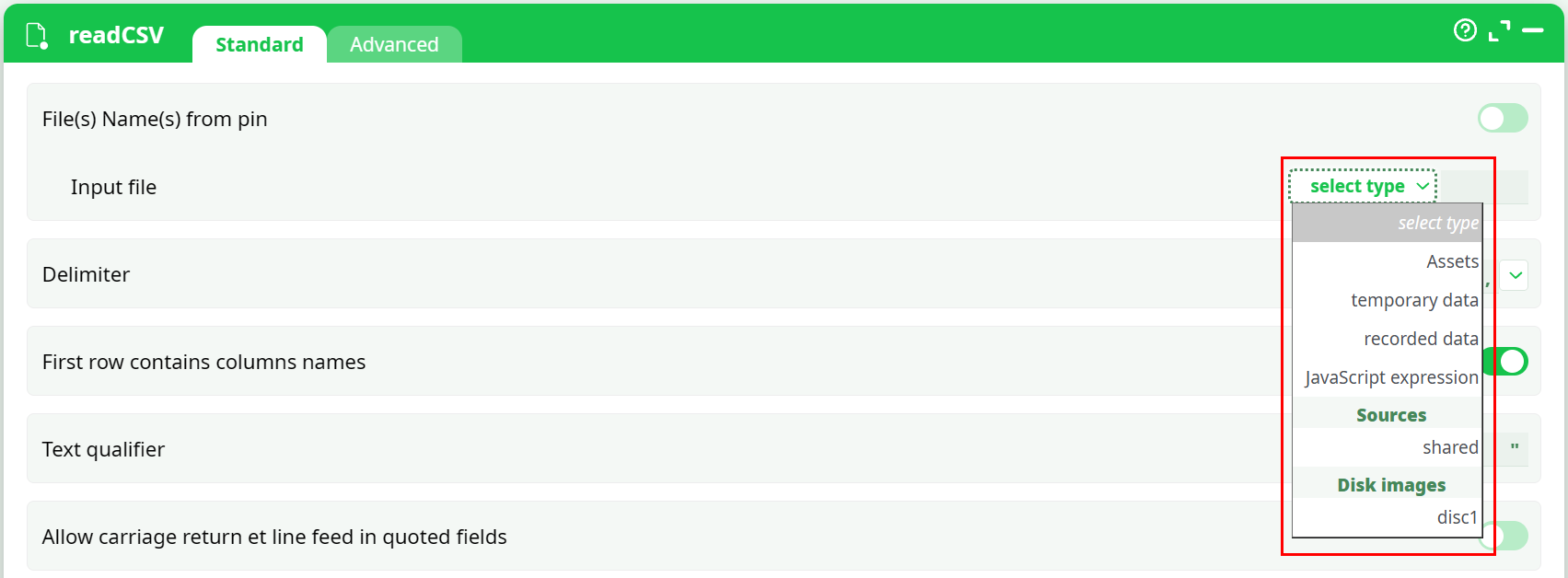
When you click the select type dropdown next to a filename field, you select the storage location first, then you enter the path.
Common storage types you may see (depending on the action and the field):
-
Assets (
%assets%/…)- Static pipeline files (reference data, templates, configuration files).
- Recommended for stable inputs that should remain reusable inside the pipeline.
-
temporary data (
temp/…)- Workspace files used during pipeline execution.
- Best for intermediate results or short-lived exports.
-
recorded data (
records/…)- Files that you want to keep as execution artifacts (final exports, reports, deliverables).
-
Sources (
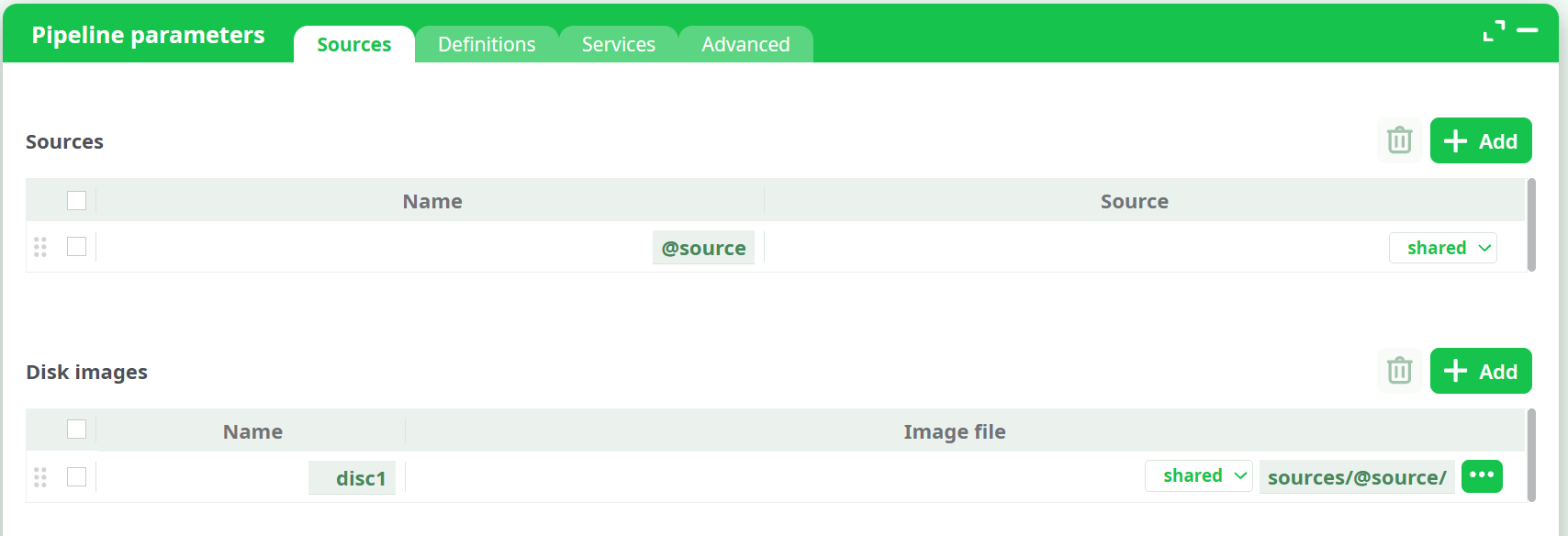
sources/@source/…)- A source is a storage that a pipeline can use to read or write files. Each group has a default shared source, which is available to all group members. Managers can create additional sources and grant access only to specific users. This helps organize files and protect sensitive data by limiting access where needed.
-
Disk images (for example
disc1/…)- Files read from a disk image configured at pipeline level (Pipeline parameters → Sources → Disk images).
¶ Output file paths in writer actions (example: writeCSV)
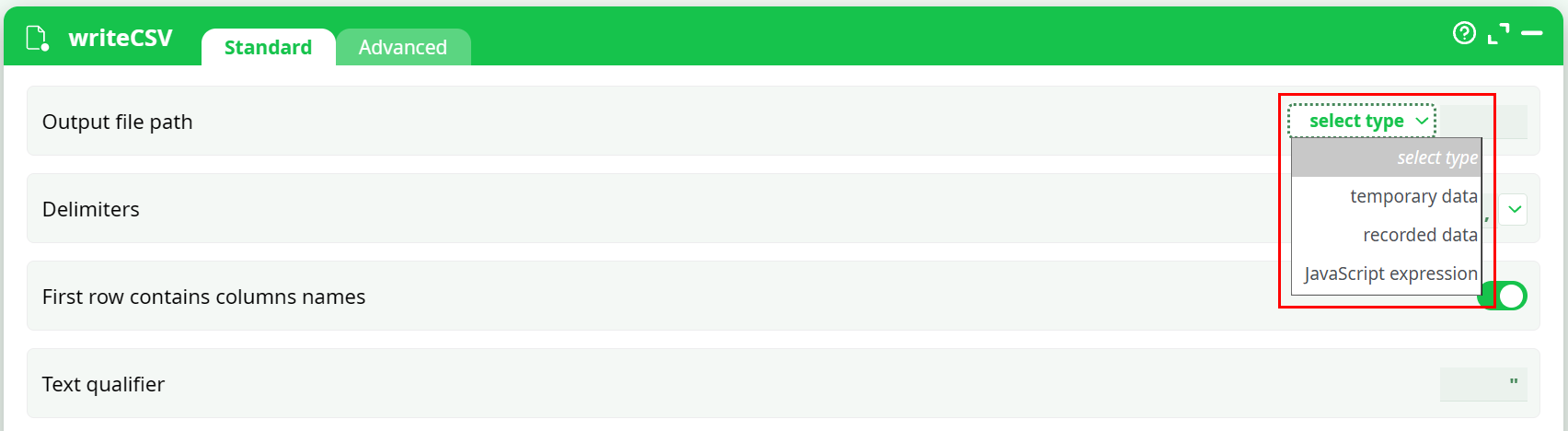
Writer actions usually provide an Output file path field.
In the current UI, this field typically offers a smaller set of storage types:
- temporary data (
temp/…) - recorded data (
records/…) - JavaScript expression (to compute the path at runtime)
Recommendation
- Use recorded data for outputs you want to keep and download after the run.
- Use temporary data for intermediate exports that are only used inside the pipeline.
¶ Where to find exported files after a run
After execution, open the action result panel and go to the Records tab to view the files created in recorded data and download them.
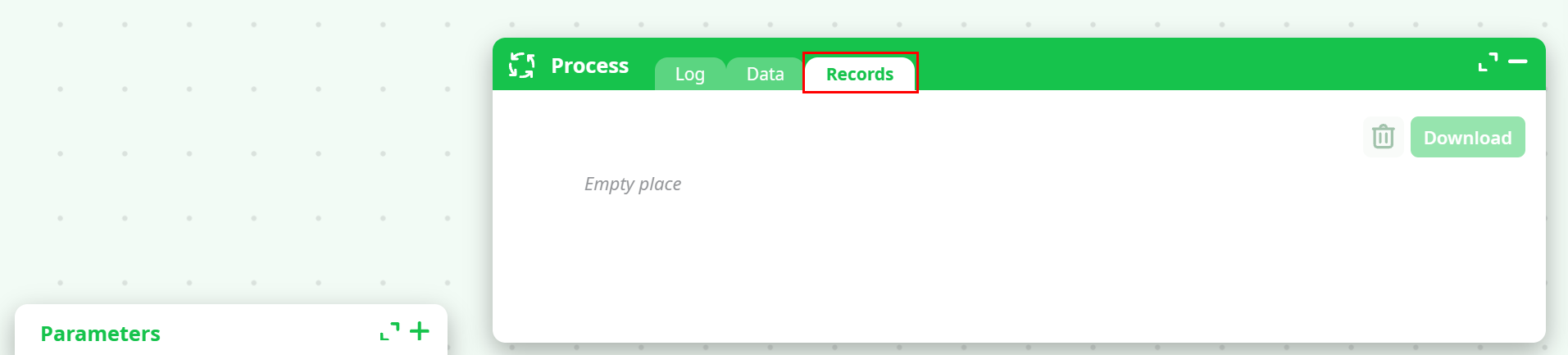
Note: If the writer output is saved to temporary data, it may not appear in the Records tab, because it is intended as workspace storage.
¶ Dynamic paths (JavaScript expression)
If the output path must be computed at runtime (for example using parameters or conditional logic), select JavaScript expression.
The expression must evaluate to a string path.
¶ Data types
In our ETL platform, each column has a data type. Data types matter because they influence:
- how values are interpreted (number vs text vs time)
- how missing/invalid values are handled during conversions
- how reliably downstream actions (joins, filters, calculations, exports) behave
To convert columns between types, use the ChangeDataType action.
¶ Float conversions
Use the Float tab to convert selected columns to numeric values (including decimals).
Settings visible in the Float tab include:
- Columns to convert to Float
- If conversion fails (example option shown: set to NULL)
- Decimals separator (example shown:
. (dot)) - Strict string to number conversion (toggle)
- Convert empty to NULL (toggle)
- Convert N/A to NULL (toggle)
- Convert . (dot) to NULL (toggle)
- Columns where to convert NaN and +/-Infinity to NULL (column selector)
¶ Key conversions
Use the Key tab to convert selected columns to the Key type.
Settings visible in the Key tab include:
- Columns to convert to key
- Strict string to key conversion (toggle)
- Convert empty to NULL (toggle)
- Convert N/A to NULL (toggle)
- Convert . (dot) to NULL (toggle)
- Rules for how to react when conversion fails due to:
- NaN
- negative
- greater than 2^32-3
- not an integer
¶ Elapsed-Time conversions
Use the Elapsed-Time tab to convert selected columns into an Elapsed-Time representation.
Settings visible in the Elapsed-Time tab include:
- Columns to convert to Elapsed-Time
- Dates format
- Reference time
- Elapsed time unit (example shown: hour)
- Output format (example shown: Key)
- Time zone is UTC (toggle)
- Missing-value normalization toggles:
- Convert empty to NULL
- Convert N/A to NULL
- Convert . (dot) to NULL
- Failure handling rules (examples shown: set to NULL) for:
- conversion fails because prior to reference
- conversion fails because not date/time format
¶ String conversions
Use the String tab to convert numeric/time columns back to String.
Settings visible in the String tab include:
- Columns to convert from Float to String
- Convert float to string (format selector, example shown:
%g) - Decimals separator (example shown:
. (dot)) - Columns to convert from Elapsed-Time to String
- Dates format
- Reference time
- Elapsed time unit
- Time zone is UTC (toggle)
¶ Standardizing missing values (important)
Across multiple tabs, the platform provides dedicated switches to normalize common “missing value” patterns:
- Convert empty to NULL
- Convert N/A to NULL
- Convert . (dot) to NULL
Using these toggles consistently helps you avoid confusing cases where missing values appear in different forms across datasets.
¶ Practical workflow
-
Convert and normalize early, right after reading data.
-
Decide upfront whether invalid values should:
- stop the pipeline (abort), or
- be transformed into missing values (set to NULL), or
- follow another defined rule (when available).
-
After running, validate:
- the converted columns contain expected values
- missing values are represented consistently (NULL where intended)
- downstream actions (joins/filters/calculations) behave as expected
¶ Date formats
In ETL, many actions use a Dates format parameter to interpret date/time values correctly.
This topic explains how date formats work inside the platform.
A date format can be provided in two ways:
- by selecting a predefined format from a dropdown list
- by typing a custom format pattern manually
This same format logic is used in date-related fields across the platform, including fields such as Dates format in actions like ChangeDataType, sort, TransformDates, valueBackInTime, and customerAggregate.
¶ Using predefined date formats
In many actions, the Dates format field provides a dropdown with ready-to-use formats.
Examples visible in the platform include:
| Predefined format | Example value |
|---|---|
dd/MM/yyyy |
03/12/2025 |
dd-MM-yyyy |
03-12-2025 |
dd/MM/yy |
03/12/25 |
dd-MM-yy |
03-12-25 |
yyyy-MM-jj |
2025-12-03 |
dddd d MMMM yyyy |
Monday 3 December 2025 |
d MMMM yyyy |
3 December 2025 |
d MMM yy |
3 Dec 25 |
mm.ss |
05.09 |
HH:mm:ss |
14:05:09 |
dd/MM/yyyy HH:mm:ss |
03/12/2025 14:05:09 |
dddd d MMMM yyyy HH:mm:ss |
Monday 3 December 2025 14:05:09 |
d MMMM yyyy HH:mm:ss |
3 December 2025 14:05:09 |
d MMM yy HH:mm:ss |
3 Dec 25 14:05:09 |
dd/MM/yyyy h:m:ss A |
03/12/2025 2:5:09 PM |
Use these predefined options when your source data already matches one of the standard patterns shown in the dropdown.
¶ Using custom date formats
If the source date does not match one of the predefined formats, you can type a custom format pattern manually.
A custom format is built from tokens. Each token tells the platform how to read one part of the date or time.
You can combine tokens with separators such as:
/-.:- spaces
Examples of custom formats:
| Custom format | Example value |
|---|---|
dd/MM/yyyy |
03/12/2025 |
yyyy-MM-dd |
2025-12-03 |
d.M.yy |
3.12.25 |
dd/MM/yyyy HH:mm:ss |
03/12/2025 14:05:09 |
d MMMM yyyy h:m:ss A |
3 December 2025 2:5:09 PM |
¶ Date tokens
Use these tokens for the date part of the format:
| Token | Meaning | Example |
|---|---|---|
d |
Day as a number without a leading zero | 3 |
dd |
Day as a number with a leading zero | 03 |
ddd |
Abbreviated localized day name | Mon |
dddd |
Full localized day name | Monday |
M |
Month as a number without a leading zero | 7 |
MM |
Month as a number with a leading zero | 07 |
MMM |
Abbreviated localized month name | Jan |
MMMM |
Full localized month name | January |
yy |
Year as two digits | 25 |
yyyy |
Year as four digits | 2025 |
¶ Time tokens
Use these tokens for the time part of the format:
| Token | Meaning | Example |
|---|---|---|
h |
Hour without a leading zero | 2 |
hh |
Hour with a leading zero | 02 |
H |
Hour without a leading zero in 24-hour style | 14 |
HH |
Hour with a leading zero in 24-hour style | 14 |
m |
Minute without a leading zero | 5 |
mm |
Minute with a leading zero | 05 |
s |
Second without a leading zero | 9 |
ss |
Second with a leading zero | 09 |
z |
Milliseconds without leading zeroes | 7 |
zzz |
Milliseconds with leading zeroes | 007 |
AP or A |
AM/PM marker in uppercase | AM, PM |
ap or a |
AM/PM marker in lowercase | am, pm |
¶ Localized day and month names
When using textual day or month tokens such as ddd, dddd, MMM, and MMMM, the day/month names must match the language expected by the platform.
| Token type | Example values |
|---|---|
| Abbreviated day | Mon, Tue |
| Full day | Monday, Tuesday |
| Abbreviated month | Jan, Feb |
| Full month | January, February |
¶ Greedy tokens (important)
Tokens without leading zero are greedy:
dMhmsz
This means the platform will consume as many digits as possible for that token.
Because of that, formats using non-padded tokens must match the source carefully.
| Source value | Format | Result |
|---|---|---|
131 |
HHh |
Interpreted as 13:00:00 |
130 |
Mm |
May be invalid because non-padded tokens can consume digits unexpectedly |
For predictable parsing, prefer padded tokens (dd, MM, HH, mm, ss) when possible.
¶ Practical examples
¶ Date only
| Source value | Format |
|---|---|
03/12/2025 |
dd/MM/yyyy |
3-12-25 |
d-M-yy |
Monday 3 December 2025 |
dddd d MMMM yyyy |
¶ Time only
| Source value | Format |
|---|---|
14:05:09 |
HH:mm:ss |
2:5:9 PM |
h:m:s A |
¶ Date and time
| Source value | Format |
|---|---|
03/12/2025 14:05:09 |
dd/MM/yyyy HH:mm:ss |
3 Dec 25 2:5:9 PM |
d MMM yy h:m:s A |
¶ Best practices
| Recommendation | Why it helps |
|---|---|
| Prefer a predefined dropdown format when available | Reduces configuration mistakes |
| Use a custom format for non-standard source values | Gives flexibility for unusual date strings |
Prefer padded tokens like dd, MM, HH, mm, ss |
Makes parsing more predictable |
| Use textual tokens only when the source really contains names | Avoids parsing mismatches |
| Include both date and time tokens when both are present | Ensures the full value is interpreted correctly |
| Match separators and spaces exactly | Date parsing depends on the exact pattern |